How to Turn On or Off Driver Updates with Windows Update in Windows 11

Windows 11 automatically updates your drivers when it updates your system. Drivers are small programs that let your computer talk to devices like printers, graphics cards, and keyboards.
Sometimes you might want to stop Windows from updating drivers on its own. This guide will show you easy ways to turn this feature on or off.
What Are Driver Updates?
Drivers help your computer communicate with hardware devices. Windows Update often includes new drivers to keep your devices running smoothly.
Learn more about driver updates from Microsoft Support
Before You Start
- You need administrator access on your PC to make these changes. ⚑
- Even if you turn off driver updates, some drivers might still update automatically.
Option 1: Use Local Group Policy Editor (Windows 11 Pro/Enterprise/Education)
This tool is not available on Windows 11 Home edition.
- Press Win + R to open the Run box.
- Type
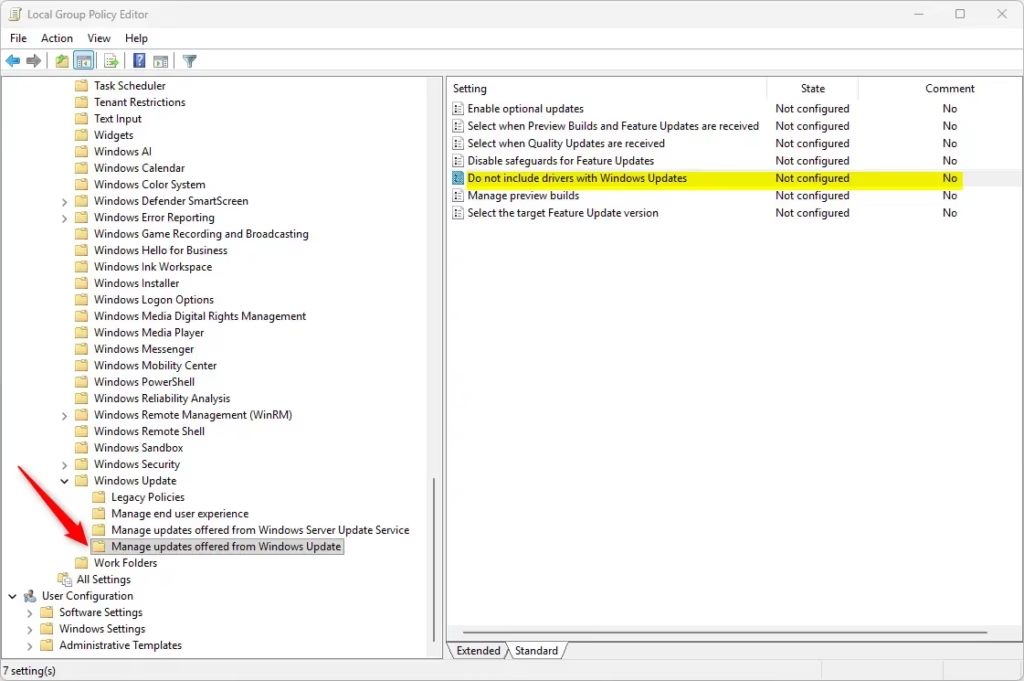
gpedit.mscand press Enter to open the Local Group Policy Editor. - In the left panel, go to: Computer Configuration > Administrative Templates > Windows Components > Windows Update > Manage updates offered from Windows Updates
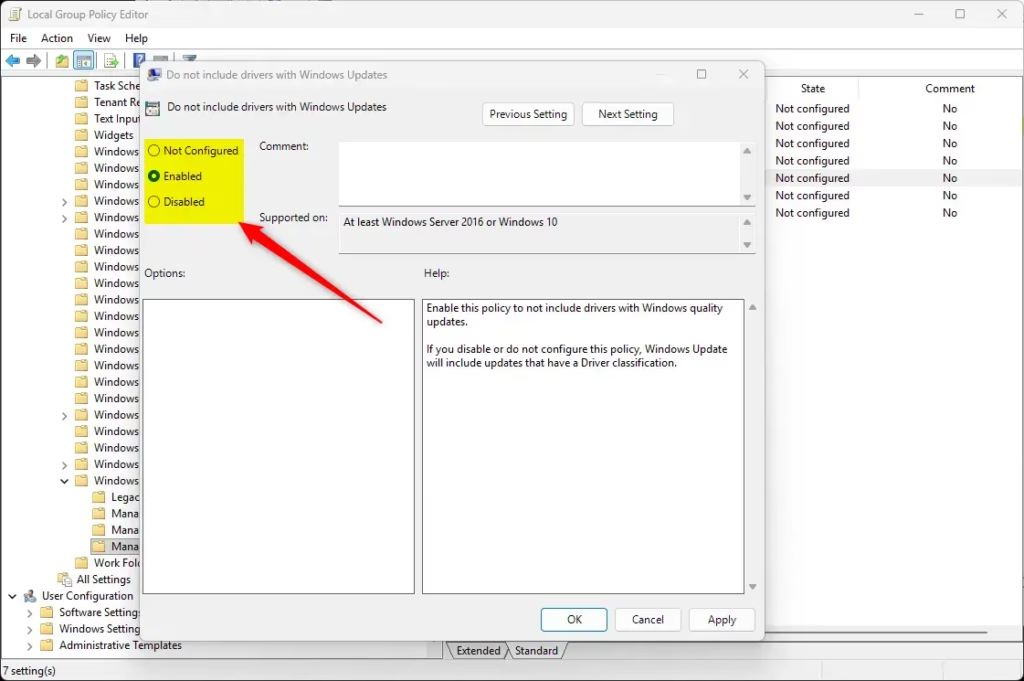
- On the right, find and double-click Do not include drivers with Windows Updates.
- To enable driver updates (default): Select Not Configured or Disabled, then click OK.
- To disable driver updates: Select Enabled, then click OK.
- Close the Local Group Policy Editor.
Option 2: Use Registry Editor (Works on All Windows 11 Editions)
This method is more detailed but works on Windows 11 Home too.
Important: Editing the registry can be risky. Please back up your registry before making changes. Learn how to back up your registry
To Turn ON Driver Updates (Default)
Copy and paste this command into Command Prompt as administrator: ⚑
reg delete "HKEY_LOCAL_MACHINE\SOFTWARE\Policies\Microsoft\Windows\WindowsUpdate" /v ExcludeWUDriversInQualityUpdate /f & reg add "HKEY_LOCAL_MACHINE\SOFTWARE\Microsoft\Windows\CurrentVersion\DriverSearching" /v SearchOrderConfig /t REG_DWORD /d 1 /f & reg add "HKEY_LOCAL_MACHINE\SOFTWARE\Microsoft\WindowsUpdate\UpdatePolicy\PolicyState" /v ExcludeWUDrivers /t REG_DWORD /d 0 /fTo Turn OFF Driver Updates
Copy and paste this command into Command Prompt as administrator: ⚑
reg add "HKEY_LOCAL_MACHINE\SOFTWARE\Policies\Microsoft\Windows\WindowsUpdate" /v ExcludeWUDriversInQualityUpdate /t REG_DWORD /d 1 /f & reg add "HKEY_LOCAL_MACHINE\SOFTWARE\Microsoft\Windows\CurrentVersion\DriverSearching" /v SearchOrderConfig /t REG_DWORD /d 3 /f & reg add "HKEY_LOCAL_MACHINE\SOFTWARE\Microsoft\WindowsUpdate\UpdatePolicy\PolicyState" /v ExcludeWUDrivers /t REG_DWORD /d 1 /fHow to Edit the Registry Manually
- Press Win + R, type
regedit, and press Enter. ⚑ - Navigate to the registry paths shown in the code above using the left sidebar.
- Change or create the values as shown. To create a new value, right-click in the right pane, choose New, then DWORD (32-bit) Value.
- Double-click the value to change its number.
- Close Registry Editor and restart your computer for the changes to work.
Summary
- Windows 11 automatically updates drivers with Windows Updates by default to keep your devices working well.
- You can turn off automatic driver updates using Group Policy Editor or Registry Editor.
- Group Policy Editor is easier to use but only works on certain Windows editions.
- Registry Editor works on all editions but requires careful handling.
- Administrator permission is required to make these changes.
- Turning off driver updates doesn’t always stop all driver updates completely.
- Use these steps if you want more control over driver updates on your Windows 11 PC.
Was this guide helpful?





Leave a Reply Cancel reply