How to Enable or Disable DEP in Windows 11

You enable or disable Data Execution Prevention (DEP) in Windows 11 to control a crucial security feature that protects your PC from malicious software.
DEP prevents harmful code from running in protected memory locations on your system. It acts like a security guard, ensuring only legitimate programs can execute code, thus safeguarding against malware.
For instance, DEP is vital for stopping exploits that try to run malicious code from unexpected memory areas, a common attack vector for viruses and trojans. You can manage DEP settings for essential system files or for specific applications.
To enable or disable DEP in Windows 11, open Windows Security, go to App & browser control, then Exploit protection settings. Under the System settings tab, find Data Execution Prevention and choose your desired setting from the dropdown menu. It’s recommended to keep DEP on by default for security.
How to Turn DEP On or Off in 🪟 Windows 11
You can easily turn DEP on or off in Windows 11 through the Windows Security app to protect your computer from harmful programs.
- Open the Windows Security App
Click on the Start menu button (the Windows icon on the bottom-left of your screen). In the search box, type Windows Security and click on the Windows Security app that appears. windows security app search on start menu - Go to App & Browser Control
In the Windows Security app, look at the left side menu and click on App & browser control. 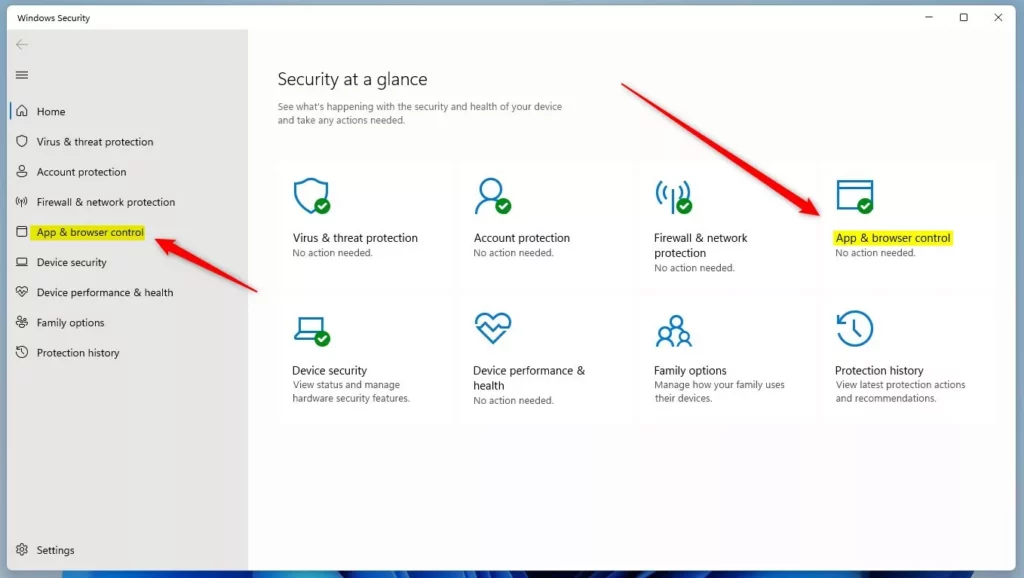
windows 11 app and browser control section windows security app - Open Exploit Protection Settings
Scroll down until you see Exploit protection. Click on the link that says Exploit protection settings. 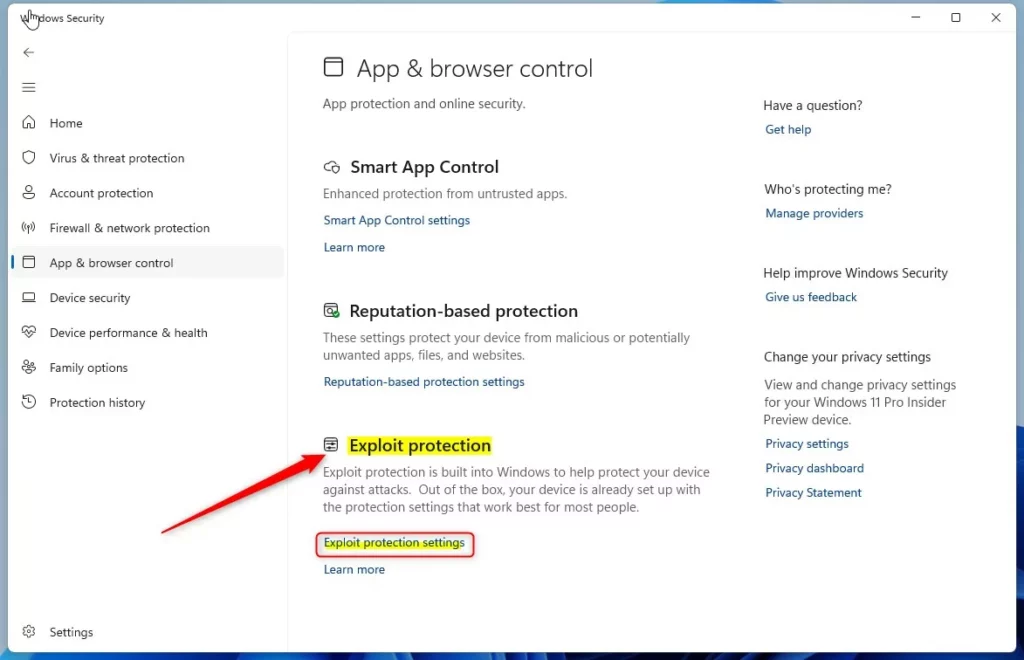
Windows Exploit protection settings - Find Data Execution Prevention (DEP)
In the new window, click on the System settings tab at the top. Here, you will see the option for Data Execution Prevention. - Choose Your DEP Setting
Click the dropdown menu next to Data Execution Prevention and pick one of these options:- On by default – DEP is turned on (recommended)
- Off by default – DEP is turned off
- Use default (On) – Uses the system’s default setting, which is usually on
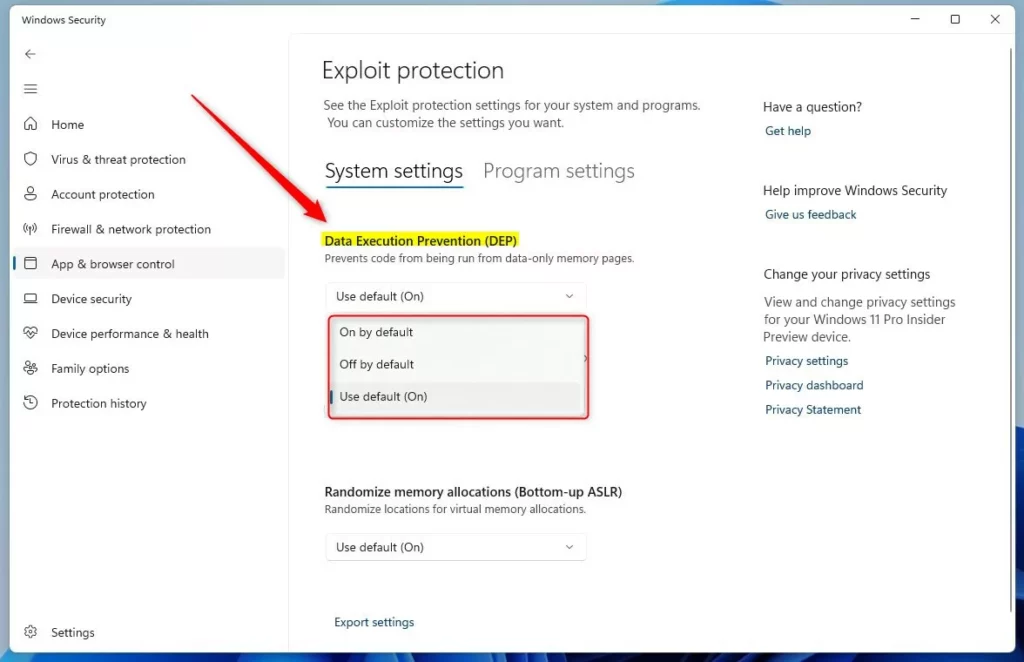
Windows Exploit protection settings options
After you choose your preferred setting, just close the Windows Security app.
Why Does DEP Matter?
DEP matters because it acts like a security guard for your computer, stopping bad software from running in key memory areas and keeping your PC safe.
Usually, you want DEP turned on to protect your PC.
If you have special software that doesn’t work well with DEP, you might need to turn it off temporarily.
For more details about DEP, you can visit the official Microsoft support page: What is Data Execution Prevention (DEP)?
Summary
DEP in Windows 11 is a security feature that stops harmful software from running in specific memory areas, protecting your PC from threats.
It’s usually on by default and helps keep your PC safe.
You can easily check or change DEP settings using the Windows Security app.
Keep DEP on unless you have a special reason to turn it off.
What is DEP on 🪟 Windows 11?
Data Execution Prevention (DEP) is a set of hardware and software technologies that perform additional checks on memory to help protect against malicious code exploits.
Should I turn on DEP for all programs?
DEP automatically monitors essential Windows programs and services, so you shouldn't turn it off. However, there are scenarios where you might need to disable DEP, such as compatibility issues with older 32-bit applications. You can increase your protection by having DEP monitor all programs.
How to change DEP settings in 🪟 Windows 11?
In left hand click on app and browser control. Now I scroll down under exploit protection you will find exploit protection settings click on it. And here you will find data execution prevention. And
Was this guide helpful?

About the Author
Richard
Tech Writer, IT Professional
Richard, a writer for Geek Rewind, is a tech enthusiast who loves breaking down complex IT topics into simple, easy-to-understand ideas. With years of hands-on experience in system administration and enterprise IT operations, he’s developed a knack for offering practical tips and solutions. Richard aims to make technology more accessible and actionable. He's deeply committed to the Geek Rewind community, always ready to answer questions and engage in discussions.




No comments yet — be the first to share your thoughts!