
Data Execution Prevention (DEP) is a security feature in Windows 11 that helps keep your computer safe from harmful software. It works by protecting certain parts of your computer’s memory so that bad programs can’t run there.
Think of DEP like a guard that prevents suspicious programs from running in places where only safe data should be.
How to Turn DEP On or Off in Windows 11
DEP is usually turned on by default, which is good for your computer’s safety. But if you need to check or change this setting, follow these simple steps:
Step 1: Open the Windows Security App
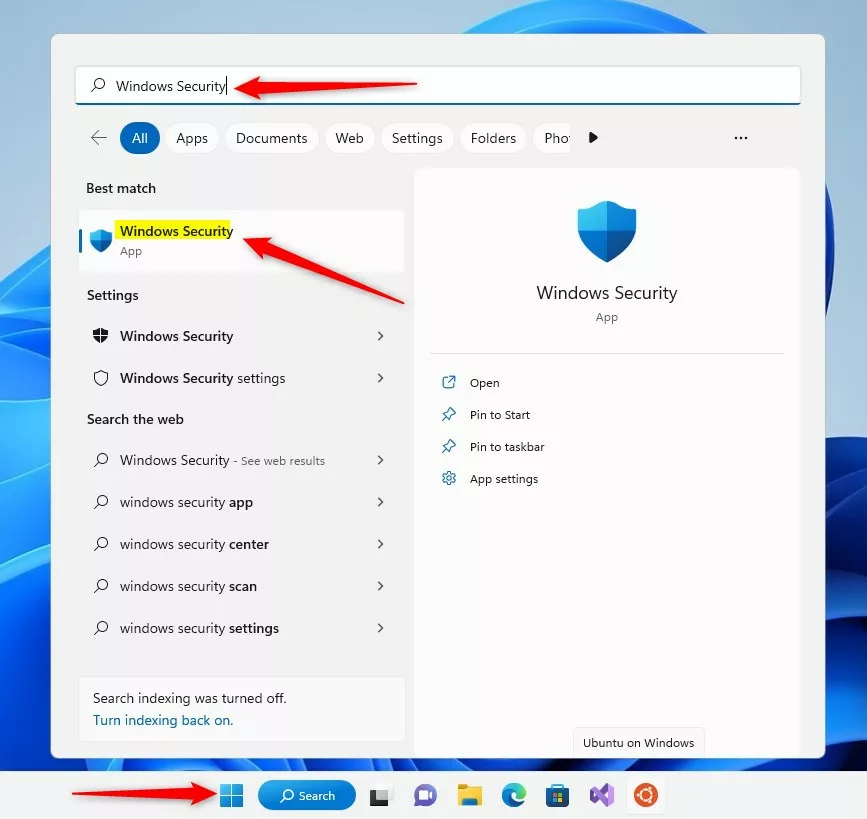
Click on the Start menu button (the Windows icon on the bottom-left of your screen). In the search box, type Windows Security and click on the Windows Security app that appears.
Step 2: Go to App & Browser Control
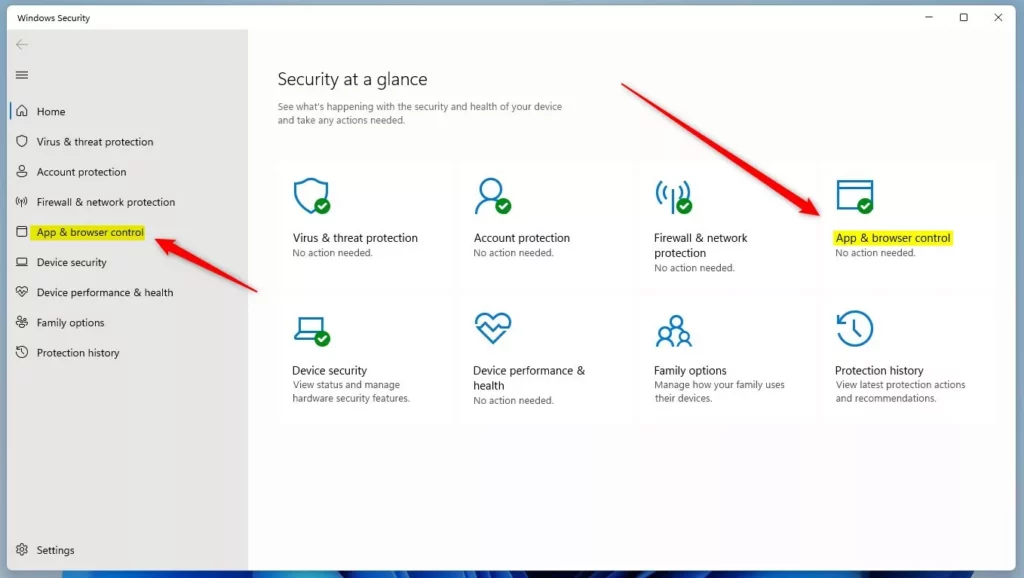
In the Windows Security app, look at the left side menu and click on App & browser control.
Step 3: Open Exploit Protection Settings
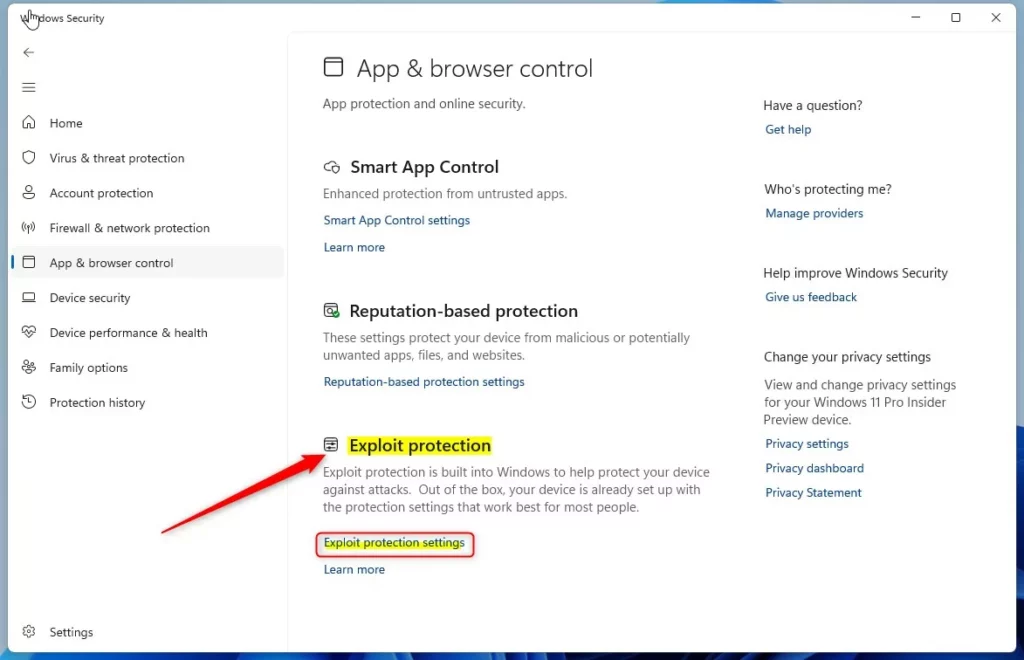
Scroll down until you see Exploit protection. Click on the link that says Exploit protection settings.
Step 4: Find Data Execution Prevention (DEP)
In the new window, click on the System settings tab at the top. Here, you will see the option for Data Execution Prevention.
Step 5: Choose Your DEP Setting
Click the dropdown menu next to Data Execution Prevention and pick one of these options:
- On by default – DEP is turned on (recommended)
- Off by default – DEP is turned off
- Use default (On) – Uses the system’s default setting, which is usually on
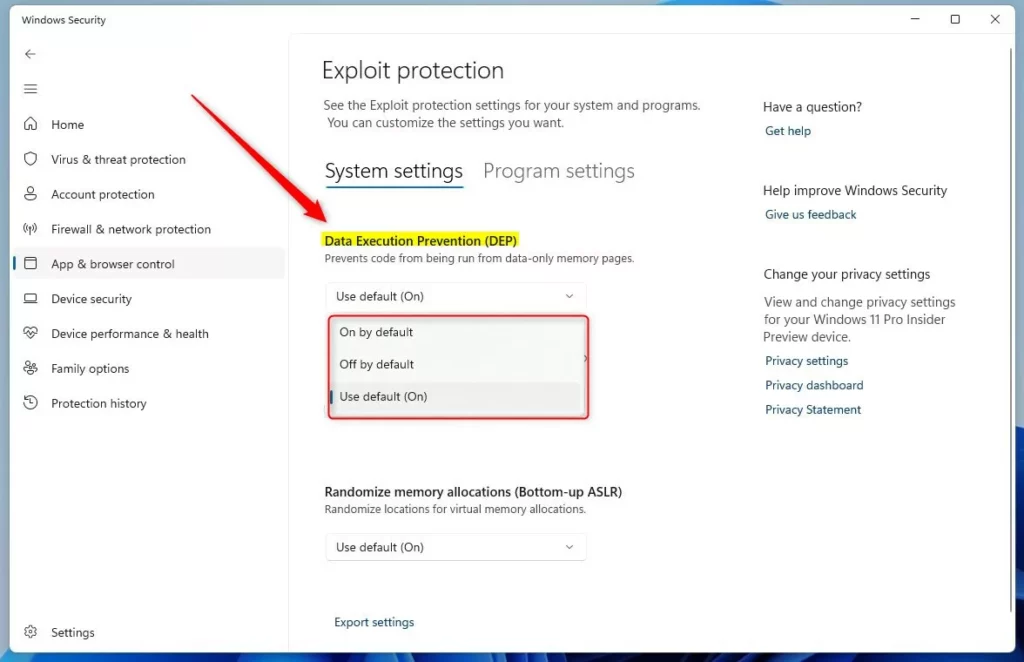
After you choose your preferred setting, just close the Windows Security app.
Why Does DEP Matter?
- DEP helps keep your computer safe by stopping harmful programs from running in important parts of your memory.
- Usually, you want DEP turned on to protect your PC.
- If you have special software that doesn’t work well with DEP, you might need to turn it off temporarily.
For more details about DEP, you can visit the official Microsoft support page: What is Data Execution Prevention (DEP)?
Summary
- DEP is a built-in Windows 11 feature that protects your computer from bad software by blocking code from running in certain memory areas.
- It’s usually on by default and helps keep your PC safe.
- You can easily check or change DEP settings using the Windows Security app.
- Keep DEP on unless you have a special reason to turn it off.



Leave a Reply