
The taskbar is the bar at the bottom of your screen. It shows your open apps, the Start menu, and other tools in Windows 11.
Want more screen space? You can make the taskbar hide automatically when you’re not using it. It will pop back up when you move your mouse to the bottom of the screen or use a shortcut.
What Does Auto-Hide Do?
When turned on, the taskbar hides itself until you need it.
You can see it again by moving your mouse to the bottom of your screen. You can also press Win + T on your keyboard. Or you can swipe up from the bottom if you have a touchscreen.
Note: If you’re using a tablet or 2-in-1 device in tablet mode, the taskbar might always hide automatically. This happens even if you turn this setting off.
How to Turn Auto-Hide On or Off Using Settings
Why do this? This is the easiest way for most people to change the taskbar setting.
What happens? Your taskbar will hide or show based on your choice.
- Open Settings by pressing Win + I on your keyboard.
- Click Personalization on the left side.
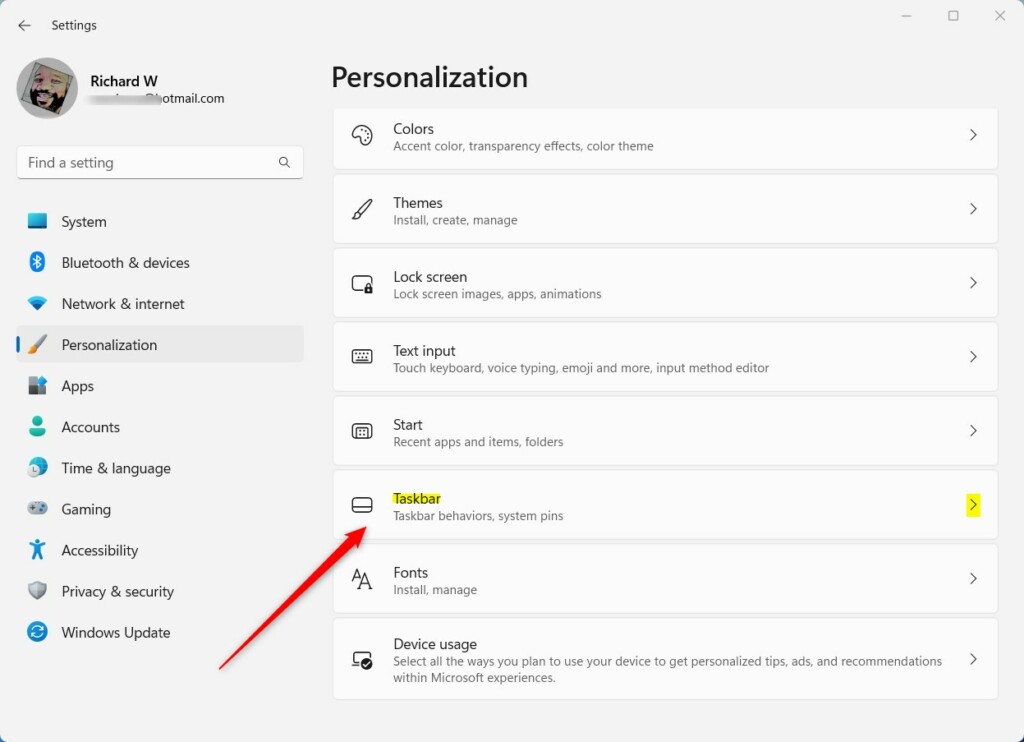
- Click Taskbar on the right side.
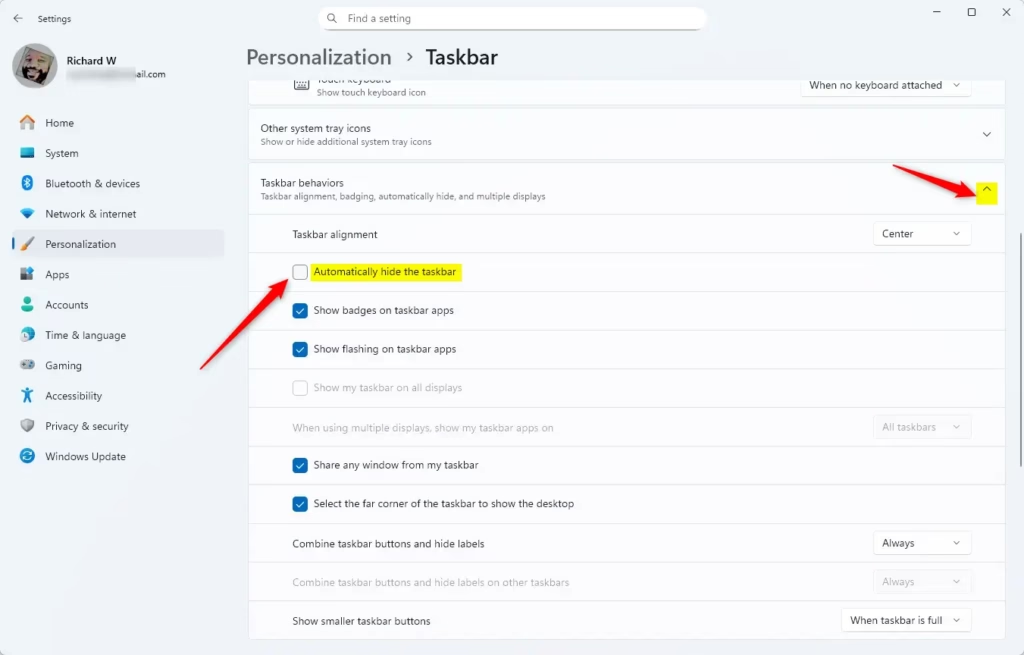
- Scroll down and click the arrow next to Taskbar behaviors to open more options.
- Find Automatically hide the taskbar and check the box to turn it on. Uncheck it to turn it off.
- Close Settings. The changes will apply right away.
Here’s what it looks like:
How to Turn Auto-Hide On or Off Using Command Prompt
Why do this? This method is faster if you like using commands.
What happens? The command will change the setting and refresh your taskbar automatically.
- 🔒 Admin Required — Right-click the Start button and select Windows Terminal (Admin). Then choose Command Prompt from the dropdown.
- To turn on auto-hide, copy and paste this command and press Enter:
powershell -command "&{$p='HKCU:\SOFTWARE\Microsoft\Windows\CurrentVersion\Explorer\StuckRects3';$v=(Get-ItemProperty -Path $p).Settings;$v[8]=3;&Set-ItemProperty -Path $p -Name Settings -Value $v;&Stop-Process -f -ProcessName explorer}" - To turn off auto-hide (default), copy and paste this command and press Enter:
powershell -command "&{$p='HKCU:\SOFTWARE\Microsoft\Windows\CurrentVersion\Explorer\StuckRects3';$v=(Get-ItemProperty -Path $p).Settings;$v[8]=2;&Set-ItemProperty -Path $p -Name Settings -Value $v;&Stop-Process -f -ProcessName explorer}" - Your taskbar will refresh automatically after running the command.
- Close the Windows Terminal window.
Summary
The taskbar can hide itself automatically to give you more screen space. You have two ways to turn this feature on or off: using the Settings app or using commands in Windows Terminal.
When the taskbar is hidden, move your mouse to the bottom of the screen to see it. You can also use the Win + T keyboard shortcut. On a touchscreen, swipe up from the bottom.
Keep in mind that tablet mode and certain touch settings may change how auto-hide works.
Once you make your choice, you’re done! Windows 11 will now work just how you like it.



Leave a Reply