
Your computer has special sound settings called audio enhancements. These can make your audio sound better. But sometimes they cause problems. Your sound might be unclear or your microphone might not work right. The good news? You can turn these enhancements on or off in Windows 11. It’s easy.
What Are Audio Enhancements?
Audio enhancements are features built into Windows. They try to improve how your speakers, headphones, or microphone sound. Different devices have different options. Some make sound clearer. Some make it louder.
Why would you turn them off? If your sound acts strange, audio enhancements might be the cause. Your microphone might pick up nothing. You might hear weird noises. Turning off enhancements often fixes these problems.
How to Turn Audio Enhancements On or Off
Step 1: Open Settings
Press Windows key + I on your keyboard. Or click the Start button and select Settings.
Step 2: Go to Sound Settings
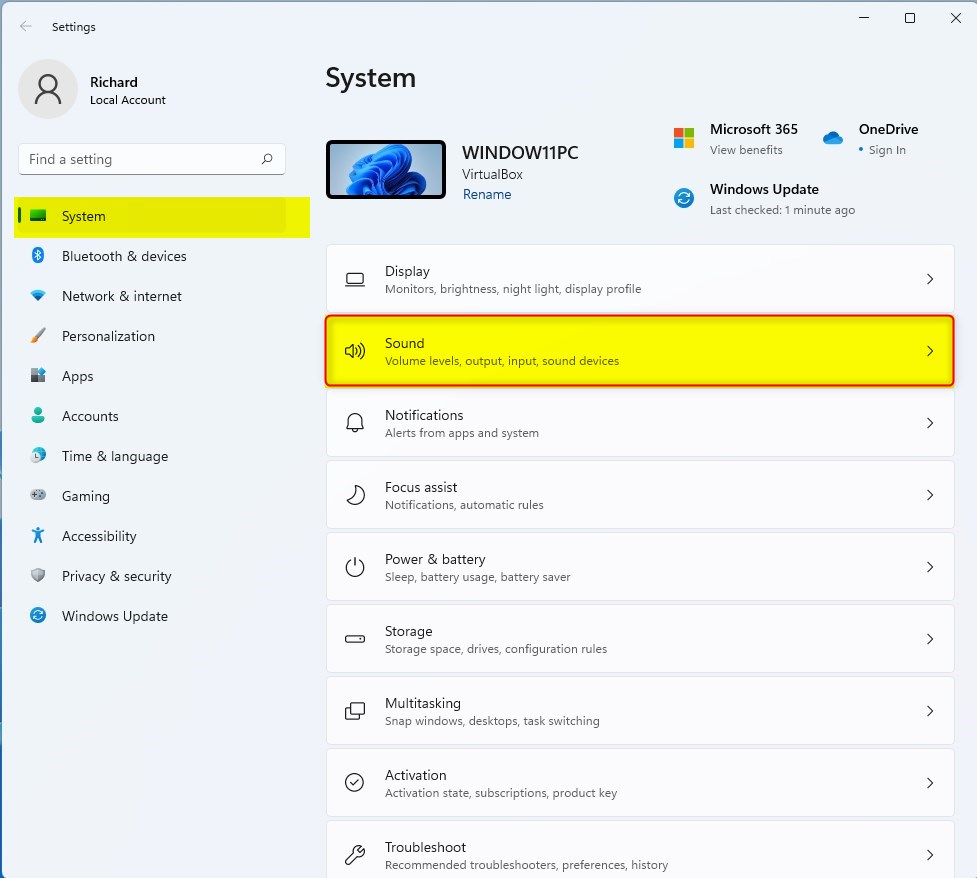
In the Settings window, click System on the left side. Then click Sound on the right.
Step 3: Find Your Audio Device
Scroll down. Look for Advanced section. Click All sound devices.
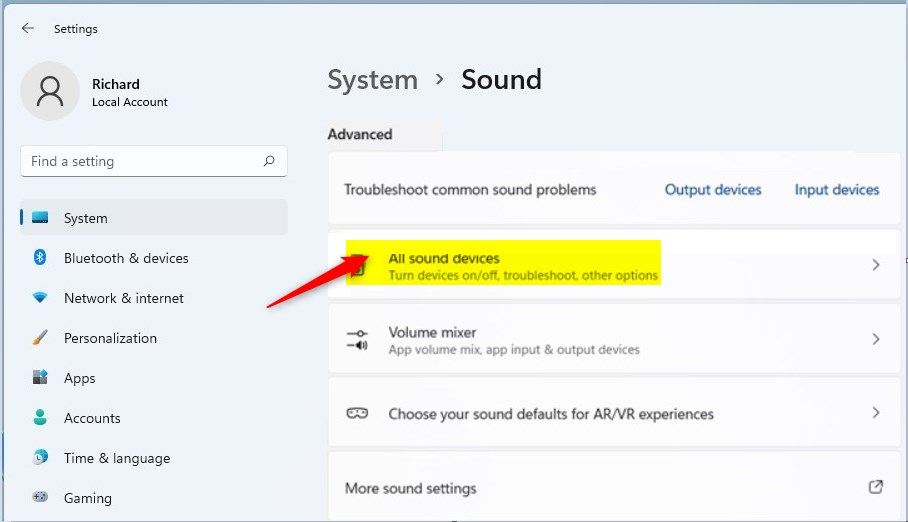
Pick the device you want to change. It might be your speakers. It might be your microphone.
Step 4: Turn Audio Enhancements On or Off
In your device’s settings, click Audio Enhancements. You’ll see an option called Device Default Effects. This is usually on.
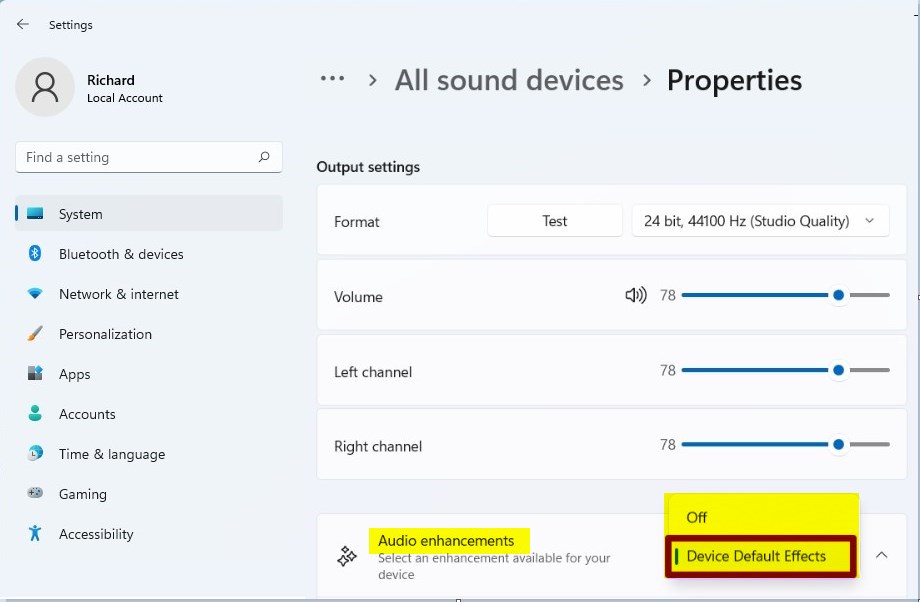
Choose Off to turn off audio enhancements. Leave it on to keep improvements to your sound.
Step 5: Close Settings
Close the Settings window. Your changes save automatically.
Summary
- Audio enhancements can improve sound quality on your device.
- Sometimes they cause sound problems instead of fixing them.
- You can turn these features on or off anytime in Windows 11 Settings.
- This simple change helps if your microphone or speakers aren’t working right.
- Changes save automatically when you close Settings.
Need more help? Check out this guide for extra tips on turning on enhanced audio in Windows 11.



Leave a Reply