How to Enable Always Verify Autofill in Microsoft Edge

You enable “Always verify when using autofill” in Microsoft Edge to add an extra security step when filling credit card details.
This setting requires you to re-authenticate your identity each time the browser attempts to automatically enter your saved payment information, preventing unauthorized use.
Microsoft Edge, the default browser for Windows 11, offers autofill for addresses and credit cards to speed up online transactions.
When “Always verify” is active, you’ll be prompted for your password or other verification methods before your card details are used, adding a crucial layer of protection.
Enable or disable “Always verify when using autofill” in Edge
As mentioned above, the always verify feature in Ege adds an extra layer of security to protect your personal information.
Here’s how to enable or disable it.
First, open the Microsoft Edge browser.
Then click on Setting and more (Alt+F) three dots (…) in the upper right-hand corner to access the Settings menu.
On the Settings page on the left panel, click the Profile button. On the right, select the “Open Wallet” tile.

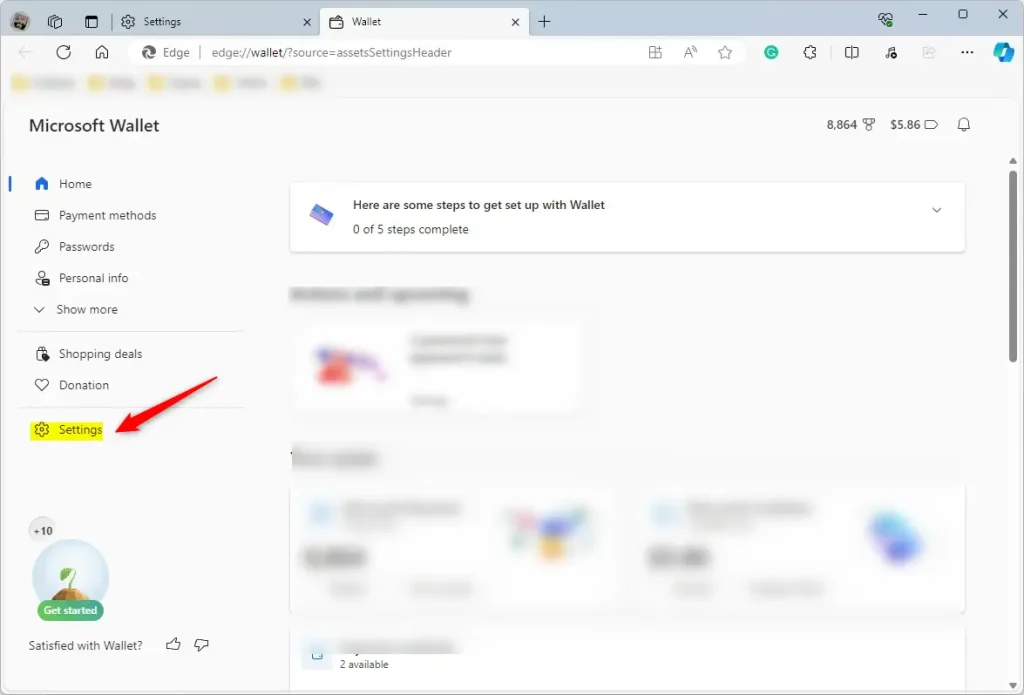
On the Wallet page, click the Settings button at the bottom left.
You can get it directly by typing the URL in the address box below.
edge://wallet/settings
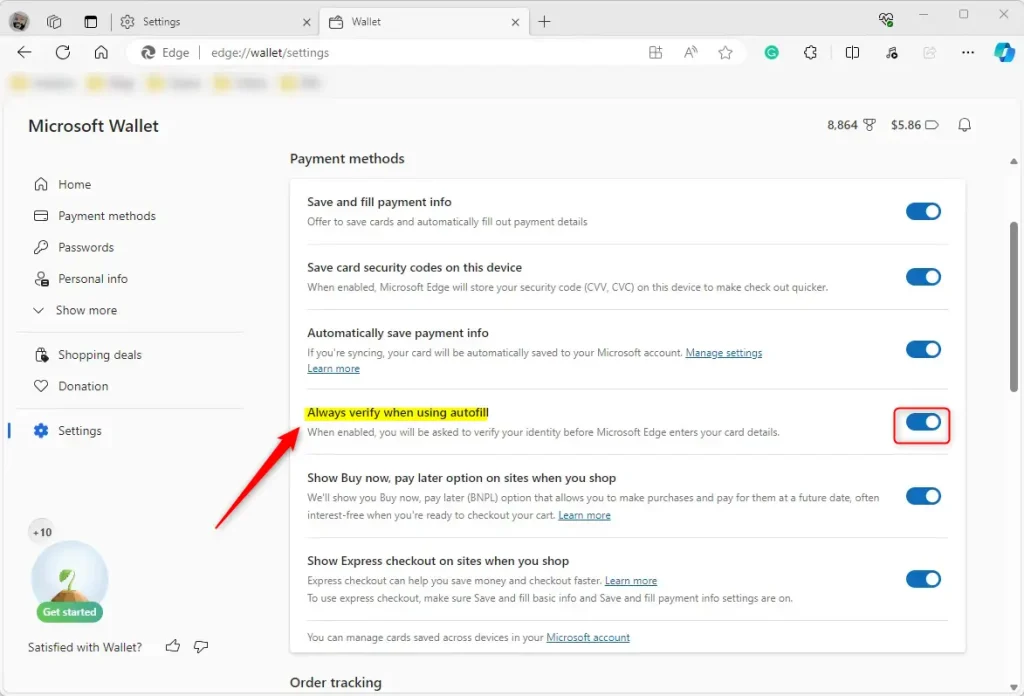
Next, select the “Always verify when using autofill” tile under “Payment methods.” Then, toggle the button switch to the On position to enable it.
To disable it, toggle the switch button to the Off position.
That should do it!
Conclusion:
- The article effectively outlines the steps to enable or disable the “Always verify when using autofill” feature in the Microsoft Edge browser.
- Including visual aids, such as screenshots, enhances the user experience and facilitates a seamless navigation of the settings menu.
- The option to leave comments allows for user feedback, ensuring continuous improvement and accuracy of the provided information.
Frequently Asked Questions
How do I enable autofill verification in Microsoft Edge?
What does the 'Always verify when using autofill' feature do?
Can I disable the autofill verification in Microsoft Edge?
Is the autofill verification feature in Edge necessary?
How can I access the Wallet settings in Microsoft Edge?
Was this guide helpful?

About the Author
Richard
Tech Writer, IT Professional
Richard, a writer for Geek Rewind, is a tech enthusiast who loves breaking down complex IT topics into simple, easy-to-understand ideas. With years of hands-on experience in system administration and enterprise IT operations, he’s developed a knack for offering practical tips and solutions. Richard aims to make technology more accessible and actionable. He's deeply committed to the Geek Rewind community, always ready to answer questions and engage in discussions.



No comments yet — be the first to share your thoughts!