How to Enable or Disable Airplane Mode on Windows 11

You enable or disable Airplane Mode on Windows 11 through the Quick Settings panel, quickly turning off all wireless communications like Wi-Fi and Bluetooth.
This feature is crucial for air travel, ensuring no interference with aircraft systems. Airplane Mode also helps conserve battery life and reduce distractions by disconnecting your PC from the internet and all wireless accessories.
Once you disable Airplane Mode on Windows 11, your computer automatically re-establishes connections to your previously paired Wi-Fi networks and Bluetooth devices.
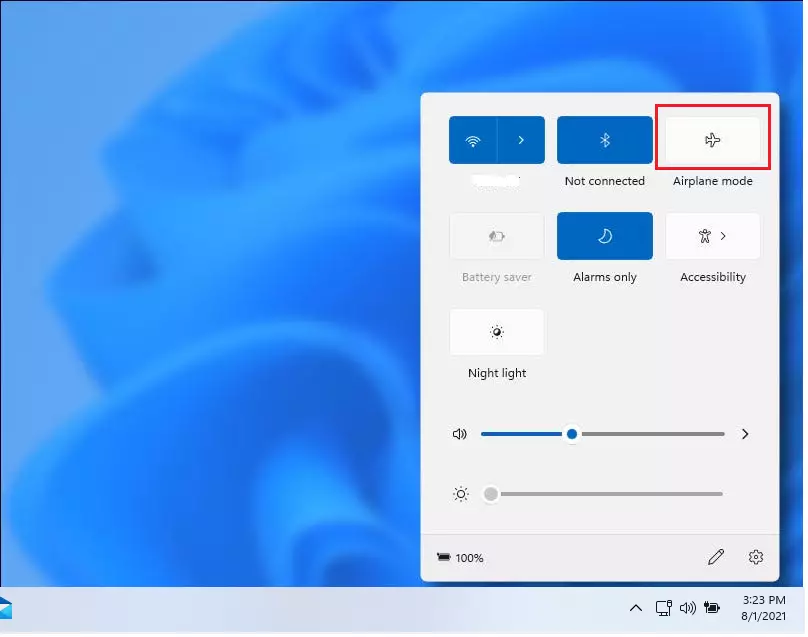
To enable or disable Airplane Mode on Windows 11, click the Network icon on the taskbar and toggle the Airplane mode button. Alternatively, open Quick Settings by pressing Windows key + A and select the Airplane mode button. You can also find this option within Settings under Network & internet.
Using a Physical Button
Some laptops have a dedicated physical button or switch for Airplane mode. Look for an icon that looks like a small airplane on your keyboard or the side of your device. Pressing this will toggle the mode on or off instantly.
Using the Taskbar
You can turn airplane mode on or off using the taskbar on your Windows 11 computer if it doesn’t have a physical switch.
- Look at the bottom right corner of your screen.
- Click the Network icon.
- Click the Airplane mode button to turn it on or off.

If you do not see the icon, press the Windows key + A on your keyboard to open the Quick Settings menu. You can toggle Airplane mode from there.
Using Windows Settings
You can also manage this through the main system settings.
- Press Windows key + I to open Settings. %📂%LNK0%%
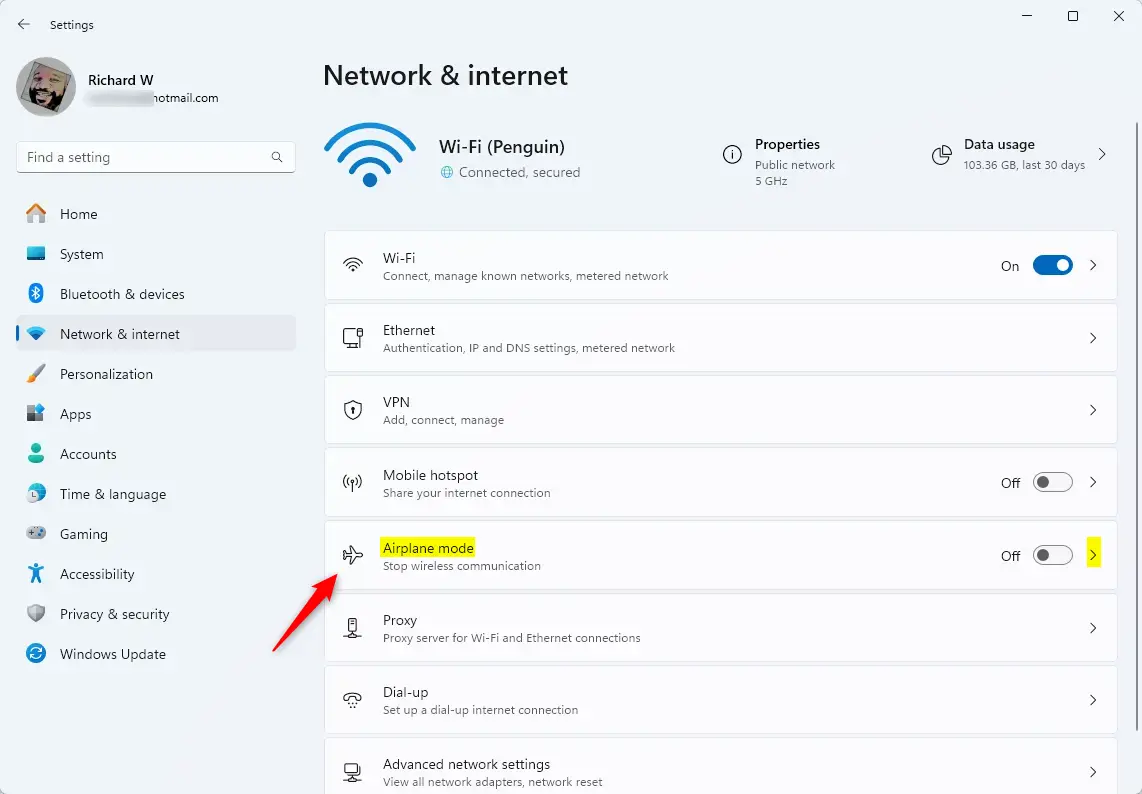
- Click on Network & internet in the left sidebar.
- Click the Airplane mode tile.
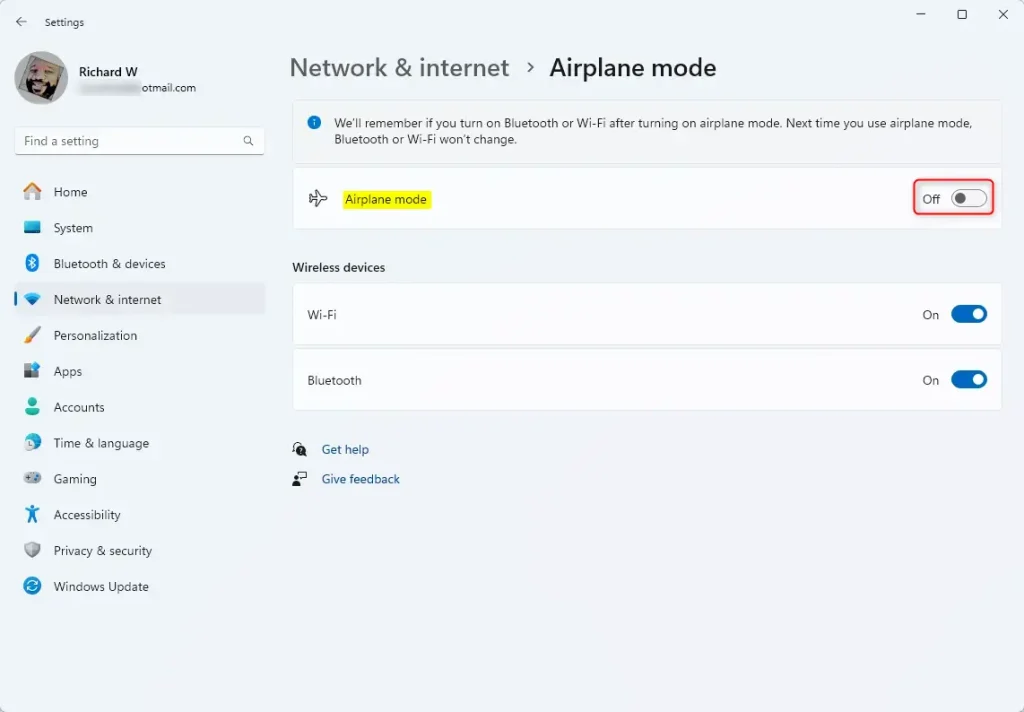
- Use the toggle switch to turn it On or Off.

Summary
Airplane mode in Windows 11 is a handy way to quickly turn off all your wireless connections like Wi-Fi and Bluetooth at once.
Was this guide helpful?

About the Author
Richard
Tech Writer, IT Professional
Richard, a writer for Geek Rewind, is a tech enthusiast who loves breaking down complex IT topics into simple, easy-to-understand ideas. With years of hands-on experience in system administration and enterprise IT operations, he’s developed a knack for offering practical tips and solutions. Richard aims to make technology more accessible and actionable. He's deeply committed to the Geek Rewind community, always ready to answer questions and engage in discussions.


[…] Make sure Airplane mode is turned off. […]
[…] your Windows 11 PC, make sure the Airplane mode is off. You can select the Network icon on the right side of the taskbar, then make sure […]
[…] a pop-out window with commonly used settings and apps like Volume, Brightness, Wi-Fi, Bluetooth, Airplane mode, Rotation lock, Battery saver, Accessibility, Night light, Mobile hotspot, Nearby sharing, Cast, […]
[…] to settings and features, including Volume, Screen brightness, Night light, Wi-Fi, Bluetooth, Airplane mode, Accessibility, Battery saver, Mobile hotspot, Nearby sharing, Cast, and […]
[…] you adjust your screen brightness, volume, and airplane mode using keyboard shortcuts, an on-screen indicator will appear at the bottom center by default to […]
[…] lets you turn features on or off instantly. This includes Volume, Brightness, Wi-Fi, Bluetooth, Airplane mode, Rotation lock, Battery saver, Accessibility, Night light, Mobile hotspot, Nearby sharing, Cast, […]