How to Disable Editing Quick Settings in Windows 11

You can disable editing of Quick Settings tiles in Windows 11 to prevent users from adding or removing items like Wi-Fi or Volume.
This action locks the Quick Settings panel, transforming it into a static menu for all users on the PC. It’s an effective way for IT administrators to maintain PC consistency or for parents to create a more controlled environment for children’s computers.
This tutorial shows you how to achieve this using the Group Policy Editor, specifically by navigating to User Configuration > Administrative Templates > Start Menu and Taskbar, and enabling the “Remove access to the Quick Settings panel” setting. This method ensures a locked-down experience for Quick Settings.
Disable Quick Settings editing in Windows 11 by using the Local Group Policy Editor or Registry Editor. Navigate to User Configuration\Administrative Templates\Start Menu and Taskbar and enable “Remove access to the Quick Settings panel” or create a DisableQuickSettingsEditing DWORD value set to 1 in the registry.
Why disable Quick Settings editing?
You might want to disable Quick Settings editing to keep the layout of your system controls consistent, especially if you share your computer or work in an office.
Method 1Using Local Group Policy Editor (Pro/Enterprise Only)
Note: This requires admin privileges.
1. Press ⊞ Win+R, type gpedit.msc, and hit Enter.
2. Navigate to:
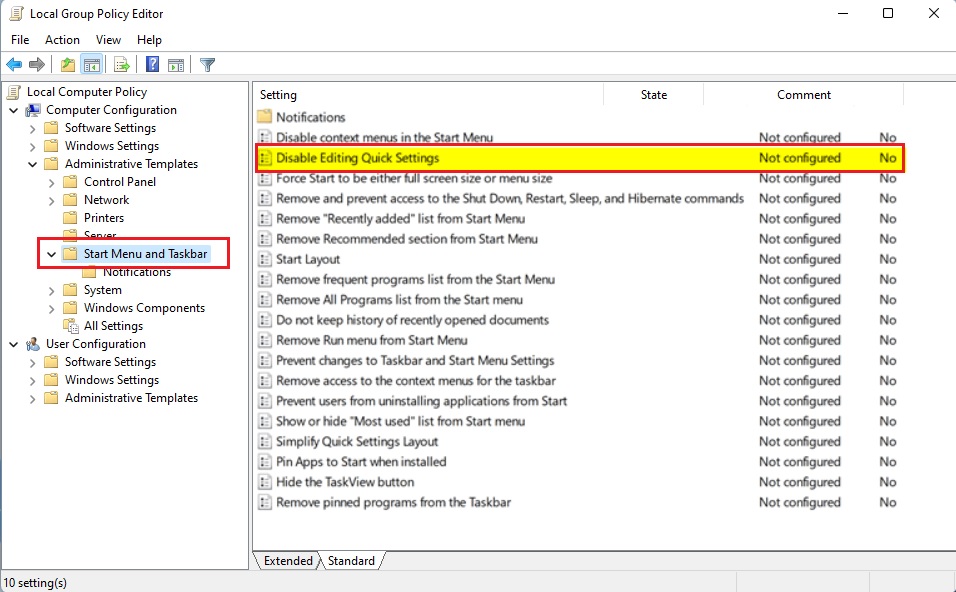
User Configuration\Administrative Templates\Start Menu and Taskbar
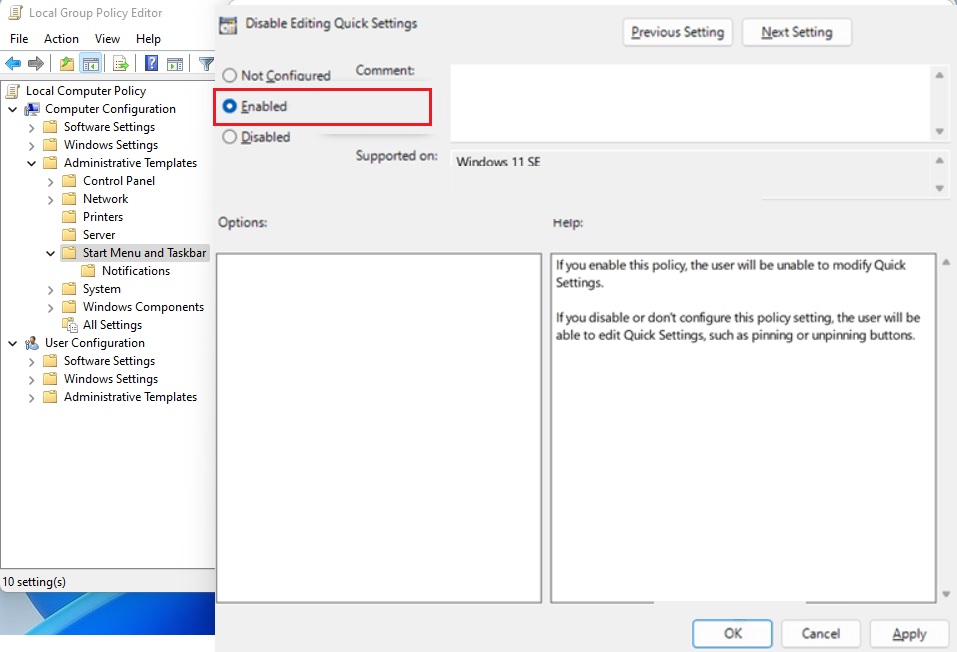
3. Find Disable Editing Quick Settings and double-click it.
4. Select Enabled and click OK.
Method 2Using Registry Editor (All Editions)
You can disable Quick Settings editing in Windows 11 on any edition by using the Registry Editor, a tool that lets you make advanced changes to Windows.
- Press ⊞ Win+R, type
regedit, and hit Enter. - Go to the following path:
HKEY_CURRENT_USER\Software\Policies\Microsoft\Windows\Explorer
3. Right-click in the right pane, choose New > DWORD (32-bit) Value, and name it DisableQuickSettingsEditing.
4. Set the value to 1.
5. Restart your computer to apply changes.
Method 3Using PowerShell
Note: This requires admin privileges.
Run this command in an elevated PowerShell window (that means it has administrator privileges) to disable editing:
Set-ItemProperty -Path "HKCU:\Software\Policies\Microsoft\Windows\Explorer" -Name "DisableQuickSettingsEditing" -Value 1
To re-enable it , change the value to 0.
Conclusion
Locking the Quick Settings menu is a great way to maintain a clean and controlled Windows 11 interface. Whether you use Group Policy for enterprise management or the Registry for personal customization, these steps ensure your system settings remain exactly as you configured them.
Can I disable Quick Settings for specific users only?
Yes, you can disable Quick Settings editing for specific users or groups by using the Local Group Policy Editor or Group Policy Objects in a work network.
How do I revert the changes if I need to re-enable editing?
To revert, return to the Local Group Policy Editor and set the policy to Not Configured. If you used the Registry Editor, change the DisableQuickSettingsEditing value back to 0 or delete the registry key entirely. A system restart is usually required for the changes to take effect.
Does disabling Quick Settings editing affect the Action Center?
No, disabling Quick Settings editing does not affect the Action Center because Quick Settings replaced it, and this change only stops you from changing the buttons in that menu.
Is this feature available in 🪟 Windows 11 Home edition?
Windows 11 Home users can still disable Quick Settings editing, even though it doesn’t have the Local Group Policy Editor, by using the Registry Editor instead.
Was this guide helpful?

About the Author
Richard
Tech Writer, IT Professional
Richard, a writer for Geek Rewind, is a tech enthusiast who loves breaking down complex IT topics into simple, easy-to-understand ideas. With years of hands-on experience in system administration and enterprise IT operations, he’s developed a knack for offering practical tips and solutions. Richard aims to make technology more accessible and actionable. He's deeply committed to the Geek Rewind community, always ready to answer questions and engage in discussions.




No comments yet — be the first to share your thoughts!