How to Enable or Disable Long File Paths in Windows 11

You enable or disable long file path support in Windows 11 to overcome the default 260-character limit, allowing applications to access files located many levels deep within folders.
The Win32 long path feature in Windows 11 extends the maximum supported path length to approximately 32,000 characters, resolving errors encountered with deeply nested file structures.
Enabling this setting ensures that applications designed to handle longer file paths can function correctly, preventing frustrating “file not found” or “path too long” error messages you might otherwise see.
You will need to make a change in the Windows Registry or Group Policy Editor to activate or deactivate this functionality on your PC.
Open Settings, navigate to System > Advanced, and toggle “Enable long paths” to On. Alternatively, use Group Policy Editor or Registry Editor for more advanced control. This feature allows Windows to handle file paths exceeding the 260-character limit.
Method 1Enable Long Paths Using the Settings App
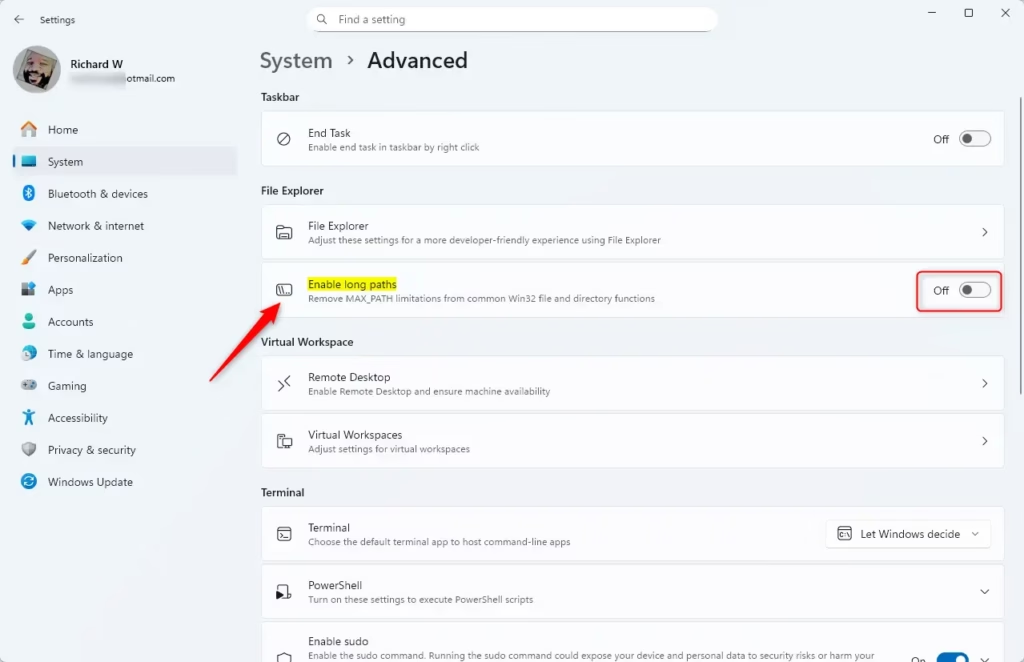
You can turn on Windows 11 long file paths easily using the built-in Settings app. Just follow a few simple steps to adjust this setting directly within Windows.
- Click the Start button (Windows icon) at the bottom left of your screen.
- Click Settings. Or press the Windows key + I on your keyboard to open Settings quickly.
- In Settings, click System on the left side.
- On the right, find and click Advanced.
- Look for the Enable long paths option and switch it On.
- Close the Settings app when done.
Method 2Enable Long Paths with Group Policy Editor
For Windows 11 Pro or Enterprise users, the Group Policy Editor offers another way to turn on long file paths. This method gives you more control over system settings.
Why use this method? Some people prefer this method because it gives you more control.
Here’s how:
- Click the Start button and type Edit group policy, then press Enter.
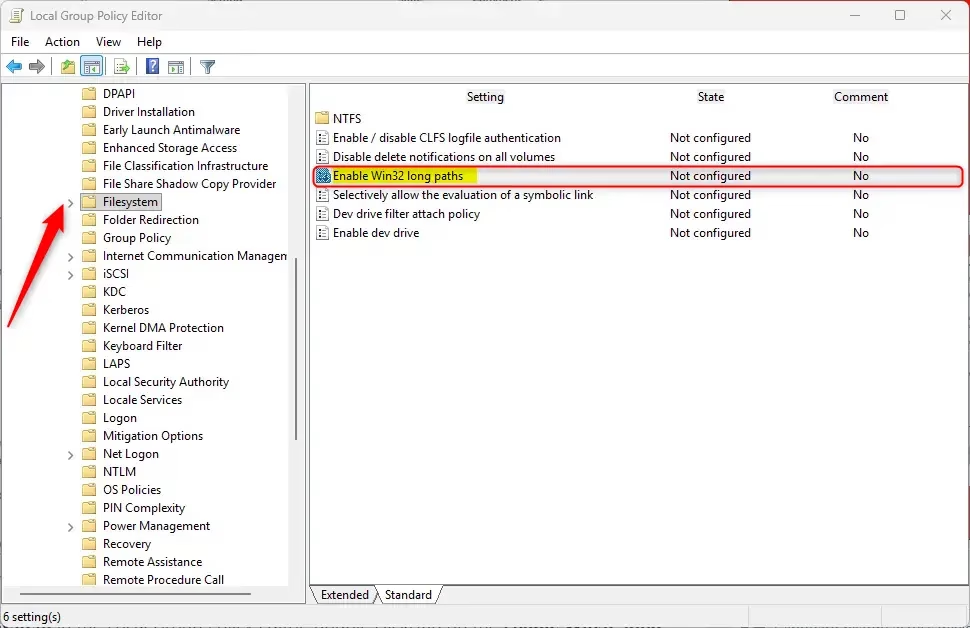
- In the Group Policy Editor window, use the left sidebar to navigate to: Computer Configuration > Administrative Templates > System > Filesystem
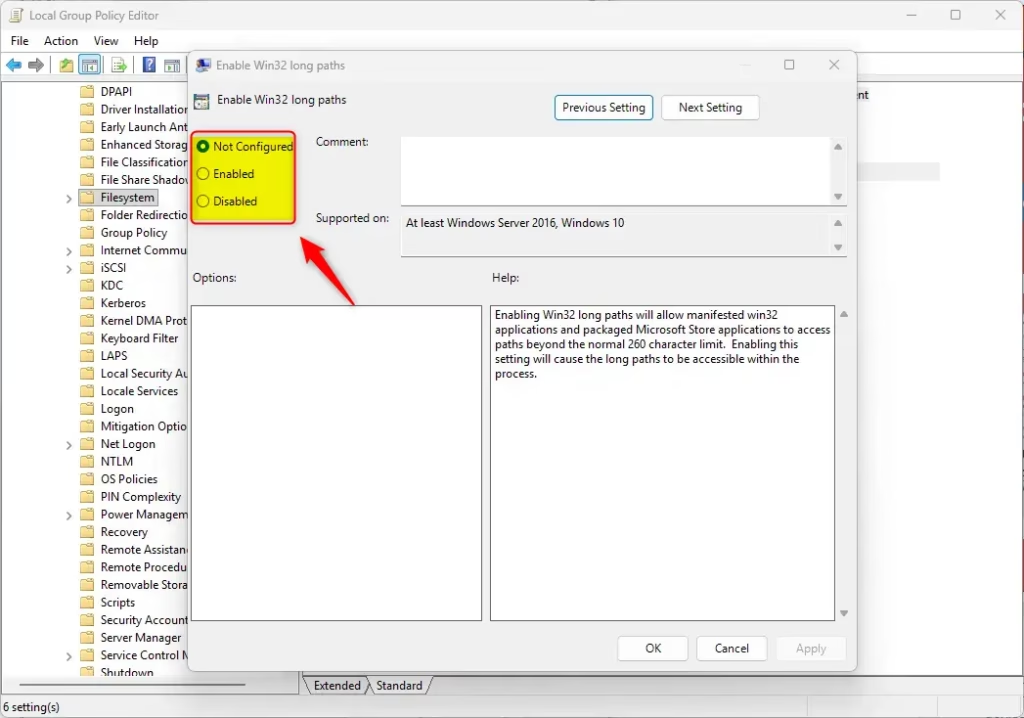
- On the right side, find Enable Win32 long paths and double-click it.
- Select Enabled to turn on long paths.
- Click OK to save your settings.
- Close Group Policy Editor.
Method 3Enable Long Paths Using Registry Editor
If you’re comfortable making advanced changes, you can turn on Windows 11 long file paths using the Registry Editor. Remember to back up your system first, as this method involves editing core Windows files.
Important: Before you do this, back up your registry or create a system restore point to keep your PC safe. %📂%SC0%%
Here’s what to do:
- [Requires admin privileges] Open the Registry Editor: Press Windows key + R, type
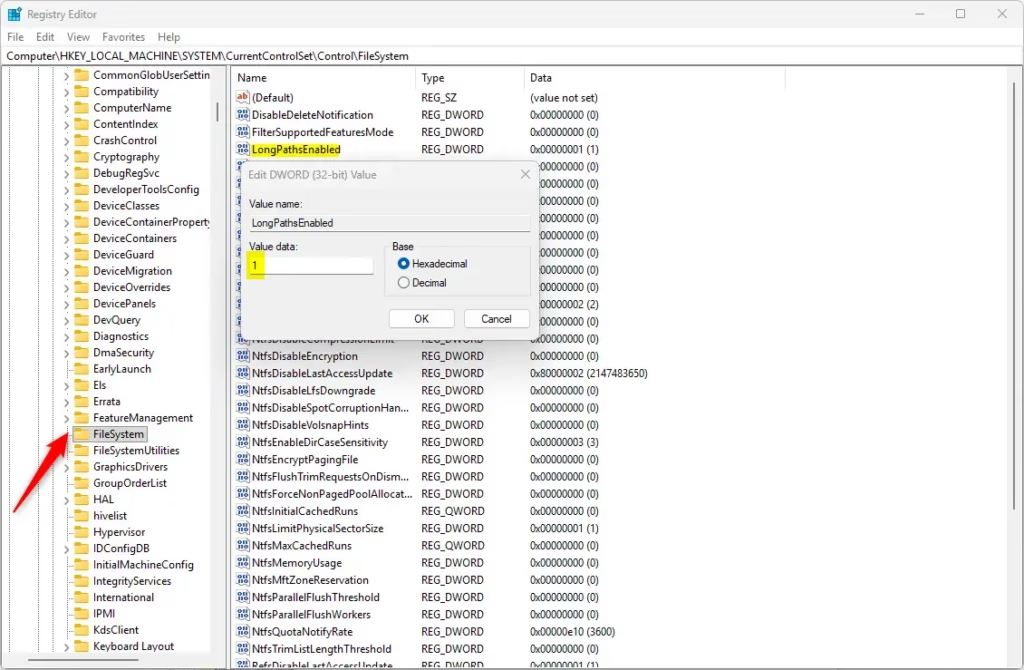
regedit, and press Enter. - In Registry Editor, go to:
HKEY_LOCAL_MACHINE\SYSTEM\CurrentControlSet\Control\FileSystem - Right-click on the FileSystem folder in the left pane.
- Choose New > DWORD (32-bit) Value.
- Name the new value
LongPathsEnabled. - Double-click
LongPathsEnabledand set its value to 1 to turn on long paths. - Click OK and close Registry Editor.
- Restart your computer for the change to take effect.
Summary
- What are long paths? A feature that lets Windows handle file paths longer than 260 characters.
- Easy options: Turn on this feature using Settings, Group Policy Editor, or Registry Editor.
- App support: Only apps designed to use long paths will take advantage of this feature.
- Backup first: Always back up your system before changing Registry settings.
- Restart required: You might need to restart your PC for the changes to work.
Windows 11 long file paths let your computer handle file names and locations longer than the usual limit. You can turn this feature on using Settings, Group Policy, or the Registry Editor, but remember that apps need to be updated to use it.
How to enable paths longer than 260 characters in 🪟 Windows 11?
In the Group Policy Editor, you can activate long Win32 paths via Computer Configuration – Administrative Templates – System – File System – NTFS.
Was this guide helpful?

About the Author
Richard
Tech Writer, IT Professional
Richard, a writer for Geek Rewind, is a tech enthusiast who loves breaking down complex IT topics into simple, easy-to-understand ideas. With years of hands-on experience in system administration and enterprise IT operations, he’s developed a knack for offering practical tips and solutions. Richard aims to make technology more accessible and actionable. He's deeply committed to the Geek Rewind community, always ready to answer questions and engage in discussions.




No comments yet — be the first to share your thoughts!