How to Enable or Disable Handwriting in Windows 11

You can enable or disable the Windows 11 handwriting panel to use your pen or a touch screen for input.
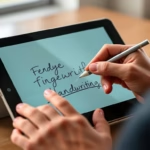
This feature lets you write directly on your screen, turning your handwriting into typed text inside Windows 11 apps.
It’s a convenient way to interact with your PC, especially on devices like the Microsoft Surface Pro 9, offering an alternative to traditional keyboard input.
You can quickly toggle this feature on or off through your Windows 11 Settings app.
Enable or disable Windows 11 handwriting via Settings. Navigate to Bluetooth & devices, then Pen & Windows Ink, and toggle “Use your handwriting to enter text” under the Shell Handwriting section. This allows or prevents pen and touch input directly into text fields.
What is Handwriting in 🪟 Windows 11?
Microsoft improved handwriting in Windows 11 with build 23481. Now, you can write directly in any text box, using your pen or finger. This capability is called Shell Handwriting, and it currently supports English (U.S.) only, though more languages might come later.
Right now, this feature only works with English (U.S.). Microsoft may add more languages in the future.
Why Use Handwriting?
Handwriting is helpful if you prefer writing by hand. It’s also useful for people who use pen input devices or tablets with Windows 11.
How to Turn Handwriting On or Off
- Click the Start menu button. Then click Settings. You can also press Windows key + I on your keyboard to open Settings quickly.
- In the Settings window, click Bluetooth & devices from the left side menu.
- Look on the right side and click Pen & Windows Ink.
- Scroll down to the Handwriting section. Click on Use your handwriting to enter text to open that section.
- Turn on the switch for Use your handwriting to enter text under Shell Handwriting.

What happens when you turn it on? You can now write by hand in any text box on your computer. Your handwriting will be converted to text.
If you want to turn it off later, switch the toggle to Off.

- When you’re done, you can close the Settings app.
Summary
- Easy to enable: You can quickly turn handwriting on or off from Settings. Go to Bluetooth & devices > Pen & Windows Ink.
- Works with pen or touch: Use your pen or finger to write in places where you normally type.
- English (U.S.) only for now: This feature currently supports English (U.S.). More languages may be added in the future.
More Information
For official details, visit Microsoft’s blog post.
How do I turn off handwriting in 🪟 Windows 11?
How do I enable or disable handwriting input in Windows 11? You can enable or disable handwriting input through Settings > Pen & Windows Ink. Other methods include using the Registry Editor, . reg files, or PowerShell scripts.
What is 🪟 Windows 11 ink handwriting?
Windows. Get Windows 11. Directly write into text fields. In some experiences, such as Start, the search box on the Taskbar, the Settings app or File Explorer, you can use your digital pen to write directly into a text field to do text entry2 3. Bring your pen near the text field and start writing.
Does 🪟 Windows 11 have a writing program?
After that here on the search option search for Notepad. Open the application. And here sign in with your Microsoft. Account now here on the notepad.
How do I turn on handwriting recognition?
If your keyboard doesn't open to the handwriting mode, you can switch there by clicking on the keyboard settings icon and selecting handwriting.
Was this guide helpful?

About the Author
Richard
Tech Writer, IT Professional
Richard, a writer for Geek Rewind, is a tech enthusiast who loves breaking down complex IT topics into simple, easy-to-understand ideas. With years of hands-on experience in system administration and enterprise IT operations, he’s developed a knack for offering practical tips and solutions. Richard aims to make technology more accessible and actionable. He's deeply committed to the Geek Rewind community, always ready to answer questions and engage in discussions.



No comments yet — be the first to share your thoughts!