
Windows 11 has a new security feature called Administrator Protection. It helps keep your computer safer when running programs that need special permissions.
This feature replaces the older User Account Control (UAC) prompt. It gives you a better and clearer way to approve administrator tasks. It helps protect your computer from apps that might try to do something harmful without your permission.
What is Administrator Protection?
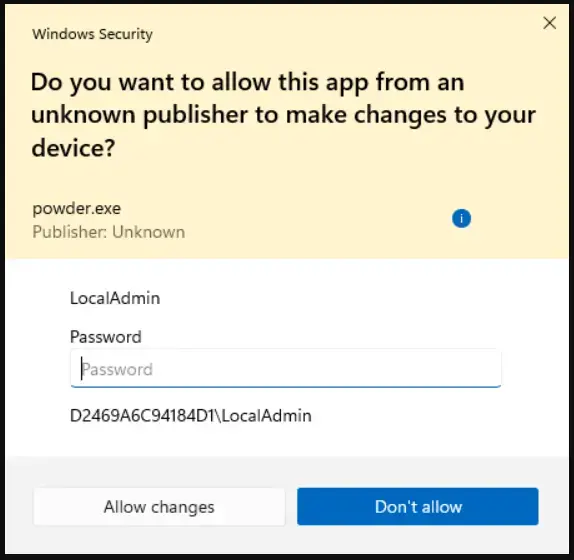
When you install software or change important settings, Windows asks for your permission. Administrator Protection makes these permission requests more secure and easier to understand. It shows color-coded warnings and clearer information.
Why use it? Because it helps you see exactly what an app is trying to do before you allow it.
What happens when enabled? You’ll see colorful and clear prompts whenever an app tries to make big changes to your computer.
Good news: You can turn this feature on or off yourself through the Windows Security app. You don’t need to ask an IT expert!
Steps to Enable Administrator Protection
Step 1: Open Windows Security
You can do this in several ways:
- Click the Start button, then Settings.
- Select Privacy & Security (or Update & Security in some versions).
- Click Windows Security.
- Click Open Windows Security.
Or simply search for “Windows Security” in the Start menu and open it.
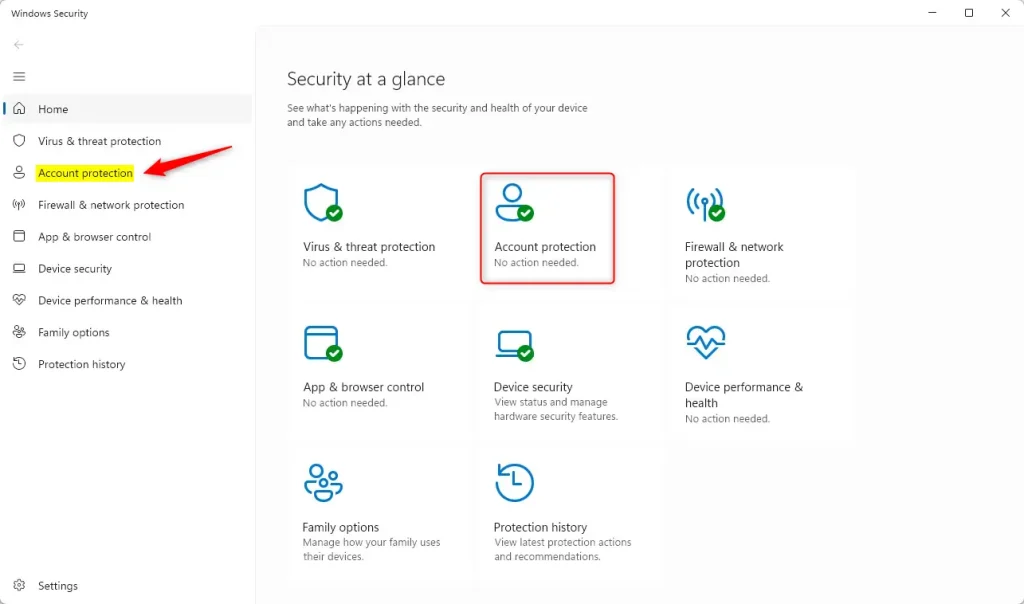
Step 2: Go to Account Protection
In the Windows Security app, click on Account protection from the menu on the left or the main window.
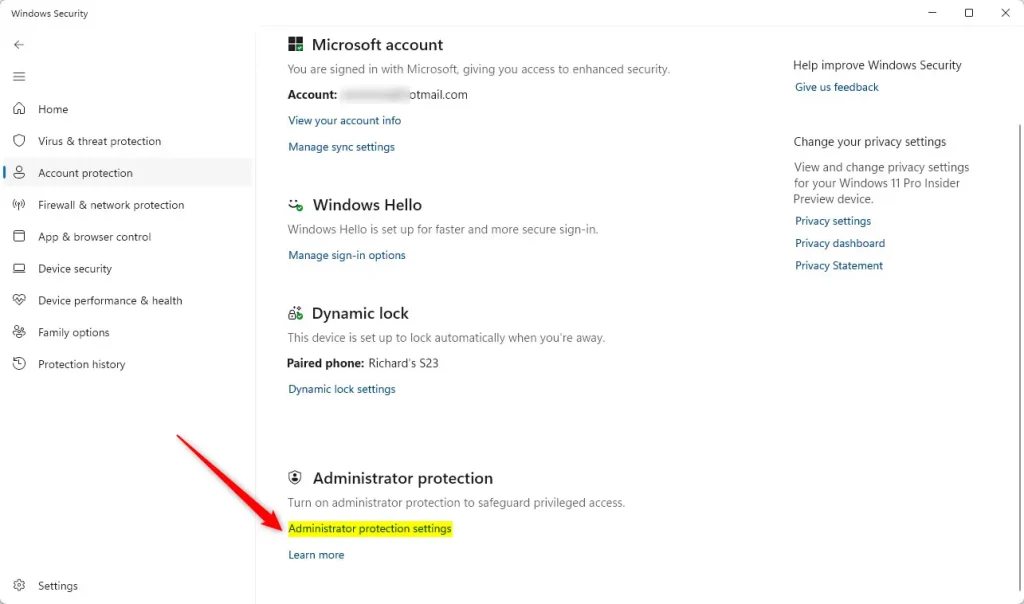
Step 3: Open Account Protection Settings
Click on the Account protection settings link under the Account Protection section.
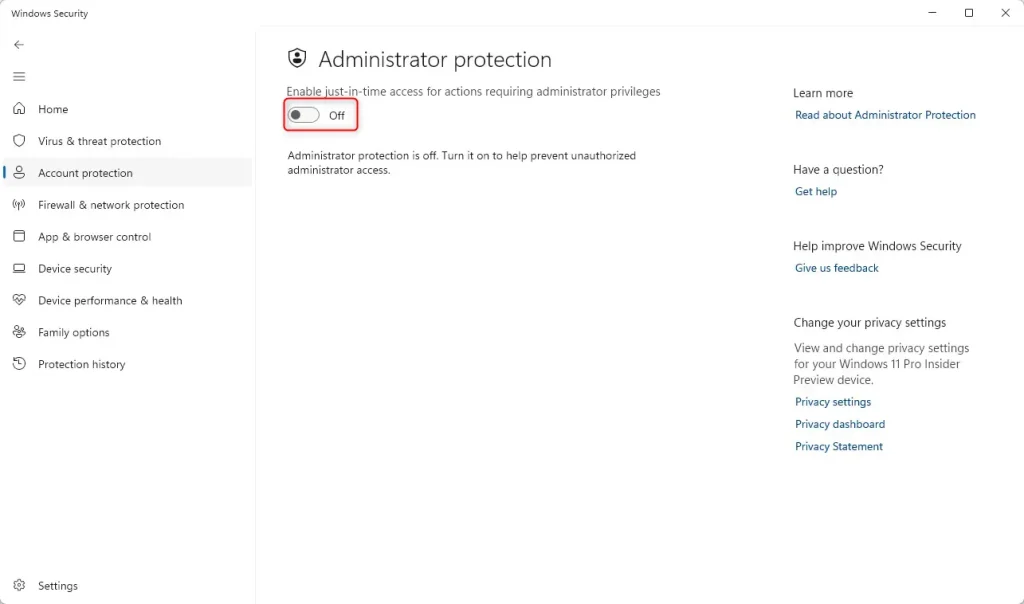
Step 4: Turn Administrator Protection On or Off
You will see a toggle switch for Administrator Protection. Click the switch to On to enable it or Off to disable it.
What Does It Look Like When Enabled?
When Administrator Protection is on, Windows will show colorful and clear prompts when an app tries to make big changes. This helps you understand what you’re allowing. It also keeps your PC safer.
Why Use Administrator Protection?
- Better Security: It helps protect your PC from risky applications.
- Easy to Use: You can turn it on or off yourself anytime.
- Clear Warnings: Color-coded prompts make it easier to decide what to allow.
- Simple Access: Manage it all from the Windows Security app.
- Future-Ready: This is part of Microsoft’s plan to make Windows safer and smarter.
That’s it! You’re now ready to use Administrator Protection and keep your Windows 11 PC safer.
Learn More
For more details, you can visit the official Microsoft blog.
And check out the original guide at Geek Rewind.
Summary
Administrator Protection is a Windows 11 security feature that shows you clear, color-coded warnings when apps try to make important changes. You can easily turn it on or off using the Windows Security app. Simply open Windows Security, go to Account Protection, click Account protection settings, and toggle Administrator Protection to On. This feature makes your computer safer by helping you understand and control what applications are allowed to do.



Leave a Reply