
This guide will help you understand what Adaptive Color is and how to turn it on or off in Windows 11. We’ll walk you through easy steps so you can get started right away.
What is Adaptive Color?
Adaptive Color is a smart feature in Windows 11 that changes your screen’s colors based on the light around you. It uses a sensor called an Ambient Color Sensor (ACS). This sensor makes your screen look warmer when it’s dark and cooler when it’s bright.
This helps your eyes feel more comfortable. It also makes it easier to see your screen in different lighting conditions.
Why Use Adaptive Color?
- Comfortable Viewing: Your screen colors change to match the light around you. Your eyes don’t get tired as quickly.
- Less Eye Strain: It’s like reading a book under the right light. Your screen won’t be too bright or too harsh.
- Better Focus: When your screen adjusts to your environment, you can work or read longer without feeling tired.
- Smart Screen: It works quietly in the background. You get the best picture without needing to do anything.
Note: To use Adaptive Color, your device needs special graphics drivers and an Ambient Color Sensor. You can check if your device supports it here: Graphics and Sensor Requirements.
How to Turn On or Off Adaptive Color in Windows 11
Follow these simple steps to enable or disable Adaptive Color:
- Open the Settings app. Click the Start menu and select Settings, or press Windows key + I on your keyboard to open Settings quickly.
- In Settings, click on Display from the left menu.
- Look for the Adaptive color option in the Display settings.
- Toggle the switch to On to enable Adaptive Color, or Off to disable it.

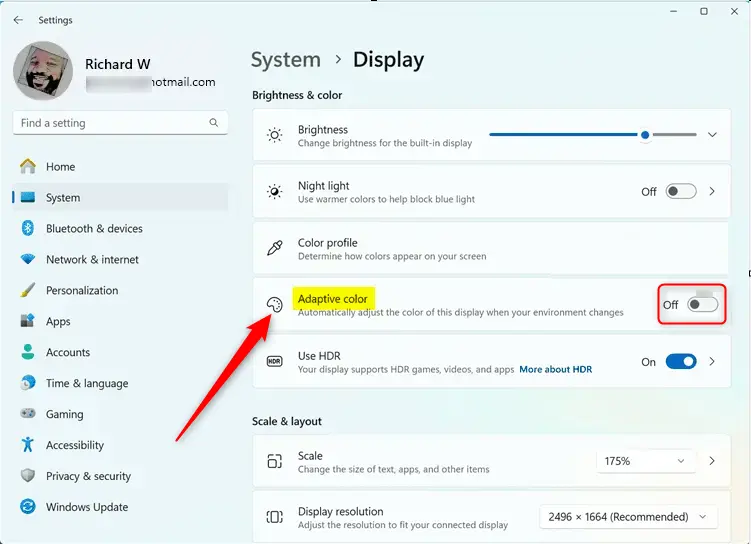
Tip: You might need to restart your computer for the change to take effect.
What Happens Behind the Scenes?
When you turn Adaptive Color on or off, Windows changes a setting in the system registry. The registry is a part of Windows that manages settings. Here’s where it’s stored:
HKEY_LOCAL_MACHINE\SYSTEM\CurrentControlSet\Services\DisplayEnhancementService\StateUniqueDisplayIDThe UniqueDisplayID is different on every computer. It’s based on your display hardware.
Values:
- 0 = Adaptive Color is Off
- 1 = Adaptive Color is On
Summary
- Adaptive Color makes your screen colors change based on the light around you.
- This makes viewing easier and more comfortable.
- It helps reduce eye strain. You can work comfortably for longer periods.
- You can turn it on or off anytime in the Display section of the Settings app.
- Sometimes you need to restart your PC for the changes to work properly.
That’s all! Enjoy a smarter, easier-on-your-eyes screen on your Windows 11 PC.
More info: Visit Microsoft’s Adaptive Color page for technical details.




Leave a Reply