How to Enable or Disable WhatsApp Notifications on Windows 11

You can enable or disable WhatsApp notifications on Windows 11 directly within the app’s settings.
WhatsApp notifications alert you to new messages, reactions, and calls on your PC, ensuring you don’t miss important communications.
Managing these alerts is crucial for maintaining focus, especially during work or important tasks, allowing you to control interruptions.
In Windows 11, you can control notifications for messages, calls, and even specific reactions, giving you granular control over app behavior.
How to turn notifications on or off
Follow these steps to change your alert settings:
- Open the Start menu and find WhatsApp in your All Apps list to launch it.
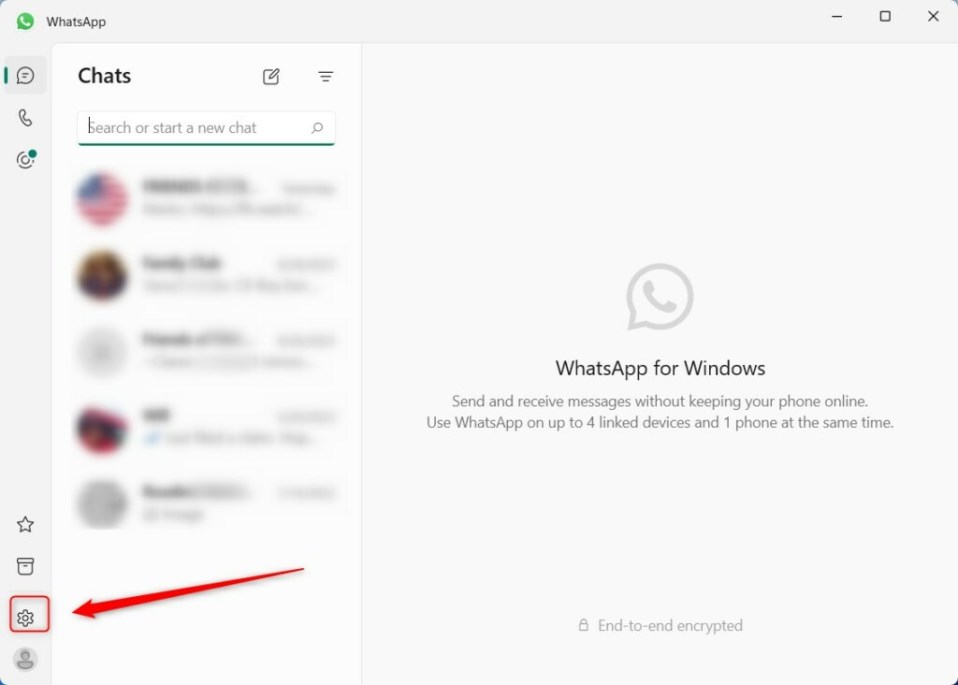
- Click the Settings (gear) icon located in the bottom left corner of the app.
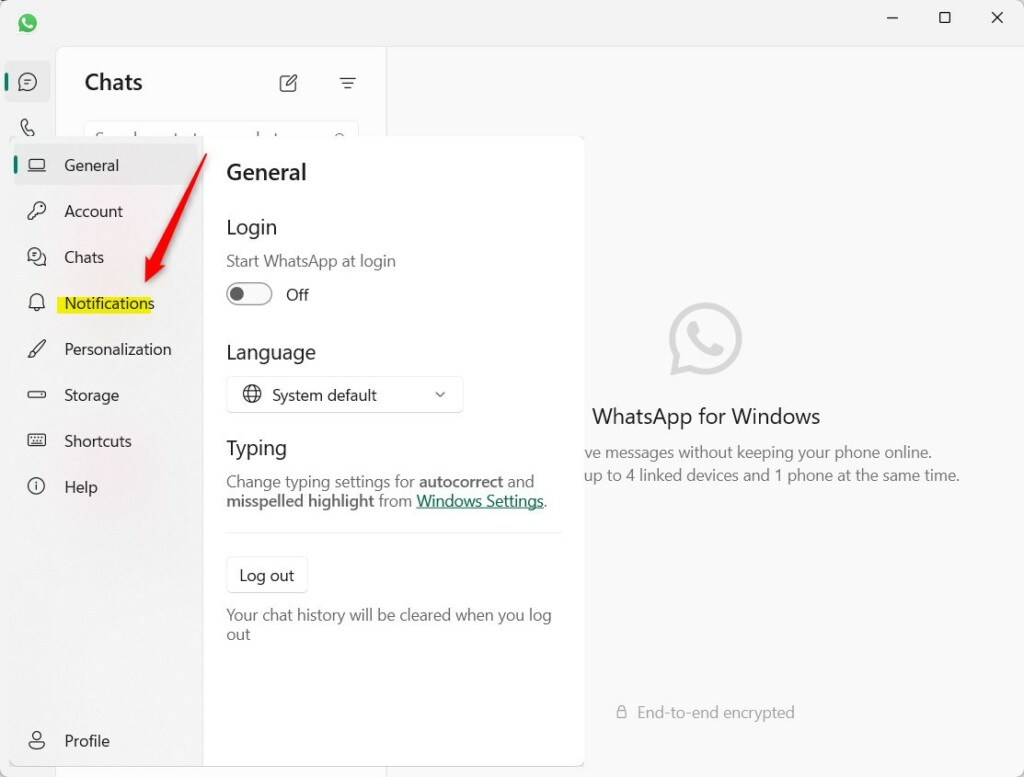
- Select the Notifications tab on the left-hand side of the screen.
- On the right side, you will see toggles for Messages, Reactions, and Calls. Click these to turn them on or off.
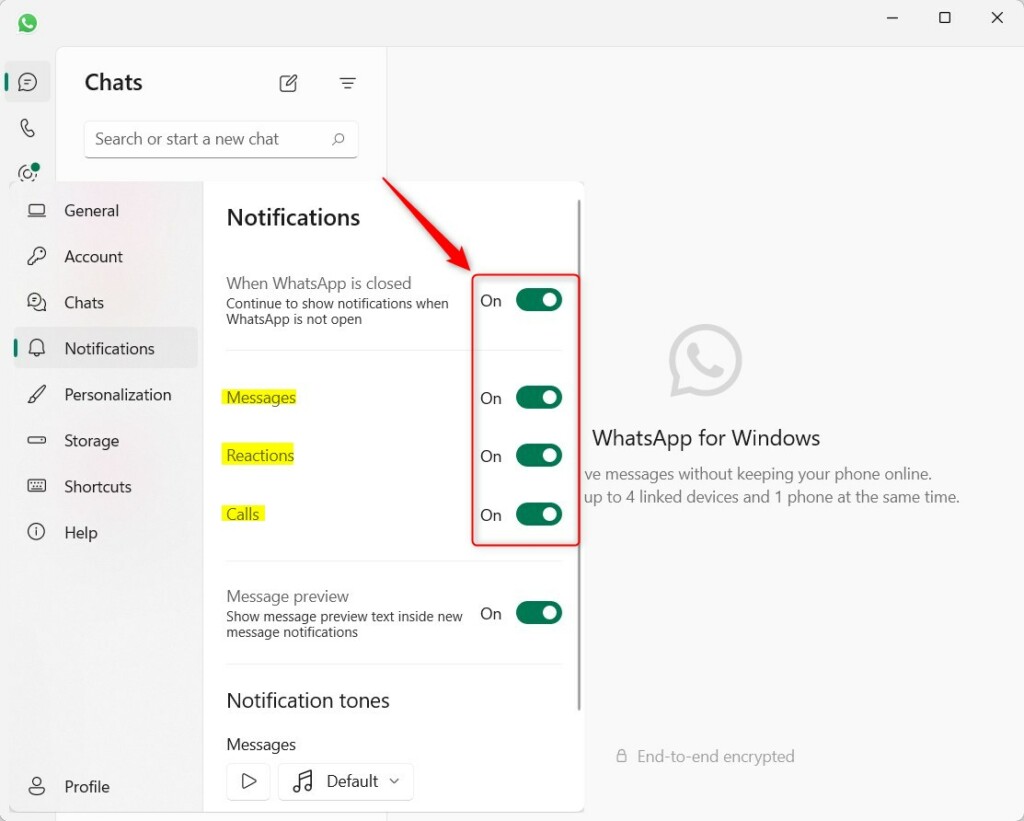
You can also toggle the option to receive notifications even when the app is closed. No special admin privileges are required for these settings.
Troubleshooting WhatsApp Notification Failures
If you still do not see alerts, your Windows 11 notification center settings might be blocking them. Check your system settings to ensure WhatsApp is allowed to send banners and sounds.
Check Focus Assist and Do Not Disturb
Windows 11 features a Do Not Disturb mode (formerly Focus Assist). If this is on, your computer silences all notifications. Click the clock in your taskbar and check if the bell icon has a line through it. If it does, turn it off to allow WhatsApp alerts to appear.
Background App Permissions
If WhatsApp is not allowed to run in the background, it cannot send notifications when the window is closed. Go to Settings > Apps > Installed Apps, find WhatsApp, and click the three dots to select Advanced options. Ensure the Background apps permissions is set to Always.
Pro-tip: Always check the Microsoft Store for updates. An outdated version of WhatsApp can cause notification bugs. Visit the official Microsoft support page for more details on managing system-wide alerts.
Summary
Managing your WhatsApp notifications on Windows 11 is a simple way to reduce digital clutter. By checking your Focus Assist settings, background permissions, and app-specific toggles, you can ensure you never miss an important message again. Use these steps to regain control over your desktop alerts.
Why are my WhatsApp notifications delayed on 🪟 Windows 11?
Delayed notifications often happen because of battery saver mode or restricted background permissions. Windows may pause the app to save power. Ensure your laptop is plugged in or change the background app permissions in your system settings to allow WhatsApp to run freely without being throttled by the operating system.
How to reset the WhatsApp app on 🪟 Windows 11?
If notifications stop working, you can reset the app. Go to Settings > Apps > Installed Apps. Find WhatsApp, click the three dots, and select Advanced options. Click the Reset button. Note: This requires admin privileges to perform, as it clears app data and restores the app to its default state.
Was this guide helpful?

About the Author
Richard
Tech Writer, IT Professional
Richard, a writer for Geek Rewind, is a tech enthusiast who loves breaking down complex IT topics into simple, easy-to-understand ideas. With years of hands-on experience in system administration and enterprise IT operations, he’s developed a knack for offering practical tips and solutions. Richard aims to make technology more accessible and actionable. He's deeply committed to the Geek Rewind community, always ready to answer questions and engage in discussions.



[…] including starting the WhatsApp app at login, turning read receipts on or off, turning notifications on or off, turning automatic downloads on or off, clearing and deleting chats, and […]
[…] including starting the WhatsApp app at login, turning read receipts on or off, turning notifications on or off, turning automatic downloads on or off, clearing and deleting chats, and […]
[…] including starting the WhatsApp app at login, turning read receipts on or off, turning notifications on or off, turning automatic downloads on or off, clearing and deleting chats, and […]
[…] including starting the WhatsApp app at login, turning read receipts on or off, turning notifications on or off, turning automatic downloads on or off, clearing and deleting chats, and […]
[…] including starting the WhatsApp app at login, turning read receipts on or off, turning notifications on or off, turning automatic downloads on or off, clearing and deleting chats, and […]
[…] app in Windows, including starting the WhatsApp app at login, turning read receipts on or off, turning notifications on or off, turning automatic downloads on or off, clearing and deleting chats, and […]
[…] app in Windows, including starting the WhatsApp app at login, turning read receipts on or off, turning notifications on or off, turning automatic downloads on or off, clearing and deleting chats, and […]
[…] app in Windows, including starting the WhatsApp app at login, turning read receipts on or off, turning notifications on or off, turning automatic downloads on or off, clearing and deleting chats, and […]
[…] including starting the WhatsApp app at login, turning read receipts on or off, turning notifications on or off, turning automatic downloads on or off, clearing and deleting chats, and […]