

This article explains how to turn notifications on or off in Dropbox on Windows 11.
Dropbox is a cloud storage service allowing users to store and share files and folders online. It offers features such as file syncing, file versioning, and collaboration tools, making it easier for teams to collaborate on projects.
One can configure many settings with the Dropbox app in Windows, including starting Dropbox on system startup, disabling Dropbox startup in the background, adding Microsoft Office add-in, and more.
Another setting users can configure in Dropbox is to turn notifications on or off. Dropbox has individual notification settings for when you get mentioned, comments on files, assigned tasks, files, and shared folders.
You may want to turn notifications on or off in Dropbox for various reasons. If you are working on a project with a team, you might want to keep notifications up-to-date with any changes made to the files or folders.
On the other hand, if you’re working on something that requires your full attention, you might want to turn it off temporarily to avoid distractions. Additionally, if you receive too many notifications, you may want to turn them off to declutter your inbox.
By configuring notification settings in Dropbox, users can customize their experience to suit their needs.
Turn notifications on or off in Dropbox
As mentioned above, notifications in Dropbox allow users to stay up-to-date with any changes made to the files or folders. Also, if you receive too many notifications, you may want to turn them off to declutter your inbox.
Here’s how to do that.
First, open the Dropbox flyout window from the notification area. You can do that by clicking the Taskbar overflow and selecting Dropbox to open its flyout window.

When the flyout opens, select the Settings (gear) at the top of the screen and click Preferences.

On the Preferences page, select the Notifications tab. Under “Notify me about,” check the box next to any of the following items to enable it:
- @mentions
- Comments on files
- Tasks assigned to me
- Files and folders shared with me
- Shared files and folders opened by others
- New files synced
- Edits to files
To disable it, uncheck the box.
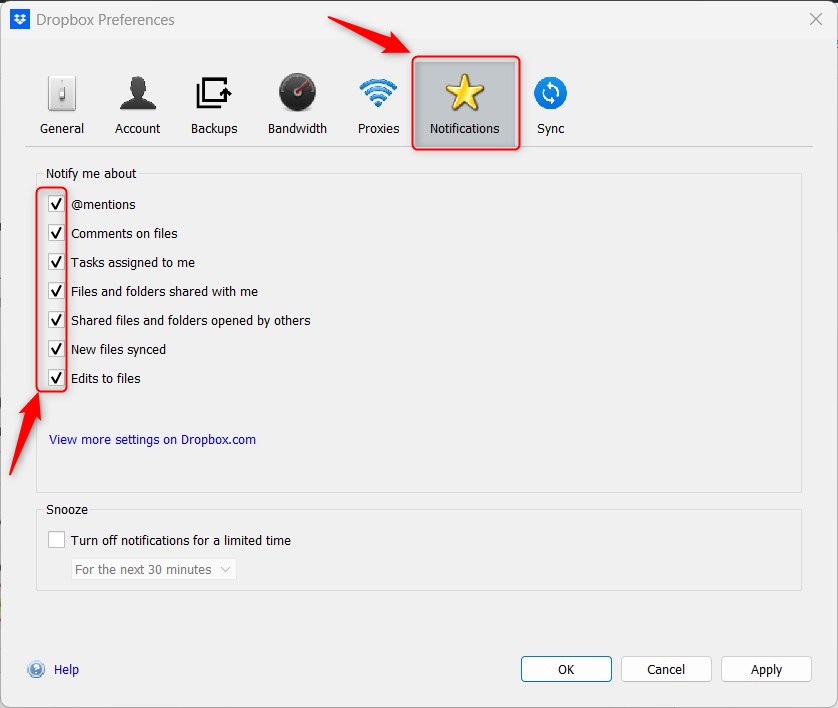
You can check all the boxes, none, or only the ones you want to be notified of when changes are made.
If you want to temporarily turn off notifications in Dropbox, use the “Snooze” feature. With it, you can turn off notifications for a limited time.
Check the box next to “Turn off notifications for a limited time.” Then choose one of the following:
- For the next 30 minutes
- For the next hour
- Until the end of the day
- Until tomorrow
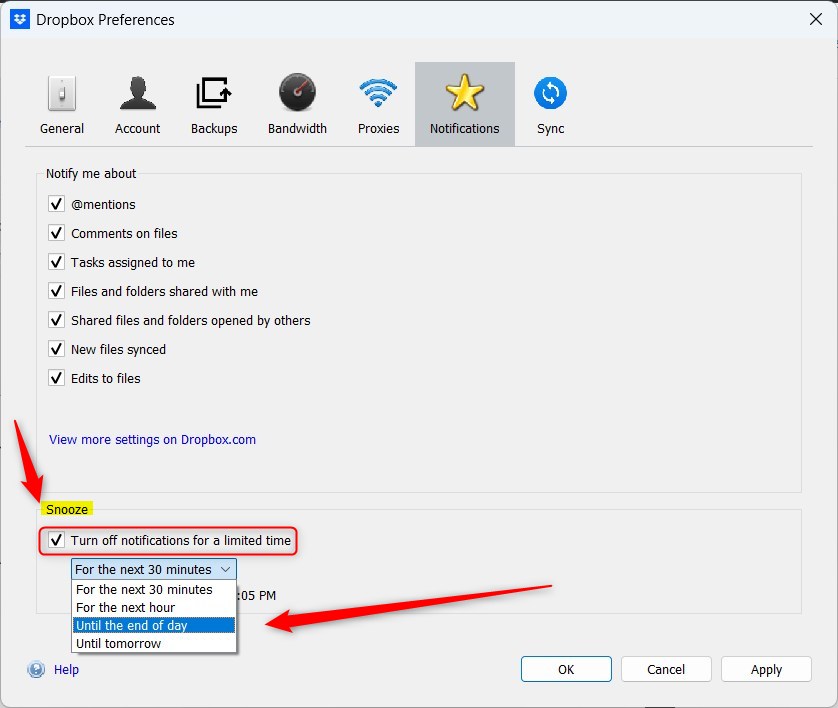
Click the Apply button to save your changes when you’re done.
That should do it!
Conclusion:
- In this article, you have learned how to manage notifications in the Dropbox app on Windows 11, allowing you to stay updated without being overwhelmed.
- Whether it’s staying informed about collaborative project updates or temporarily minimizing distractions, the notification settings in Dropbox can be customized to suit your specific needs.
- By following the steps outlined in this guide, you can efficiently configure your notification preferences to optimize your Dropbox experience.
- If you encounter any inaccuracies in the provided information or have additional insights, feel free to utilize the comments section below for further discussion.



Leave a Reply Cancel reply