

This article describes steps to determine which Account was used to sign into Windows 11.
Windows is a multi-user operating system. Therefore, you can have multiple users with separate and unique profiles on the same machine.
Windows also has two account types: Administrator and Standard user. The administrator account has full access and can control almost all aspects of the computer.
The standard user account has limited access and can perform all functions within his/her profile without making administrative changes.
Windows allows users to log into the system with two types of accounts. A Local account and a Microsoft account. The Local Account can be either an administrator or a standard user account. Same as the Microsoft account.
How to check if an account is a local account or a Microsoft account in Windows 11
As described above, Windows allows two types of accounts that a user can log in into the system. A Local account and a Microsoft account.
Below is how to tell if your Account is a Local or Microsoft account in Windows 11.
You can find details of user accounts in the Settings app.
Click on the Start menu -> Settings to open the Settings app.

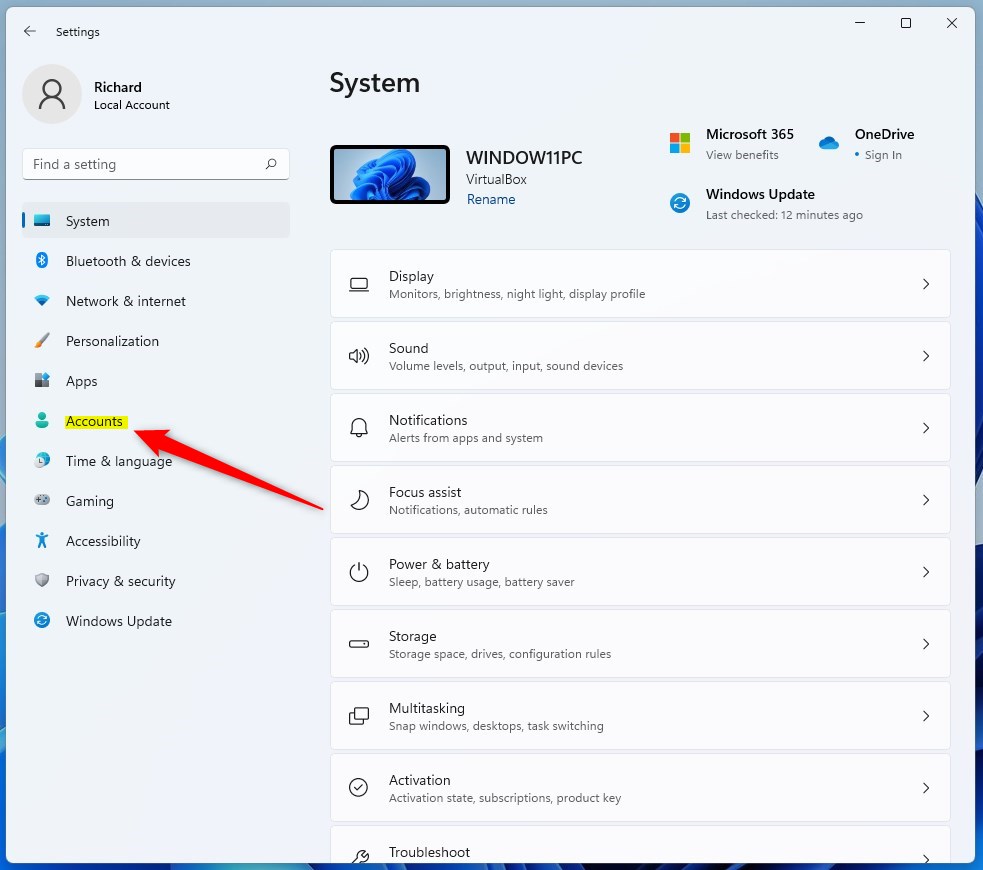
In the Settings app, click on Accounts on the left.
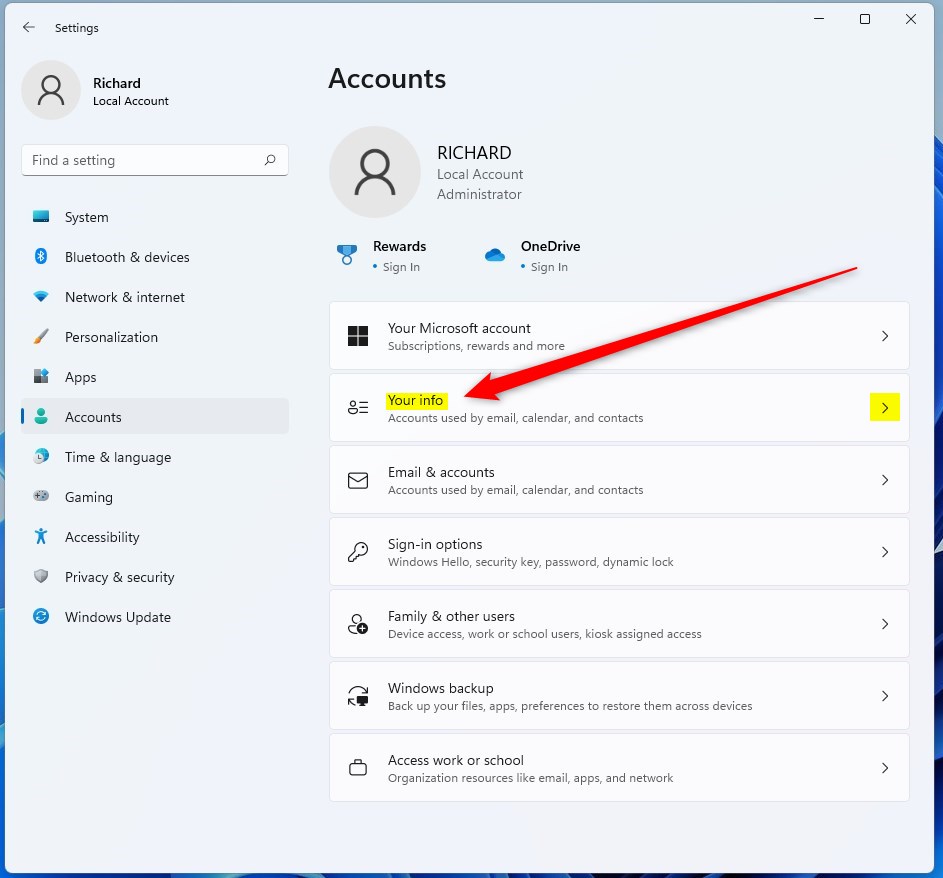
On the Accounts settings pane, click on Your info tile to expand.
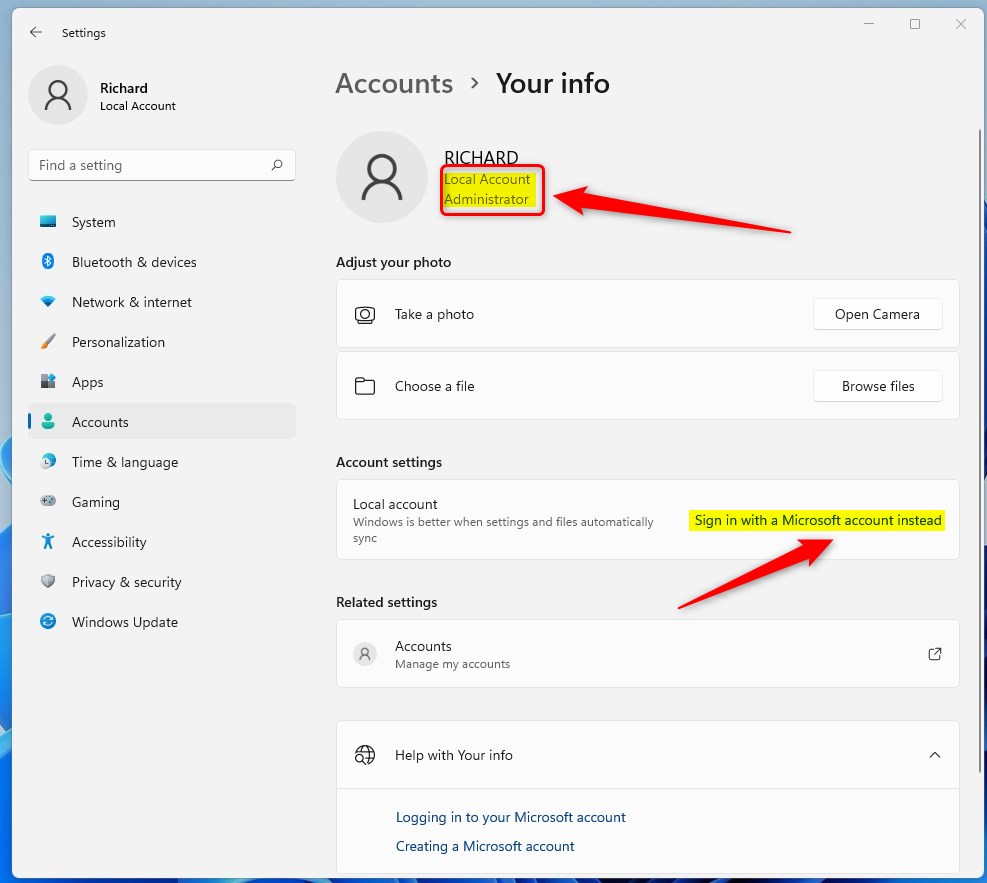
On the Your info settings pane, you will see the Account used to sign in and the account type.
Under your account name, you will see the Account used. For example, the image below shows the Local Account used to sign in. The account type is Administrator.
This is a local account. You will also see a link to “Sign in with a Microsoft account instead.”
This confirms that the Account used is a Local account.
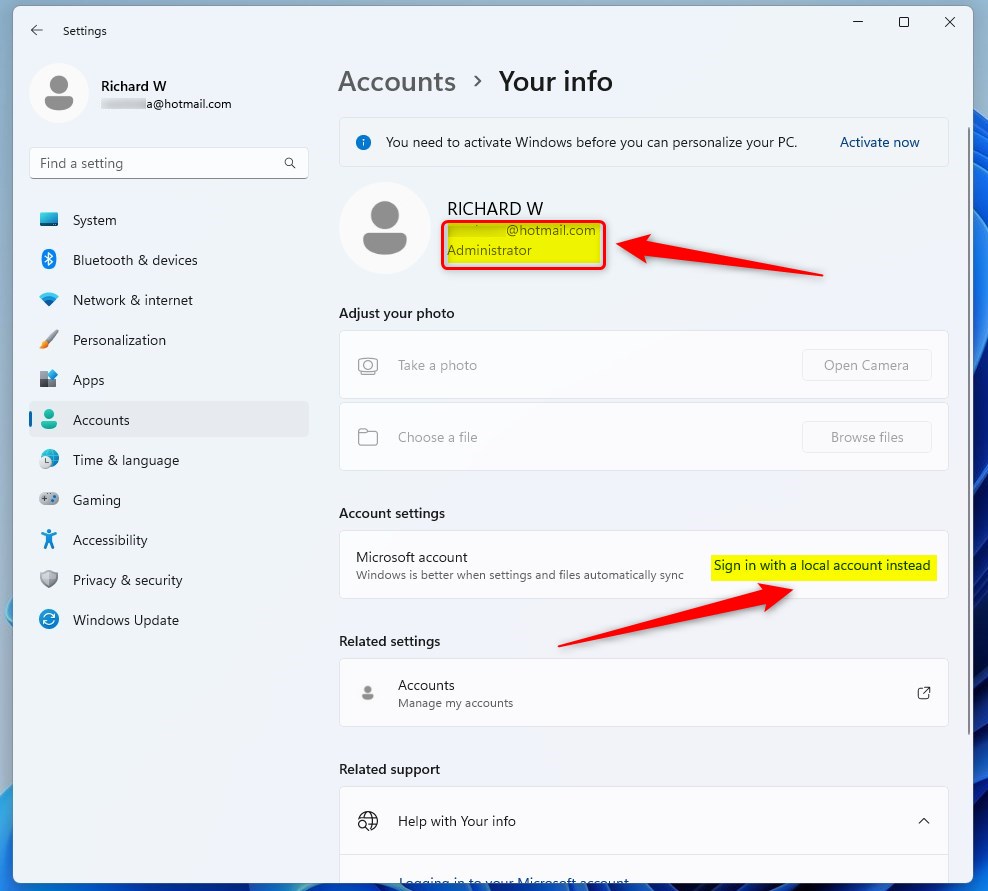
If you see the image below, it means you are signed in with a Microsoft account.
Under your account name, you will see your Microsoft account email address used to sign in. You will also see the account type.
This is a Microsoft account. You will also see a link to “Sign in with local account instead.”
This confirms that you are signed in with a Microsoft account.
That should do it!
Conclusion:
- Determining whether your Windows 11 account is a Local or Microsoft account is essential for understanding your access and control over the system.
- By following the steps in the Settings app, you can easily identify the type of account you are signed into.
- Understanding the account type allows you to make informed decisions about security and administrative privileges on your device.


Leave a Reply Cancel reply