How to Switch Tabs in Windows 11 File Explorer

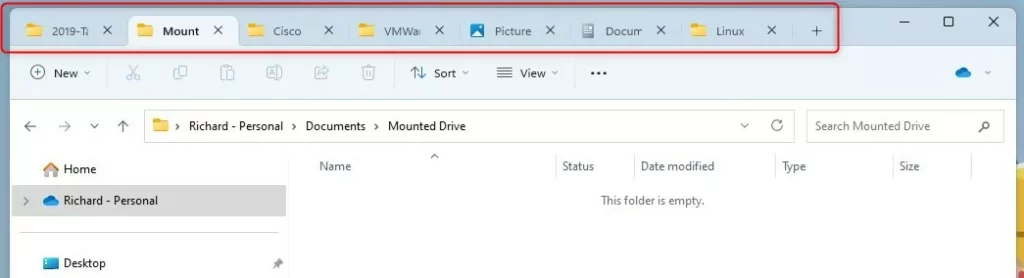
Windows 11 now lets you use tabs in File Explorer, just like you do in a web browser. This feature, introduced in the Windows 11 Insider Preview, makes it much easier to move files between folders without opening multiple windows. Tabbed file management is a core part of modern Windows 11 productivity, helping you keep your desktop clean and your workflow efficient.
Why use tabs?
Tabs keep your desktop clean. Instead of having five different windows open, you can keep everything organized in one place. This saves space and helps you stay focused on your tasks.
What happens when done?
Once you learn these shortcuts, you will be able to jump between your folders in seconds. It makes managing files faster and more efficient.
Essential Keyboard Shortcuts
Mastering these shortcuts will speed up your File Explorer navigation significantly:
- Ctrl + T: Open a new tab.
- Ctrl + W: Close the current tab.
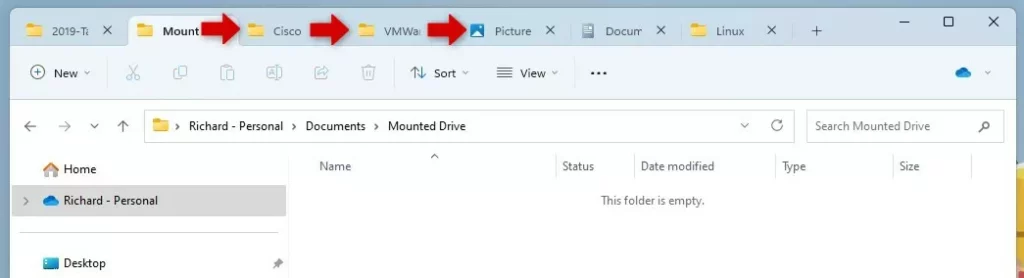
- Ctrl + Tab: Switch to the next tab on the right.
- Ctrl + Shift + Tab: Switch to the previous tab on the left.
- Ctrl + 1-9: Jump to a specific tab number.
How to manage your tabs
First, open File Explorer or press the Windows key + E. To open a new tab, press Ctrl + T. You can also click the plus (+) button at the top of the window, or right-click any folder and select “Open in new tab.”
Advanced Tab Management
You can drag and drop tabs to reorder them within the same window. However, you cannot currently drag a tab out to create a new, separate File Explorer window. If you need to move files between folders, simply drag the file from the main view and hover it over the destination tab at the top until it switches, then drop the file into the new folder.
Troubleshooting and Disabling Tabs
If tabs are missing, ensure your Windows 11 is fully updated. If you prefer the old style, some third-party shell extensions allow you to revert to classic navigation, though this is not officially supported. If you need to force a specific folder path via command line, use: explorer.exe C:\Users\GenericUser\Documents.
Note: These actions do not require admin privileges. Any standard user account can perform these steps.
Summary
Using tabs in Windows 11 File Explorer helps you stay organized. By using simple keyboard shortcuts like Ctrl + T to create a tab and Ctrl + Tab to navigate, you can manage your files much faster than before. These tools are built into the system to make your daily computer tasks easier to handle.
Why are tabs missing in my Windows 11 File Explorer?
Tabs were introduced in later versions of Windows 11. If you do not see them, your system may be running an outdated version of Windows. Check for updates in Settings to ensure you have the latest features, including the updated File Explorer ribbon and tabbed interface.
How do I restore a closed tab in File Explorer?
Currently, Windows 11 File Explorer does not have a native “Restore Closed Tab” button like web browsers. You must manually navigate back to the folder location. To avoid losing your place, try to keep important folders open in separate tabs until your task is complete.
Was this guide helpful?

About the Author
Richard
Tech Writer, IT Professional
Richard, a writer for Geek Rewind, is a tech enthusiast who loves breaking down complex IT topics into simple, easy-to-understand ideas. With years of hands-on experience in system administration and enterprise IT operations, he’s developed a knack for offering practical tips and solutions. Richard aims to make technology more accessible and actionable. He's deeply committed to the Geek Rewind community, always ready to answer questions and engage in discussions.



No comments yet — be the first to share your thoughts!