How to Sign in using Microsoft Authenticator

You sign in to your Microsoft accounts using the Microsoft Authenticator app to enhance security and simplify login processes.
Microsoft Authenticator acts as a digital authenticator, replacing traditional passwords with passwordless sign-ins and enabling two-step verification (2SV) or multi-factor authentication (MFA). You can integrate it with personal Microsoft accounts and eligible work or school accounts, making logins faster and more secure.
This method typically involves approving a sign-in request directly from your phone or entering a time-based one-time password (TOTP) generated by the app.
Before You Start: What You Need
Here are a few simple things to do before we begin. It’s easy!
- Get the App: You need the Microsoft Authenticator app on your phone. Download it from your phone’s app store. It’s free.
- Add Your Accounts: Once the app is on your phone, add the accounts you want to protect. Go to your account’s security settings online. Follow the steps to link your account with the Authenticator app. The app might show you a QR code to scan or a code to type in.
- Know About Future Changes: Microsoft is changing some Authenticator features. Starting in July 2025, the app won’t fill in passwords for you. By August 2025, you can’t save passwords in the app anymore. So, you’ll use the app more for approving sign-in requests. Make sure you save any important passwords somewhere else if you were using the app for that.
Signing In with a Notification
This is the most common way to use Authenticator. It works for passwordless sign-ins and MFA. You don’t even need to remember your password!
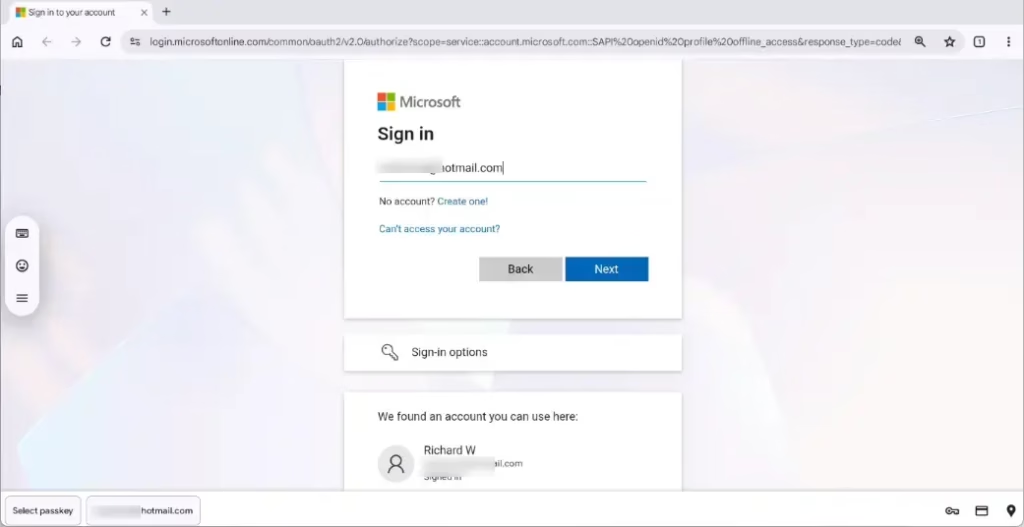
- Go to the Login Page: Visit the website or app where you want to sign in.
- Enter Your Username: Type your username (like your email address) and click ‘Next’.
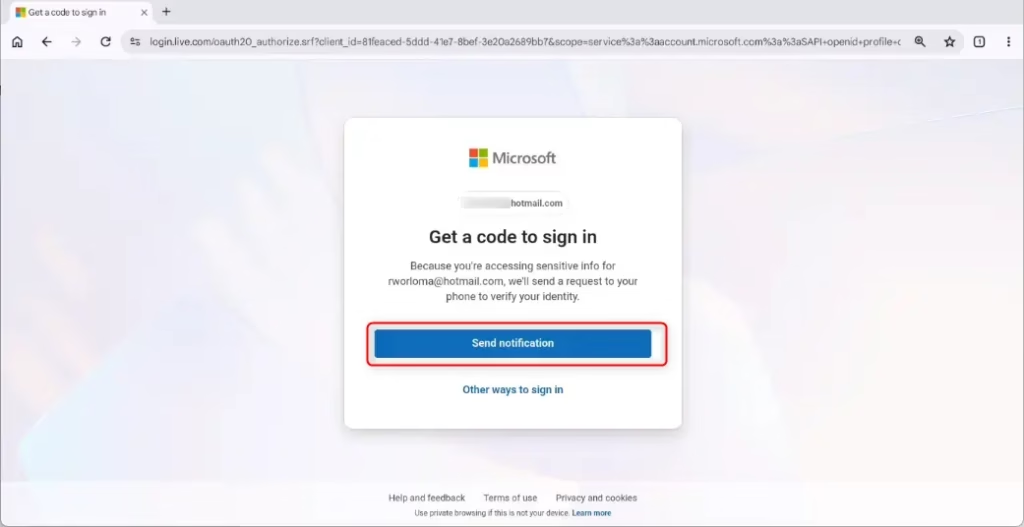
- Request the Notification: Click the option that says ‘Send notification’ or something similar. This tells the service to send a request to your Authenticator app.
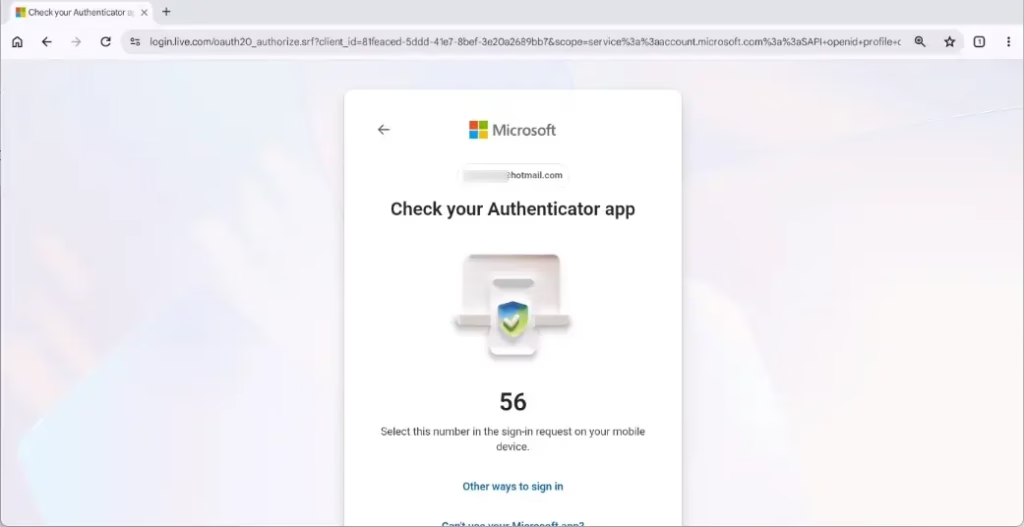
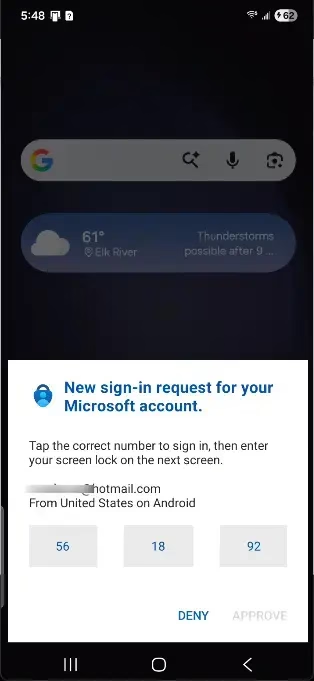
- Check Your Phone: Pick up your phone. You’ll get a notification from the Microsoft Authenticator app. Sometimes, the website shows a number. This is to make sure you approve the right sign-in.
- Approve the Request: Open the Authenticator app. You might need to unlock it. Tap the notification or the sign-in request. If you saw a number on your computer, tap or enter that same number in the app. Then, tap ‘Approve.’
- Finish Signing In: After you approve on your phone, the website or app on your computer will let you sign in. You might have one last step on your computer.
Summary
The Microsoft Authenticator app makes logging into your accounts more secure and often easier. You can use it to approve sign-in requests with a simple tap on your phone, making passwords less important. It also offers a way to sign in remotely to work or school accounts by linking your phone to another device. While some features like password saving are changing, its core function of providing secure, multi-factor authentication remains a key benefit for protecting your digital life.
How do I sign into my account on Microsoft Authenticator?
To sign in using Microsoft Authenticator, approve the sign-in request sent to your phone or enter the time-based one-time password (TOTP) generated by the app. This passwordless method enhances security by replacing traditional passwords for your Microsoft accounts.
Can I use Microsoft Authenticator without downloading the app?
No, you cannot use Microsoft Authenticator without downloading the app. The app is essential for generating codes and approving sign-in requests, acting as your digital authenticator for passwordless sign-ins and two-step verification.
How do I sign into Microsoft Authenticator after getting a new phone?
To sign in after getting a new phone, you need to set up the Microsoft Authenticator app again. Back up your accounts before switching phones. On the new device, reinstall the app and restore your accounts from the backup to regain access.
Why can't I login to Microsoft with the Authenticator app?
Login issues with Microsoft Authenticator can occur due to incorrect setup, network problems, or if the app's time isn't synchronized. Ensure your phone's time is set automatically and that you've correctly linked your account within the Authenticator app.
Was this guide helpful?

About the Author
Richard
Tech Writer, IT Professional
Richard, a writer for Geek Rewind, is a tech enthusiast who loves breaking down complex IT topics into simple, easy-to-understand ideas. With years of hands-on experience in system administration and enterprise IT operations, he’s developed a knack for offering practical tips and solutions. Richard aims to make technology more accessible and actionable. He's deeply committed to the Geek Rewind community, always ready to answer questions and engage in discussions.



No comments yet — be the first to share your thoughts!