

This article explains how to sign in or out of the copilot-app-on-windows-11/” class=”sal-link” rel=”noopener” target=”_blank” data-sal-id=”3961″>Copilot app in Windows 11.
Copilot in Windows is a generative AI assistance that allows users to interact with the chatbot using natural language to change system settings and work across multiple applications.
For computers that have Copilot added, a new Copilot button will appear on the Taskbar. Clicking the button or using the keyboard shortcut (Windows key + C) will appear as a flyout interface.
When Copilot is installed on Windows, you can enable or disable it, open Copilot when Windows starts, Pin or Unpin the Copilot side panel, Resize the Copilot side panel, delete chat history in Copilot, create a desktop shortcut, and more.
You can sign in to the Copilot app using a work, school, or personal Microsoft account to gain access to more features. However, if you’re not signed in to the Copliot app using a Microsoft or Microsoft Entra account, your experience will be limited.
Signing in or out of the Copilot app in Windows is a breeze. To sign in, open the Copilot app and click the “Sign In” or “Log In” option. You will then be guided to enter your username and password. Once you’ve entered your credentials, clicking “Sign In” will grant you access to the app.
To sign out of the Copilot app, locate the sign-out or log-out option within the app, usually found within the account or settings section, and follow the provided instructions to sign out of your account.
Sign in to the Copilot app on Windows
To sign in, open the Copilot app and click the “Sign In” or “Log In” option.
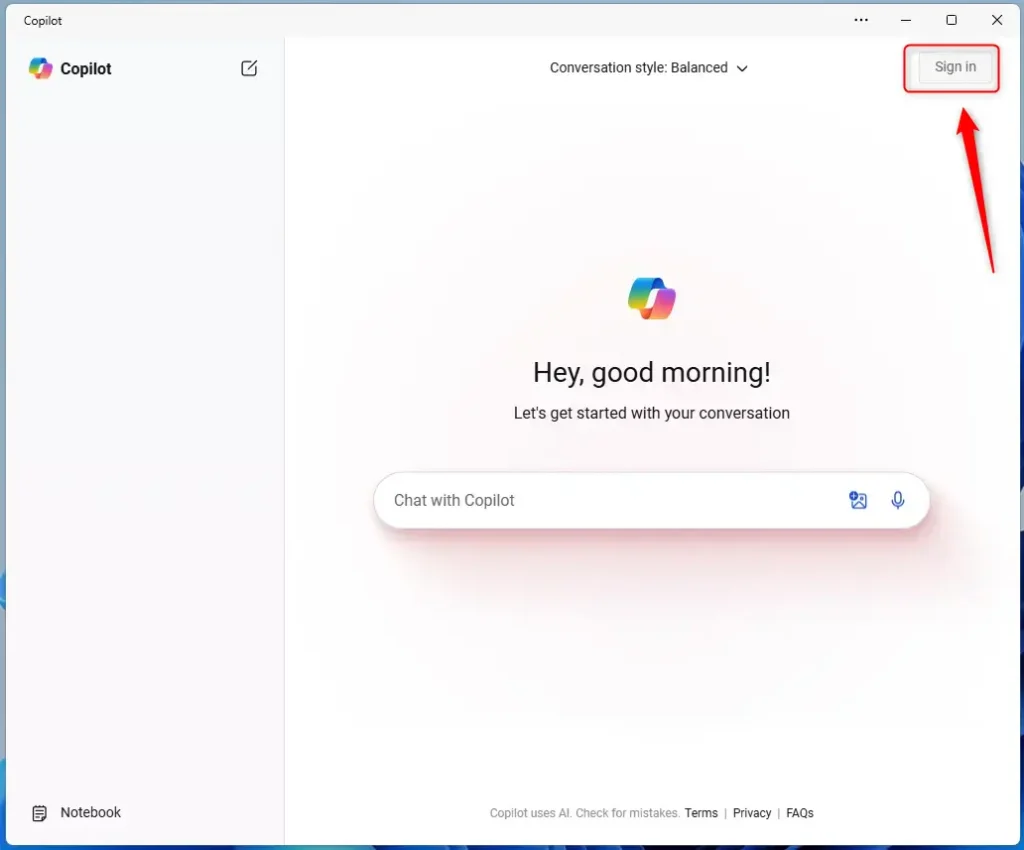
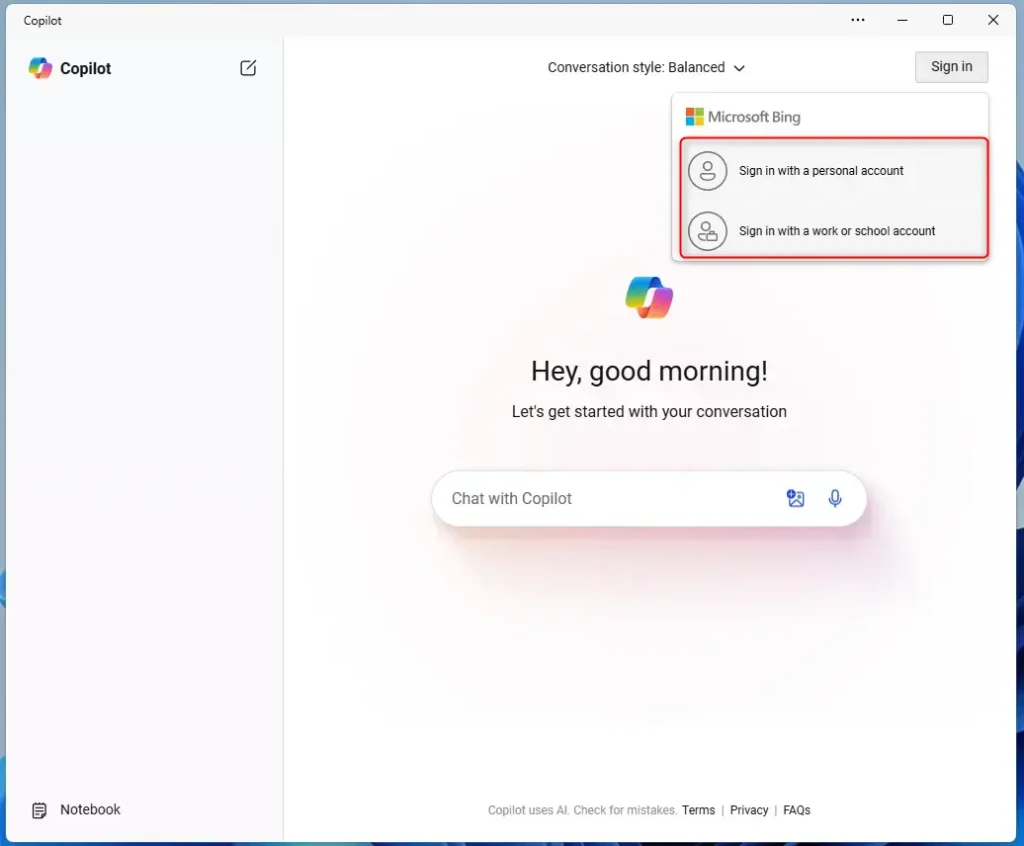
On the drop-down menu, click the Sign in with a personal account (Microsoft account) or a work or school account (Microsoft Entra Account) option.
You will then be guided to enter your username and password.
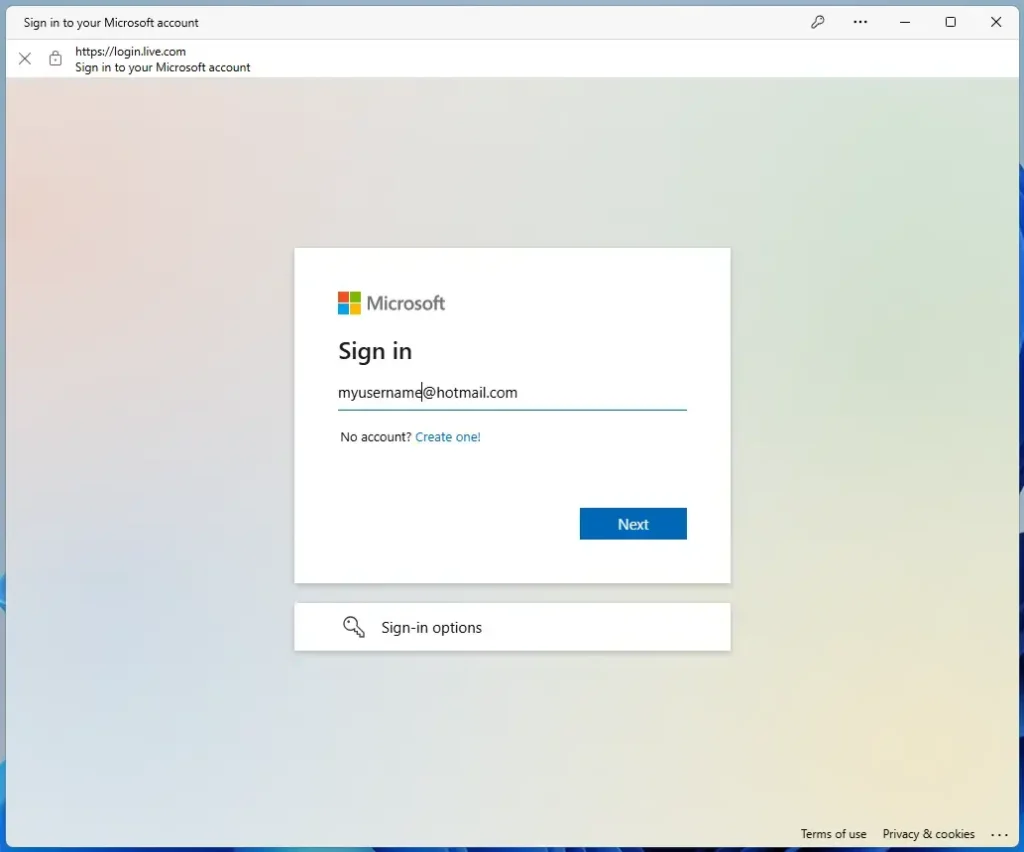
Once you’ve entered your credentials, clicking “Sign In” will grant you access to the app.
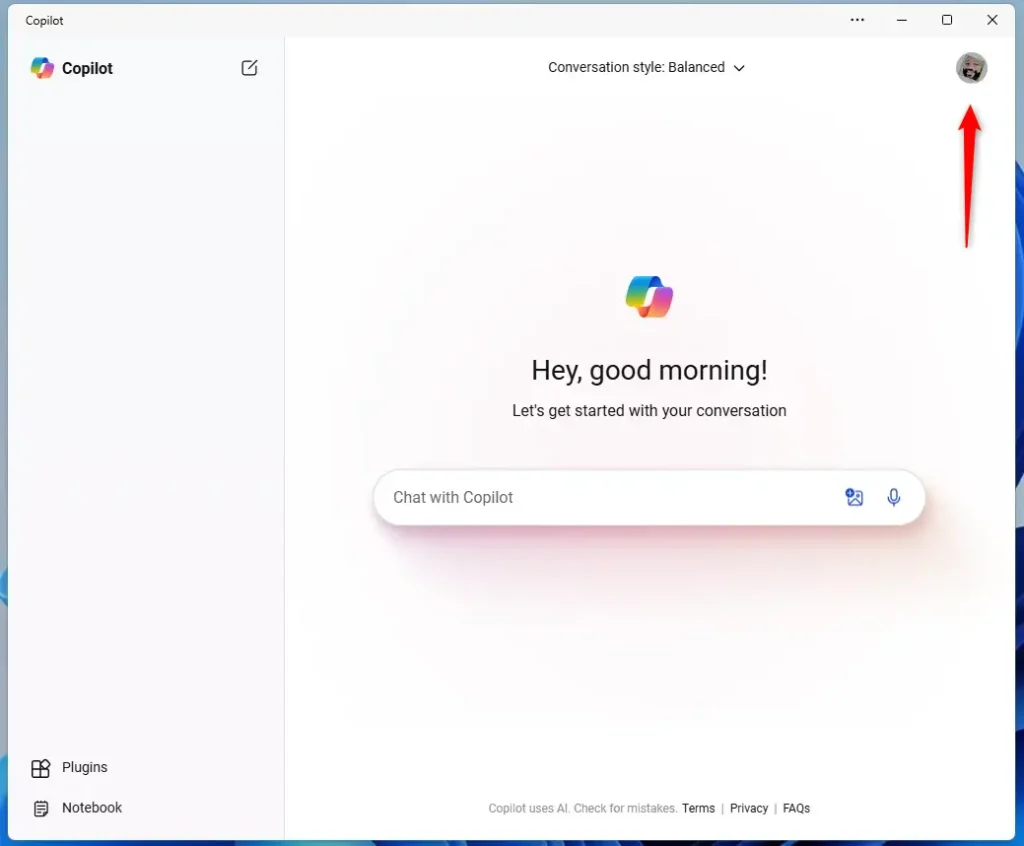
Sign out of the Copilot app on Windows
To sign out of the Copilot app, locate the sign-out or log-out option within the app, usually found within the account or settings section, and follow the provided instructions to sign out of your account.
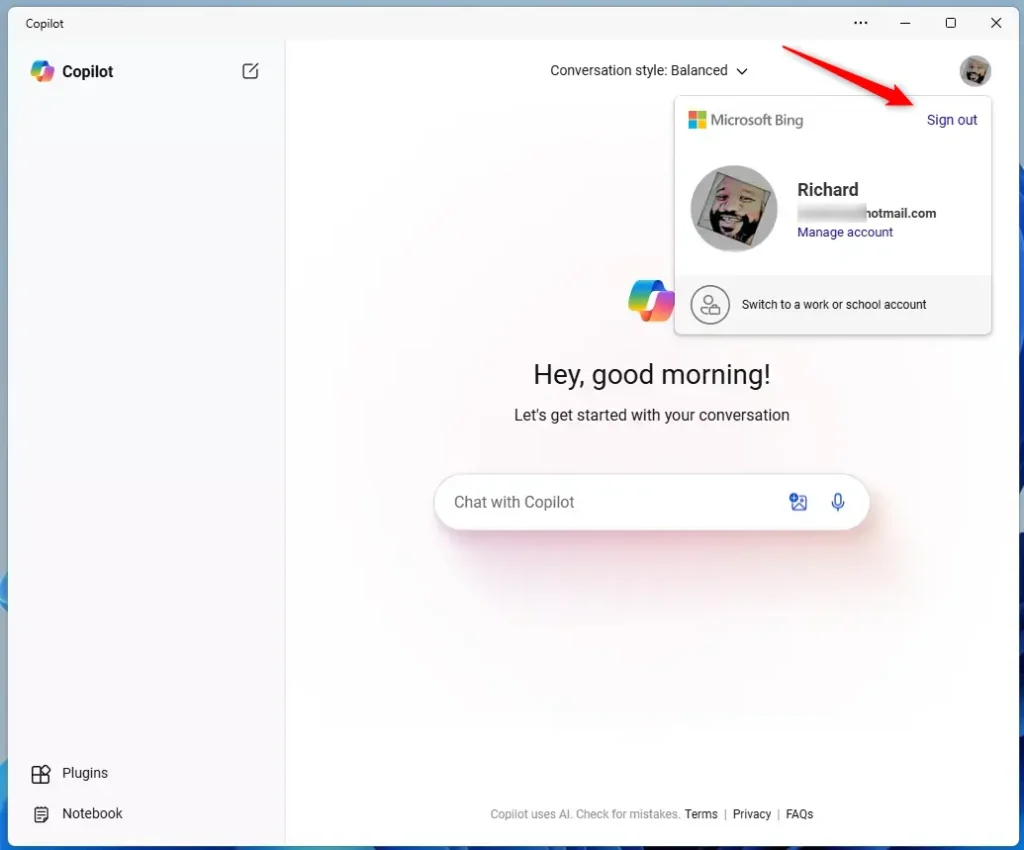
That should do it!
Conclusion:
- Signing in or out of the Copilot app on Windows 11 provides access to additional features and a personalized user experience.
- Users can easily sign in by clicking the “Sign In” or “Log In” option within the Copilot app, entering their credentials, and clicking “Sign In.”
- To sign out, users can locate the sign-out or log-out option within the app, usually under the account or settings section, and follow the provided instructions.
- Whether utilizing generative AI assistance, changing system settings, or utilizing various applications, Copilot offers a seamless and customizable user interface while ensuring a secure sign-in process.

Leave a Reply to How to Restore File Explorer Windows at Logon | Geek Rewind Cancel reply