How to Sync Clock Time with Internet Time Server in Windows 11

You can manually sync your Windows 11 clock with an Internet time server to ensure accurate timekeeping on your PC.
When you sync your clock, your computer connects to a Network Time Protocol (NTP) server – a specialized server that keeps time synchronized across networks – like time.windows.com. This server automatically corrects any differences in your PC’s internal clock.
An accurate clock is crucial for file timestamps, system security, and overall PC performance. For instance, incorrect time can affect login authentication and scheduled tasks.
You’ll need administrator privileges to perform this synchronization. If your computer is part of a domain network, a different method (Option Three) is required.
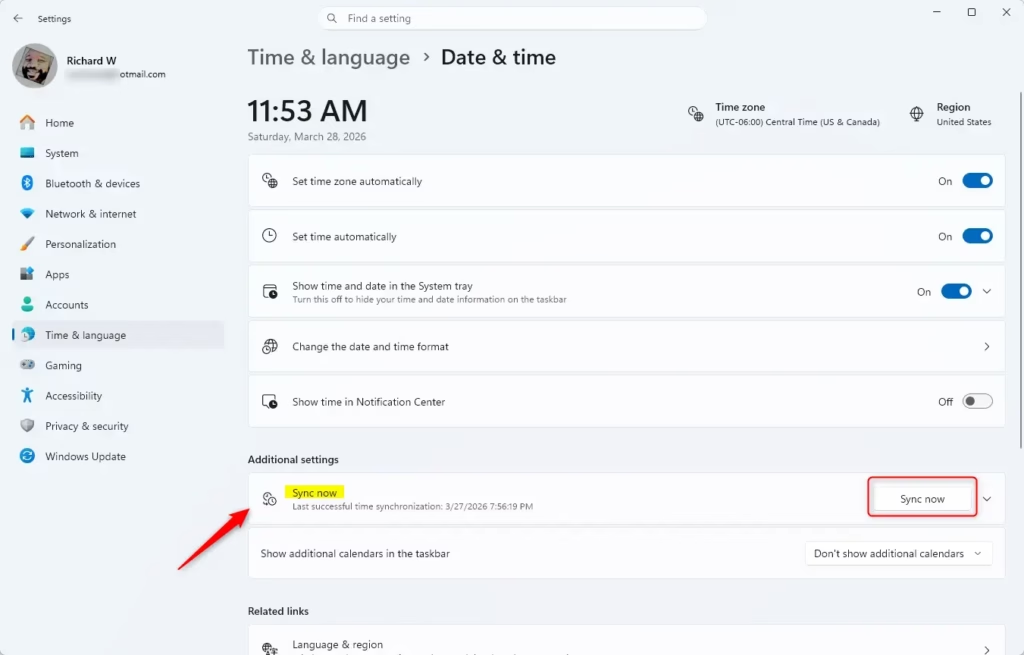
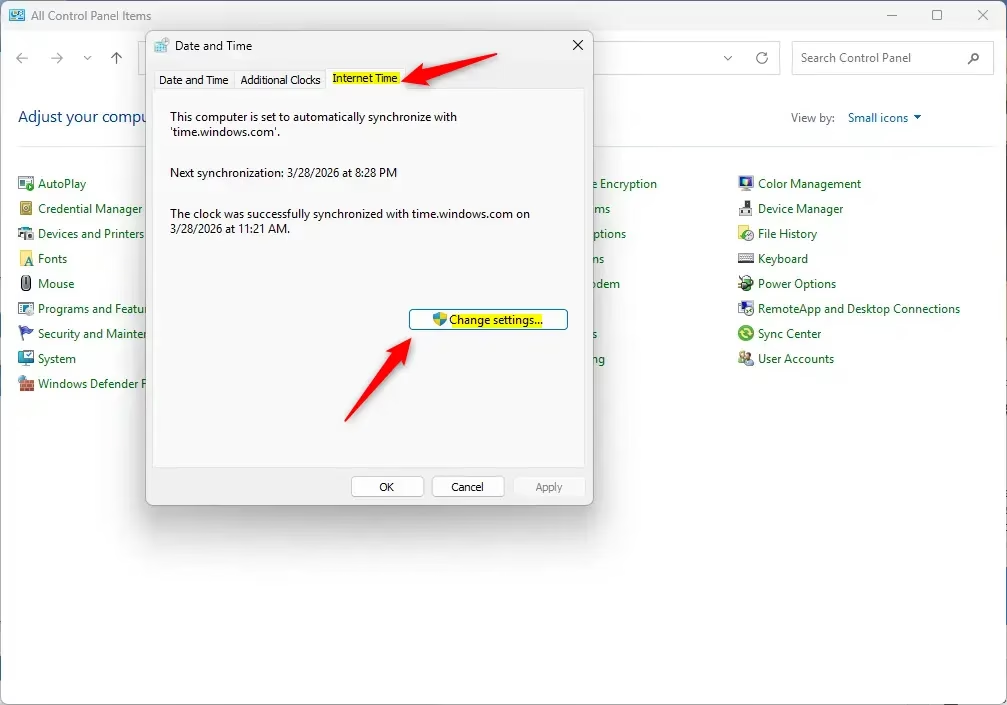
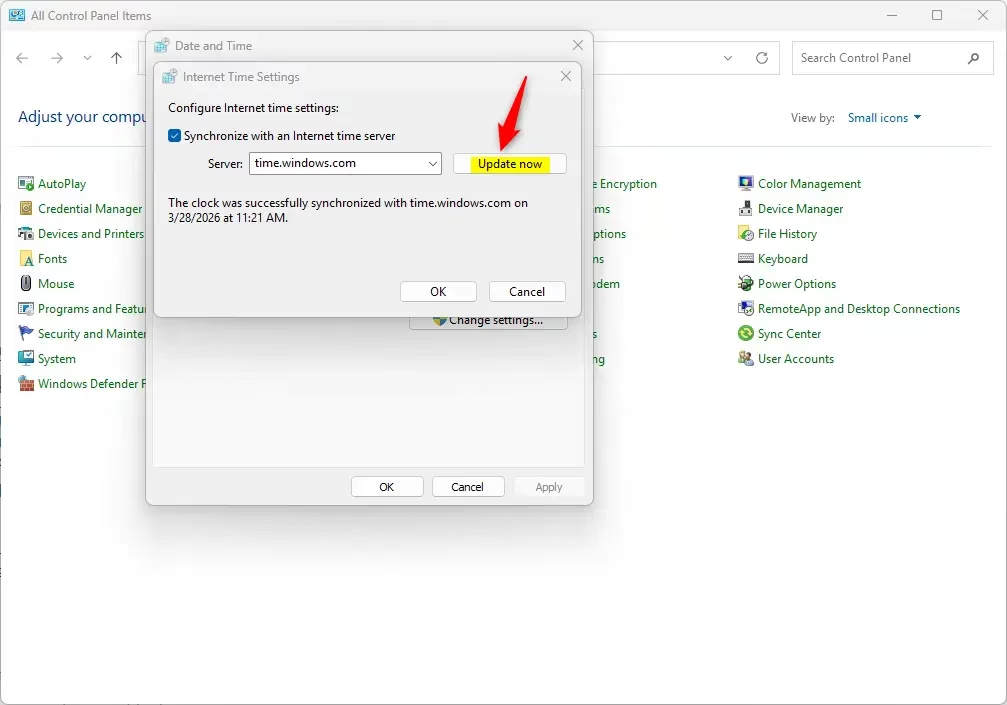
Open Settings, navigate to Time & language, then Date & time, and click “Sync now” under Additional settings. Alternatively, open Control Panel, go to Date and Time, select the Internet Time tab, click “Change settings,” and then click “Update now.
Option 1Sync Clock Using Settings
You can sync your Windows 11 clock with an internet time server using the Settings app. This is the easiest way to keep your PC’s time accurate if it’s not connected to a work or school network.
- Open Settings by pressing ⊞ Win+I.
- Click Time & language on the left side. Then click Date & time on the right side.
- Under Additional settings, click the Sync now button.
You will see when your time was last synced and which time server was used.
Option 2Sync Clock Using Control Panel
If you prefer using the Control Panel, you can also sync your Windows 11 clock with an internet time server. This method works similarly to the Settings app but uses the older interface, and it’s not suitable for computers on a domain.
- Open Control Panel in icon view. Click the Date and Time icon.
- You can close Control Panel now if you like.
- Click the Internet Time tab. Then click Change settings.
- Click Update now.
Make sure the Synchronize with an Internet time server box is checked before you click Update now. If you want, you can pick or type a different Internet time server to sync with instead. If you see an error, try clicking Update now again.
Option 3Sync Clock Using Command Line
For advanced users or when your Windows 11 PC is part of a domain, syncing the clock using the command line is a powerful option. You’ll need to open Windows Terminal with administrator rights to run the necessary commands.
- Open Windows Terminal as an admin. Select Windows PowerShell or Command Prompt.
- Copy and paste one of the commands below. Press Enter.
If your PC is NOT joined to a domain:
w32tm /resync
If your PC IS joined to a domain:
net time /domain
Error: “The service has not been started. (0x80070426)”
This usually means the Windows Time service isn’t running. Run this command first:
net start w32time
Then, try your sync command again.
Error: “The computer did not resync because no time data was available”
Try the command again. It should work the next time.
- You can close Windows Terminal now.
Summary
You’ve learned three distinct methods to sync your Windows 11 clock with an internet time server, ranging from simple Settings adjustments to command-line tools for domain environments. Keeping your PC’s clock accurate is vital for file timestamps and overall system function.
Why this matters: Keeping your clock accurate helps your PC work properly and keeps your files correctly timestamped.
When to use each option: Use Option One or Two for home computers. Use Option Three if you are on a domain or prefer the command line.
How do I resync my PC clock?
Set the date and time Select Start and then select Settings > Time & language > Date & time. To set the date and time automatically, make sure the option Set time automatically is turned On.
How do I force Windows to resync time?
Go to Start -> All Programs -> Accessories, and click Command Prompt. Type in w32tm /resync, and press Enter (this will synchronize the time to your domain controller).
How to fix clock desync?
Then click on change option. And here you can change your date. And time then click on change. Now check your time.
Why is my PC failing to sync time?
Common Causes of Time Synchronization Issues Incorrect Time Zone Settings: Sometimes, the time zone is set incorrectly, leading to a mismatch in time synchronization. Windows Time Service Issues: The Windows Time service might be disabled or malfunctioning.
Was this guide helpful?

About the Author
Richard
Tech Writer, IT Professional
Richard, a writer for Geek Rewind, is a tech enthusiast who loves breaking down complex IT topics into simple, easy-to-understand ideas. With years of hands-on experience in system administration and enterprise IT operations, he’s developed a knack for offering practical tips and solutions. Richard aims to make technology more accessible and actionable. He's deeply committed to the Geek Rewind community, always ready to answer questions and engage in discussions.




No comments yet — be the first to share your thoughts!