How to Sign In and Out of Widgets on Windows 11

You sign in and out of Windows 11 Widgets to manage your personalized information feed and connect to your Microsoft account.
Widgets on Windows 11 provide at-a-glance updates for news, weather, traffic, and more, directly from your taskbar. Signing in ensures these widgets pull data tailored to your Microsoft account, offering a customized experience.
For instance, signing in lets your Widgets board show personalized news articles based on your interests, or sync your calendar appointments. This process is straightforward and takes just a few moments to complete.
Signing Out of Widgets
Sometimes, you might want to disconnect your Widgets from your Microsoft account. Perhaps you’re using a computer others share, and you don’t want your personal information showing. Or maybe you prefer to use a different account for Widgets. Signing out is an option.
- Open the Widgets board. Click the Widgets icon on your taskbar. Or, press
Windows key + Won your keyboard. The Widgets board will slide out from the left.
- Find your user account button. Look for a button, usually in the top-left corner. It might show your picture or initials. Click this button.
Tip: If you don’t see your picture, it might show your name or a generic icon. Clicking it is how you get to your account settings in Widgets.
- Select “Sign Out”. A menu will show up after you click your account button. Look for “Sign Out” and click it.
Warning: Signing out will reset your Widgets board to how it was when you first got it. Any Widgets you added might disappear. The content will not be picked just for you anymore.
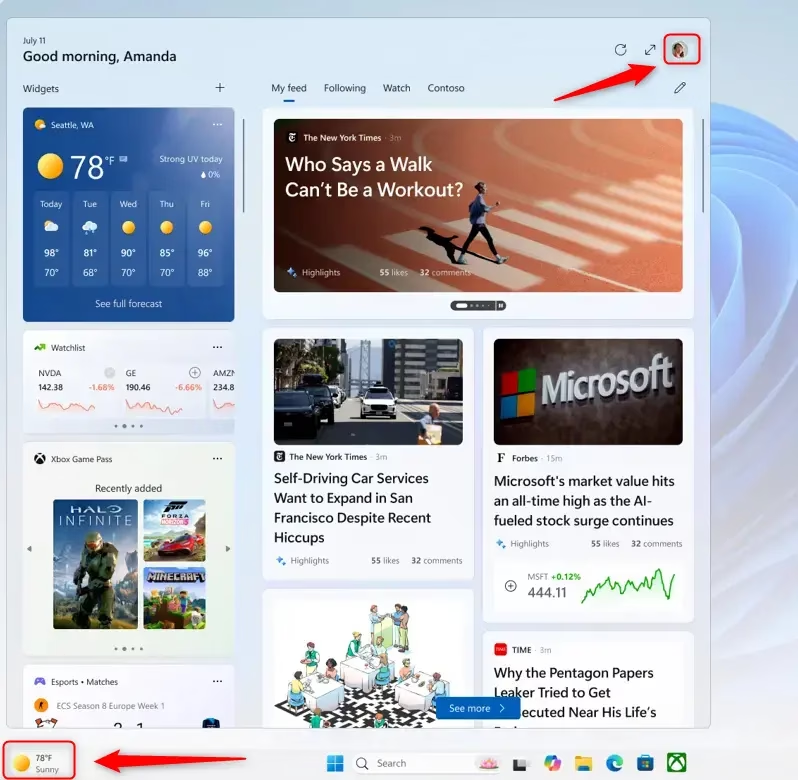
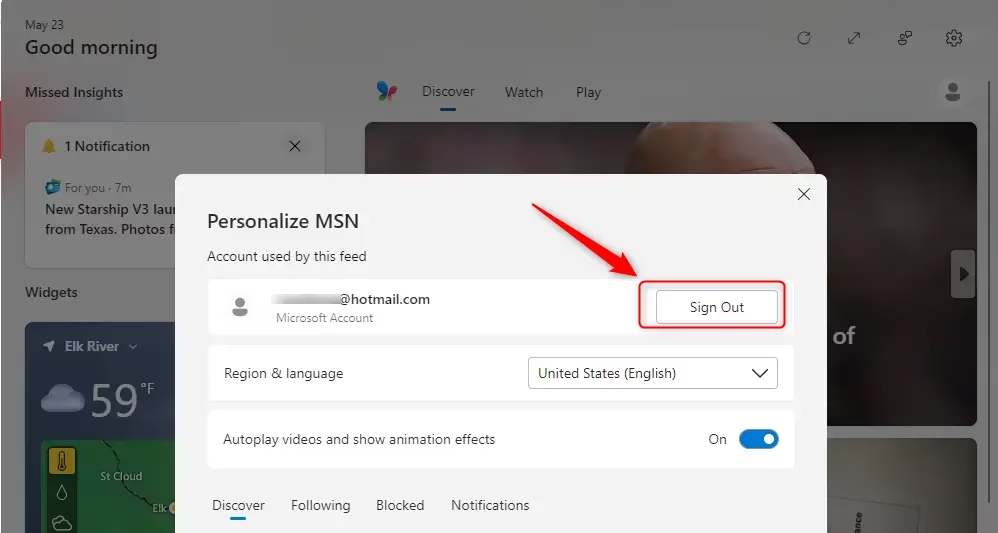
After you sign out, the Widgets board will look more basic. It will prompt you to sign in again to personalize your experience. This is helpful for keeping your information private when necessary.
Signing In to Widgets (or Switching Accounts)
After signing out or if it’s your first time, you’ll probably see a “Sign in” button in the Widgets board. Alternatively, a message at the top might prompt you to sign in. If you’re looking to use the same account you just signed out of, you might see your picture or name again; clicking it could log you back in. For a different account, search for an option like “Sign in with a different account.”
- Open the Widgets board. Click the Widgets icon on your taskbar or press
Windows key + W.
- Look for the “Sign in” option. When you open Widgets after signing out, or if you have never signed in, you will likely see a “Sign in” button. Or, there might be a message at the top asking you to sign in.
Tip: If you signed out and want to use the same account, you might see your picture or name again. Clicking it might let you sign back in. If you want to use a different account, look for something like “Sign in with a different account”.
- Choose your account. A box will ask you to sign in with your Microsoft account. You might see a list of accounts already on your PC. Pick the one you want to use for Widgets.
Practical Tip: Make sure you sign in with the Microsoft account that has your favorite settings and subscriptions. This helps Widgets know what content is best for you.
- Enter your details. If asked, type your Microsoft account password. Or, use other ways to prove it’s you, like a PIN or Windows Hello. Follow the steps on the screen to finish signing in.
Warning: Be careful when you type your login details. Always check that you are on a real Microsoft sign-in page. This stops you from falling for scams. If you are not sure, close Widgets and go to the official Microsoft website to sign in there.
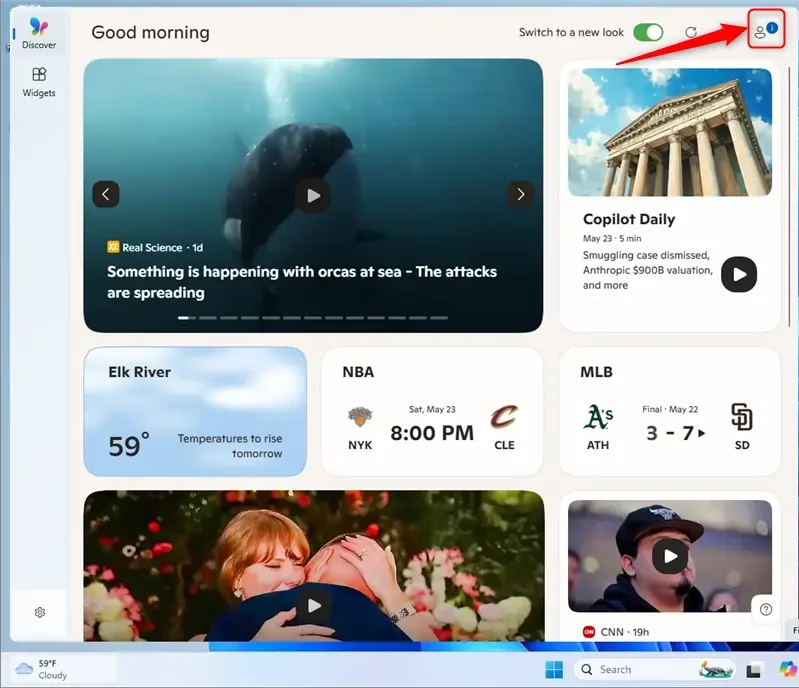
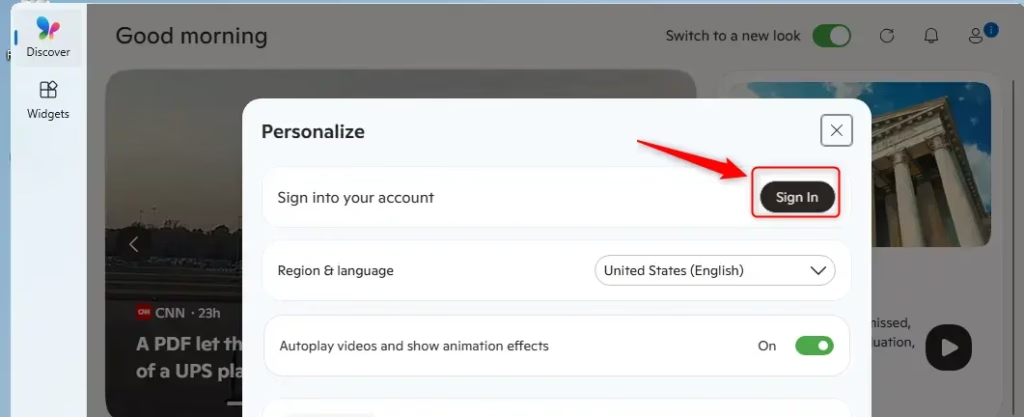
Once you sign in, the Widgets board will update. It will begin displaying content curated specifically for you. This could include news tailored to your interests, weather for your location, and other information based on your preferences and past activity.
Reference:
Summary
Signing out of Widgets helps maintain your privacy, particularly on shared computers. It reverts the board to a basic display. Signing in uses your Microsoft account to show you personalized content. You can sign out by clicking your profile picture in the Widgets board and selecting “Sign Out.” To sign back in, click the Widgets icon, then the “Sign in” button, and enter your Microsoft account details. This process lets you manage your Widgets experience, ensuring it presents the information you want, precisely when you need it.
How do I sign out of widgets in 🪟 Windows 11?
To sign out of Widgets in Windows 11, open the Widgets board by clicking its icon on the taskbar or pressing ⊞ Win+W. Then, click your user account button, usually in the top-left corner. From the menu that appears, select 'Sign out' to disconnect your Microsoft account from Widgets.
How to use 🪟 Windows 11 widgets without signing in?
You can use Windows 11 widgets without signing in, but they will offer a limited, non-personalized experience. Basic widgets like weather or news headlines may still display generic information. However, to access personalized content, sync with your Microsoft account, or customize settings, signing in is required.
How to fix widgets in 🪟 Windows 11?
To fix Windows 11 widgets, first try resetting the Widgets app. Go to Settings > Apps > Installed apps, find Widgets, click the three dots, select Advanced options, and then choose 'Terminate' and 'Reset'. If issues persist, ensure Windows is updated and check for Microsoft Store app updates.
How to get rid of widgets on Windows login screen?
Widgets do not appear on the Windows 11 login screen. The Widgets board is accessed from the taskbar after you have logged into your user account. If you are seeing unexpected content on your login screen, it might be related to other Windows features or third-party applications.
Was this guide helpful?
No comments yet — be the first to share your thoughts!