How to Properly Shut Down Ubuntu Linux: A Complete Guide

Properly shutting down Ubuntu Linux involves using specific commands or the graphical interface to safely close all running applications and the operating system.
You need to shut down Ubuntu correctly to prevent data loss or file corruption, especially if your system is unresponsive.
For instance, using the `sudo shutdown -h now` command in the terminal is a common and reliable method for a full shutdown.
Choosing the right method ensures your work is saved and your system is left in a stable state for the next boot.
You can shut down Ubuntu via the system menu in the top-right corner, selecting Power Off / Log Out, then Power Off. Alternatively, use the command line with `sudo shutdown now`. For emergencies, holding the physical power button is an option.
How to turn off the PC in Ubuntu Linux from the system menu
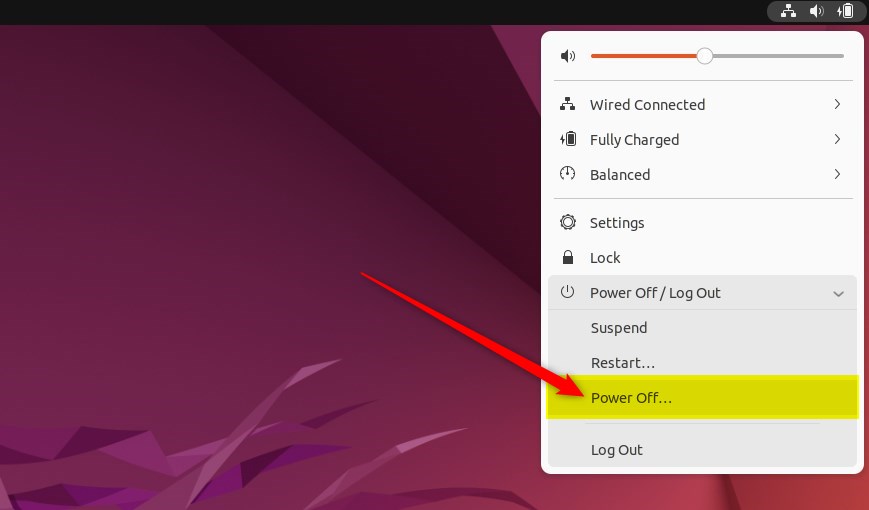
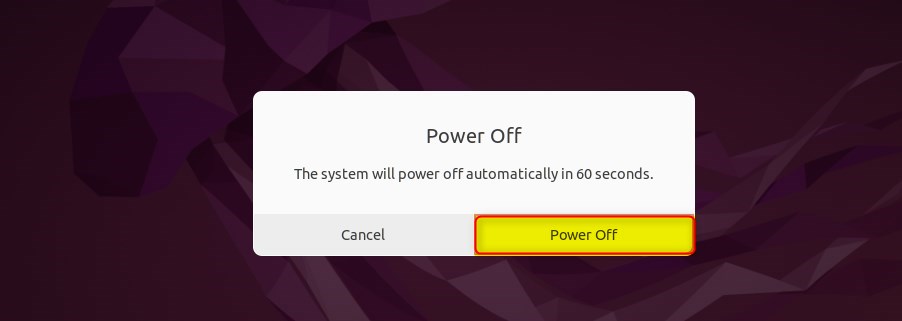
You can easily shut down Ubuntu Linux using the system menu found in the top-right corner of your screen. Just click the menu, select ‘Power Off / Log Out’, then choose ‘Power Off’ from the expanded options, and finally confirm by clicking the ‘Power Off’ button.
Click the system menu in the top-right corner, then choose ‘Power Off / Log Out’ from the menu that pops up to expand it.
From the expanded menu for ‘Power Off / Log Out’, select the ‘Power Off’ option.
Finally, click the ‘Power Off’ button to shut down your Ubuntu PC.
Shutdown Ubuntu Linux from the command line
If you’re comfortable with the command line, you can open it by pressing Ctrl+Alt+T, then use the commands below to shut down your PC.
sudo shutdown now
To schedule a shutdown for a specific time, use the 24-hour clock format. You’ll specify the time with the shutdown command.
example: shutdown at 5:00 PM
sudo shutdown 17:00
You can also set a delay before the shutdown happens. For instance, to shut down in 15 minutes, use the following command:
sudo shutdown +15
Shutdown Ubuntu Linux using the PC Power button
When other methods to shut down Ubuntu Linux don’t work, you can use the PC’s physical power button as a final option. Press and hold the power button for a few seconds until your computer completely turns off.
Hopefully, these shutdown methods help you get your computer turned off.
Conclusion:
- Ubuntu Linux offers various methods to shut down the system, catering to user preferences and circumstances.
- The system menu provides an intuitive, graphical way to shut down the PC, accessible from the top-right corner of the top bar.
- Command line enthusiasts can utilize the ‘sudo shutdown’ command to turn off the PC, with options to specify a time or wait duration.
- As a last resort, holding the power button or disconnecting the power plug may be employed if other methods fail, though these should be used sparingly.
Was this guide helpful?

About the Author
Richard
Tech Writer, IT Professional
Richard, a writer for Geek Rewind, is a tech enthusiast who loves breaking down complex IT topics into simple, easy-to-understand ideas. With years of hands-on experience in system administration and enterprise IT operations, he’s developed a knack for offering practical tips and solutions. Richard aims to make technology more accessible and actionable. He's deeply committed to the Geek Rewind community, always ready to answer questions and engage in discussions.




[…] How to shutdown Ubuntu Linux […]
[…] shutdown button on the start/power menu will close all applications and turn off the computer when […]
[…] Shutdown button closes all apps and turns off your PC. You usually click it when you’re done working […]