How to Show or Hide Pen Menu icon on Taskbar in Windows 11

You can manage quick access to your pen-enabled apps by showing or hiding the Pen menu icon on your Windows 11 taskbar.
When you use a stylus with your PC, the Pen menu icon gives you quick shortcuts to your most-used apps. You can customize it with up to four app shortcuts.
This tutorial shows you how to control its visibility on your taskbar.
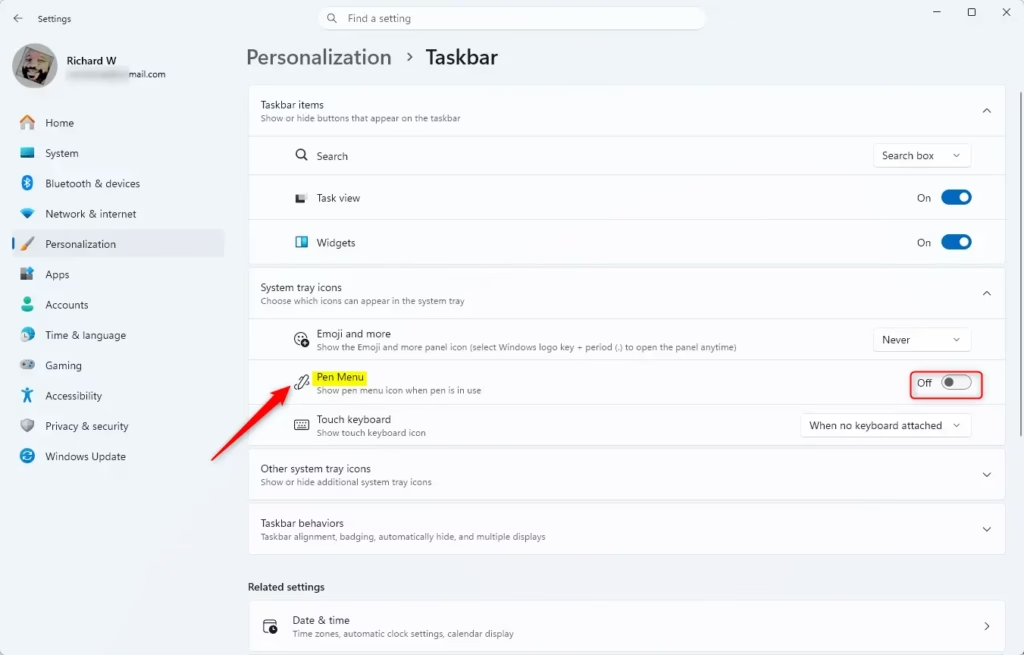
Go to Settings > Personalization > Taskbar, then find Pen menu under Taskbar corner icons and toggle it On or Off. Alternatively, use the Registry Editor to change the PenWorkspaceButtonDesiredVisibility value to 1 to show or 0 to hide.
Option 1Using Settings
- Open Settings by pressing ⊞ Win+I on your keyboard.
- Click Personalization on the left side.
- Click Taskbar on the right side.
- Look for Taskbar corner icons or System tray icons.
- Find Pen menu and turn it On or Off based on what you want.
- Close Settings when you’re done.
Option 2Using Registry Editor
⚠️ Admin privileges required
To Show the Pen Menu Icon:
- Press ⊞ Win+R to open the Run dialog.
- Type regedit and press Enter.
- Navigate to: 🗝️HKEY_CURRENT_USER\Software\Microsoft\Windows\CurrentVersion\PenWorkspace
- Find PenWorkspaceButtonDesiredVisibility.
- Set the value to 1 to show the icon.
To Hide the Pen Menu Icon:
- Follow steps 1-3 above.
- Find PenWorkspaceButtonDesiredVisibility.
- Set the value to 0 to hide the icon (this is the default setting).
Summary
You now know two ways to control the pen menu icon on your Windows 11 taskbar. Using Settings is often the quickest way. If you prefer using the registry editor, remember that this method requires admin access to your computer. Pick the method that works best for you.
What does the pen menu do?
The Windows pen menu allows you to collaborate with Whiteboard and take screenshots. You can also select app shortcuts to add to your pen menu.
Was this guide helpful?

About the Author
Richard
Tech Writer, IT Professional
Richard, a writer for Geek Rewind, is a tech enthusiast who loves breaking down complex IT topics into simple, easy-to-understand ideas. With years of hands-on experience in system administration and enterprise IT operations, he’s developed a knack for offering practical tips and solutions. Richard aims to make technology more accessible and actionable. He's deeply committed to the Geek Rewind community, always ready to answer questions and engage in discussions.




No comments yet — be the first to share your thoughts!