How to Share Windows from the Taskbar in Windows 11

You can share specific application windows directly from the Windows 11 taskbar, making collaboration and presentations much smoother, especially during video calls.
This lets you pick just one window to share, so you won’t accidentally show other apps you have open.
Windows 11, starting with version 22H2, added this ability to make sharing content in apps like Microsoft Teams much smoother.
You can turn this taskbar sharing option on or off in your Windows settings to control when it’s available.
Share specific application windows from the Windows 11 taskbar during meetings. Open Settings, navigate to Personalization > Taskbar > Taskbar behaviors, and check “Share any window from my taskbar” to enable it. Hover over taskbar apps during a meeting to see and click the share button.
How to Turn On or Off “Share Any Window” from the Taskbar Using Settings
You can easily turn the “Share Any Window” feature on or off from the Taskbar using the Settings app in Windows 11. This is the simplest method and lets you quickly control if a share button appears when you hover over apps during a meeting.
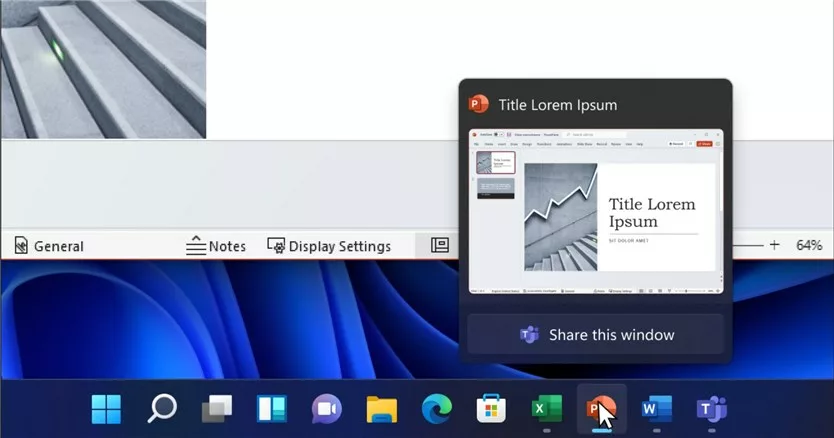
What happens? When it’s on, you’ll see a share button pop up as you hover over apps on your taskbar during a meeting.
- Open the Settings app. Click the Start menu (Windows icon at the bottom left) and select Settings. Or press Windows key + I on your keyboard.
- Click Personalization on the left menu.
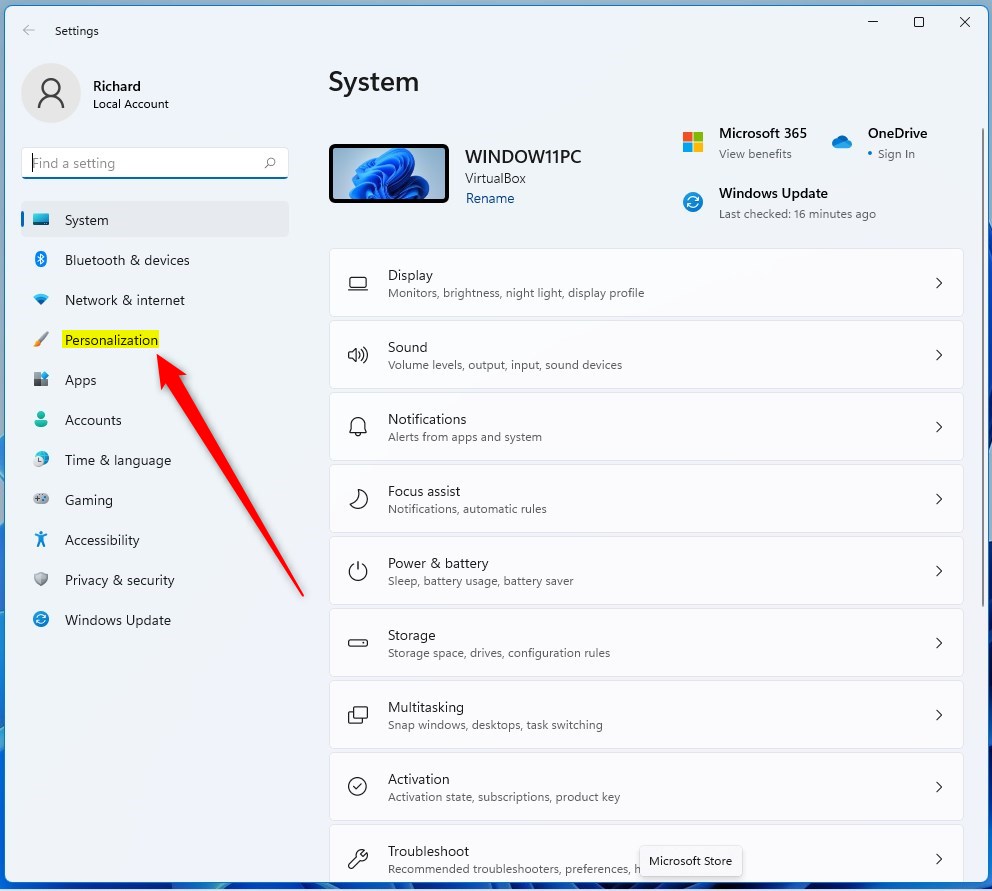
- On the right side, click Taskbar.
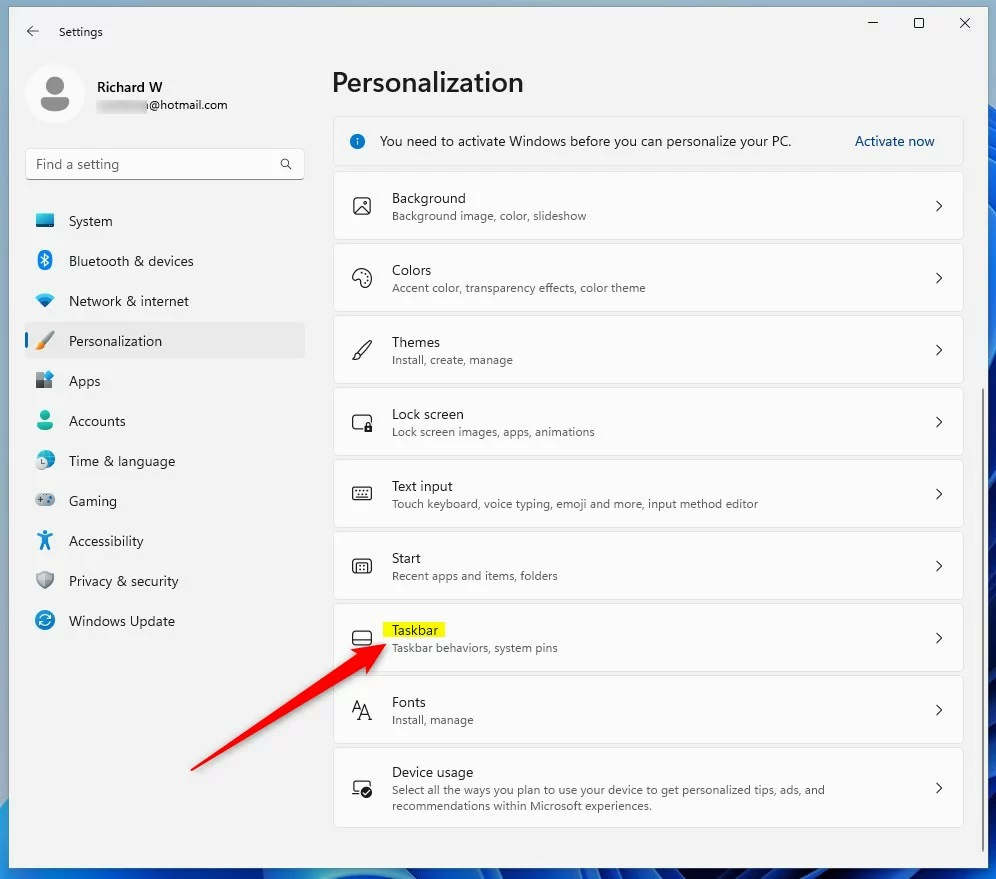
- Scroll down and click on Taskbar behaviors to open it.
- Look for the option “Share any window from my taskbar” and check the box to turn it on. Uncheck it to turn it off.
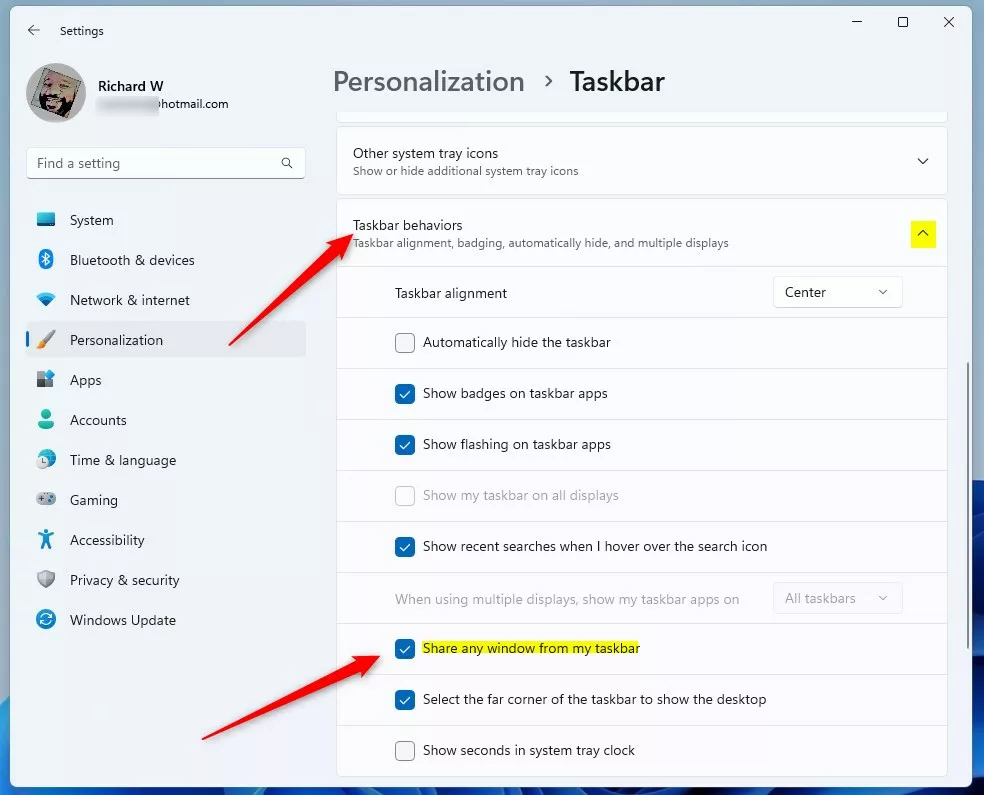
- Close the Settings app when you’re done.
How to Share a Window From the Taskbar During a Meeting
Sharing a window from the taskbar during a meeting in Windows 11 lets others see exactly what you’re working on. Once the “Share Any Window” feature is on, simply hover over an app on your taskbar during your call, and a share button will appear for easy screen sharing.
What happens? Everyone in the meeting will see the window you choose to share.
- Open Microsoft Teams or a similar meeting app and start a meeting.
- Hover your mouse over the apps on your taskbar.
- You’ll see a new button that lets you share your window with everyone in the meeting.
- Click Share this Window on the window you want to show.
- When you want to stop sharing, hover over the window again and click Stop Sharing.
- You can pick another window to share anytime using this method.
How to Turn On or Off “Share Any Window” Using the Registry Editor (Advanced)
For advanced users, you can turn the “Share Any Window” feature on or off from the Taskbar in Windows 11 by editing the Registry Editor. This method changes a hidden setting, but be very careful as incorrect changes can cause system issues.
What happens? You’ll change a hidden setting that controls whether window sharing is turned on or off.
⚠️ Warning: Editing the registry can cause problems if done incorrectly. Be sure to follow these steps carefully. Ask someone for help if you’re not sure.
- ⚠️ Requires admin privileges – Open the Registry Editor. Press Windows key + R, type
regedit, and press Enter. Or read this guide on how to open the registry in Windows 11. - In Registry Editor, go to this folder:
HKEY_CURRENT_USER\Software\Microsoft\Windows\CurrentVersion\Explorer\Advanced
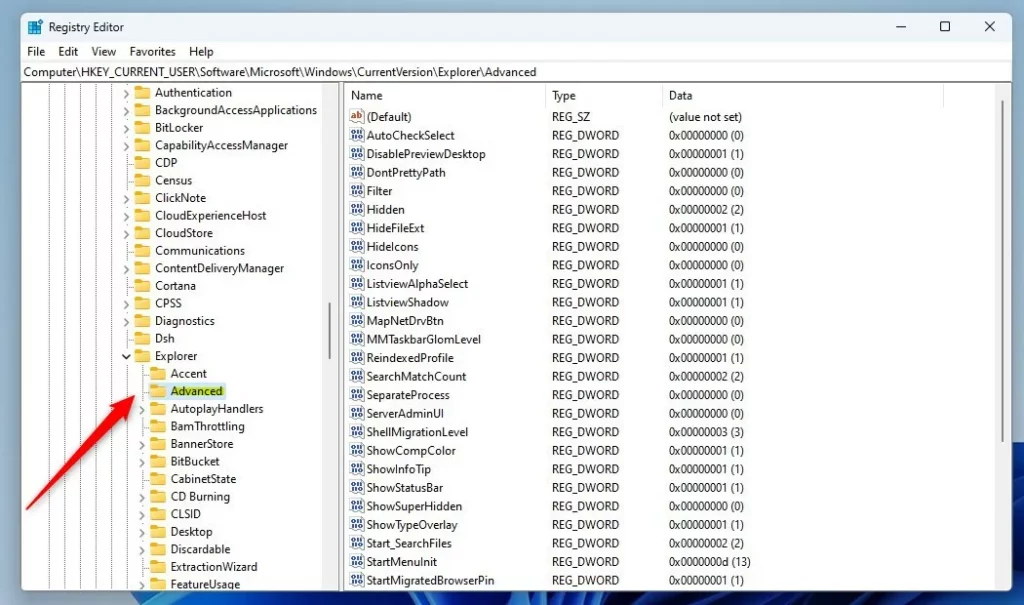
- If you don’t see the Advanced folder, right-click on Explorer, select New > Key, and name it
Advanced. - On the right side, right-click and select New > DWORD (32-bit) Value.
- Name the new value
TaskbarSn. - Double-click
TaskbarSnand set the value to:1to turn ON window sharing0to turn OFF window sharing
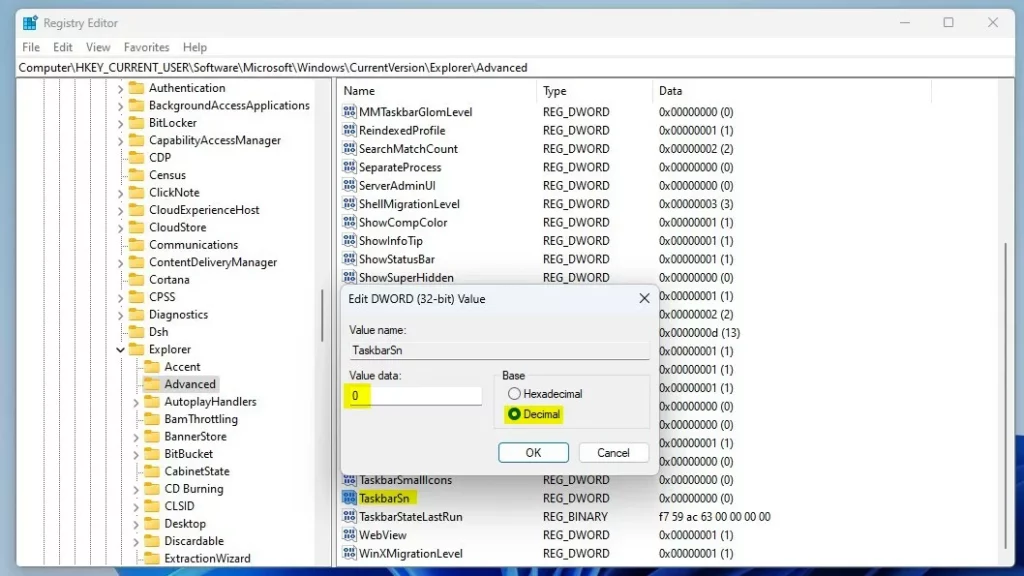
- Close the Registry Editor and restart your computer to apply changes.
Summary
Sharing windows from the Windows 11 taskbar during meetings is a handy feature that can be managed easily. You can turn this taskbar window sharing on or off using either the simple Settings app or the more advanced Registry Editor, making screen sharing quick and convenient.
More Info
For official announcements and updates, check Microsoft’s blog: Microsoft Windows Insider Blog
What is share any window from my taskbar in 🪟 Windows 11?
Share any window When you are in a meeting call through Microsoft Teams, you can hover over the apps running on your taskbar, and you will be prompted with a button that allows you to share your window with the meeting attendees.
How to get rid of share this window pop-up?
Side. Now scroll down on the right side until you find the option called nearby sharing. Click on it. At the top of this page look for the setting that says drag the tray.
Can you make the taskbar see through 🪟 Windows 11?
If you open up the Microsoft. Store. So just search for store here uh in your taskbar. And once the Microsoft Store is open I want you to type in the word translucent. TB so type in translucent TB.
Was this guide helpful?

About the Author
Richard
Tech Writer, IT Professional
Richard, a writer for Geek Rewind, is a tech enthusiast who loves breaking down complex IT topics into simple, easy-to-understand ideas. With years of hands-on experience in system administration and enterprise IT operations, he’s developed a knack for offering practical tips and solutions. Richard aims to make technology more accessible and actionable. He's deeply committed to the Geek Rewind community, always ready to answer questions and engage in discussions.


No comments yet — be the first to share your thoughts!