How to Share File to Nearby Devices in Windows 11

You can share files to nearby devices in Windows 11 using the built-in Nearby sharing feature.
Nearby sharing is a Windows capability that allows you to wirelessly send documents, photos, links, and other files to another Windows 10 or Windows 11 PC within close proximity.
This function leverages Bluetooth or Wi-Fi to create a direct connection, eliminating the need for email or physical media. It’s incredibly useful for quick file transfers between your devices or when collaborating with colleagues nearby.
To use it, both your device and the recipient’s device must have Nearby sharing enabled, and they need to be within about 30 feet (10 meters) of each other.
Setting Up Nearby Sharing
Before you can send files wirelessly to a friend’s PC, you need to make sure Nearby sharing is turned on for both devices. Think of it like tuning in a radio station.
How to Share a File or Link Using Nearby Sharing
With Nearby sharing set up on both devices, the actual sharing process becomes quite smooth. You can initiate it directly from File Explorer or your web browser.
- Select the Item You Want to Share
Go to the file you want to send using File Explorer. If it’s a webpage, make sure that page is open and active in your browser. - Start the Share Action
Here are a few ways to do this:Tip: If you’re sharing a link from a browser, you might see other options like sharing via email. Nearby sharing will be one of them.
- From File Explorer:
- Option 1 (Ribbon): Select the file. Look at the top of the File Explorer window for the ribbon menu. Click the Share button.
- Option 2 (Right-Click): Right-click on the file. In the menu that pops up, choose Share.
- From a Web Browser (like Microsoft Edge): Look for a “Share” icon. It might look like a box with an arrow pointing up, or it could be in the browser’s menu (often three dots or lines). Click it.
- From File Explorer:
- Choose ‘Nearby sharing’
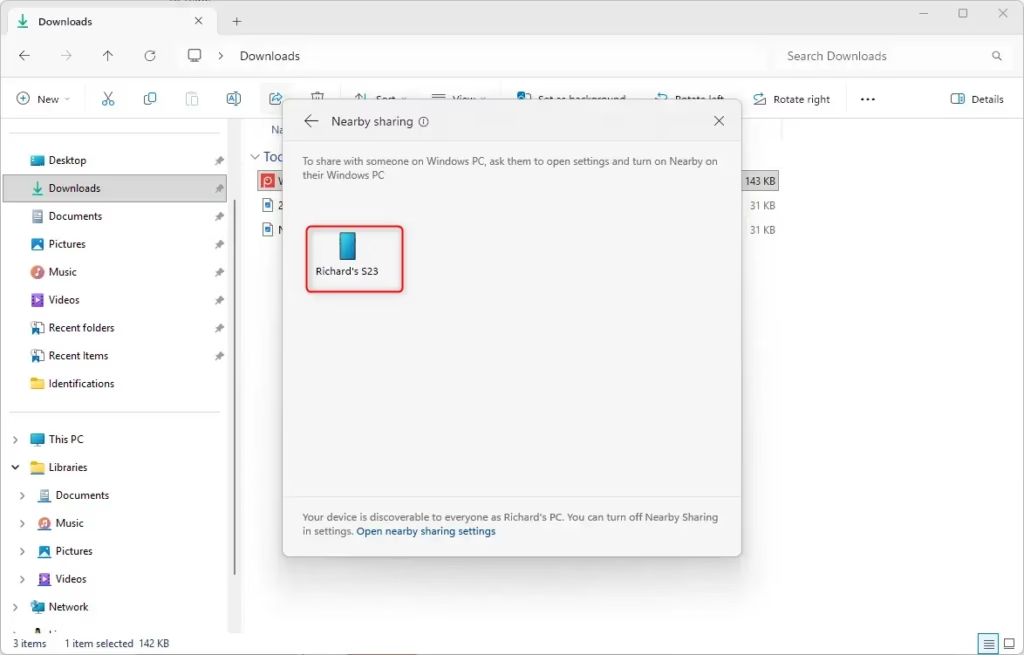
A “Share” window will open. Look for the Nearby sharing icon or option. It usually shows a symbol for closeness or connection. - Select the Target Device
Your PC will look for other Windows devices with Nearby sharing turned on and nearby. The devices will show up in the Share window. Click the name of the device you want to send the file to.Warning: Make sure you pick the right device! It’s easy to send a file to the wrong person or device if many are available. Check the device name carefully.
- Confirm on the Receiving Device
On the device getting the file, a message will pop up asking if you want to accept it. You’ll usually see the file name or link and the sender’s PC name. Click Save and open or Save to accept the transfer.If you chose “My device only” and the sender isn’t signed in with their Microsoft account on that device, they might be asked to sign in first. This is a security step.
- Check Your Received Files Folder
Once accepted, the file will transfer. It will be saved in the folder you chose earlier on the receiving device. You can then go to that folder to open your new file.
By using these steps and tips, you can make Nearby sharing a smooth part of your daily routine for quick file transfers between your Windows devices.
Reference:
Summary
So, what’s Nearby sharing? It’s a Windows feature that lets you send files, photos, or links to nearby Windows devices using Bluetooth or Wi-Fi. To use it, you need to enable it in Settings on both devices and choose whether to share with “Everyone nearby” or “My device only.” You can also pick a specific folder to save received files. To share, select the item, click the Share option, choose Nearby sharing, select the target device, and confirm on the receiving end. If you have trouble, check that Nearby sharing, Bluetooth, and Wi-Fi are on, verify device proximity and permissions, ensure stable Wi-Fi, check storage space, and consider firewall settings. Restarting devices can also help.
How to share files using nearby share in Windows 11?
To share files using Nearby sharing in Windows 11, open File Explorer, select the file, click the Share button, choose 'Nearby sharing,' and then select the recipient's device. Ensure both devices have Nearby sharing enabled and are within Bluetooth or Wi-Fi range.
Why is nearby sharing not showing up?
Nearby sharing might not show up if it's disabled on either device, if Bluetooth or Wi-Fi is off, or if devices are too far apart. Ensure both PCs have Nearby sharing enabled in System Settings and are within 30 feet of each other.
How to share files with nearby devices?
To share files with nearby devices in Windows 11, enable 'Nearby sharing' on both computers. Then, select the file you wish to share, click the Share icon, and choose the nearby device from the list. Both devices need to be within 30 feet.
How do I enable SMB file sharing on my computer?
To enable SMB file sharing in Windows 11, go to Settings > Network & internet > Advanced network settings > Advanced sharing settings. Turn on network discovery and file and printer sharing for your current network profile (usually Private).
Was this guide helpful?

About the Author
Richard
Tech Writer, IT Professional
Richard, a writer for Geek Rewind, is a tech enthusiast who loves breaking down complex IT topics into simple, easy-to-understand ideas. With years of hands-on experience in system administration and enterprise IT operations, he’s developed a knack for offering practical tips and solutions. Richard aims to make technology more accessible and actionable. He's deeply committed to the Geek Rewind community, always ready to answer questions and engage in discussions.




No comments yet — be the first to share your thoughts!