How to Set System Locale on Ubuntu 24.04

You set your system locale on Ubuntu 24.04 to change your computer’s language, date formats, and currency settings.
The system locale ensures your PC displays information according to your regional preferences, making menus and applications appear in your chosen language.
For example, setting the locale to en_US.UTF-8 configures your system to use English and US-specific formatting conventions.
Changing your locale ensures your Ubuntu 24.04 experience feels familiar and intuitive.
Go to Settings > Region & Language to choose your preferred language and formats. For terminal users, use `sudo localectl set-locale LANG=your_locale` after ensuring the necessary language packs are installed and generated with `sudo locale-gen`.
Introduction
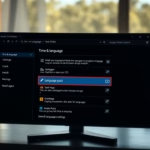
The locale is a set of rules that tells your computer how to handle local data. For most users, the easiest way to change these settings is through the graphical interface. Go to Settings > Region & Language to select your preferred language and formats. If you prefer using the terminal or need specific language packs, follow the steps below.
Check your current settings
First, open your terminal. Type the following command to see your current locale %📂%LNK0%%:
localectl
Look for the line that says LANG=. This shows your current language and region.
Search and install additional locales
If you need a language that is not currently installed, you must add it. First, search for available language packs:
apt search language-pack-
Once you find the pack you need, install it. For example, to install French, run:
sudo apt install language-pack-gnome-fr-base language-pack-fr
After installing, you must generate the locale so the system recognizes it. Run this command:
sudo locale-gen fr_FR.UTF-8
Finally, check that it is ready to use by typing:
localectl list-locales
Change system locale
Now, set your new locale as the system default. Use this command, replacing the example with your chosen locale:
sudo localectl set-locale LANG=fr_FR.UTF-8
Verify the change by running localectl again. While a full system restart ensures these changes apply globally to every service, logging out of your user account and logging back in is usually sufficient to apply the changes to your personal user environment.
Conclusion
Setting your system locale ensures your computer works exactly how you expect it to. By following these steps, you have updated your language and regional settings. If you run into issues, such as settings not appearing to change, check for conflicts with the LC_ALL environment variable. If LC_ALL is set, it will override your other locale settings. You can unset it or ensure it matches your LANG setting to fix the conflict. You are now ready to enjoy a personalized computing experience on Ubuntu 24.04 %📂%LNK1%%.
How to set locale to UTF8?
To enable UTF-8 mode, use ". UTF8" as the code page when using setlocale . For example, setlocale(LC_ALL, ". UTF8") uses the current default Windows ANSI code page (ACP) for the locale and UTF-8 for the code page.
Where are locales stored in Ubuntu?
Adjusting Locales The default settings are stored in the /etc/default/locale file. This file can either be adjusted manually or updated using the tool, update-locale .
Was this guide helpful?

About the Author
Richard
Tech Writer, IT Professional
Richard, a writer for Geek Rewind, is a tech enthusiast who loves breaking down complex IT topics into simple, easy-to-understand ideas. With years of hands-on experience in system administration and enterprise IT operations, he’s developed a knack for offering practical tips and solutions. Richard aims to make technology more accessible and actionable. He's deeply committed to the Geek Rewind community, always ready to answer questions and engage in discussions.



No comments yet — be the first to share your thoughts!