Do you use more than one set of speakers or headphones with your Windows 11 computer? Sometimes you might want to switch between them to listen to music, watch videos, or join a call. This guide will help you set your favorite speakers or headphones as the default sound device, so your computer always plays sound through them.
How to Choose Your Default Speakers in Windows 11
Windows 11 lets you pick which speakers or headphones you want to use for sounds on your computer. Here’s how to set it up:
- Press the Windows key + i on your keyboard. This opens the Settings window.
- Or, click the Start button (the Windows icon in the bottom-left corner), then select Settings.

Next:
- In the Settings window, click on System.
- On the right side, click Sound.
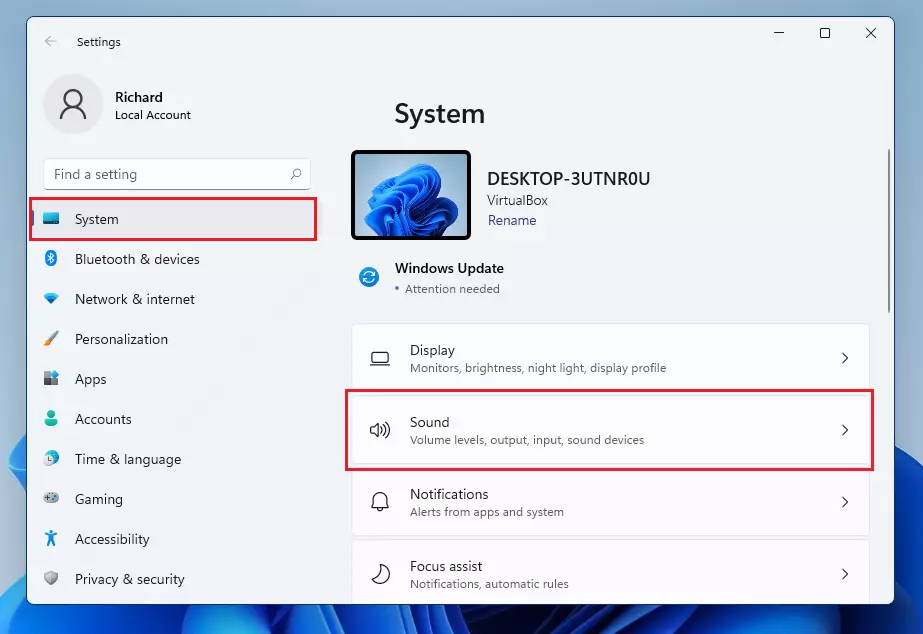
Under the Output section, you’ll see Choose your output device. Click the dropdown menu and pick the speakers or headphones you want to use as your default.
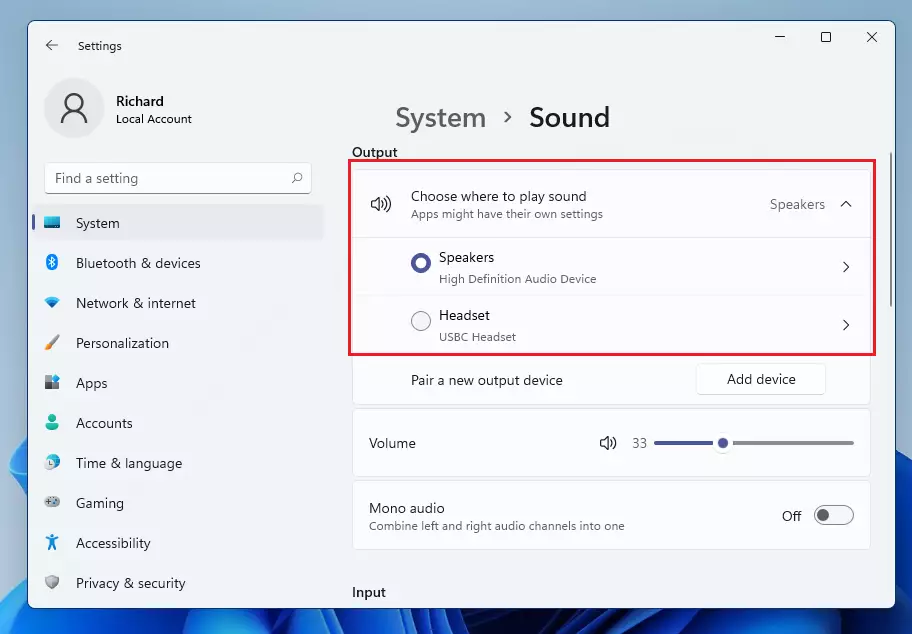
Once you select your device, Windows 11 will use it for all sounds, like music, notifications, and calls. Keep in mind that some apps may let you select a different sound device inside their own settings, which can override this choice.
Quickly Switch Speakers Using the Taskbar
If you want to switch to a different set of speakers or headphones fast, you can do this right from the taskbar (the bar at the bottom of your screen):
- Click the speaker icon on the right side of the taskbar (near the clock).

Then:
- Click the right arrow next to the volume slider to see a list of all sound devices connected to your PC.
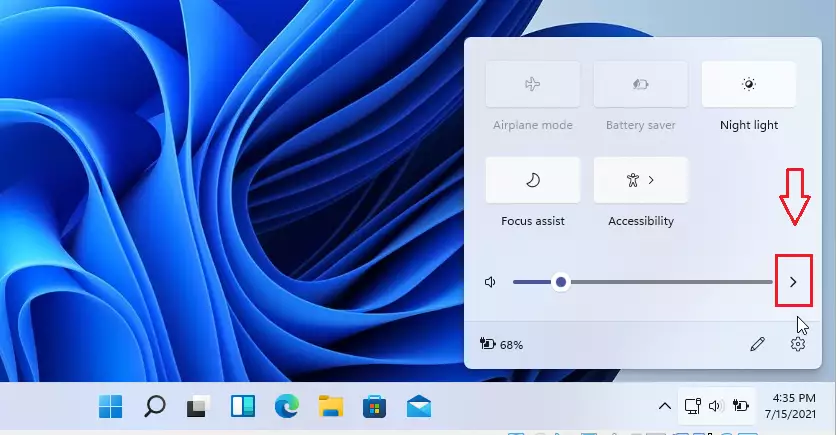
Select the speaker or headphones you want to use. Your computer will switch the sound output to that device immediately.
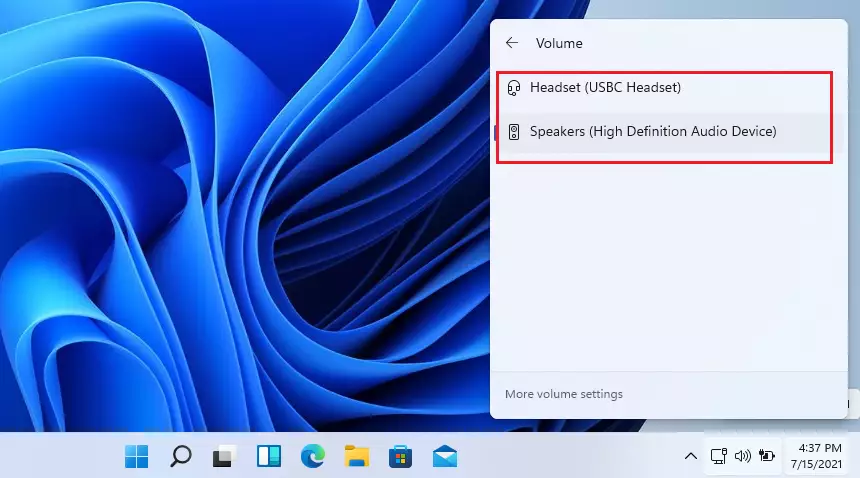
Note: If you don’t see your speakers or headphones in the list, make sure they are properly plugged in and turned on. Sometimes restarting your computer helps Windows recognize them.
Summary
- Setting default speakers in Windows 11 helps you listen to sound on your favorite device without extra steps.
- You can use the Settings app or the taskbar speaker icon to switch devices quickly.
- Some apps might have their own audio settings that can change which speakers they use.
- Knowing how to manage sound devices can improve your experience when watching movies, playing games, or making video calls.
For more help with Windows 11, visit the official Microsoft Windows Support page.
Leave a Reply Cancel reply