How to Disable Background Apps on Windows 11

You disable background apps on Windows 11 to free up system resources and extend battery life.
Background apps are programs that continue to run in the background, even when you’re not actively using them. These apps consume your PC’s processing power (CPU) and can drain your battery.
While some background activity, like the Microsoft Store downloading updates, is useful, letting unused apps run constantly wastes valuable resources. Windows 11 provides tools to help you manage these applications effectively.
Disable background apps in Windows 11 by opening Settings, navigating to Apps & features, selecting an app, and changing its background app permissions to Never. This prevents unnecessary resource usage, improving performance and battery life.
Why Stop Background Apps?
- Your PC runs faster.
- Your battery lasts longer, especially on laptops.
- You control what uses your computer’s power.
How to Turn Off Background Apps on 🪟 Windows 11
- Open Settings. Press the Windows key + I on your keyboard at the same time. You can also click the Start button and then click Settings.
You can turn off background apps on Windows 11 by opening the Settings menu, which you can access by pressing the Windows key and I together.
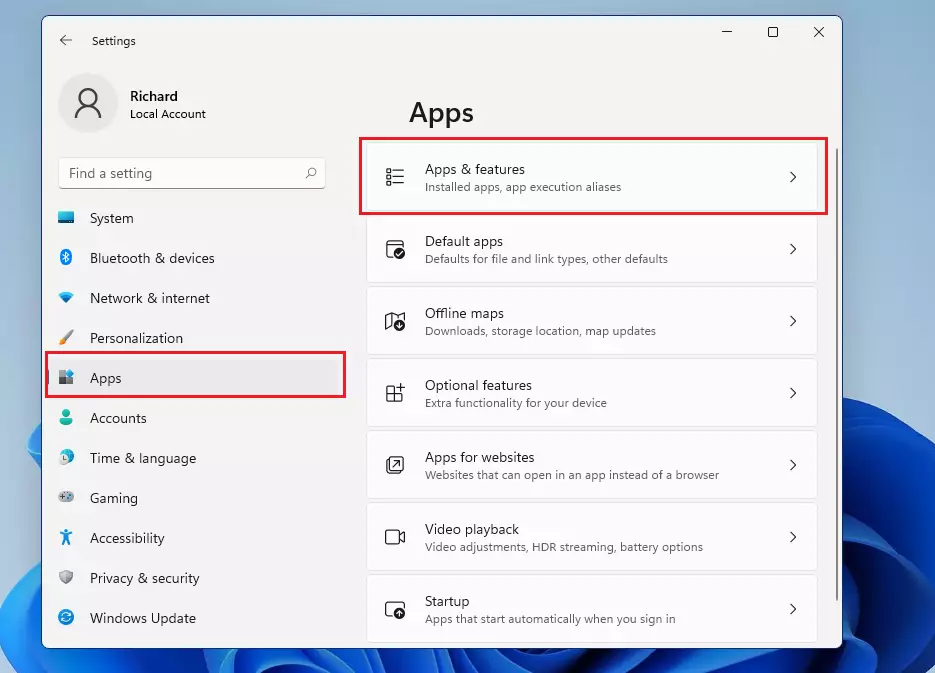
- In the Settings window, click Apps on the left side menu.
- Click Apps & features on the right side.
It looks like this:
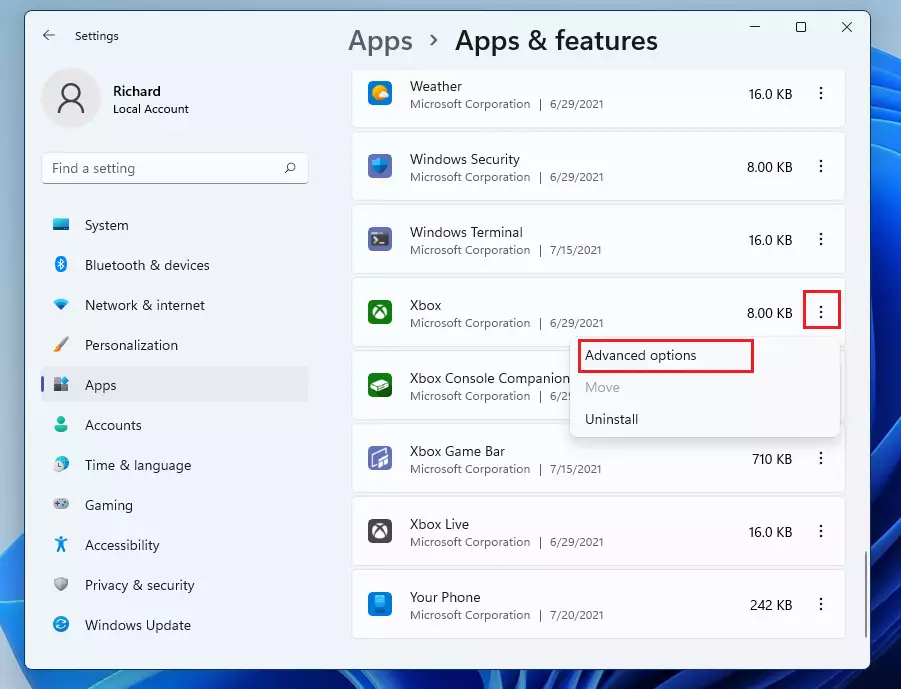
- Scroll through your apps list. Find the app you want to stop.
- Click the three dots (⋮) next to it. Select Advanced options.
Here’s an example:
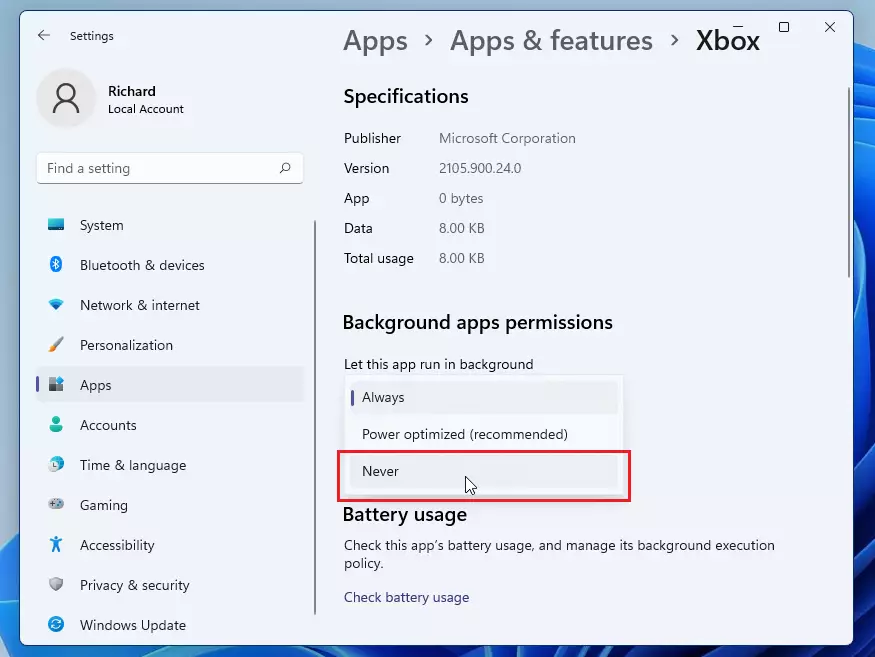
- Look for Background apps permissions in the new window.
- Click the dropdown menu. Select Never.
It looks like this:
- Repeat these steps for each app you want to stop.
Important: Keep apps running in the background if you want notifications from them, like weather alerts or alarms.
Want more Windows 11 tips? Visit Microsoft Support.
Summary
Disabling background apps on Windows 11 can help your PC run faster and save battery life by stopping unneeded programs from using resources.
How do I close background apps on 🪟 Windows 11?
And so I got the Tesla app right here. I don't think that was an option before but I can stop it from running. I’m not sure if this actually stops it from running permanently, so it might reappear later.
Can I completely disable all background apps?
Stop most apps from running in the background. Select Start , then select Settings > Privacy > Background apps. Under Background Apps, make sure Let apps run in the background is turned Off.
Was this guide helpful?

About the Author
Richard
Tech Writer, IT Professional
Richard, a writer for Geek Rewind, is a tech enthusiast who loves breaking down complex IT topics into simple, easy-to-understand ideas. With years of hands-on experience in system administration and enterprise IT operations, he’s developed a knack for offering practical tips and solutions. Richard aims to make technology more accessible and actionable. He's deeply committed to the Geek Rewind community, always ready to answer questions and engage in discussions.



No comments yet — be the first to share your thoughts!