

This tutorial shows you how to check which apps have used text and image generation features in Windows 11 over the last 7 days.
Why Check This?
Text and image generation uses artificial intelligence technology built into Windows. This AI runs directly on your device. Checking this activity helps you see which apps are using these AI features. It gives you control over your device’s AI experience.
What You Need to Know
This feature works in Windows 11 build 2610.5074 (24H2) and later. You can see which third-party applications recently used Windows’ built-in AI models. You can also control which apps are allowed to use them.
How to See Recent AI Activity
- Open Settings by pressing
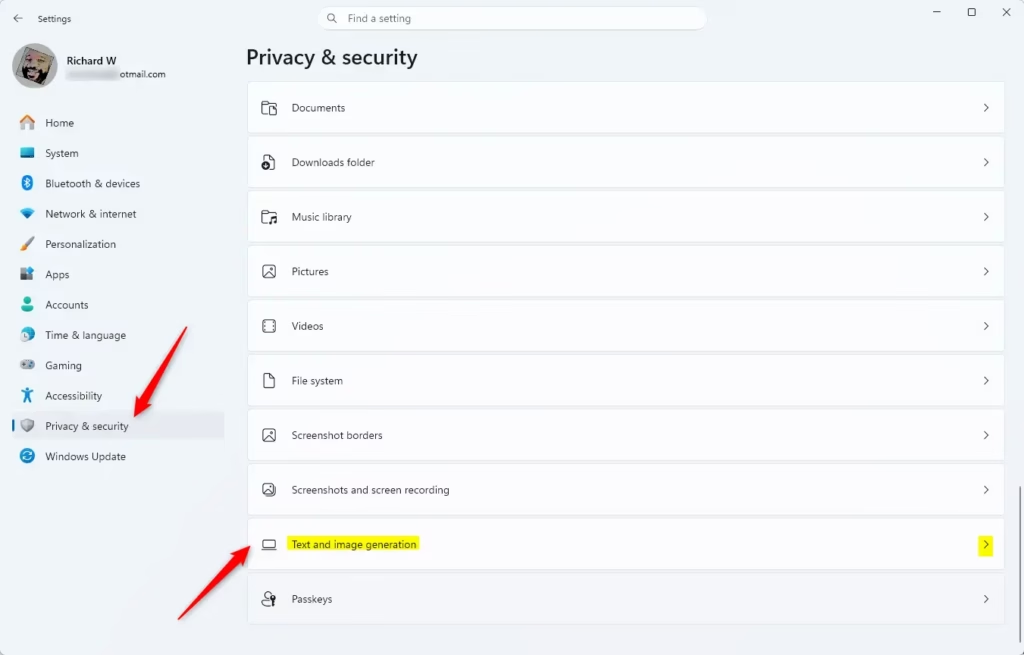
Win+Ion your keyboard. - Click Privacy & security on the left side. Open Text and image generation Settings
- Click Text and image generation on the right side. Look under “App permissions”.
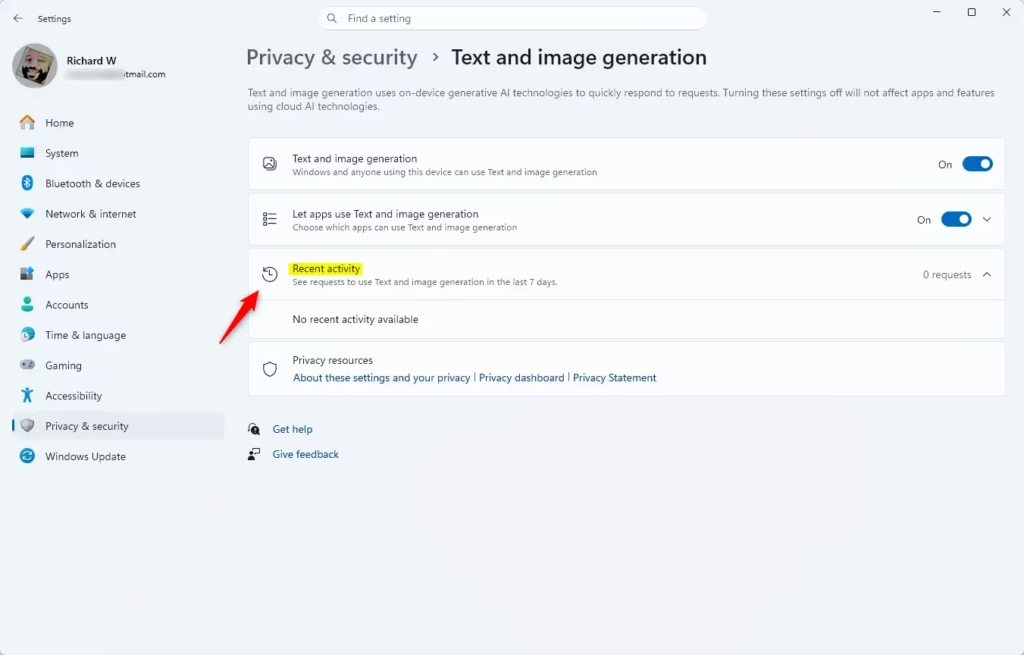
- Look at the Recent activity section. You will see a list of apps that asked to use text and image generation in the last 7 days.
Summary
Checking your text and image generation activity in Windows 11 is simple. Just open Settings, go to Privacy & security, and select Text and image generation. You’ll see which apps used these AI features in the past week. This helps you stay in control of how artificial intelligence is used on your computer.

Leave a Reply