How to Schedule Out-of-Office Replies in Microsoft Teams

You can schedule out-of-office replies in Microsoft Teams to automatically inform colleagues you are unavailable.
Microsoft Teams is your hub for team communication, offering chat, calls, and collaboration features. Setting an out-of-office reply ensures everyone knows when you’re away, preventing missed messages and setting expectations.
This feature is particularly useful when you step away from your computer, whether for a meeting or an extended break. Teams will send your custom message to anyone who messages you while you’re out.
You can configure these replies directly within the Teams app, and they can be set for specific date ranges, for example, from December 20th to January 3rd.
Steps to Schedule Your Out-of-Office Reply in Teams
Follow these easy steps to set up your automatic out-of-office message in Microsoft Teams:
- Open Microsoft Teams
Click the Start menu on your computer (the Windows icon at the bottom-left), then find and open Microsoft Teams from the list of apps.
- Or open Teams from your Taskbar
If you use Teams often, you might see its icon pinned to your Taskbar (the bar at the bottom of your screen). Just click this icon to open Teams quickly.

- Go to Settings
In the Teams window, look for your profile picture in the top-right corner. Click the three dots (…) next to it, then select Settings from the dropdown menu.

- Find the Out of Office settings
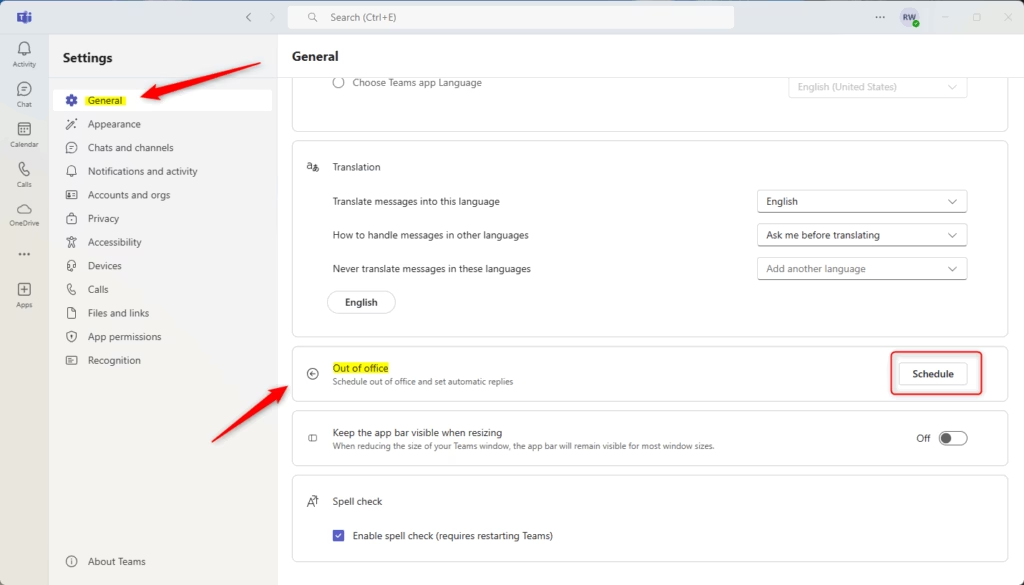
In the Settings window, click on General from the list on the left. On the right side, find the Out of Office section and click the Schedule button.
- Turn on your automatic replies
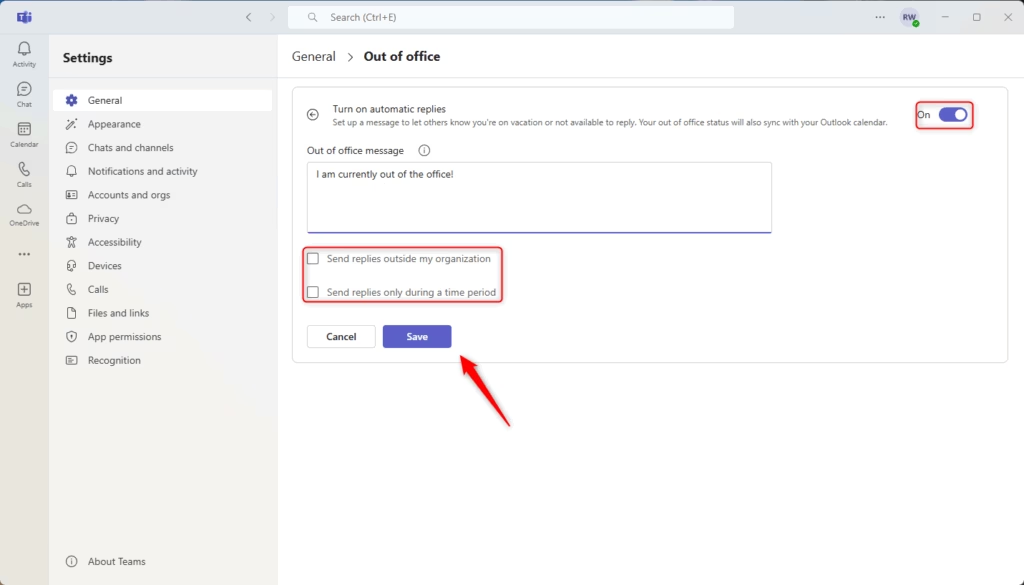
On the next screen, toggle the switch to turn on automatic replies. Write a message to let people know you’re away.
You can also choose if you want this message to go to people outside your company.
Don’t forget to set the dates and times when you’ll be out-of-office.
When everything looks good, click the Save button.
That’s it! Now when someone messages you in Teams during that time, they’ll get your automatic reply.
Why Use Out-of-Office Replies?
- It lets people know you’re not available and when you’ll be back.
- You can share important info, like who to contact while you’re away.
- It helps manage expectations so coworkers won’t expect an immediate reply.
- Keeping your communication clear and professional improves teamwork.
Remember to turn off or update your out-of-office message when you return!
Need more help? Visit Geek Rewind for tips and tutorials on using Microsoft Teams and other apps.
Was this guide helpful?

About the Author
Richard
Tech Writer, IT Professional
Richard, a writer for Geek Rewind, is a tech enthusiast who loves breaking down complex IT topics into simple, easy-to-understand ideas. With years of hands-on experience in system administration and enterprise IT operations, he’s developed a knack for offering practical tips and solutions. Richard aims to make technology more accessible and actionable. He's deeply committed to the Geek Rewind community, always ready to answer questions and engage in discussions.



No comments yet — be the first to share your thoughts!