How to Save Windows Spotlight Images in Windows 11

Windows Spotlight (a feature that downloads daily lock screen photos from Microsoft) stores those background pictures in a hidden system folder so you cannot easily see or keep them. You can find these images on Windows 11 by opening 📁C:\
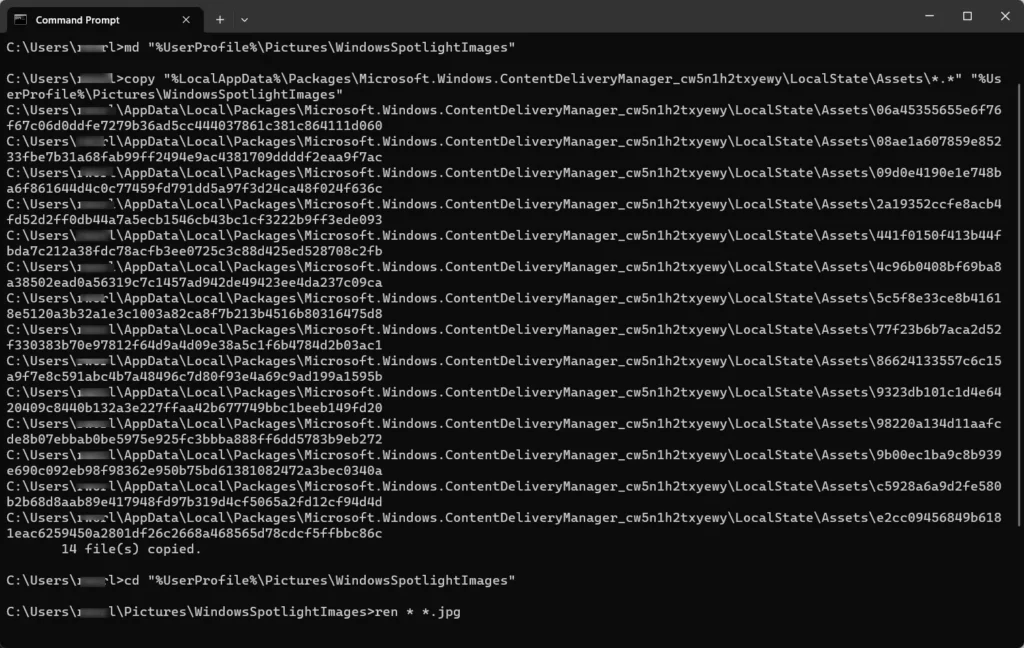
Because Windows keeps these files without standard picture extensions like .jpg or .png, you have to rename them manually to view and use them as your own wallpaper.
Access the hidden Assets folder at 📂%LocalAppData%\
Manual Extraction Method
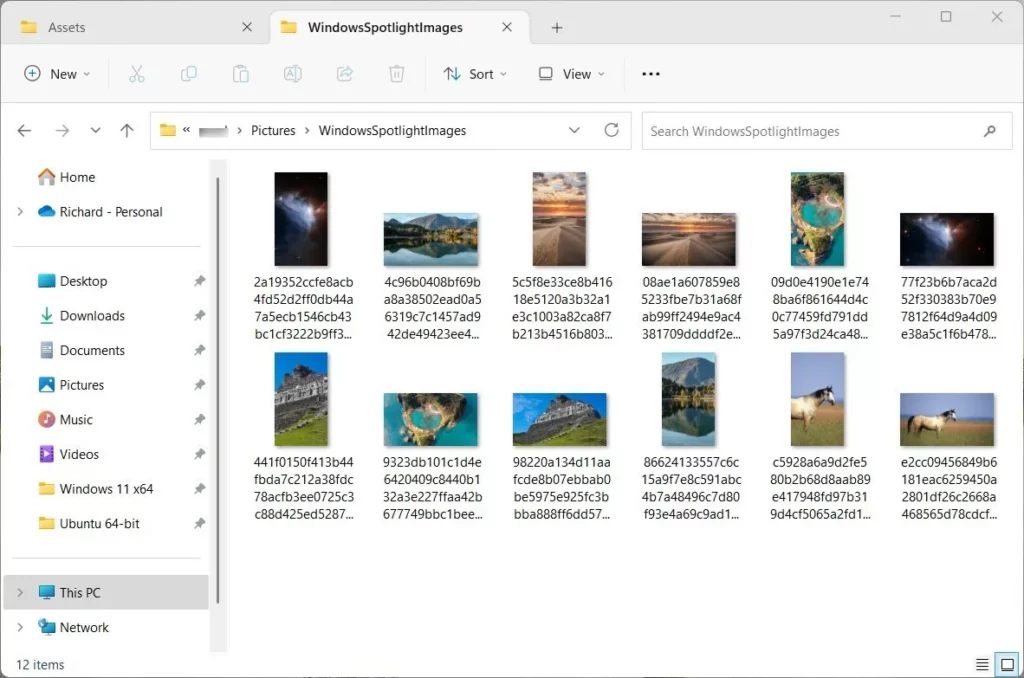
Manual extraction lets you save Windows Spotlight images directly from a hidden folder on your computer without installing extra software. You can open File Explorer , go to the image asset folder, copy the nameless files to a new location, and rename them with a file extension to turn them back into viewable photos you can set as your desktop background.
- Open File Explorer and paste this path into the address bar:
%LocalAppData%\Packages\Microsoft.Windows.ContentDeliveryManager_cw5n1h2txyewy\LocalState\Assets - You will see a list of files with no extensions.
- Copy these files to a new folder on your desktop.
- Rename each file by adding
.jpgto the end of the filename.
Automated Extraction with PowerShell
Automated extraction using PowerShell helps you save Windows Spotlight images much faster by running a short command that copies and sorts the pictures for you automatically. Instead of renaming dozens of files by hand, you can use the command line to pull the daily lock screen backgrounds straight from your system files into a neat folder in your pictures directory.
- Open PowerShell as an administrator.
- Run the following command to create a folder and copy the files:
New-Item -Path "$HOME\Pictures\Spotlight" -ItemType Directory; Copy-Item -Path "$env:LOCALAPPDATA\Packages\Microsoft.Windows.ContentDeliveryManager_cw5n1h2txyewy\LocalState\Assets\*" -Destination "$HOME\Pictures\Spotlight" - Run this command to rename them:
Get-ChildItem -Path "$HOME\Pictures\Spotlight" | Rename-Item -NewName { $_.Name + ".jpg" }
Comparison of Extraction Methods
| Method | Difficulty | Speed |
|---|---|---|
| Manual | Easy | Slow |
| PowerShell | Intermediate | Fast |
| Third-Party Tools | Easy | Fast |
Troubleshooting and Limitations
If a file does not open as an image, delete that file. These files are often small icons or system files, not the Windows Spotlight images you seek. Windows updates the cache frequently, so check back every few days for new Spotlight photos.
Summary
Save your favorite Windows Spotlight images by finding them in a hidden folder or using a quick PowerShell script.
Are Windows Spotlight images free to use for personal projects?
Windows Spotlight images are free for you to use as your desktop background on your own computer.
Why are some Spotlight images saved in portrait orientation?
Some Windows Spotlight images are saved in portrait style because they're meant for devices like phones or tablets that are held upright.
Was this guide helpful?

About the Author
Richard
Tech Writer, IT Professional
Richard, a writer for Geek Rewind, is a tech enthusiast who loves breaking down complex IT topics into simple, easy-to-understand ideas. With years of hands-on experience in system administration and enterprise IT operations, he’s developed a knack for offering practical tips and solutions. Richard aims to make technology more accessible and actionable. He's deeply committed to the Geek Rewind community, always ready to answer questions and engage in discussions.



[…] Windows uses this feature so you can set their desktop background with Spotlight collections, save Spotlight images for use, and see new photos on your […]