How to Restore Known Quick Access Folders in Windows 11

You can restore known Quick Access folders in Windows 11 by resetting the File Explorer’s folder view settings.
Quick Access in Windows 11 acts as a personalized shortcut hub, displaying your frequently used files and folders for faster access. If you notice common folders like Downloads, Documents, or Pictures are missing from your Quick Access view, this guide helps you bring them back.
This often happens after a Windows update or a File Explorer reset, but typically, these essential folders are just hidden and easily recoverable.
What is Quick Access?
Quick access is the first thing you see when you open File Explorer (the program for browsing your files). It shows you files you used recently and folders you use often. This makes it much simpler to get back to your work. Starting with Windows 11 version 22H2, important folders like Desktop, Documents, Downloads, Pictures, Music, and Videos get pinned here by default. This keeps them handy, so you don’t have to look through your computer’s drives every time.
Quick access is great because you can change it. You don’t have to use what Windows thinks is important. You can add any folder you want, making your computer work the way you do. It’s all about making your computer help you.
Pinning Your Favorite Folders to Quick Access
This is where Quick access is really useful. If you use certain folders every day, pinning them makes things much easier. No more clicking through many folders!
- Open File Explorer
You can do this by clicking the folder icon on your taskbar. You can also select it from the Start menu. Or, press the Windows key + E on your keyboard. This is a keyboard shortcut that many people use all the time! - Find the Folder You Want to Pin
Look through your drives and folders. Find the one you want to add to Quick access. It could be a project folder, a work folder, or a folder with your photos. - Pin the Folder
When you find the folder, right-click on it. A menu will appear. Look for an option that says “Pin to Quick access.” Click on it.
Tip: If you use a touchscreen or don’t want to right-click, you can press and hold the folder icon. A menu will show up. Then, select “Pin to Quick access.”
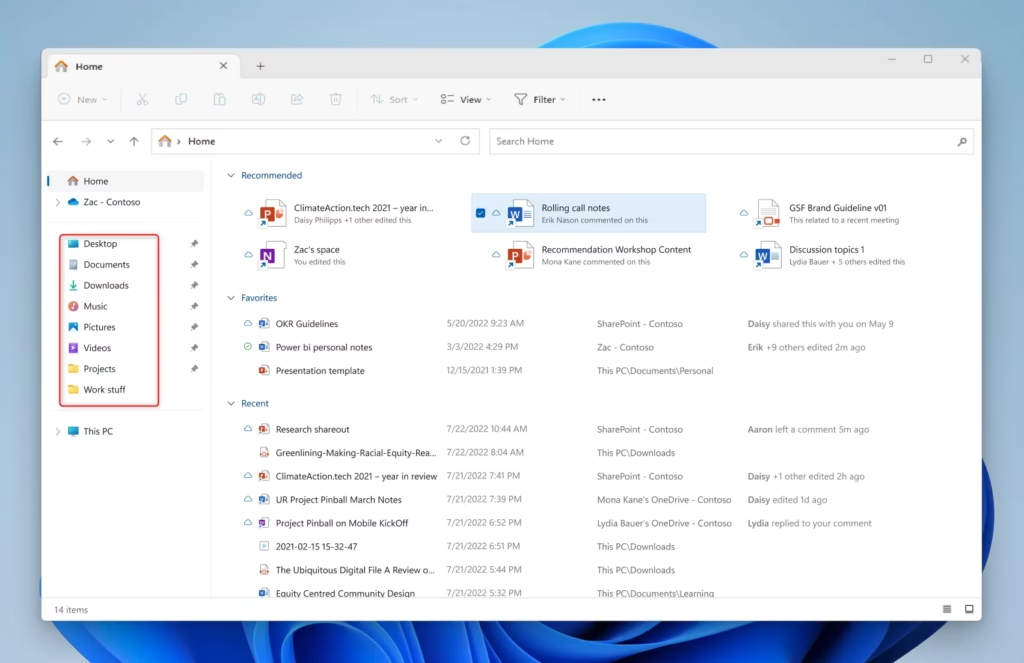
You’ll now see that folder in the “Pinned” section of Quick access, usually at the top of the File Explorer window. You can pin many folders, but too many can make it look messy, which would defeat the purpose of quick access.
Unpinning Folders You No Longer Need
As your projects change, you might find that some pinned folders are not as useful. Keeping Quick access tidy is as important as setting it up in the first place.
- Go to Quick Access
Open File Explorer. You should be in Quick access already. Look for the “Pinned” section. - Find the Folder to Unpin
Find the folder you don’t need quick access to anymore. - Unpin the Folder
Right-click on the pinned folder. You will see an option that says “Unpin from Quick access.” Select it.Warning: Unpinning a folder does NOT delete it. It just removes the shortcut from Quick access. Your files are still safe where they were.
This process is quick and makes sure your Quick access list has only the important places for you.
Restoring Those “Known Folders” to Quick Access
Windows includes several “known folders.” These include Desktop, Documents, Downloads, Pictures, Music, and Videos. They are very useful and are usually pinned to Quick access by default. But, you might unpin them by accident, or maybe they weren’t pinned when you first set up your computer. If these important folders are missing, here is how to get them back.
- Open File Explorer and Go to Home
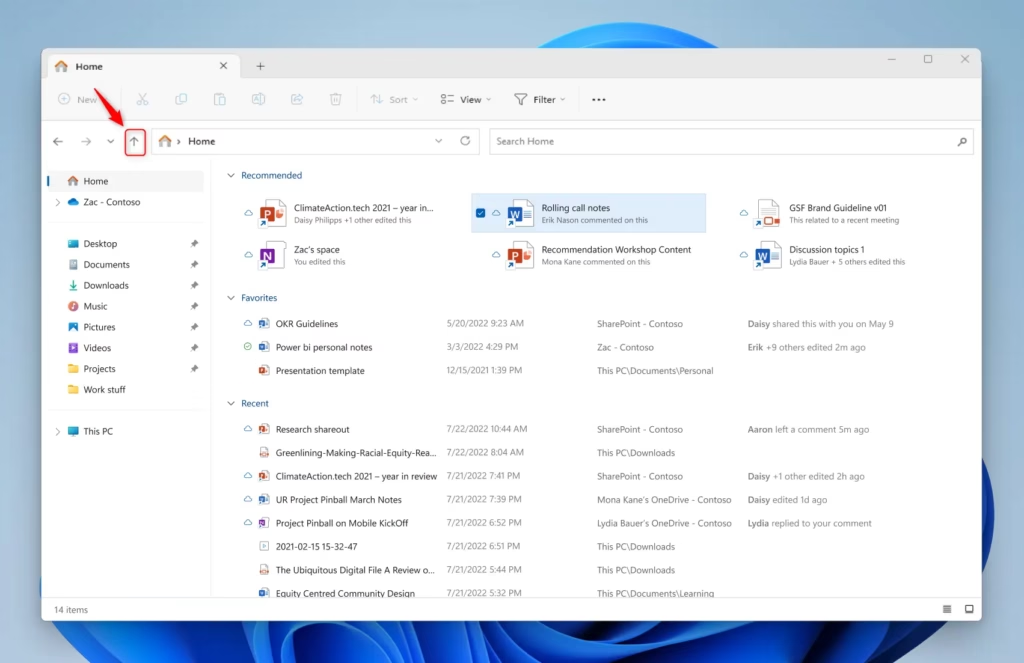
Start File Explorer (Windows key + E). In the left side of the window, you should see “Home.” Click on it. - Use the “Up” Arrow
Look at the buttons next to the address bar (where the folder path shows). You will see forward and back arrows. You will also see an “Up” arrow. Click the “Up” arrow. This will show all your main Windows folders. This includes the six “known folders” if they are there.
Explanation: This “Up” arrow moves you to a higher level in the folder structure. In File Explorer’s Home view, it shows these system folders that might not be in the default Quick Access list. - Pin the Known Folders
You should now see your Desktop, Documents, Downloads, Pictures, Music, and Videos folders. For each folder you want back in Quick access, right-click on it. Then, select “Pin to Quick access.”
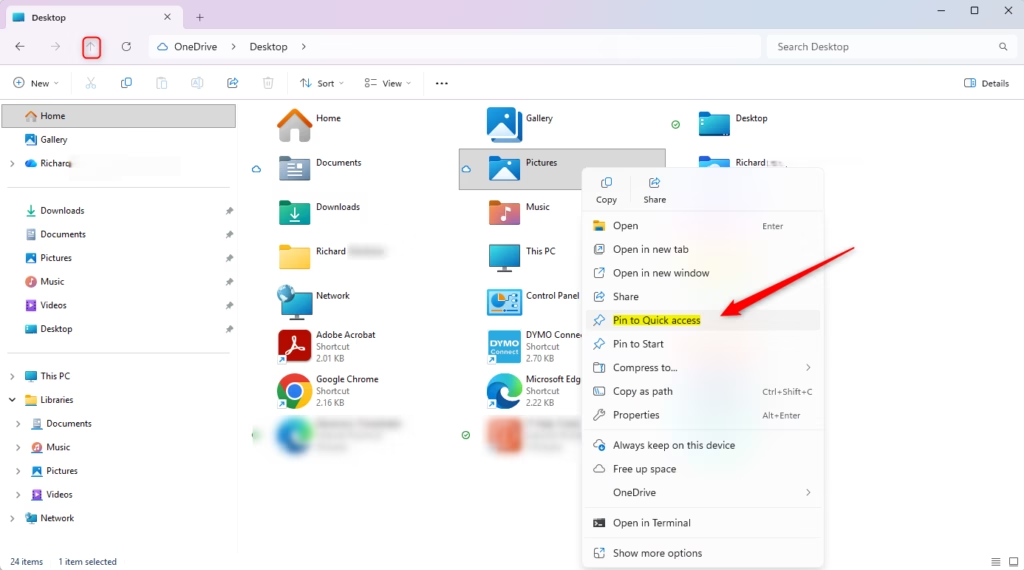
These folders will now show up again in the “Pinned” section of your Quick access, both in the Home view and the main list on the left. This makes it very convenient to get to your main personal files.
Reference:
Summary
Quick access is more than just a default setting; it’s a powerful tool to make File Explorer work better for you. By pinning folders you use most, unpinning what you don’t need, and knowing how to get back important “known folders,” you can save time and effort when using your files. Take a few minutes to set it up the way you like. You’ll save time and feel less frustrated every day. Happy organizing!
How do I get Quick Access folders back?
To restore known Quick Access folders in Windows 11, reset File Explorer's folder view settings. This action often brings back default folders like Downloads, Documents, and Pictures if they have been hidden or removed. Navigate to Folder Options, select the View tab, and click 'Reset Folders'.
Why did my folder suddenly disappear?
Folders can disappear from Quick Access in Windows 11 due to a Windows update, a File Explorer reset, or accidental unpinning. Often, these folders are simply hidden or unpinned rather than deleted. Resetting folder view settings usually resolves this issue by restoring default configurations.
How do I add documents back to Quick Access?
To add the Documents folder back to Quick Access in Windows 11, open File Explorer, navigate to 'This PC', right-click on the 'Documents' folder, and select 'Pin to Quick access'. If the default folders are missing, resetting folder view settings is the recommended first step.
How to make a folder appear in Quick Access?
To make a folder appear in Quick Access on Windows 11, open File Explorer, locate the desired folder, right-click on it, and select 'Pin to Quick access'. This adds a shortcut to the folder for easy access from the Quick Access pane.
Was this guide helpful?

About the Author
Richard
Tech Writer, IT Professional
Richard, a writer for Geek Rewind, is a tech enthusiast who loves breaking down complex IT topics into simple, easy-to-understand ideas. With years of hands-on experience in system administration and enterprise IT operations, he’s developed a knack for offering practical tips and solutions. Richard aims to make technology more accessible and actionable. He's deeply committed to the Geek Rewind community, always ready to answer questions and engage in discussions.


No comments yet — be the first to share your thoughts!