How to Restore Files from OneDrive Version History

You can restore files from OneDrive’s version history to recover older or deleted versions of your documents.
OneDrive version history is a feature that automatically saves previous copies of your files. This lets you go back to an earlier version if you accidentally change something or delete important data.
If you use a personal Microsoft account, you can access up to 25 previous versions of any file you store in OneDrive. It’s a powerful tool that works for everything from Word documents to your photos.
You can view, delete, or restore these older file versions directly through the OneDrive interface. This ensures you never permanently lose important work.
Restore files from OneDrive version history by right-clicking the file in the app or on the website and selecting “Version history.” Choose the desired version and click “Restore” to make it the current file.
Option 1Using the OneDrive App
- Open the OneDrive app on your Windows 11 computer.
- Sign in with your personal Microsoft account or work or school account (if you haven’t already).
- Right-click on the file you want to check or restore.
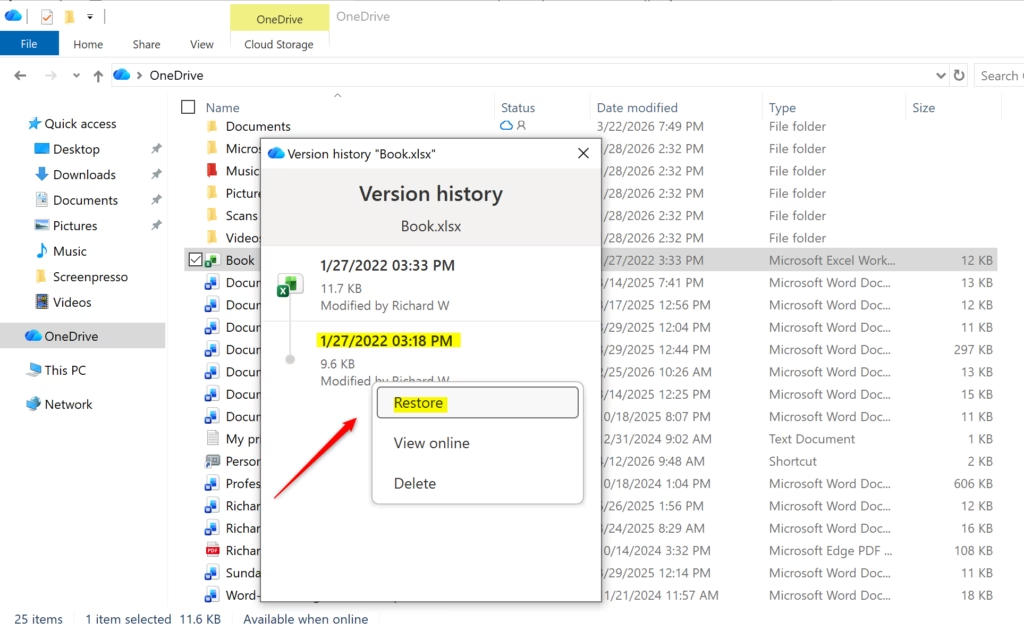
- Click OneDrive, then click Version history.
- You’ll see a list of all saved versions of this file. Right-click on any version to:
- Restore — Make this version the current one
- View online — See what the file looked like
- Delete version — Remove this old copy
You can restore files directly from the OneDrive app on your Windows computer by opening it and signing in.
Option 2Using the OneDrive Website
- Go to the OneDrive.live.com site in your web browser.
- Sign in with your personal Microsoft account or work or school account (if you haven’t already).
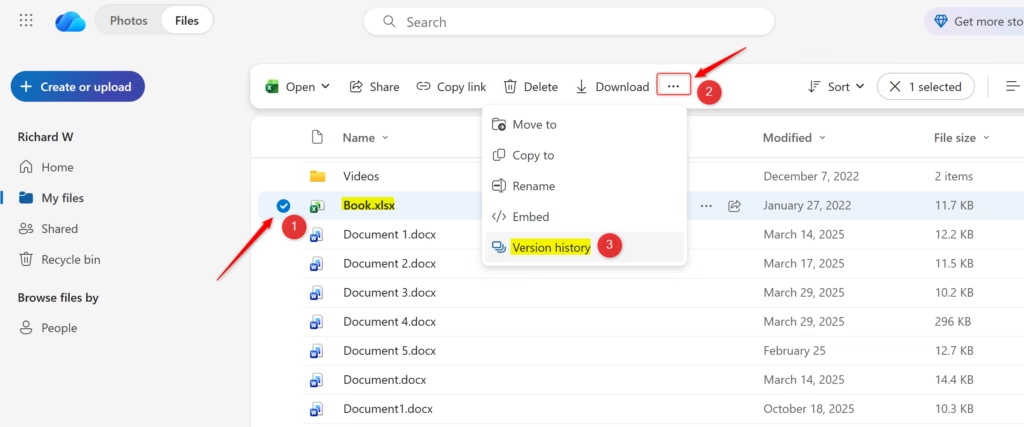
- Select the file you want to check. You can either:
- Check the box next to the file, click the three-dot menu button on the toolbar, and click Version history
- Right-click the file and click Version history
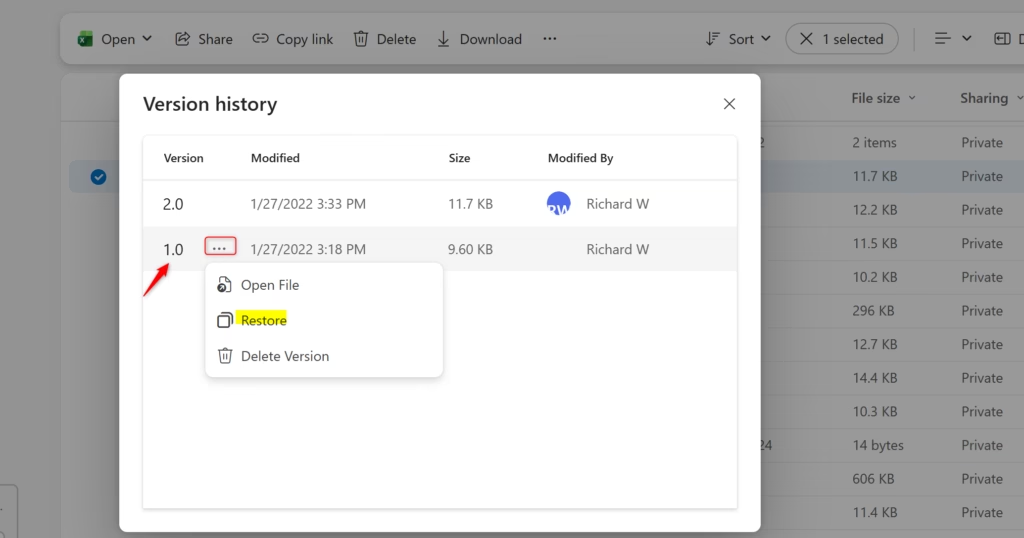
- Hover over a version and click the three-dot menu button next to it.
- Choose what you want to do:
- Open File — View the file
- Restore — Make this version your current file
- Delete Version — Remove this old copy
Restoring files using the OneDrive website is simple; just go to OneDrive.live.com in your browser and sign in.
Summary
OneDrive version history acts like a safety net for your files, letting you view, restore, or delete old versions easily through the app or website.
Can you restore previous versions on OneDrive?
Yes, you can restore previous versions of files in OneDrive. OneDrive automatically tracks changes, allowing you to view and revert to older copies. Right-click your file in the OneDrive folder or on the website, select ‘Version history,’ and choose the version you want to restore or download.
Can I recover a past version of an already saved file?
Yes, you can easily recover past versions of any saved file using OneDrive’s Version History feature.
Can I restore my OneDrive to a previous date?
Yes, if you have a Microsoft 365 subscription, you can use the ‘OneDrive Restore’ feature to revert your entire OneDrive to a previous point in time. This is useful for recovering from mass deletions or ransomware. Access this via the ‘Options’ menu in your OneDrive settings on the web.
How to revert OneDrive changes?
To revert changes in OneDrive, find the file using either the app or the website, then use the ‘Version history’ option to select and restore an older version.
Was this guide helpful?

About the Author
Richard
Tech Writer, IT Professional
Richard, a writer for Geek Rewind, is a tech enthusiast who loves breaking down complex IT topics into simple, easy-to-understand ideas. With years of hands-on experience in system administration and enterprise IT operations, he’s developed a knack for offering practical tips and solutions. Richard aims to make technology more accessible and actionable. He's deeply committed to the Geek Rewind community, always ready to answer questions and engage in discussions.




No comments yet — be the first to share your thoughts!