How to Restore Firewall Settings in Windows 11

Sometimes, your internet or apps might stop working correctly. This can happen if your firewall settings get messed up or if a virus changes them. Resetting your Windows Firewall to its original state can often fix these problems.
Why do this?
You should reset your firewall if your apps cannot connect to the internet, or if you suspect that bad software has changed your security rules to allow unwanted access to your computer.
What happens when done?
When you finish, all your custom firewall rules will be deleted. Any apps you previously gave special permission to pass through the firewall will be blocked again. You will need to re-approve these apps the next time you open them.
To start, open your Settings menu. You can press the Windows key + I on your keyboard or click on Start %%LNK0%% and then select Settings.
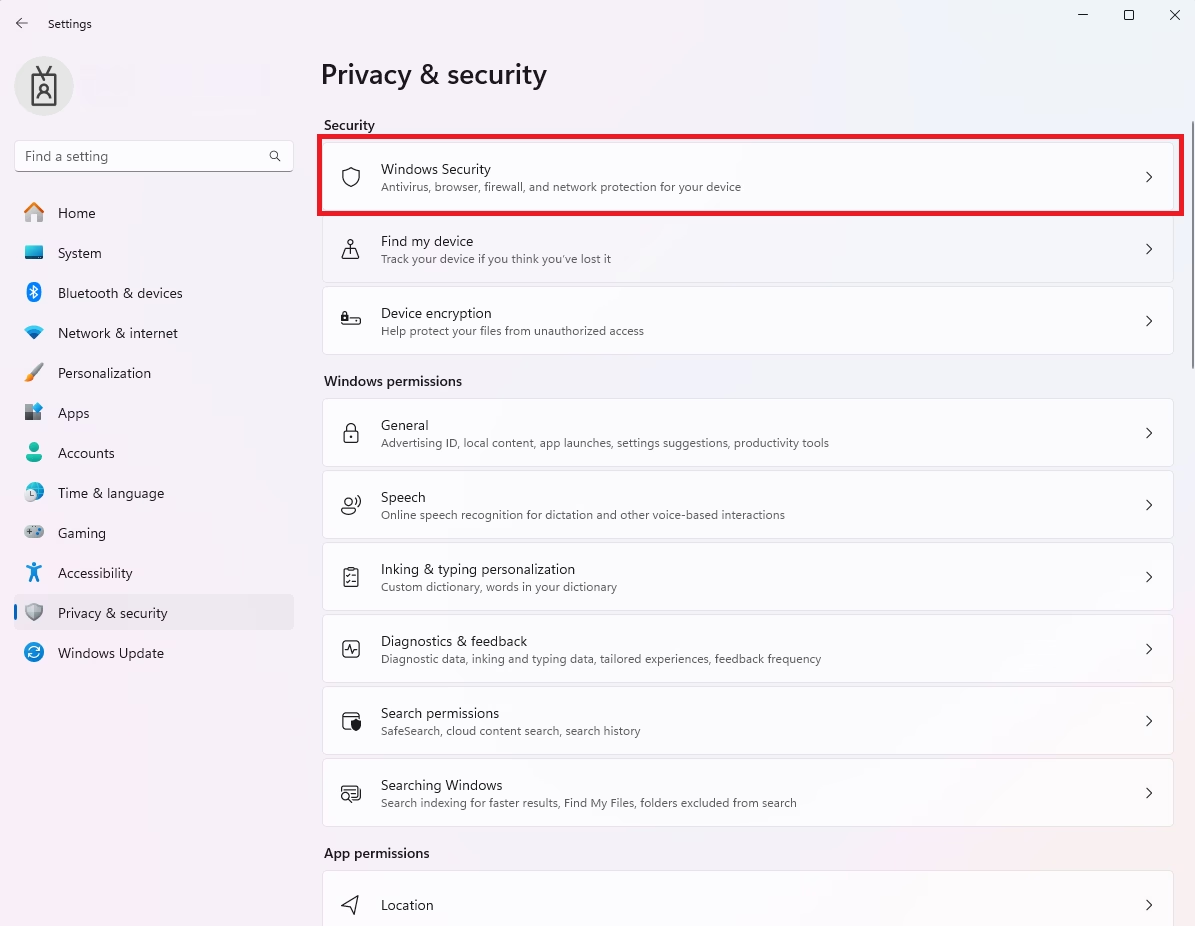
Once the Settings window is open, click on Privacy & security. Then, select Windows Security from the list.
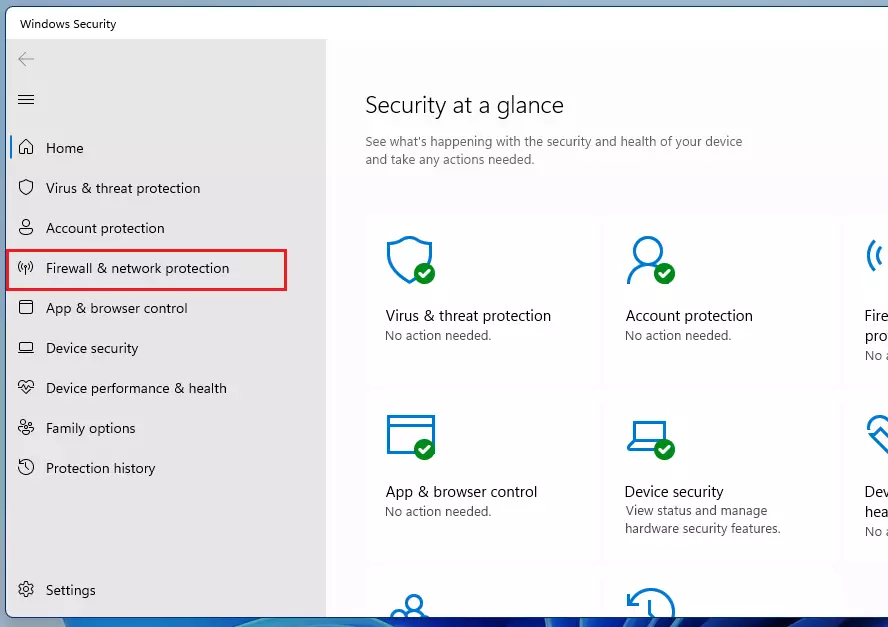
Next, click on the Firewall & network protection link. This will open your security dashboard.
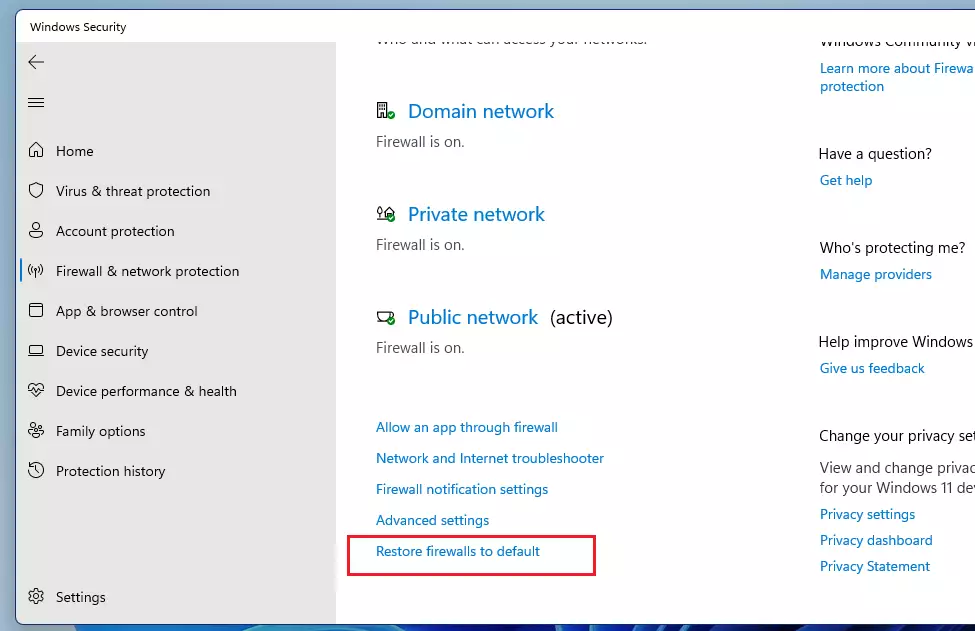
Scroll down to the bottom of the page. Click the link that says Restore firewalls to default.
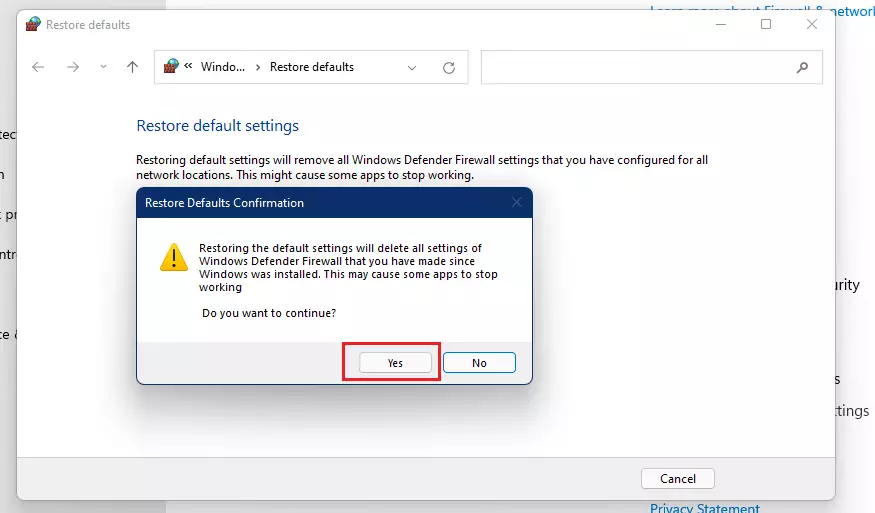
A new window will appear. Click the Restore defaults button.
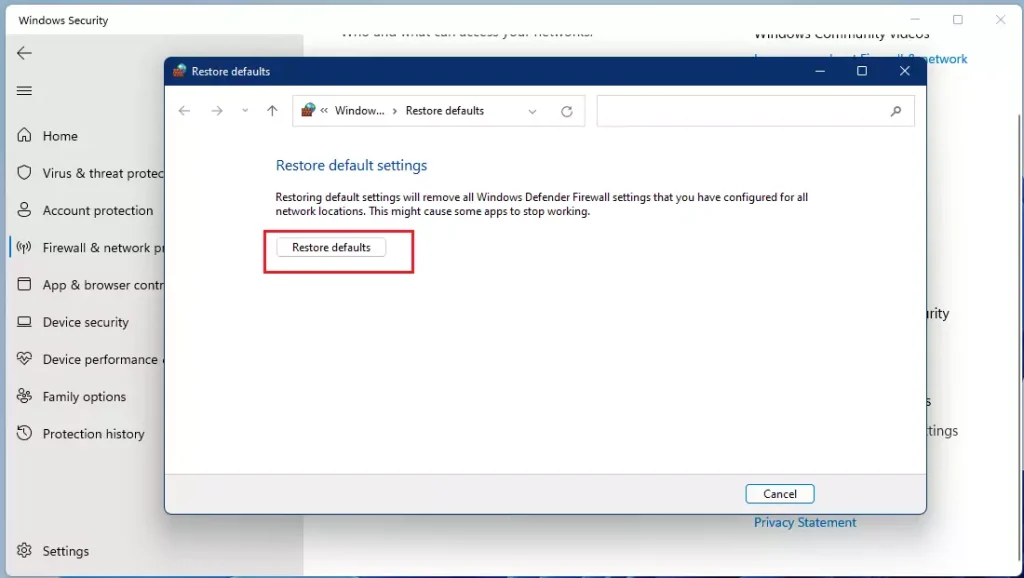
Note: This step requires admin privileges. A confirmation box will pop up. Click Yes to finish the process.
Finally, restart your computer to apply the changes.
If you prefer to use the command line, you can run this command as an administrator:
netsh advfirewall resetSummary
Resetting your firewall is a great way to fix network connection issues and clear out harmful rules created by malware. Remember that this process wipes your custom settings, so you will need to re-authorize your trusted apps once you are back up and running. Keeping your firewall at its default state helps maintain a secure and stable system.
Was this guide helpful?

About the Author
Richard
Tech Writer, IT Professional
Richard, a writer for Geek Rewind, is a tech enthusiast who loves breaking down complex IT topics into simple, easy-to-understand ideas. With years of hands-on experience in system administration and enterprise IT operations, he’s developed a knack for offering practical tips and solutions. Richard aims to make technology more accessible and actionable. He's deeply committed to the Geek Rewind community, always ready to answer questions and engage in discussions.




No comments yet — be the first to share your thoughts!