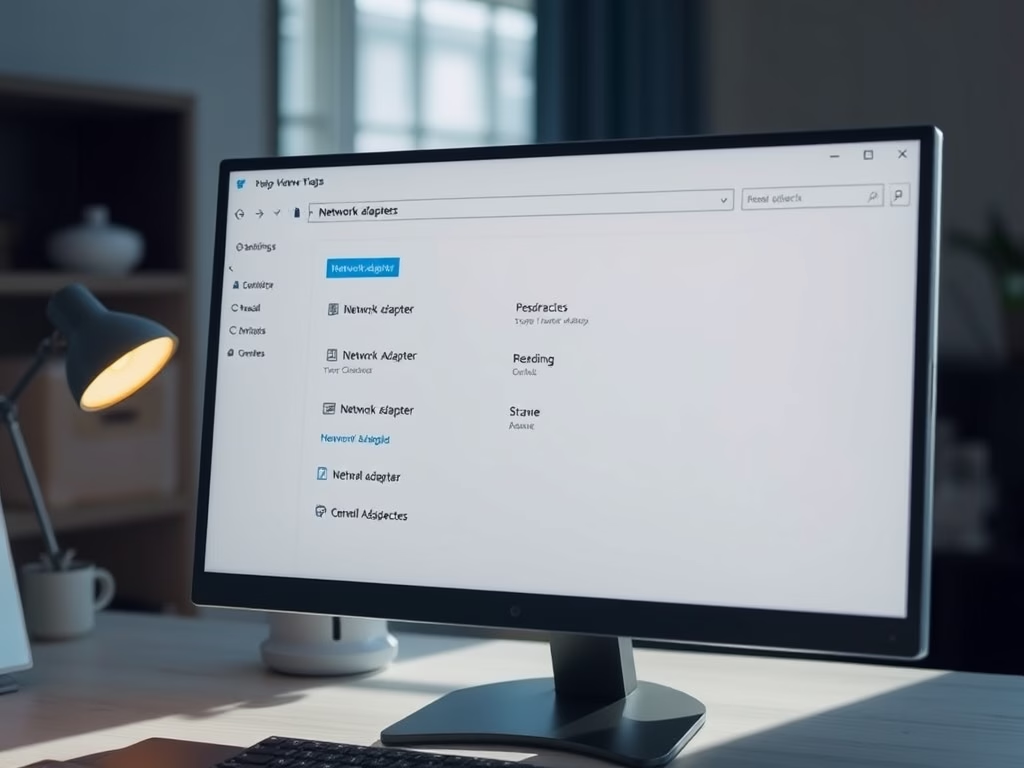
If you want to give your network adapters easier names, this guide will show you how to rename them in Windows 11. This makes it simple to tell different network connections apart, especially if you have more than one.
Why Rename Network Adapters?
Each network adapter in your PC has a default name that can be confusing, like “Ethernet” or “Wi-Fi.” Renaming them helps you quickly know which adapter is which. For example, you might name one “Home Wi-Fi” and another “Work Ethernet.”
Step-by-Step: How to Rename Network Adapters
- Open Windows Settings:
Press Windows key + I on your keyboard.
Or click Start → Settings.
- Go to Network Settings:
In Settings, click Network & Internet on the left side.
Then click Advanced network settings on the right. - Find Your Network Adapter:
Look for the section called Network adapters.
Click the small arrow next to the adapter you want to rename to open more options.
- Rename the Adapter:
Click the Rename button that appears. - Type the New Name:
A small box will open. Type the new name you want for your network adapter.
You can use letters, numbers, spaces, and hyphens. - Save Your Changes:
Click the Save button to finish.
Your new name will appear right away, but sometimes Windows might need a restart to show the change everywhere.
Summary
- Renaming network adapters helps you easily tell your connections apart.
- It’s a simple process done through Windows Settings.
- Custom names can include letters, numbers, spaces, and hyphens.
- The change usually happens right away, but restarting your PC can help if it doesn’t.
That’s it! Now you can organize your network adapters with names that make sense to you.

Leave a Reply