How to Remove Input Language Keyboard in Windows 11

Windows 11 allows you to language-keyboard-in-windows-11/" class="sal-link" rel="noopener" target="_blank" data-sal-id="23022">add different keyboard layouts to support various languages. Sometimes, you may end up with extra layouts that you do not need. This guide explains how to remove a keyboard layout in Windows 11, including how to fix stubborn ‘ghost’ layouts.
Why do this?
If you have too many keyboard layouts, you might accidentally switch to the wrong one while typing. This can cause frustration when special characters do not appear as expected. Removing unused layouts makes your computer easier to manage and keeps your input method editor (IME) clean.
What happens when done?
Once you remove an unwanted layout, it will no longer appear in your language bar or taskbar list. You will stop accidentally switching to it when using the Windows + Space shortcut. Your typing experience will be consistent and predictable.
Language Pack vs. Keyboard Layout
It is important to understand the difference. A language pack changes the display language of Windows. A keyboard layout determines how your physical keys map to characters on the screen. You can have multiple keyboard layouts for a single language, such as US QWERTY and UK English.
Standard Removal Method
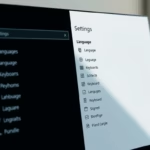
Follow these steps to clean up your keyboard list using the Settings app:
- Open the Start menu and click on Settings.
- Go to Time & Language and select Language & region.
- Under the Language section, find the language that has the keyboard you want to remove.
- Click the three dots (…) next to that language and select Language options.

- Scroll down to the Keyboards section.
- Find the keyboard you want to remove. Click the three dots (…) next to it and select Remove.

Comparison: Standard vs. Registry Removal
| Method | Best For | Difficulty |
|---|---|---|
| Settings App | Standard layouts | Easy |
| Registry Editor | Ghost layouts | Advanced |
| PowerShell | Bulk removal | Advanced |
Troubleshooting Ghost Keyboard Layouts
Sometimes a layout appears in your taskbar but is missing from your Settings menu. This is a ‘ghost’ layout. To fix this, you must use the Registry Editor.
Note: This requires admin privileges.
- Press Win + R, type regedit, and press Enter.
- Navigate to: HKEY_CURRENT_USER\Keyboard Layout\Preload
- Identify the layout you want to remove by checking the values.
- Right-click the folder and select Delete.
- Restart your computer to apply changes.
Advanced Removal via PowerShell
If you have many languages, you can use PowerShell to remove them. This requires admin privileges.
Get-WinUserLanguageList
$LangList = Get-WinUserLanguageList
$LangList.RemoveAt(1)
Set-WinUserLanguageList $LangList -Force
Summary
- Manage your layouts: Keep your typing clean by removing keyboards you do not use.
- Easy access: All settings are found under Settings > Time & Language > Language & region.
- Registry Fixes: Use the Registry Editor for stubborn layouts that do not appear in the standard menu.
- Official Help: For more details, visit the official Microsoft Language settings page.
Why does a keyboard layout reappear after I delete it?
This often happens because of a sync issue with your Microsoft account or a corrupted language profile. Try turning off language settings sync in your account settings, or use the Registry Editor to manually remove the persistent entry from the Preload key.
Can I disable the Windows + Space shortcut for switching keyboards?
Yes. You can change this in the Advanced Keyboard Settings menu. Navigate to Time & Language > Typing > Advanced keyboard settings. From there, you can change the input language hotkeys or disable the shortcut entirely to prevent accidental switching while you work.
Was this guide helpful?

About the Author
Richard
Tech Writer, IT Professional
Richard, a writer for Geek Rewind, is a tech enthusiast who loves breaking down complex IT topics into simple, easy-to-understand ideas. With years of hands-on experience in system administration and enterprise IT operations, he’s developed a knack for offering practical tips and solutions. Richard aims to make technology more accessible and actionable. He's deeply committed to the Geek Rewind community, always ready to answer questions and engage in discussions.



No comments yet — be the first to share your thoughts!