How to Remove all your files by Resetting Windows 11 PC

You can remove all your files from a Windows 11 PC by performing a full reset.
Resetting your PC reinstalls Windows 11, essentially giving you a clean slate. This process allows you to choose whether to keep your personal files or remove everything, including applications, settings, and personal data.
This tutorial focuses on the “Remove everything” option, which is ideal for selling your computer or troubleshooting deep system issues by ensuring no personal data remains. It’s like a factory reset for your PC.
Before you begin, it’s crucial to back up any files you wish to keep. A full reset deletes all personal files, programs, and settings, so safeguarding your important data is your first step.
Open Settings, go to System, then Recovery, and click “Reset PC”. Choose “Remove everything” and follow the prompts to reinstall Windows and delete all personal files, apps, and settings.
Before You Reset
Before you reset your Windows 11 PC and remove everything, it’s crucial to back up your important files. This ensures you don’t lose any data you want to keep, as the reset process will delete all your personal files, programs, and settings, similar to a factory reset.
- Back Up Your Important Files
You must do this. When you choose to remove everything, Windows will delete all your files, programs, and settings. Think of it like a factory reset. So, save copies of anything you don’t want to lose.
- What to back up: This includes your documents, pictures, videos, music, and any other personal data on your PC.
- Where to back up: You can use an external hard drive, a USB stick, or online storage like OneDrive, Google Drive, or Dropbox.
- Get Your Software Ready
The reset will remove all your programs. You will need to install them again later. If you have software that needs a license key or installation files, have them ready. This will save you time later.
- Check Your BitLocker Recovery Key (If You Use It)
If your computer uses BitLocker to protect your hard drive, you will need your BitLocker recovery key. Without it, you might not be able to use your PC after the reset. You can usually find this key by signing into your Microsoft account online.
- Write Down Your Wi-Fi Password
After Windows is reinstalled, you will need to connect to the internet. Having your Wi-Fi password ready will make this easy.
How to Reset Your PC and Remove Everything
To reset your Windows 11 PC and remove everything, start by opening Windows Settings. You can do this by clicking the Start button and then the Settings gear, or by pressing the Windows key + I. Once Settings is open, click on ‘System’ and then scroll to find the recovery options.
- Open Windows Settings
Click the Start button (usually in the bottom-left corner). Then click the Settings gear icon. Or, press the
Windows key + Ikeys on your keyboard together. - Go to Recovery Options
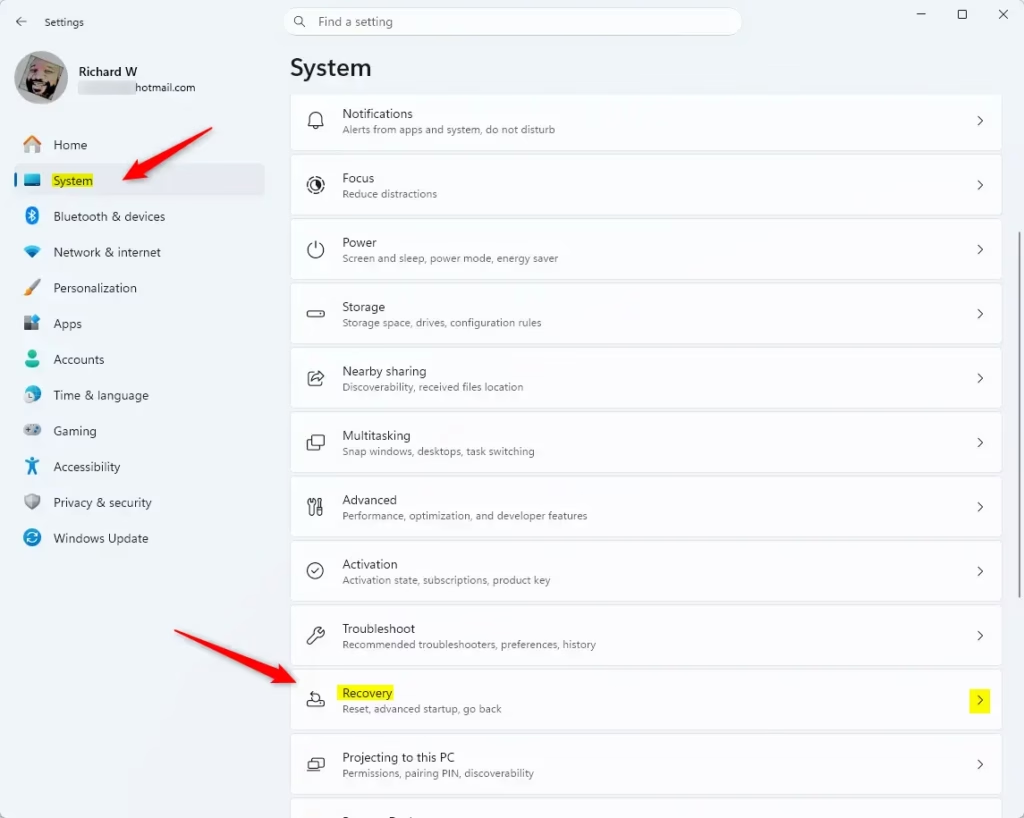
In the Settings window, click on System. Then, scroll down the left side and click on Recovery.
- Select “Reset PC”
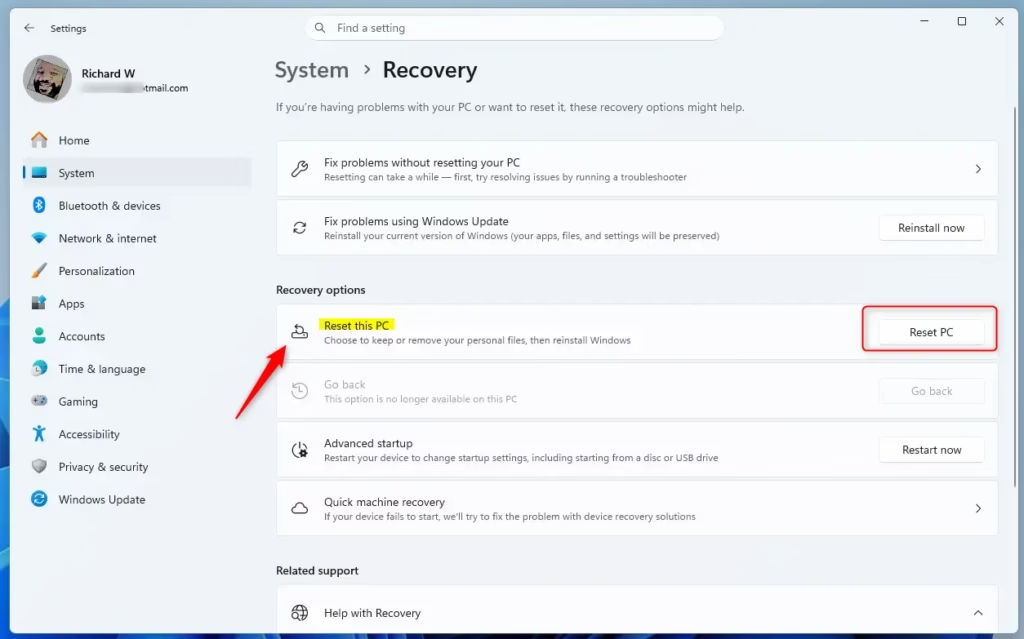
Under the “Recovery options” heading, you will see “Reset PC”. Click the “Get started” button next to it.
- Choose “Remove everything”
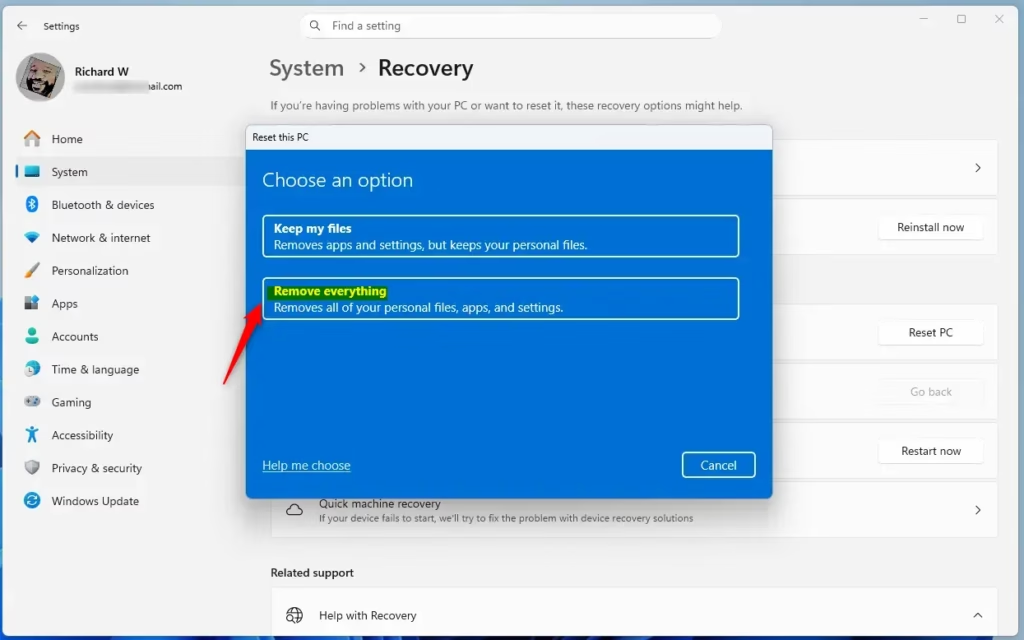
Windows will give you two choices:
Since we want a completely fresh start, choose Remove everything.- Keep my files: This reinstalls Windows but keeps your personal files. It removes apps and settings.
- Remove everything: This reinstalls Windows and removes all your personal files, apps, and settings.
- Choose How to Reinstall Windows
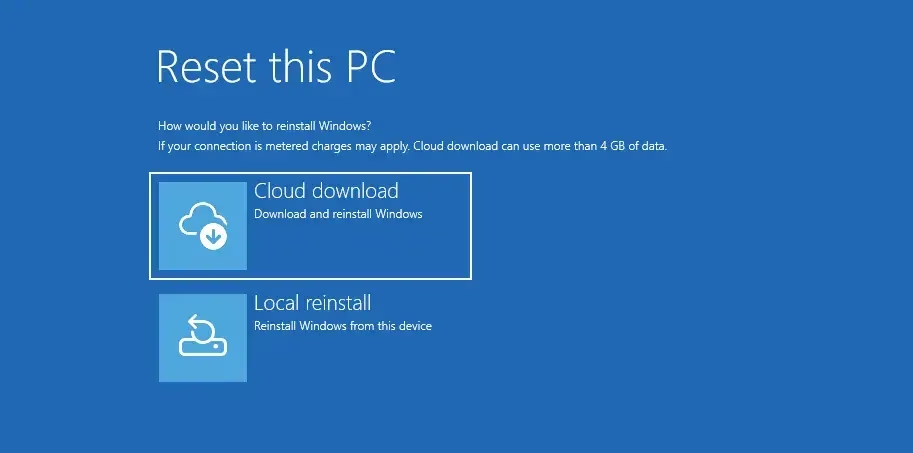
After selecting “Remove everything,” Windows will ask how you want to reinstall Windows. You will usually see two options:
For most people, the Cloud download is the best way to get a clean and up-to-date system. If you have a slow internet connection, the local reinstall might be better.- Cloud download: This downloads a new copy of Windows from Microsoft’s servers. It is usually best because you get the newest version with all the latest updates. This is good if your internet is fast and stable.
- Local reinstall: This uses files already on your PC to reinstall Windows. It is faster if your internet is slow. However, the Windows version might not be the very latest.
- Additional Settings (Clean Data?)
You might see an “Additional settings” screen. Here, you might find an option to clean the drive.
Warning: Once you choose to “Clean data,” you cannot get your files back. Only select this if you are absolutely sure you want to remove all data forever.- Clean data: If you plan to sell, give away, or recycle your PC, it’s highly recommended to turn this on. It deletes files and then overwrites them. This makes it much harder for anyone to get your personal information back. This option takes much longer than a normal reset.
- Don’t clean data: If you are resetting the PC for yourself and just want a fresh start, you can skip this. It’s faster but less secure if someone else will use the PC.
- Review and Confirm
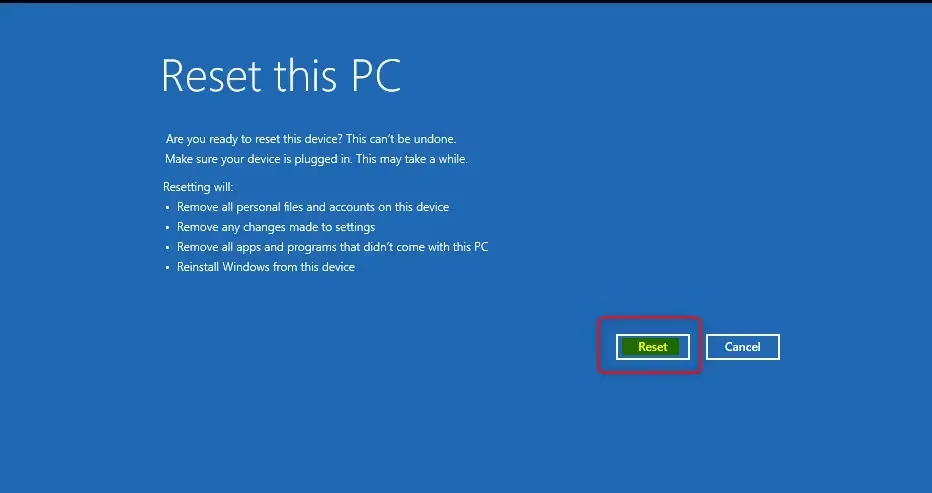
Windows will show you a summary of what will happen. It will remind you that all your files, apps, and settings will be removed. Read this carefully.
If you are ready, click the Reset button. Your PC will then start reinstalling Windows.
What Happens During the Reset
When you reset your Windows 11 PC, it will restart several times as the process completes. You might see a black screen for a while, which is normal. It’s important not to interrupt the reset by forcing a shutdown, as this can cause the process to fail and potentially make your PC unusable.
- Your PC will restart several times.
- You might see a black screen for a long time. This is normal! Windows is working.
- Try not to interrupt the process. Forcing a shutdown or restart during the reset can make it fail. This could leave your PC unusable.
Important Note: Microsoft says that during the reset, your screen might be black for a long time (sometimes over 15 minutes), and your device might try to restart itself. Do not manually restart your PC during this time, as it could cause the reset to fail.
After the Reset: Setting Up Your New Windows
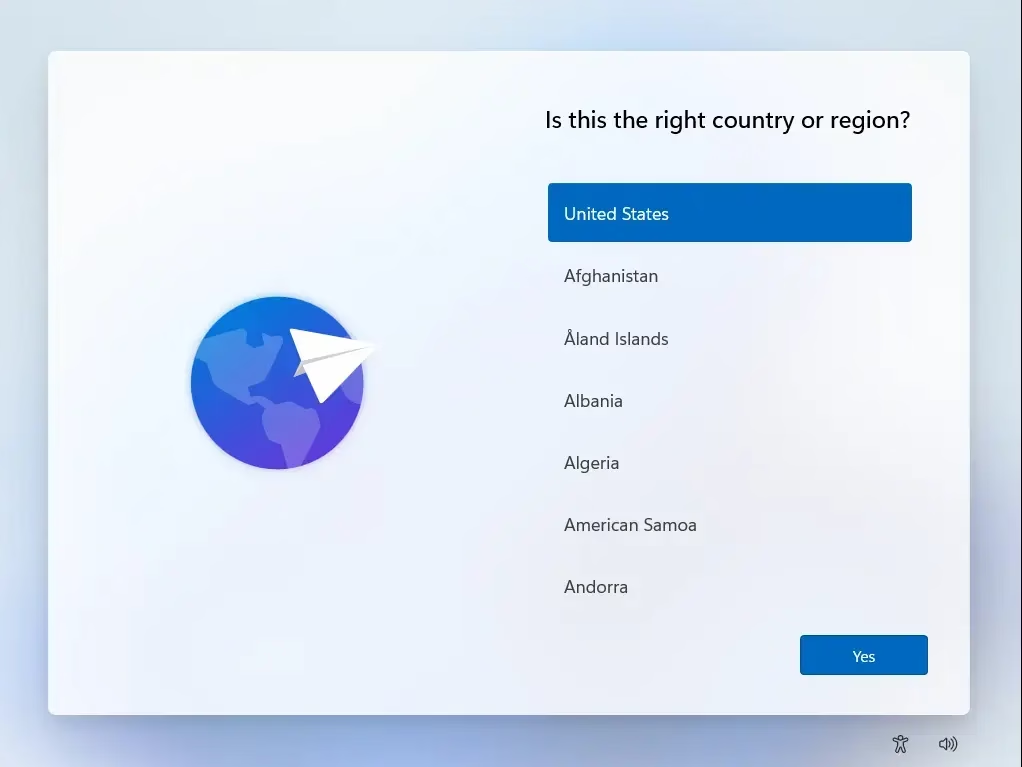
After your Windows 11 PC has finished resetting, it will start up to the Out-of-Box Experience (OOBE) screen, just like a new computer. You’ll need to select your region and keyboard layout, connect to your Wi-Fi network, and then sign in with your Microsoft account or create a new local account to finish setting up.
- You will need to choose your region and keyboard layout.
- Connect to your Wi-Fi network (this is where your saved password helps!).
- Sign in with your Microsoft account or create a local account.
- Windows will then download updates and set up your system.
From here, you can start reinstalling your favorite programs, bringing back your backed-up files, and making your PC how you like it. Enjoy your clean, fast, and refreshed Windows experience!
Reference:
https://support.microsoft.com/en-us/windows/reset-your-pc-0ef73740-b927-549b-b7c9-e6f2b48d275e
Summary
Resetting your Windows 11 PC to remove everything reinstalls Windows and deletes all your personal files, apps, and settings, giving you a fresh start. Before you begin, remember to back up important files, gather software details and license keys, and know your Wi-Fi password. If you use BitLocker, make sure you have your recovery key handy.
Does 🪟 Windows 11 factory reset delete everything?
Yes, a Windows 11 factory reset, when you choose the 'Remove everything' option, deletes all personal files, applications, settings, and data. It reinstalls Windows 11, providing a clean slate, similar to a factory reset on other devices. Always back up important data first.
How do I completely wipe my computer in 🪟 Windows 11?
To completely wipe your Windows 11 computer, use the 'Reset this PC' feature. Select 'Remove everything' to delete all personal files, apps, and settings. This process reinstalls Windows 11, ensuring no data remains, which is ideal for selling or troubleshooting.
How to 100% wipe your PC?
To 100% wipe your PC, perform a Windows 11 reset and select the 'Remove everything' option. This reinstalls the operating system and erases all personal files, applications, and settings. For maximum security, consider using a secure erase tool if available in advanced settings.
Which is better, factory reset or reformat?
A factory reset is simpler for most users, reinstalls Windows with options to keep or remove files. Reformatting involves manually partitioning and formatting the drive, offering more control but requiring technical knowledge. For a clean slate without data, a factory reset is generally easier.
Was this guide helpful?

About the Author
Richard
Tech Writer, IT Professional
Richard, a writer for Geek Rewind, is a tech enthusiast who loves breaking down complex IT topics into simple, easy-to-understand ideas. With years of hands-on experience in system administration and enterprise IT operations, he’s developed a knack for offering practical tips and solutions. Richard aims to make technology more accessible and actionable. He's deeply committed to the Geek Rewind community, always ready to answer questions and engage in discussions.


No comments yet — be the first to share your thoughts!