How to Remove All Local Copies of Phone Files on Windows 11

You remove local copies of phone files on Windows 11 by clearing the cache for the “Link to Windows” app.
The “Link to Windows” feature allows you to access your phone’s files directly from your PC, which is great for quick transfers. However, these mirrored files can consume valuable storage space on your Windows 11 machine.
This tutorial guides you through the straightforward process of deleting these cached files, ensuring your phone’s data remains untouched. You’ll reclaim disk space in just a few clicks.
Why remove local copies?
These local copies can take up a lot of space on your computer. Removing them helps free up storage. It also keeps your computer tidy.
What happens when you remove local copies?
When you remove the local copies, they are deleted from your Windows 11 PC. The original files on your phone are not affected. Your phone’s storage remains unchanged.
Step 1: Stop File Explorer from Showing Your Phone
First, you need to tell Windows to stop showing your phone’s files in File Explorer. This makes sure you only delete copies on your PC.
- Open Settings. Click the Start button and then click the gear icon for Settings. You can also press the Windows key + I.
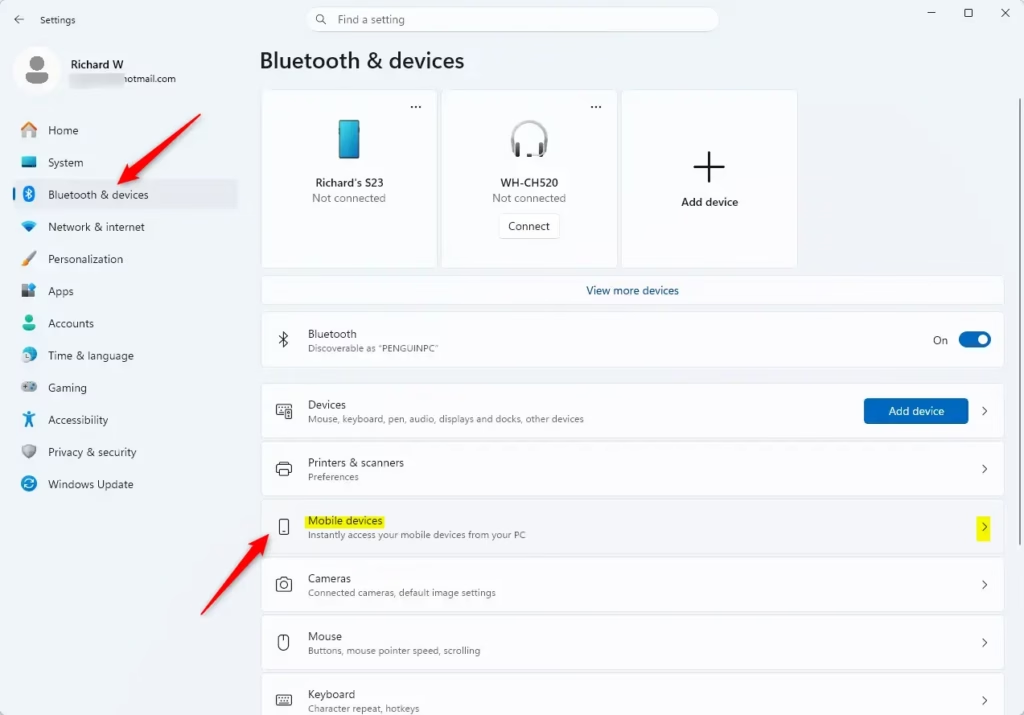
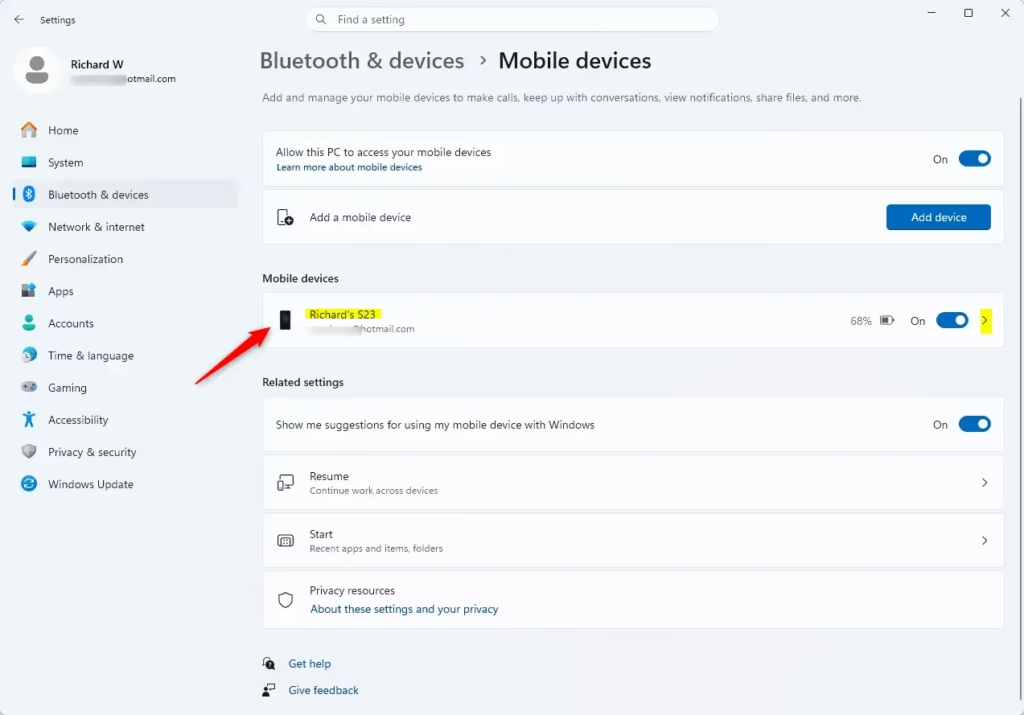
- Go to Mobile devices. In Settings, click on Bluetooth & devices in the left menu. Scroll down and click on Mobile devices.
- Manage your devices. Under Mobile devices, click Manage devices.
- Turn off File Explorer access. Find your phone in the list. Look for the option “Show mobile device in File Explorer” (this is the setting that lets Windows see your phone’s files). Click the switch next to it to turn it Off. This stops your phone from showing up directly in File Explorer.
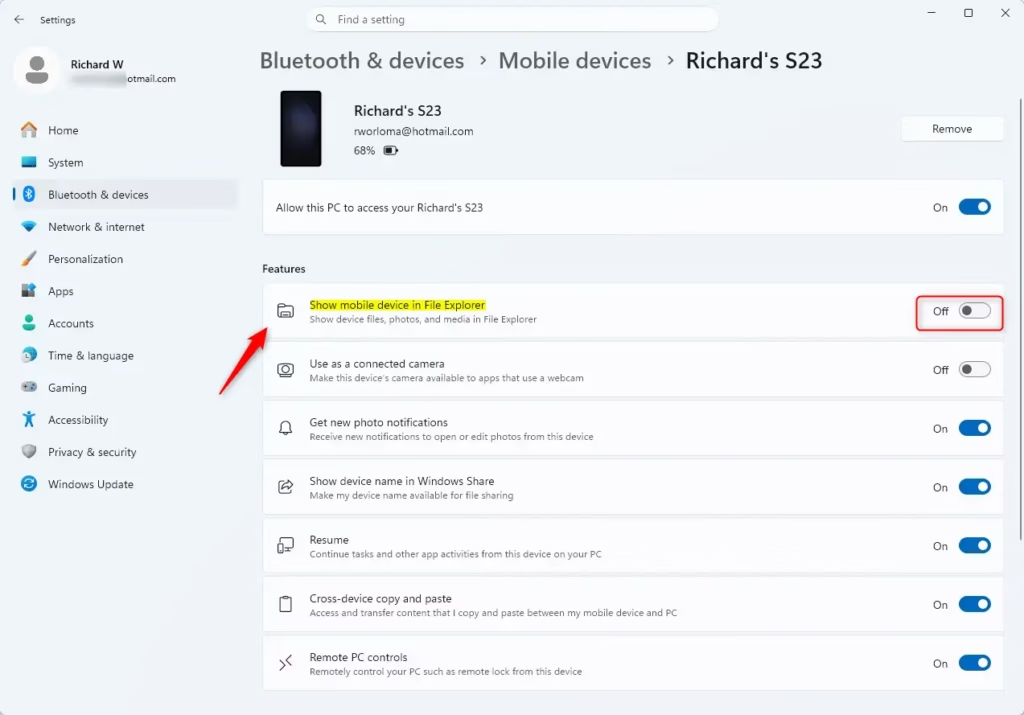
Pro Tip: If you have more than one phone linked, make sure you turn off the correct one. This setting is for each phone individually.
Step 2: Find and Delete Local Phone Files
Now that your phone is disconnected in File Explorer, let’s find where Windows saved the copies. These files have a specific location on your PC.
- Open File Explorer. Click the folder icon on your taskbar or press Windows key + E.
- Go to the CrossDevice folder. In the File Explorer address bar, type the following path and press Enter:Code
C:\Users\<your username>\CrossDevice - Important: You need to replace
YOUR_USERNAMEwith your actual Windows username. You can find your username by looking at the folder names inC:\Users\. - Look at and delete files. Inside the
CrossDevicefolder, you will see files and folders copied from your phone. Look through them. You might see folders named after your phone or dates. Select the files or folders you want to remove. You can select many items by holding down the Ctrl key while clicking. - Press the Delete key on your keyboard. Or, right-click on the selected items and choose Delete.
- Empty the Recycle Bin. To free up that storage space immediately, go ahead and empty your Recycle Bin. Find the Recycle Bin icon on your desktop, right-click it, and choose Empty Recycle Bin.
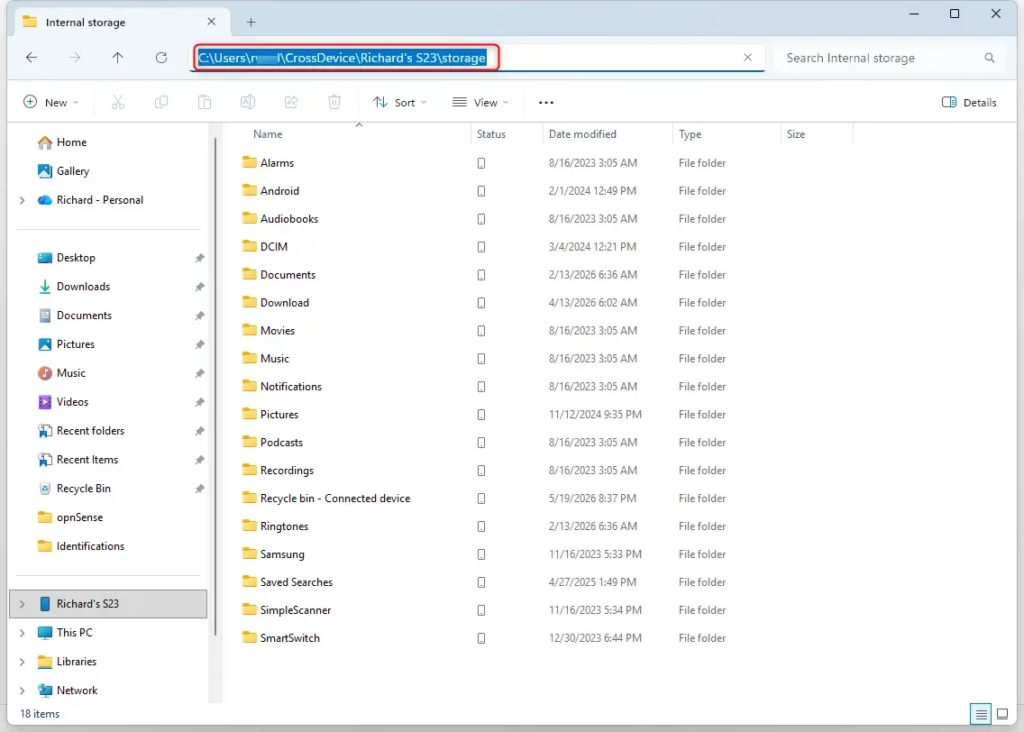
Warning: Make sure you are deleting files from the C:\Users\<your username>\CrossDevice folder and NOT from your phone. Once deleted from your PC’s Recycle Bin, these files are gone from your computer. The files on your phone will stay there.
Reference:
Summary
This guide shows you how to remove local copies of phone files from your Windows 11 PC. First, you disconnect your phone from File Explorer in Settings. Then, you manually go to a specific folder in File Explorer, find the copied files, and delete them. Finally, you empty the Recycle Bin to free up space. This process keeps your phone’s original files safe while cleaning up your computer.
How do I move all files from my phone to my PC?
To move files from your phone to your PC, connect your phone via USB and select 'File Transfer' mode. Then, open File Explorer, navigate to your phone's storage, select the files or folders you want to move, and copy them to a desired location on your PC.
How do I delete phone system files?
Deleting phone system files is generally not recommended as it can cause your device to malfunction or become unusable. These files are essential for your phone's operating system. If you're trying to free up space, focus on uninstalling apps or deleting user-generated content like photos and videos.
How do I delete local storage on my PC?
To delete local storage on your PC, you can uninstall unused applications, delete temporary files using Disk Cleanup, and remove large files or folders you no longer need. For specific cached phone files, clear the cache for apps like 'Link to Windows' in Windows 11 Settings.
Is there a way to delete duplicate files on PC?
Yes, you can delete duplicate files on your PC using built-in tools or third-party software. Windows' Disk Cleanup can help remove some temporary duplicates. For more comprehensive duplicate detection and removal, consider using specialized duplicate file finder applications available online.
Was this guide helpful?

About the Author
Richard
Tech Writer, IT Professional
Richard, a writer for Geek Rewind, is a tech enthusiast who loves breaking down complex IT topics into simple, easy-to-understand ideas. With years of hands-on experience in system administration and enterprise IT operations, he’s developed a knack for offering practical tips and solutions. Richard aims to make technology more accessible and actionable. He's deeply committed to the Geek Rewind community, always ready to answer questions and engage in discussions.


No comments yet — be the first to share your thoughts!