How to remap keys with PowerToys on Windows 11

Remapping keys means changing what a button on your keyboard does. For example, you can make your Caps Lock key act like a Backspace key.
Why do this? You might have a key you never use. Or, you may want your keyboard to be more comfortable for gaming or work.
What happens when done? Your computer will treat the old key as if it were the new one you chose. This helps you work faster and more efficiently.
Windows does not have a built-in tool for this. Instead, we use PowerToys. It is a free tool from Microsoft. You can use it to change keys for your whole computer or just for one specific app.
How to Remap Keys with PowerToys on 🪟 Windows 11
Follow these steps to get started.
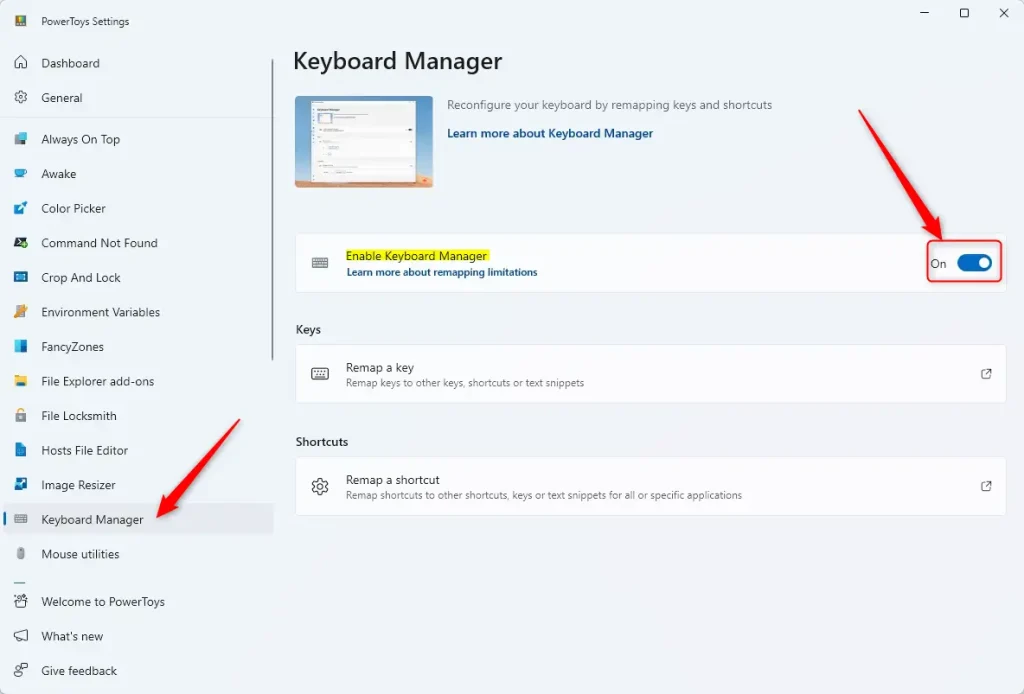
Step 1Open PowerToys and Find Keyboard Manager
Open the PowerToys app on your computer. Look for the Keyboard Manager tab on the left side. Make sure the setting for Keyboard Manager is turned on.
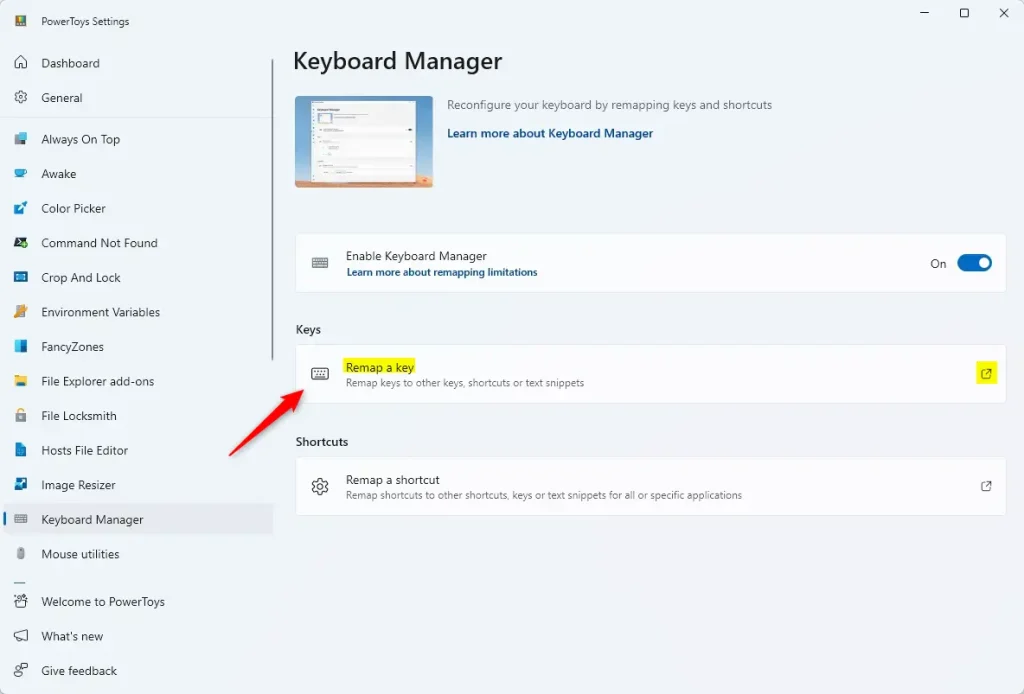
Step 2Open Key Remapping Settings
Look under the Keys section. Click the button that says “Remap a key.” This opens a new window where you can make changes.
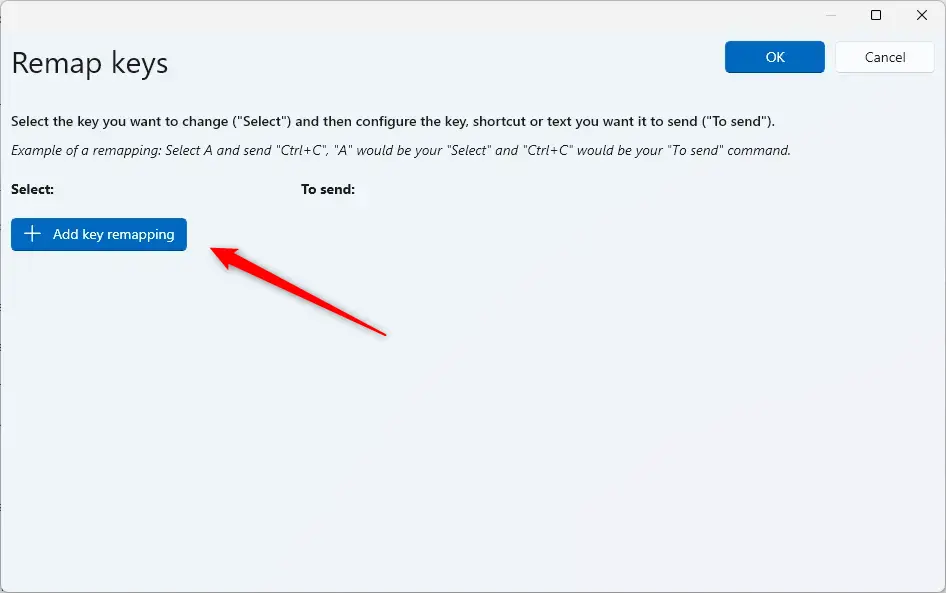
Step 3Add a New Key Remap
Click the “Add key remapping” button. This creates a new line for you to pick which key you want to change. Note: If prompted by User Account Control, provide admin privileges to continue.
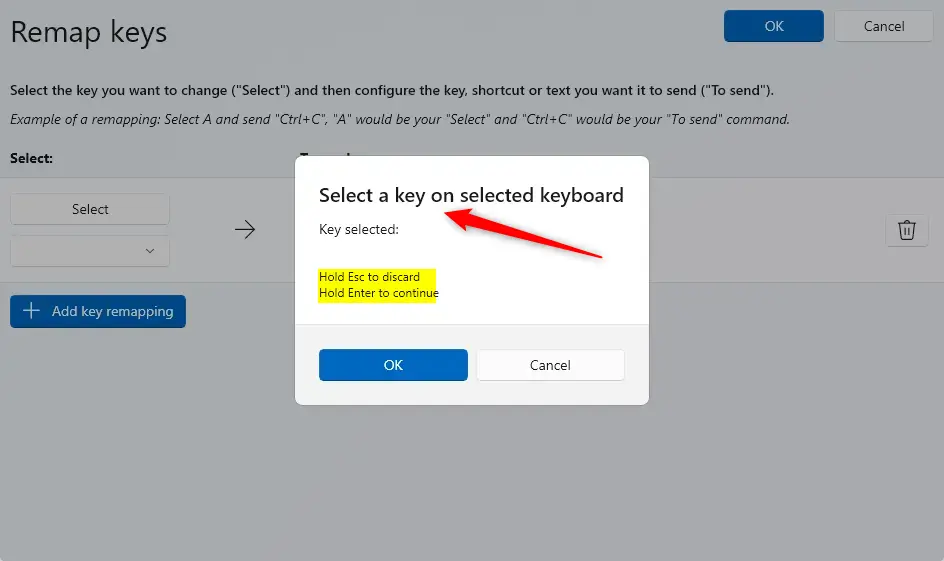
Step 4Choose Your Keys
You will see two columns. One is called “Select” and the other is called “To send.” Click “Select” in the first column. Press the key on your keyboard that you want to change. Next, click “Select” in the “To send” column. Press the key you want it to become.
Step 5Save Your Changes
Once you have picked both keys, click the OK button. Your new key setup is now active. If you want to remove this change later, just click the trash can icon next to the setting.
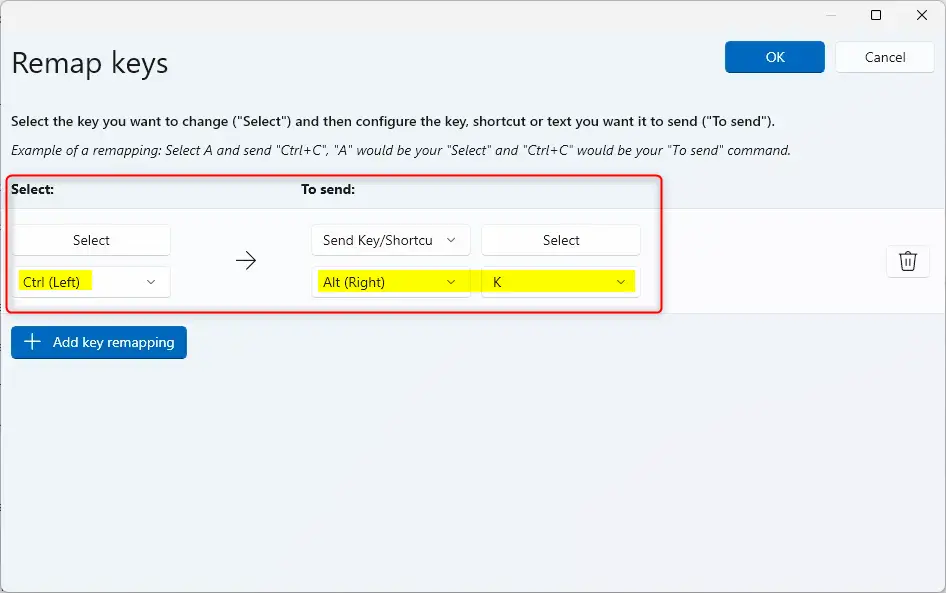
That is it! Your keyboard will now use the new key settings immediately.
Summary
PowerToys is a free tool that lets you customize your keyboard. You can change any key to perform a different function. Simply open the app, go to Keyboard Manager, and use the “Remap a key” tool to set your preferences. This makes your computer easier to use for your specific needs.
How do I remap keys using PowerToys on Windows 11?
Can I remap keys for specific applications with PowerToys?
What is the benefit of remapping keys on my keyboard?
Is there a built-in key remapping tool in Windows 11?
What should I do if I want to delete a key remapping in PowerToys?
Was this guide helpful?

About the Author
Richard
Tech Writer, IT Professional
Richard, a writer for Geek Rewind, is a tech enthusiast who loves breaking down complex IT topics into simple, easy-to-understand ideas. With years of hands-on experience in system administration and enterprise IT operations, he’s developed a knack for offering practical tips and solutions. Richard aims to make technology more accessible and actionable. He's deeply committed to the Geek Rewind community, always ready to answer questions and engage in discussions.



No comments yet — be the first to share your thoughts!