

This article explains how to turn on “Record what happened” to capture something cool in your game on Windows 11.
When playing your favorite games on Windows, you can capture important and cool moments and save the video for later. To do that, press the Windows logo key + ALT + G to capture the moment.
Capturing and recording important game moments can be an exciting way to preserve and share your gaming experiences. Modern gaming platforms like Xbox, PlayStation, and Nintendo Switch have built-in game capture features.
These allow you to record and share gameplay directly from the console easily.
Windows also supports gameplay video recording. You can now capture important and cool moments in your game that you can save and share your experience later.
Previously, users would use screen recording software to capture gameplay. These tools allow you to customize your recording settings and save the footage as video files.
Turn “Record what happened” on or off
As mentioned, users don’t need third-party tools to capture and record gameplay. Windows has a feature that allows users to capture important game moments that can be preserved and shared in their gaming experiences.
Here’s how to turn on or off game capturing.
First, open the Windows Settings app.
You can do that by clicking on the Start menu and selecting Settings. Or press the keyboard shortcut (Windows key + I) to launch the Settings app.
When the Setting app opens, click the Gaming button on the left.
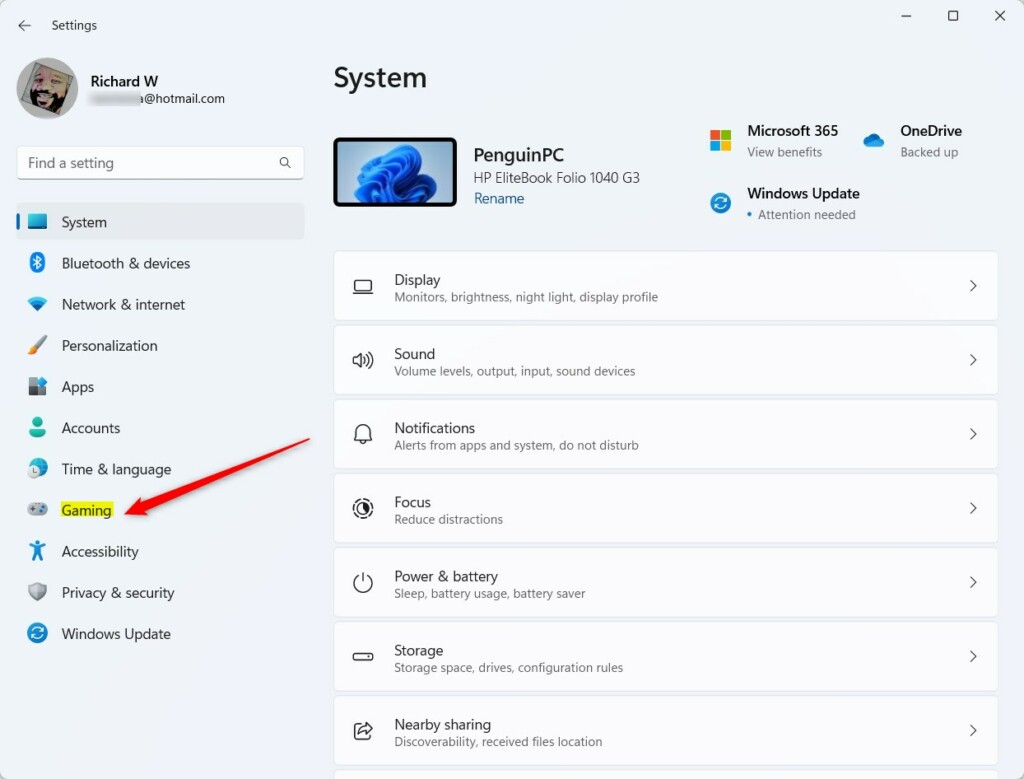
Select the Captures tile on the right to expand it.
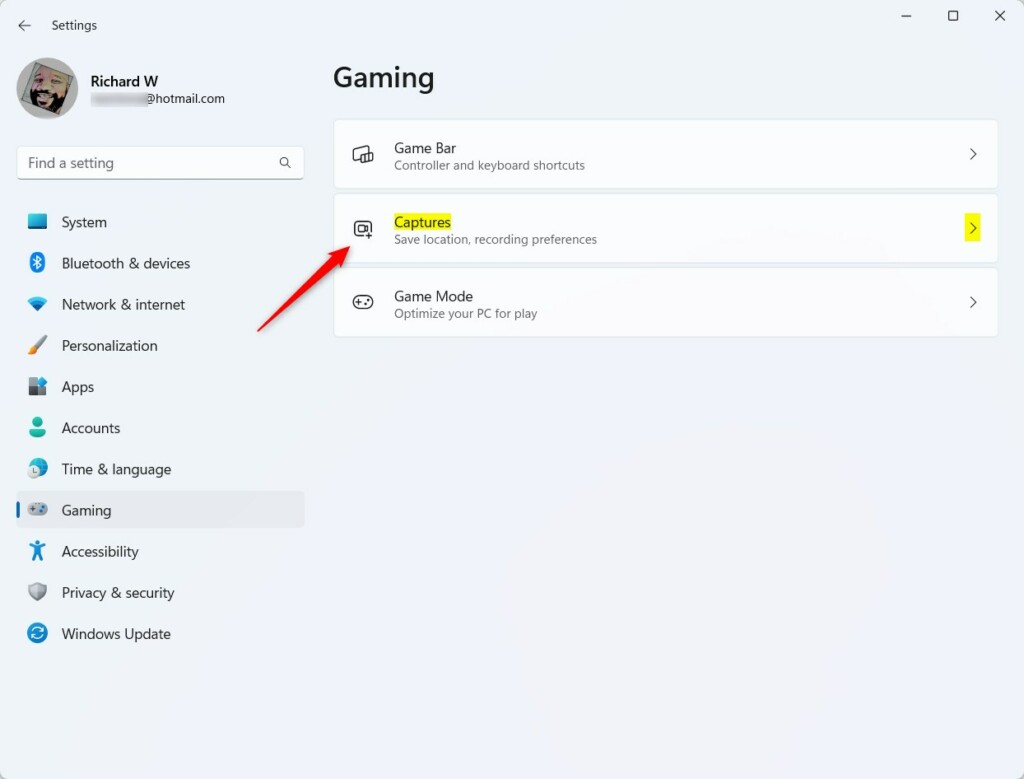
On the Gaming -> Captures setting pane, select the “Record what happened” tile.
Then, toggle the switch button to the On position to enable users to capture important moments by pressing the Windows logo key + ALT + G shortcut keys on the keyboard.
To disable or turn off video captures, toggle the switch to the Off position.
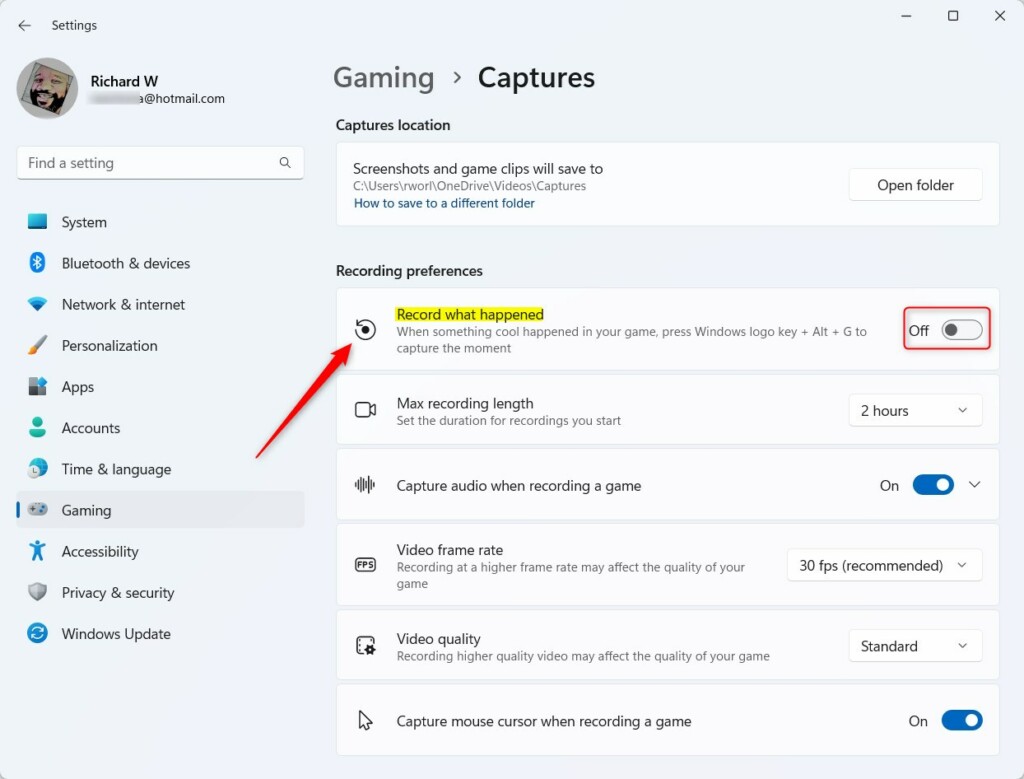
Once you enable “Record what happened,” you can capture cool moments in your game by pressing the Windows Logo key + ALT + G on your keyboard.
The video will be saved in the Video folder of your home directory.
Close the Settings app when you are done.
That should do it!
Conclusion:
- Windows provides a convenient built-in feature for capturing gameplay moments without the need for third-party tools.
- The process involves accessing the Settings app, navigating to the Gaming section, and selecting the Captures tile to enable or disable the “Record what happened” option.
- Enabling this feature allows users to effortlessly capture memorable game moments by pressing
Windows Logo key + ALT + Gand access the saved videos in the Video folder. - By following these steps, users can enhance their gaming experience and easily share their gameplay highlights with others.


Leave a Reply to Changing the Location of Screenshots and Game Clips in Windows 11 - Geek Rewind Cancel reply