How to Add or Remove Phone Number for Copilot Tasks by SMS

This tutorial shows you how to manage your phone number so you can text tasks to Copilot. We’ll cover adding and removing your number for SMS communication.
Add or remove your phone number for Copilot SMS tasks by navigating to the “Text by SMS” settings within the Copilot app or website. Enter your number and verify it with a code to add it, or click “Disconnect Phone Number” to remove it.
What Are Copilot Tasks?
Copilot Tasks let you ask Copilot to do work for you using everyday language, like telling a helpful assistant what needs to be done instead of figuring out the steps yourself.
Two Types of Tasks
- Regular tasks run one time when you submit them. Example: “Order pizza for my family tonight.”
- Scheduled tasks run at a specific time or repeat on a schedule. Example: “Email me a weekly summary of Microsoft stock performance.”
Copilot Tasks come in two main types: regular tasks that run just once when you ask, and scheduled tasks that can run at a specific time or repeat regularly.
Why Use SMS for Copilot Tasks?
Using SMS for Copilot Tasks means you can send instructions by text without opening the app, get instant notifications when tasks are done, and manage them easily on the go.
- Submit tasks by text without opening the Copilot app or website.
- Get instant notifications when your task is done.
- Schedule tasks to run once or repeat, all through text messages.
- Check progress and stop tasks if needed to keep sensitive actions safe.
This makes Copilot Tasks much more convenient on mobile phones and for people who prefer texting over typing on a computer.
Learn more about Copilot as your AI companion: Microsoft Copilot: Your AI companion.
For detailed information on using Copilot Tasks, refer to: Using Copilot Tasks – Microsoft Support.
Discover how Copilot Tasks turn answers into actions in this article: Copilot Tasks: From Answers to Actions | Microsoft Copilot Blog.
Option 1Add or Remove Phone Number from Copilot App or Website
Add Phone Number for Copilot Tasks by SMS
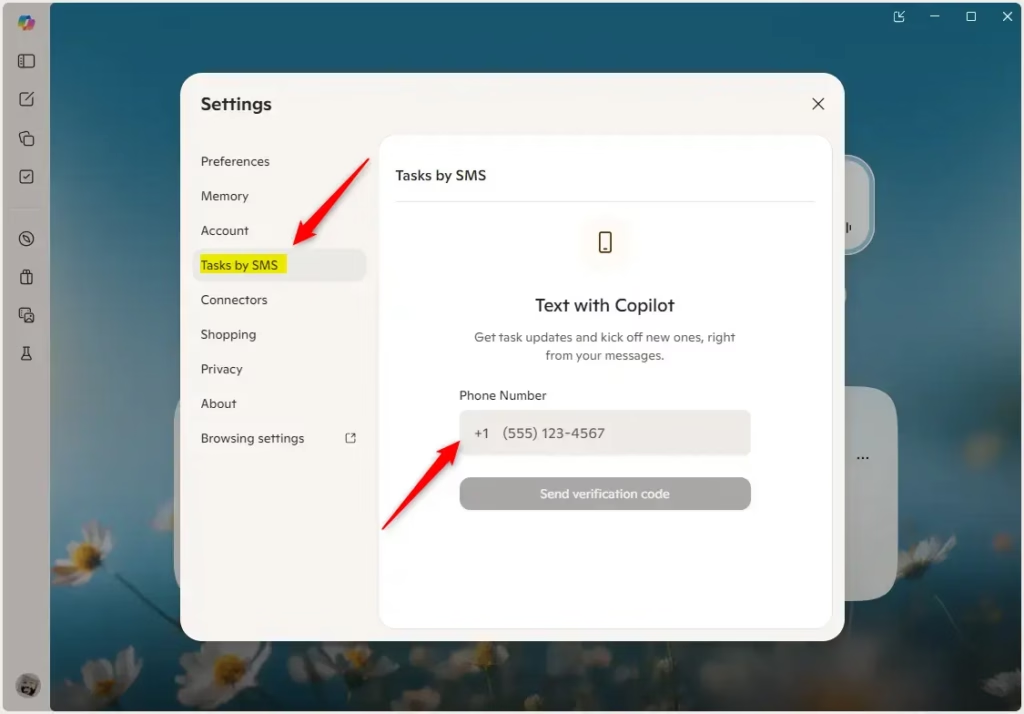
To add your phone number for Copilot Tasks by SMS using the app, first open the Copilot app on Windows 11 and sign in with your Microsoft account.- Open the website or Copilot app on Windows 11.
- Sign in with your Microsoft account if you haven’t already.
- In the app (full view only), click or tap the Account button on the left side, then click or tap Text by SMS.
- Enter the phone number you want to use, and click or tap Send verification code.
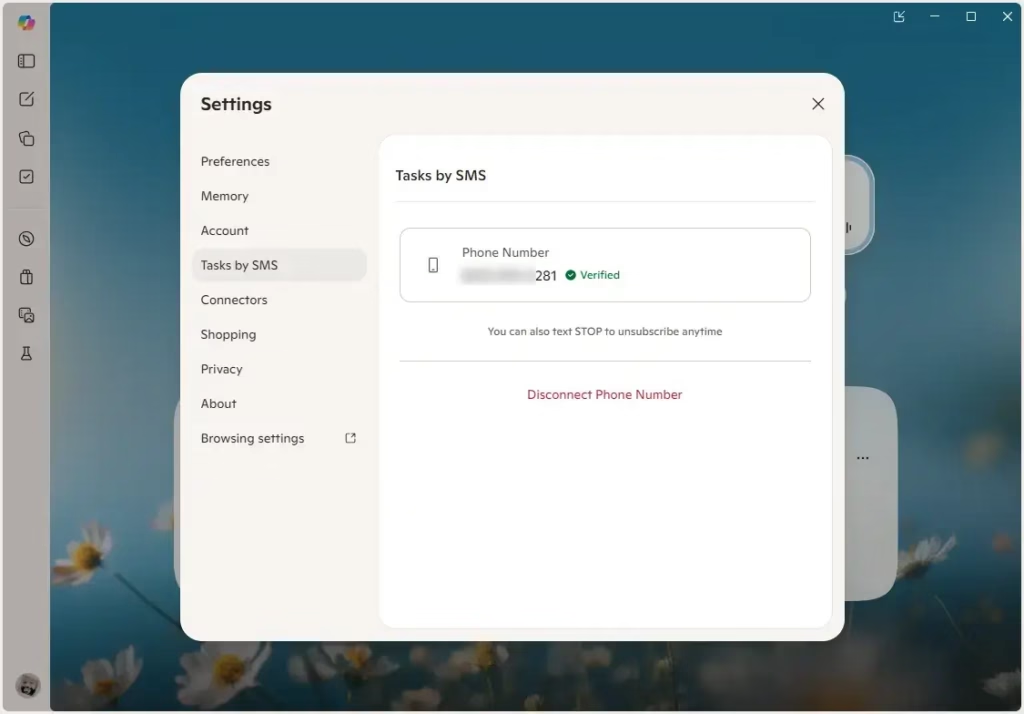
- Enter the verification code that was sent to your phone, and click or tap Verify.
- You will receive an SMS Tasks Connected text message on your phone to confirm the number was added.
Remove Phone Number for Copilot Tasks by SMS
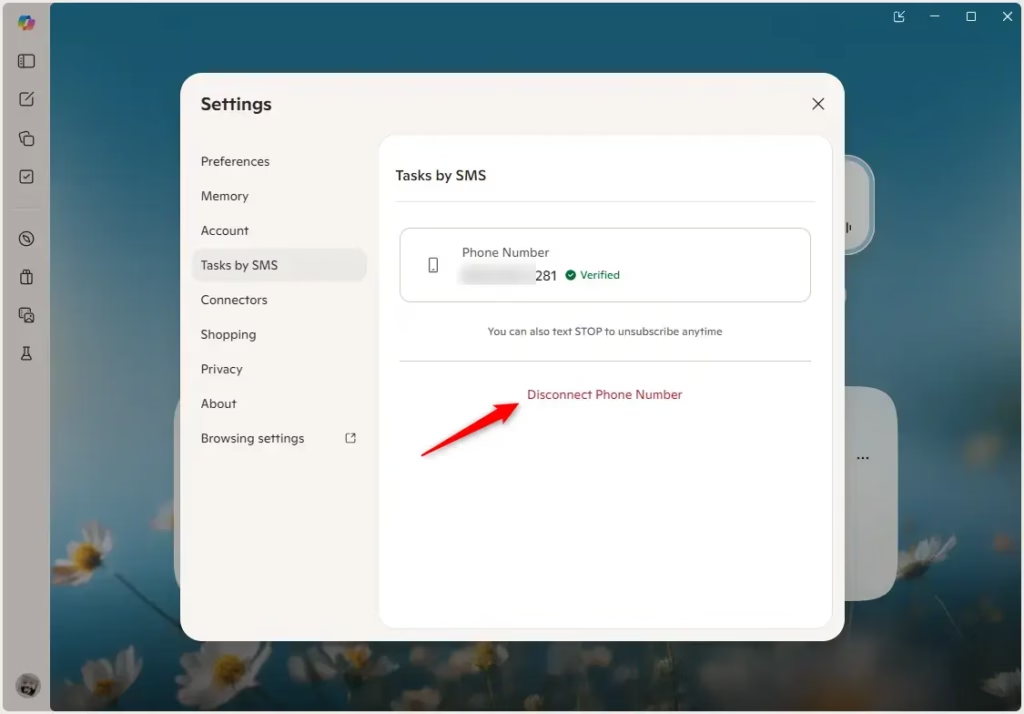
- Click or tap the Disconnect Phone Number link.
- You will receive an SMS Tasks Disconnected text message on your phone to confirm the number was removed.
Option 2Add or Remove Phone Number from Microsoft Edge
Add Phone Number for Copilot Tasks by SMS
- Open Microsoft Edge.
- Sign in with your Microsoft account if you haven’t already.
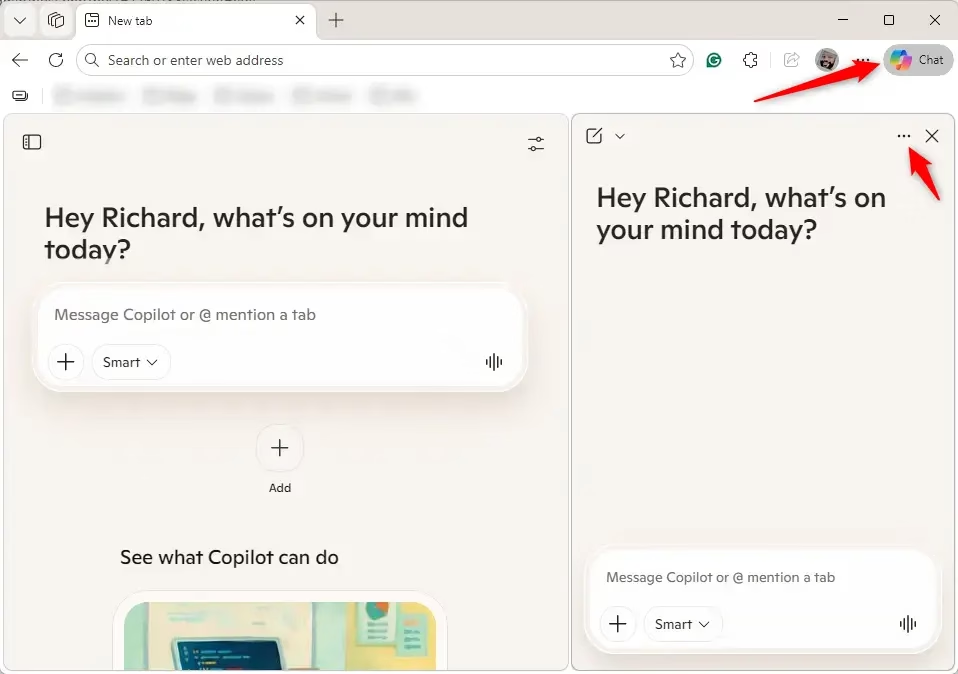
- Click or tap the Copilot icon in the toolbar.
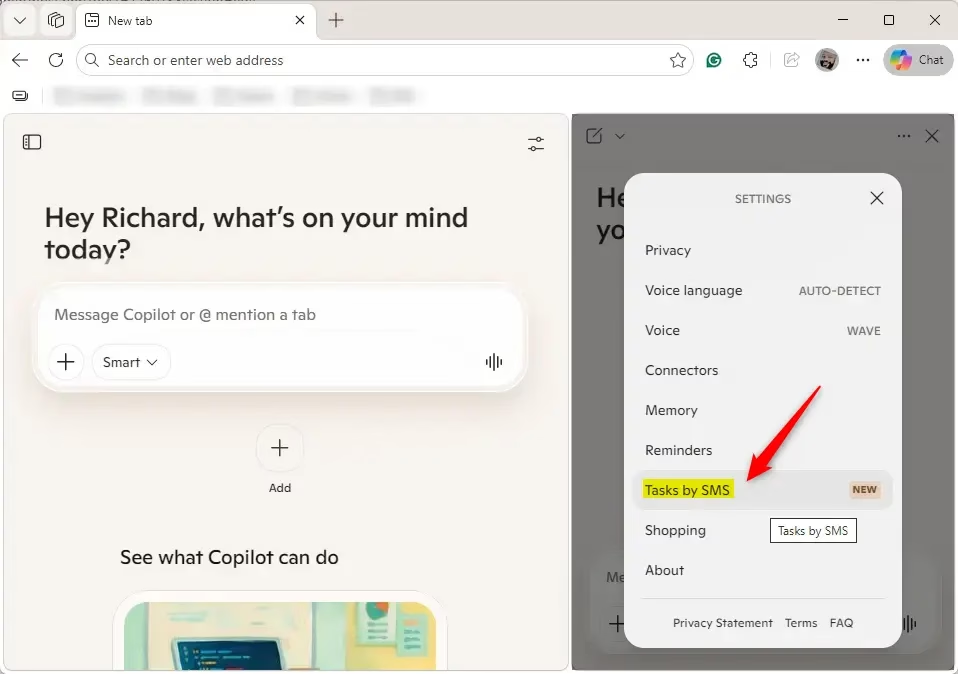
- Click or tap the More options button (3 dots), then click or tap Settings.
- Click or tap Tasks by SMS.
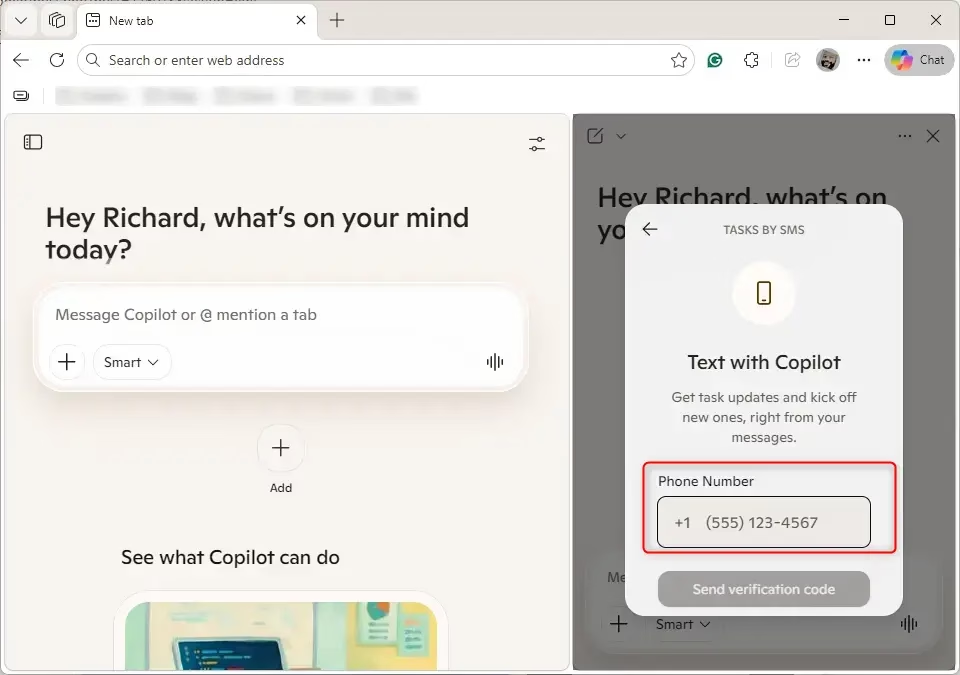
- Enter the phone number you want to use, and click or tap Send verification code.
- Enter the verification code that was sent to your phone, and click or tap Verify.
- You will receive an SMS Tasks Connected text message on your phone to confirm the number was added.
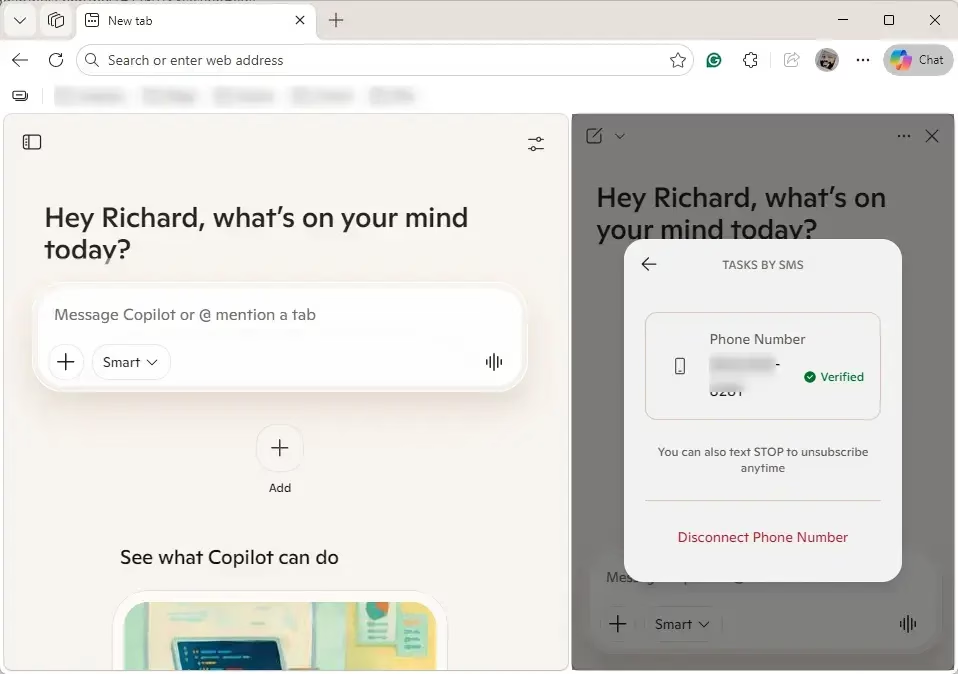
Remove Phone Number for Copilot Tasks by SMS
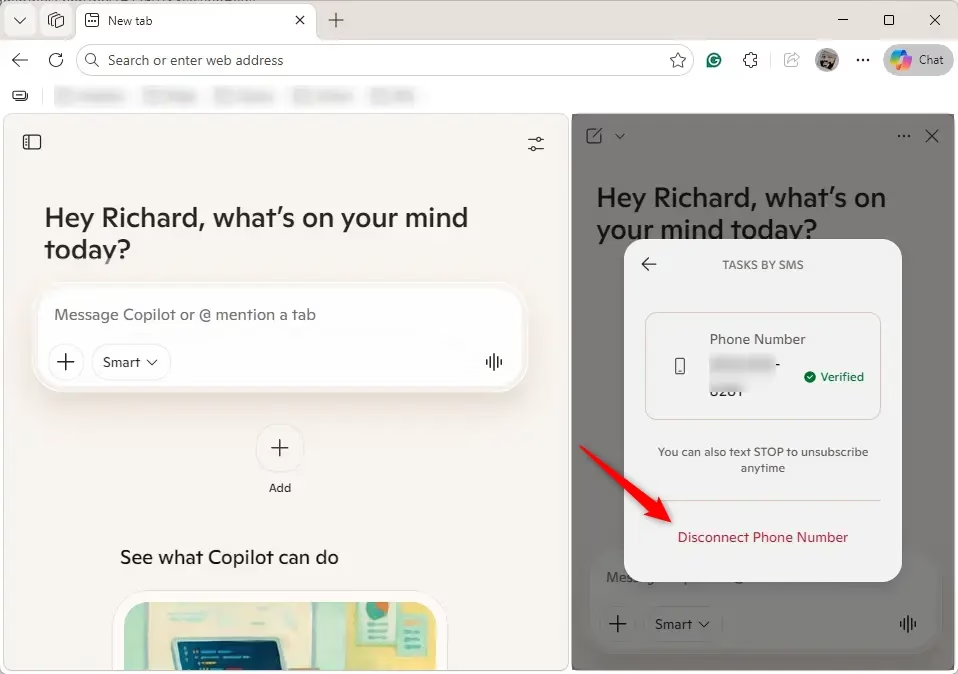
- Click or tap the Disconnect Phone Number link.
- You will receive an SMS Tasks Disconnected text message on your phone to confirm the number was removed.
That’s it!
Summary
Adding your phone number for Copilot Tasks by text is easy and can be done through the Copilot app, website, or Microsoft Edge, letting you send tasks via SMS conveniently.
Can Copilot send a text message?
Yes, Copilot can work with text messages for tasks. When you link your phone number, you can send instructions directly to Copilot without opening the app. This makes it convenient to manage, schedule, and track your tasks using your regular text messaging.
Can Copilot do tasks for you?
Yes, Copilot Tasks can handle jobs for you by understanding simple, everyday language, so you just tell it what you want done and it figures out how to do it.
Can Microsoft Copilot generate text?
Yes, Microsoft Copilot can create all sorts of text, like drafting emails, writing stories, summarizing long documents, or even writing computer code, based on what you ask it to do.
Can Copilot send you notifications?
Yes, Copilot can send you notifications to keep you updated on your tasks and activities, letting you know when scheduled tasks are done or if there are important updates.
Was this guide helpful?

About the Author
Richard
Tech Writer, IT Professional
Richard, a writer for Geek Rewind, is a tech enthusiast who loves breaking down complex IT topics into simple, easy-to-understand ideas. With years of hands-on experience in system administration and enterprise IT operations, he’s developed a knack for offering practical tips and solutions. Richard aims to make technology more accessible and actionable. He's deeply committed to the Geek Rewind community, always ready to answer questions and engage in discussions.

No comments yet — be the first to share your thoughts!