
This article explains how to pin your recent items to the quick access section in Windows 11.
Quick access lets users conveniently access often-used files and folders. You can pin specific items in the File Explorer for easy access, quickly navigating to the most commonly used or recent files and directories without searching your entire system.
Recent items in File Explorer is a section that displays files that you have recently accessed or modified. This feature lets users quickly access their most recently used items.
Our earlier post showed you how to pin your “Recent folders” to the Quick access section. You can also pin your “Recent items” to the quick access section.
The steps below walk you through the process.
Pin your Recent items to the Quick access section in File Explorer
As mentioned, users can pin their quick items to the quick access section in File Explorer.
Here’s how to do it.
First, open File Explorer or press the keyboard shortcut (Win+E).
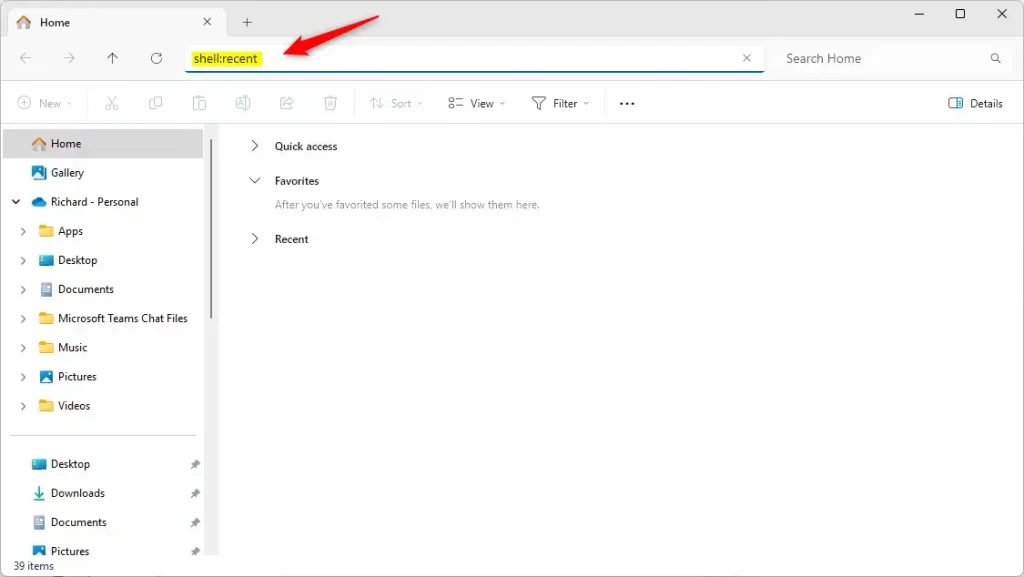
Next, copy and paste the shell command below into the File Explorer address bar, then press Enter.
shell:recent
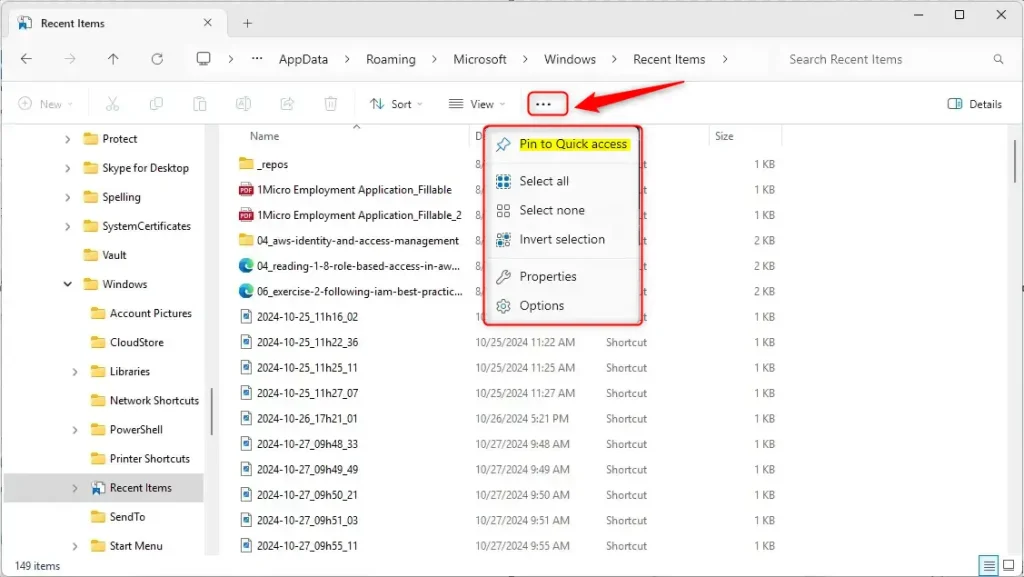
Next, click the See more (3 dots) button on the command bar, and select “Pin to Quick access” on the option menu.
After pinning it, your recent folders will appear in the Quick access section.
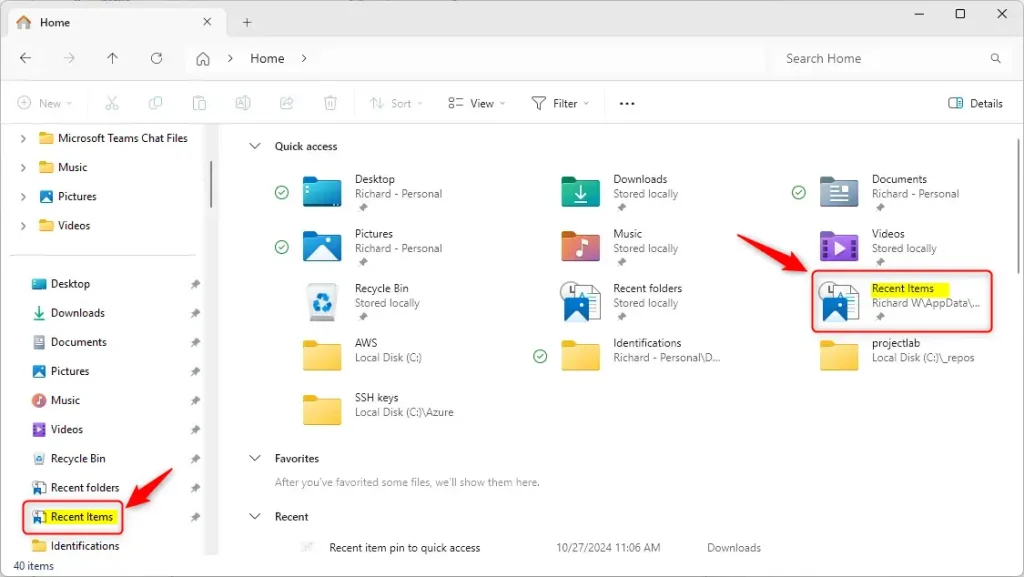
To unpin it, right-click on the “Recent items” from the Quick access section and select “Unpin from Quick access.”
That should do it!
Conclusion:
Following the steps outlined above, you can easily pin your Recent items to the Quick access section in File Explorer. This feature enhances your productivity by providing immediate access to frequently used files. Here are the key takeaways:
- Convenient Access: Pinning Recent items allows quick navigation to the most recently used files without manually searching.
- Easy Steps: Pinning is straightforward and can be done in just a few clicks.
- Visual Cues: Using the visual guides provided helps navigate the File Explorer interface seamlessly.
- Unpinning Made Simple: If you no longer need shortcuts in Quick access, unpinning is as easy as pinning.
Utilizing these features can significantly improve your efficiency while working in Windows 11.



Leave a Reply Cancel reply