How to Change Touchpad Four-finger Swipe Gestures in Windows 11

You change your touchpad four-finger swipe gestures in Windows 11 by accessing the Settings app.
These gestures let you control specific PC actions with four fingers on your touchpad, offering a faster way to navigate. Windows 11 supports customisable four-finger gestures for a smoother workflow.
For example, you can set a four-finger swipe to switch between your open applications and show your desktop. This functionality is available on devices with a built-in precision touchpad (a type of touchpad that offers enhanced multi-touch capabilities).
Go to Settings, then Bluetooth & devices, and select Touchpad. Expand Four-finger gestures and choose your desired action from the Swipes menu.
Option One
Change Touchpad Four-finger Swipe Gestures in Settings
- Open Settings (⊞ Win+I).
- Click on Bluetooth & devices on the left side. Then click on Touchpad on the right side. (see screenshot below)
You can easily change what happens when you swipe with four fingers on your Windows 11 touchpad right in the Settings app.
- Click on Four-finger gestures to expand it.
- Select one of these options in the Swipes drop menu:
- Nothing
- Switch apps and show desktop
- Switch desktops and show desktop (default)
- Change audio and volume
- You can now close Settings.
Option Two
Change Touchpad Four-finger Swipe Gestures Using Registry
Note: This method requires administrator privileges.
Change Touchpad Four-finger Swipe Gestures to “Nothing”
reg add "HKEY_CURRENT_USER\Software\Microsoft\Windows\CurrentVersion\PrecisionTouchPad" /v FourFingerSlideEnabled /t REG_DWORD /d 0 /f
Change Touchpad Four-finger Swipe Gestures to “Switch apps and show desktop”
reg add "HKEY_CURRENT_USER\Software\Microsoft\Windows\CurrentVersion\PrecisionTouchPad" /v FourFingerSlideEnabled /t REG_DWORD /d 1 /f
Change Touchpad Four-finger Swipe Gestures to “Switch desktops and show desktop”
This is the default setting.
reg add "HKEY_CURRENT_USER\Software\Microsoft\Windows\CurrentVersion\PrecisionTouchPad" /v FourFingerSlideEnabled /t REG_DWORD /d 2 /f
Change Touchpad Four-finger Swipe Gestures to “Change audio and volume”
reg add "HKEY_CURRENT_USER\Software\Microsoft\Windows\CurrentVersion\PrecisionTouchPad" /v FourFingerSlideEnabled /t REG_DWORD /d 3 /f
Option Three
Change Touchpad Four-finger Advanced Swipe Gestures in Settings
- Open Settings (⊞ Win+I).
- Click on Bluetooth & devices on the left side. Then click on Touchpad on the right side.
- Click on Advanced gestures.
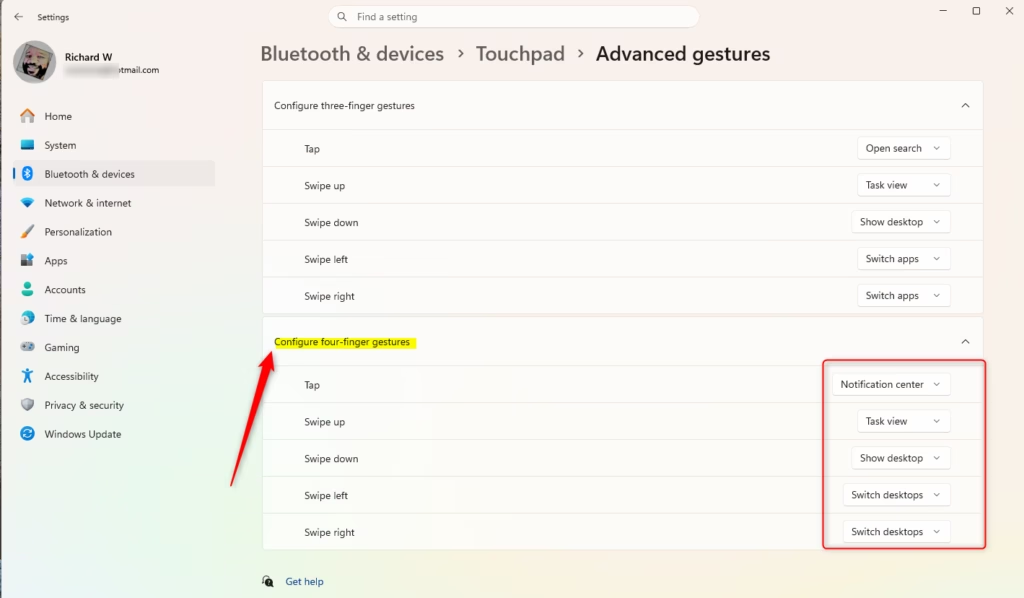
- Under Configure four-finger gestures, select the action you want in each gesture drop menu.
- You can now close Settings.
Summary
You now know three ways to change your touchpad four-finger swipe gestures in Windows 11.
The simplest method is using Settings. For more control over what each gesture does, you can explore the Registry or Advanced gestures within Settings.
How do I change the gesture settings?
For apps, swiping right or left can take you back to the previous screen. If you’re on the very first screen and swipe right or left, you’ll return to your home screen.
How do I disable four finger swipe?
You can disable this feature by turning it off. Once disabled, swiping from the corners will do nothing, functioning like a normal app exit without screenshots or new notes.
Was this guide helpful?

About the Author
Richard
Tech Writer, IT Professional
Richard, a writer for Geek Rewind, is a tech enthusiast who loves breaking down complex IT topics into simple, easy-to-understand ideas. With years of hands-on experience in system administration and enterprise IT operations, he’s developed a knack for offering practical tips and solutions. Richard aims to make technology more accessible and actionable. He's deeply committed to the Geek Rewind community, always ready to answer questions and engage in discussions.



No comments yet — be the first to share your thoughts!