
This guide will help you quickly add your Recent Items to the Quick Access area in Windows 11’s File Explorer File Explorer. This way, you can find your recently used files faster without searching all over your computer.
What is Quick Access?
Quick Access is a special area in Windows 11’s File Explorer where you can keep your favorite or often-used files and folders. Pinning items here saves you time by letting you open them with just one click.
What are Recent Items?
Recent Items shows files you opened or changed lately. When you pin this list to Quick Access, you can get to those files quickly anytime.
How to Pin Recent Items to Quick Access
Follow these easy steps:
Open File Explorer: You can open it by clicking the folder icon on your taskbar, or press the keyboard keys Windows + E together.
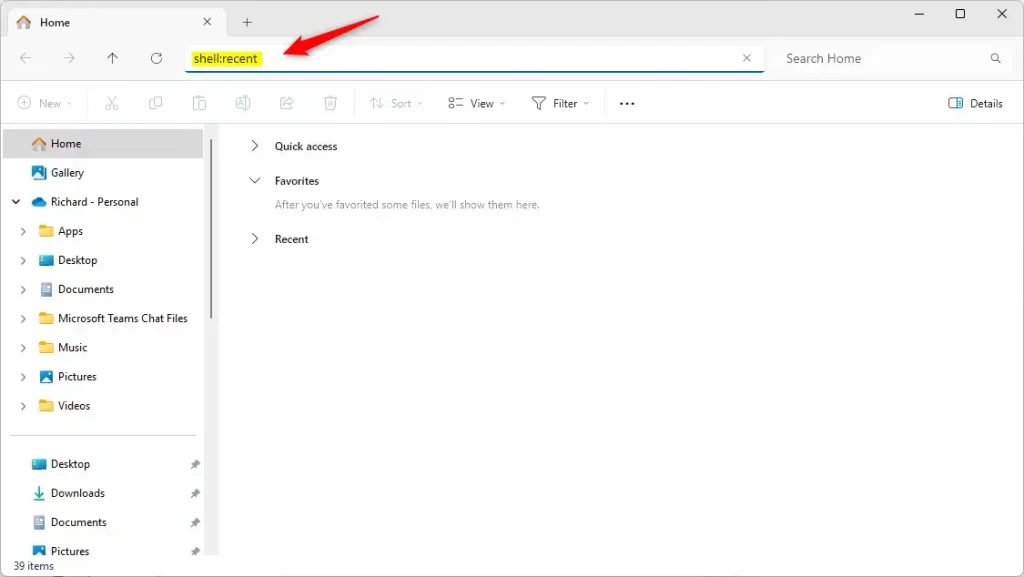
Go to Recent Items: Click on the address bar at the top of File Explorer, delete what’s there, then type this exactly and press Enter:
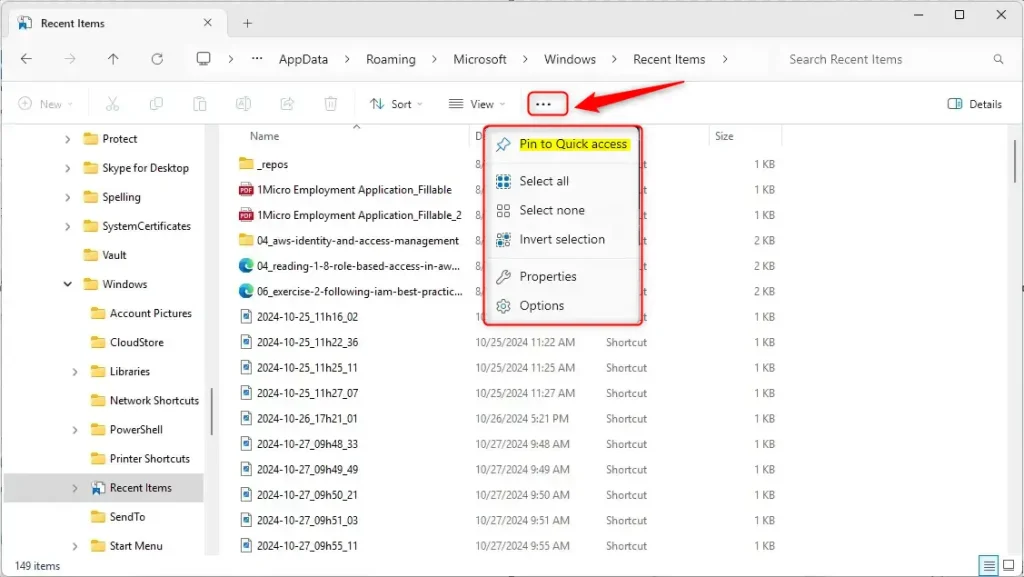
shell:recentYou will see your Recent Items folder open. Now, click the 3 dots (See more) button near the top right of the window.
From the menu, click Pin to Quick access.
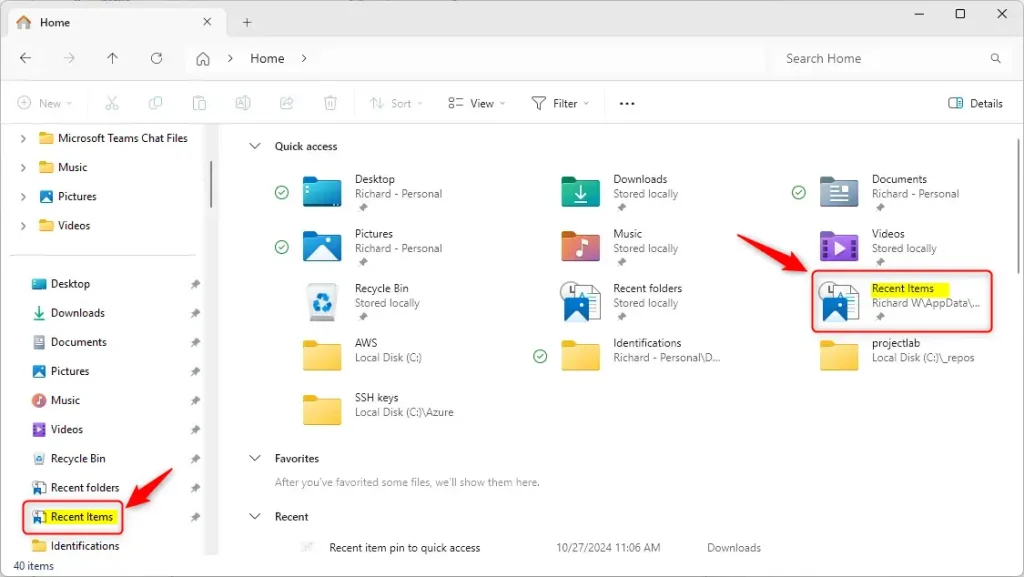
After this, you’ll see Recent Items listed in the Quick Access section on the left side of File Explorer.
How to Remove Recent Items from Quick Access
If you want to remove Recent Items from Quick Access later, just:
- Right-click on Recent Items in the Quick Access list.
- Select Unpin from Quick access.
Summary
Pinning Recent Items to Quick Access is a quick and simple way to get to your latest files without searching. Here’s why it’s useful:
- Save Time: Open your recent files with one click.
- Easy to Do: Just a few simple steps to pin or unpin.
- Visual Help: The images above guide you through the process.
- Control: You can remove Recent Items anytime if you want.
Try this out and see how it makes finding your files faster and easier on Windows 11!



Leave a Reply