
This guide will show you how to keep your Recent folders handy by pinning them to the Quick Access area in Windows 11. This makes it easy to open folders you’ve used recently without searching for them.
What is Quick Access?
Quick Access is a part of File Explorer where you can pin folders or files you use a lot. This way, you can open them quickly anytime.
Recent folders (also called Recent Places) show the folders you’ve opened lately. Pinning them to Quick Access means they’re always just one click away.
Why Pin Recent Folders?
- Quick Access helps you open your favorite or recent folders faster.
- Recent folders keeps track of where you’ve been working recently.
- Pinning saves you time by putting these folders where you can always find them.
- You can easily add or remove folders from Quick Access whenever you want.
Steps to Pin Your Recent Folders in Quick Access
Follow these simple steps to add Recent folders to your Quick Access list:
- Open File Explorer. You can do this by clicking the folder icon on your taskbar or by pressing
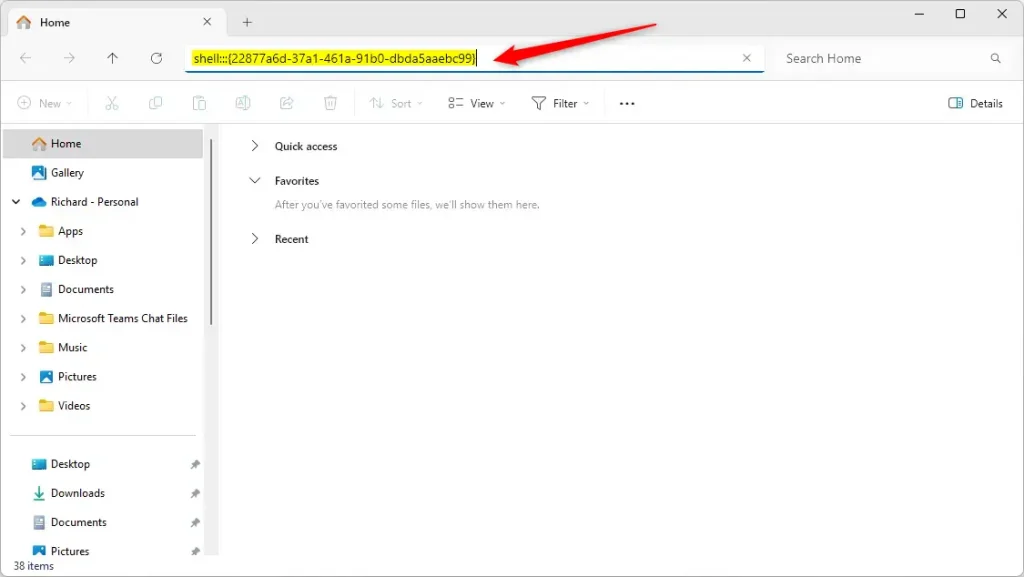
Win + Eon your keyboard. - Go to the Recent folders section using a special command. Click on the address bar at the top of File Explorer, erase anything there, and copy-paste this command:
shell:::{22877a6d-37a1-461a-91b0-dbda5aaebc99}
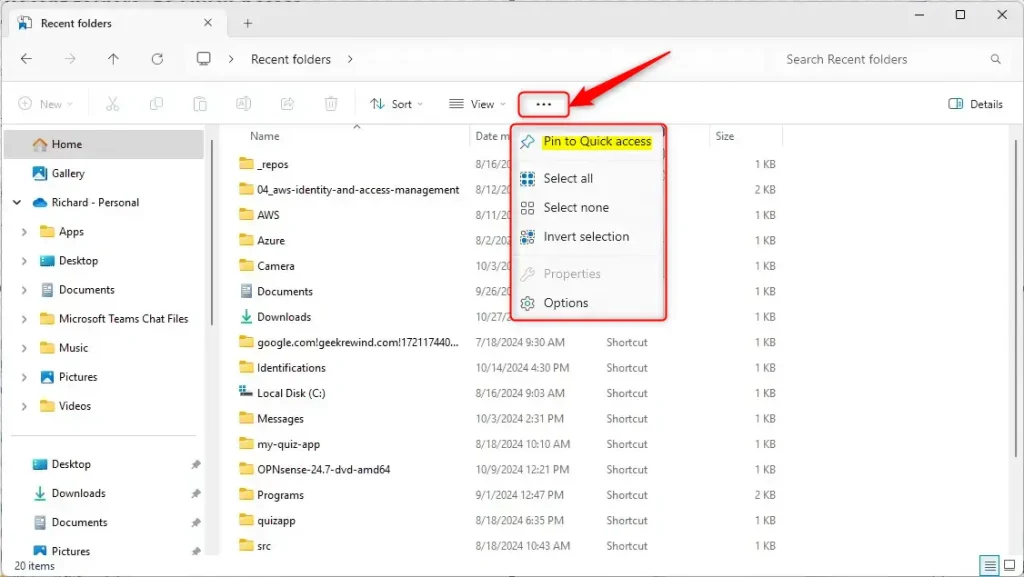
Then press Enter. - Pin Recent folders to Quick Access. At the top of File Explorer, click the three dots (called the See more button). From the menu, select Pin to Quick access.
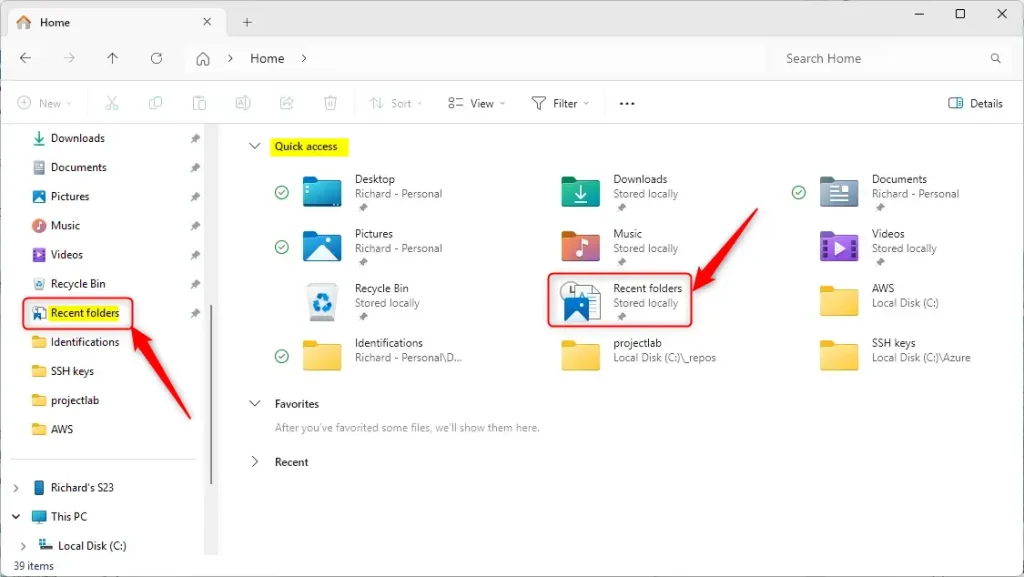
After doing this, your Recent folders will show up in the Quick Access list on the left side of File Explorer:
How to Remove Pinned Recent Folders
To remove (unpin) Recent folders from Quick Access: Right-click on Recent folders in the Quick Access list and choose Unpin from Quick access.
Summary
Pinning Recent folders to Quick Access in Windows 11 is a simple way to save time. You open File Explorer, use a special command to find your Recent folders, and then pin them using the menu. Once pinned, these folders appear in your Quick Access list for easy access. You can unpin them anytime by right-clicking and selecting the unpin option. By following these steps, you make your computer easier and faster to use!
For more tips about File Explorer and Quick Access, check out these helpful guides:



Leave a Reply Cancel reply