How to Pause and Resume Printing in Windows 11

You pause and resume printing in Windows 11 by accessing the print queue for your specific printer.
The print queue is a window that displays all the documents currently waiting to be printed. From here, you can manage individual print jobs or the entire queue.
For example, you can pause all print jobs for a specific printer with just a couple of clicks, perfect for when you need to swap paper types or replenish ink on your HP OfficeJet Pro 9015e.
To resume printing, you simply return to the same queue and select the resume option.
Access your printer’s queue via Settings > Bluetooth & devices > Printers & scanners. Select your printer, then click the “Pause” button to stop printing. Click “Resume” to restart the print queue.
What is a Printer?
A printer is a device that makes paper copies of things from your computer, like documents or photos.
When you click “Print,” your computer sends the file to the printer. The printer then prints it on paper.
Why Would You Pause Printing?
You might want to pause printing for several reasons. For example, you might be changing the ink or toner cartridge. Or maybe you need to fix a paper jam. Windows 11 now lets you pause printing easily and then resume it later without losing your place.
How to Pause and Resume Printing in 🪟 Windows 11
You can pause printing in Windows 11 by opening the Settings app and going to Printers & scanners.
- Open the Settings app: Click the Start menu button and select Settings. Or press the Windows key + I on your keyboard.
- Go to Bluetooth & Devices: In the Settings window, click Bluetooth & devices in the menu on the left.
Windows 11 Bluetooth and devices settings page - Find Printers & Scanners: On the right side, click Printers & scanners.
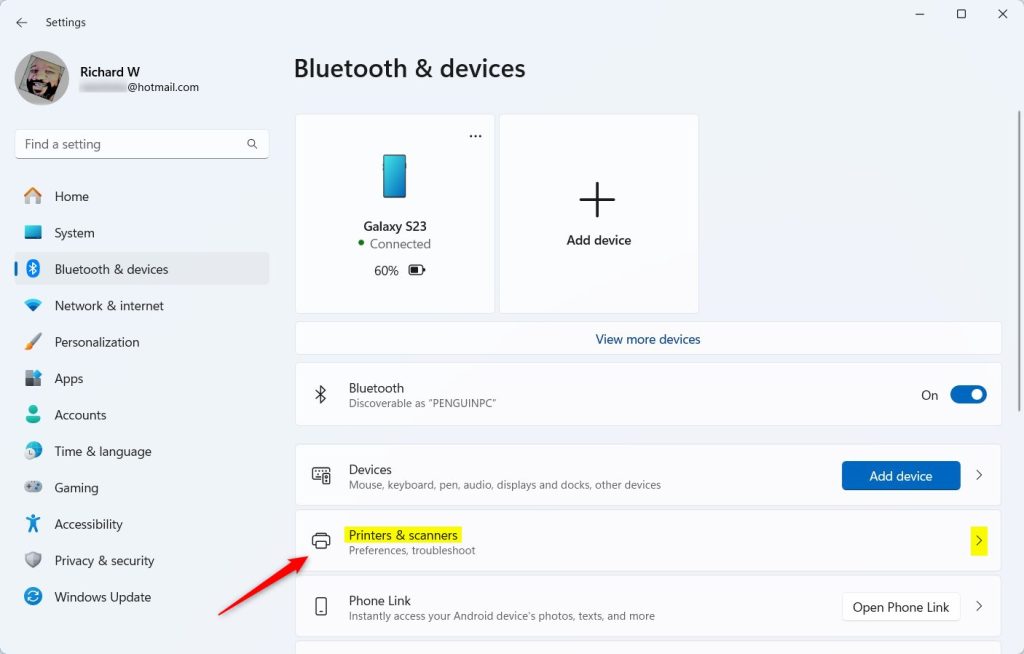
Printers and scanners tile in the Settings app - Select your printer: Click on the printer you want to pause or resume printing for.
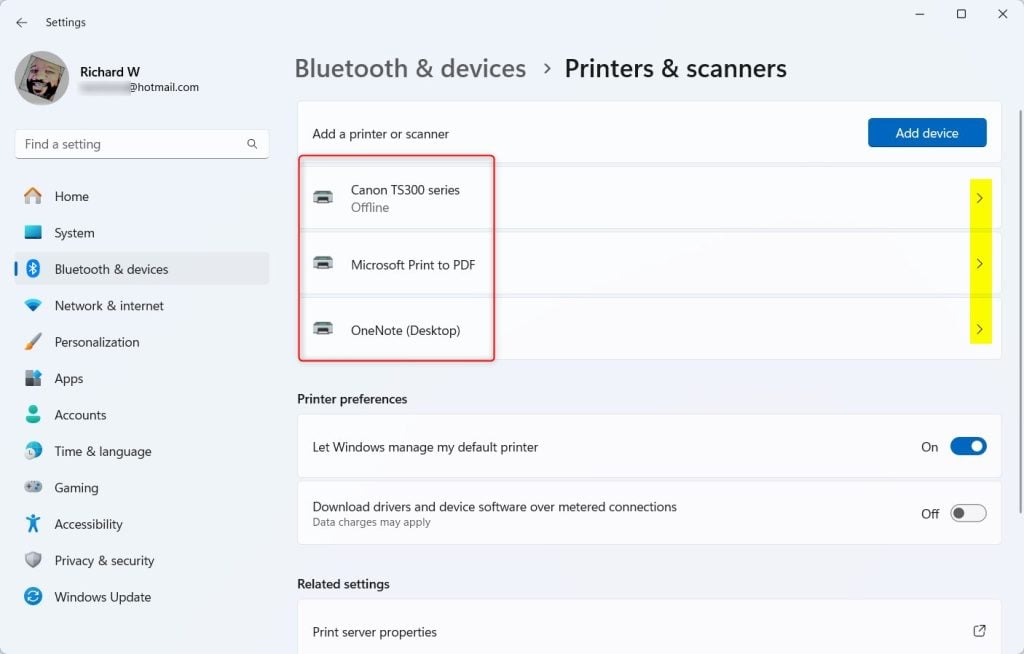
List of printers in Settings - Pause or Resume printing: Under Advanced Printer Settings, click the Printing tile. Then click the Pause button to stop printing.
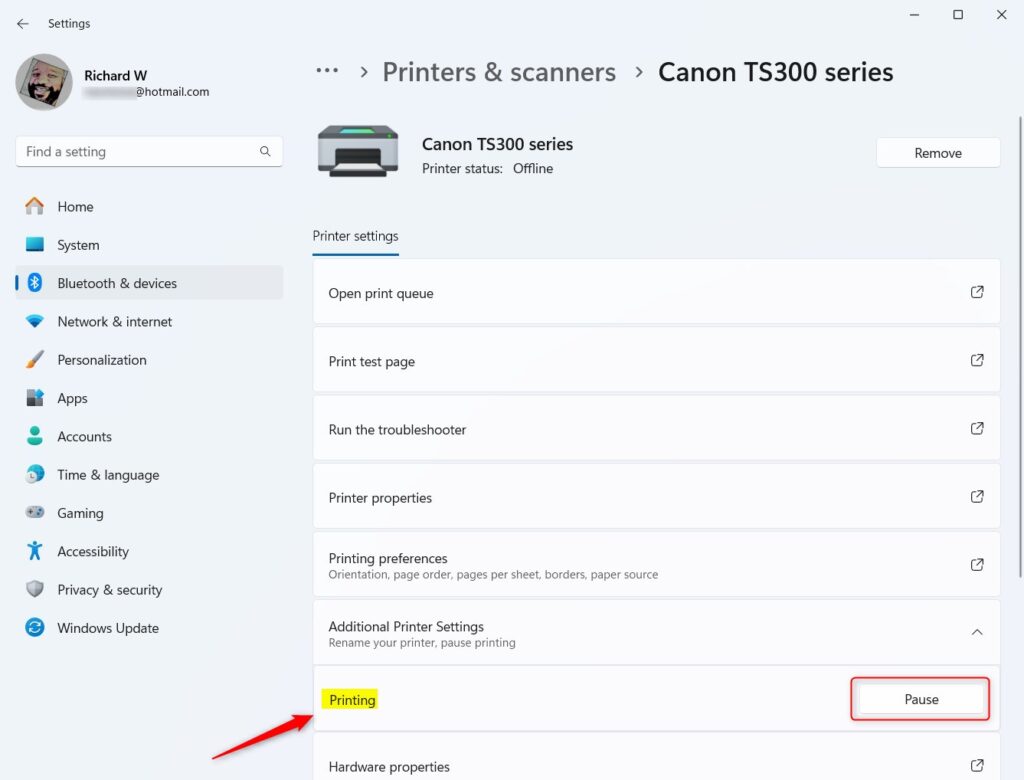
Pause printing button
When you want to start printing again, click the Resume button.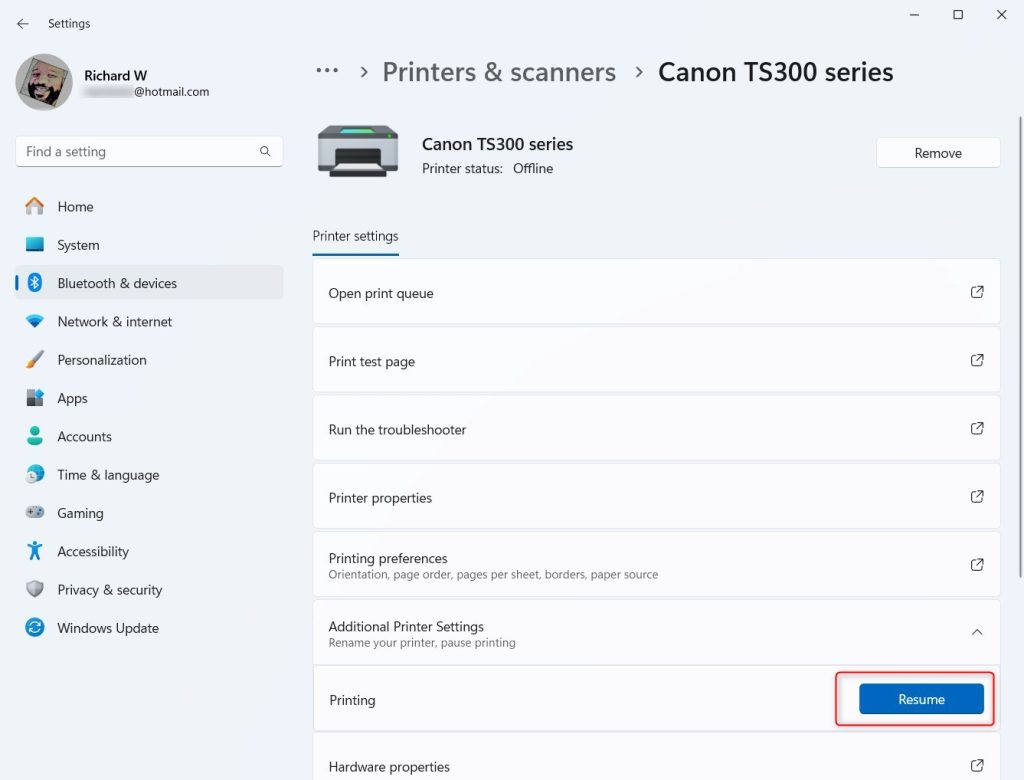
Resume printing button - When finished, close the Settings app.
Summary
Windows 11 makes it simple to pause and resume printing jobs right from the Settings menu.
How do I pause printing in 🪟 Windows 11?
Go to Settings > Bluetooth & Devices > Devices > More devices and printer settings > Double-click the printer to open the print queue to pause the print, just like the way you could do on Windows 10.
Was this guide helpful?

About the Author
Richard
Tech Writer, IT Professional
Richard, a writer for Geek Rewind, is a tech enthusiast who loves breaking down complex IT topics into simple, easy-to-understand ideas. With years of hands-on experience in system administration and enterprise IT operations, he’s developed a knack for offering practical tips and solutions. Richard aims to make technology more accessible and actionable. He's deeply committed to the Geek Rewind community, always ready to answer questions and engage in discussions.



No comments yet — be the first to share your thoughts!