How to Make More Storage Space in Windows 11

You can make more storage space in Windows 11 by using the built-in Storage Spaces feature.
Storage Spaces is a Windows technology that pools multiple physical drives into a single virtual drive. This virtual drive appears as one large drive in File Explorer, giving you ample room for your files and applications.
You can even set the size of your Storage Space to be larger than your initial physical drive capacity. Later, you can add more drives to your Storage Pool to expand your total available storage.
This is perfect for when you consistently need more room and want to avoid constant file deletion or relocation. Storage Spaces keeps everything organized in one accessible location.
Use Storage Spaces in Windows 11 to combine multiple drives into one virtual drive. Go to Settings > System > Storage > Advanced storage settings > Storage Spaces, select your Storage Space, click Properties, then Extend to set a new, larger size.
How to Extend Storage Space in 🪟 Windows 11
Adding more storage space in Windows 11 is easier than you might think, and you can do it right from your Settings menu.
- Open Windows Settings. Click the Start menu and select Settings, or press Windows key + I on your keyboard.
- In Settings, click on System on the left side.
Windows 11 System button in Settings - Click on the Storage option on the right.

Windows 11 Storage option in Settings - Scroll down and click Advanced storage settings to expand it, then select Storage Spaces.
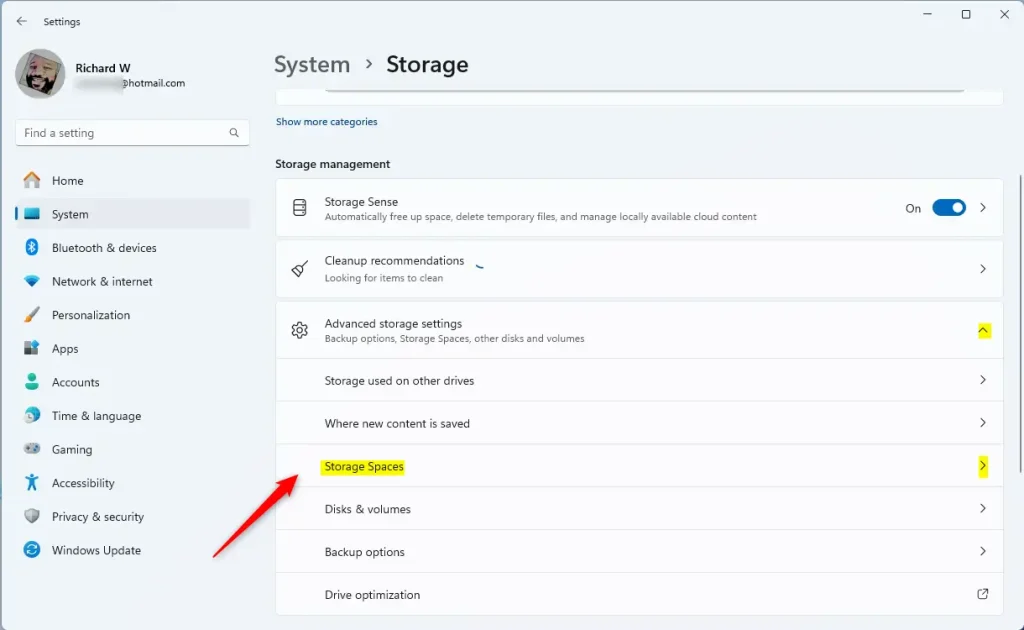
Storage Spaces option in Windows 11 Settings - Choose the Storage Pool you want to manage and click to open it.
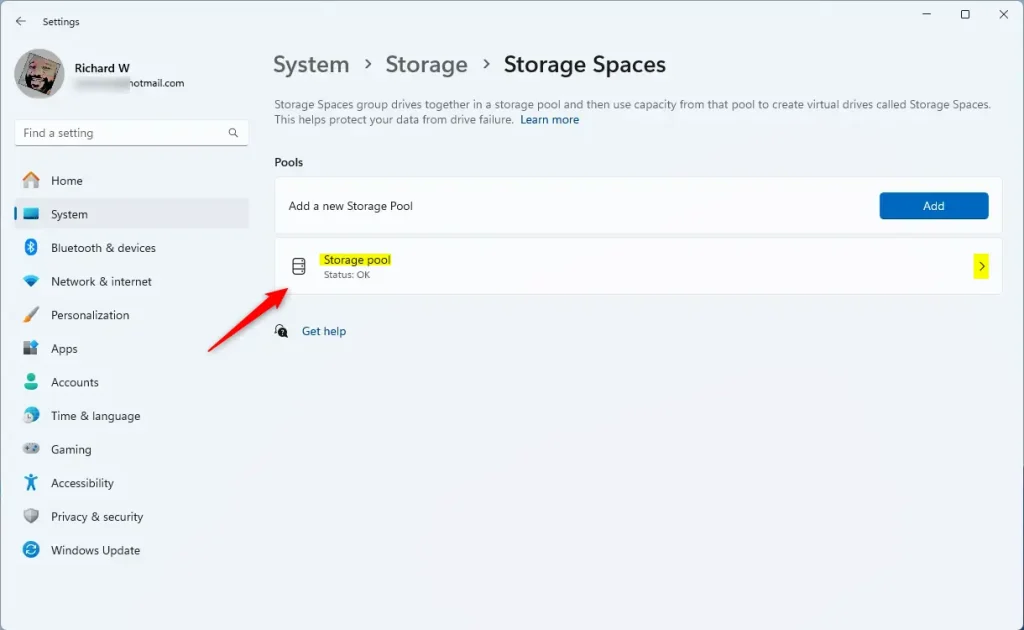
Storage Pool in Windows 11 - Find the Storage Space you want to make bigger and click the Properties button.
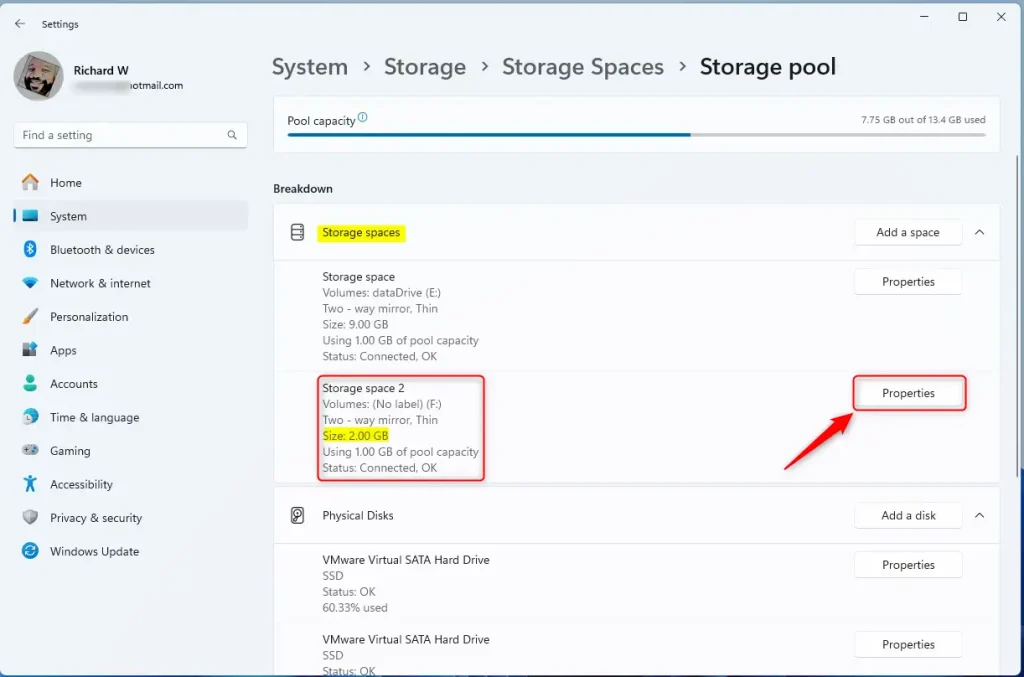
Storage Space Properties - Click the Extend button under the Size section.
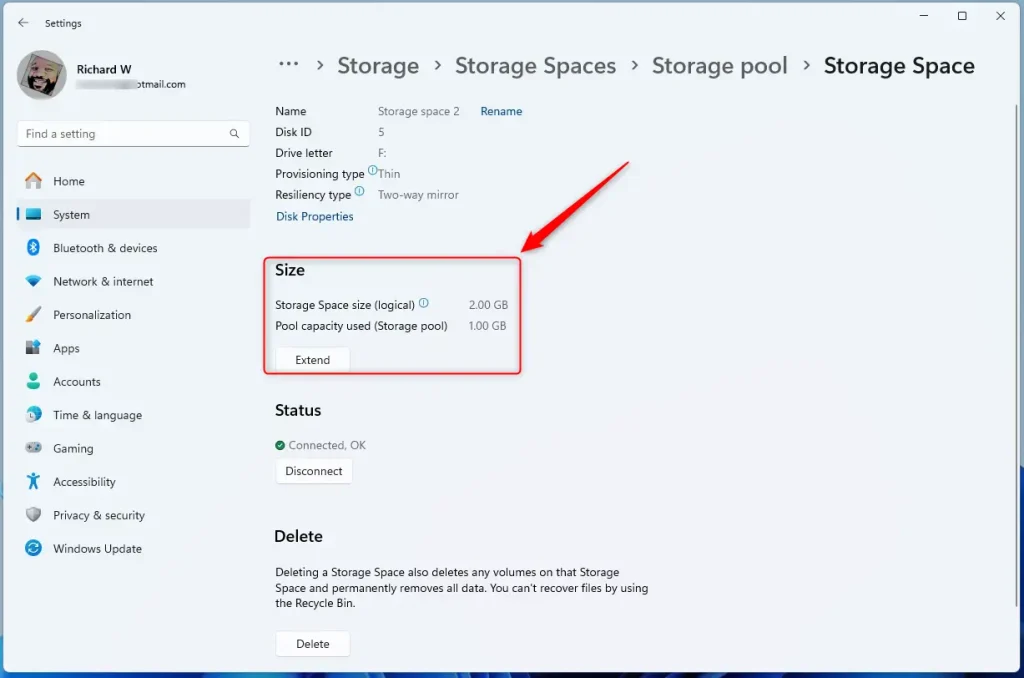
Extend Storage Space Button - Type in the new size you want for your Storage Space (it must be bigger than the current size) and press OK.
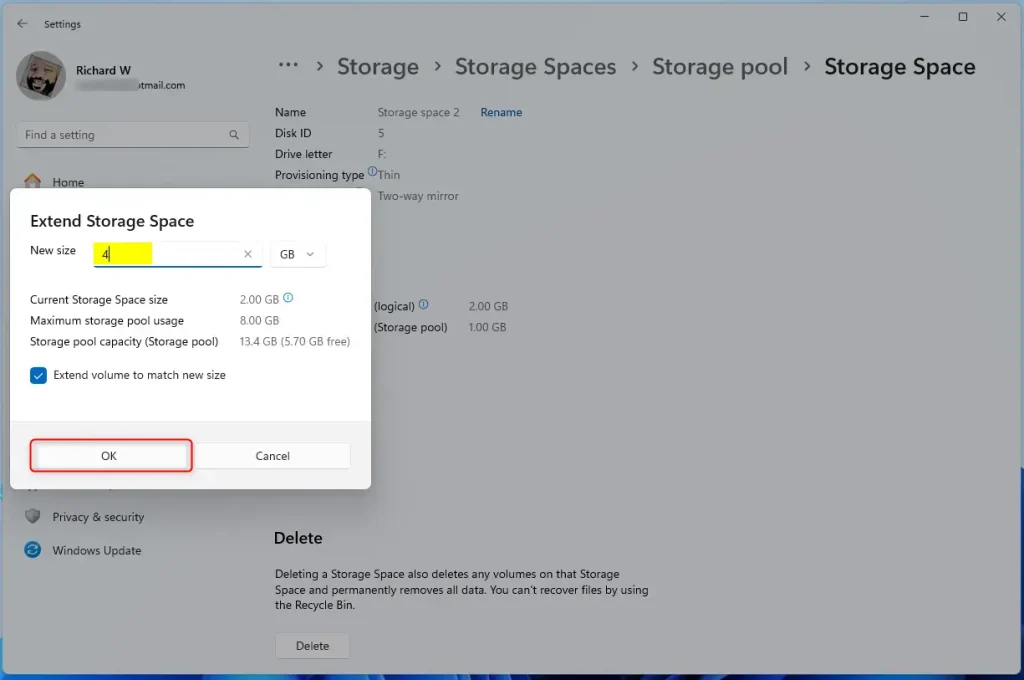
Enter new Storage Space size
If you don’t have enough physical space right now, you can always add more hard drives to your Storage Pool later to increase capacity. Learn how to add drives to your Storage Pool here.
Summary
- Extending your Storage Space is an easy way to get more room for your files and apps in Windows 11.
- This method helps you avoid deleting or moving files just to free up space.
- If you have any questions or tips, feel free to share them in the comments!
How many GB of storage does 🪟 Windows 11 take?
Windows 11 typically requires a minimum of 64GB of storage, but the actual installed size can be around 20-30GB, depending on updates and features. Since your system shows 27GB used, you're close to the lower limit, which can cause issues with updates and software installation.
Does 🪟 Windows 11 need 64 GB of free space?
Hardware requirements Memory: 4 gigabytes (GB) or greater. Storage: 64 GB or greater available disk space.
Does 🪟 Windows 11 take 100 GB?
To keep Windows 11 fast and responsive, it's wise to reserve at least: 80–100GB for Windows and system updates. 50–100GB for apps and productivity tools. 50GB or more for personal files and flexibility.
Was this guide helpful?

About the Author
Richard
Tech Writer, IT Professional
Richard, a writer for Geek Rewind, is a tech enthusiast who loves breaking down complex IT topics into simple, easy-to-understand ideas. With years of hands-on experience in system administration and enterprise IT operations, he’s developed a knack for offering practical tips and solutions. Richard aims to make technology more accessible and actionable. He's deeply committed to the Geek Rewind community, always ready to answer questions and engage in discussions.


No comments yet — be the first to share your thoughts!