
Is your computer running low on storage space? Windows 11 has a built-in feature called Storage Spaces that can help. Storage Spaces lets you combine multiple hard drives into one large virtual drive. This gives you more room to store your files and applications.
When you create a Storage Space, it shows up like a normal drive in File Explorer. The best part? You can make this virtual drive larger whenever you need more space.
Storage Spaces allows you to set a size that’s larger than your current physical hard drive space. Later on, you can add more hard drives to your Storage Pool to increase the total available space.
Why would you want to do this? If you keep running out of space and don’t want to constantly delete things or move files around, extending your storage space is the answer. It keeps all your files and programs in one place without the hassle.
How to Extend Storage Space in Windows 11
Follow these simple steps to add more space to your Storage Space:
- Open Windows Settings. Click the Start menu and select Settings, or press Windows key + I on your keyboard.
- In Settings, click on System on the left side.

- Click on the Storage option on the right.

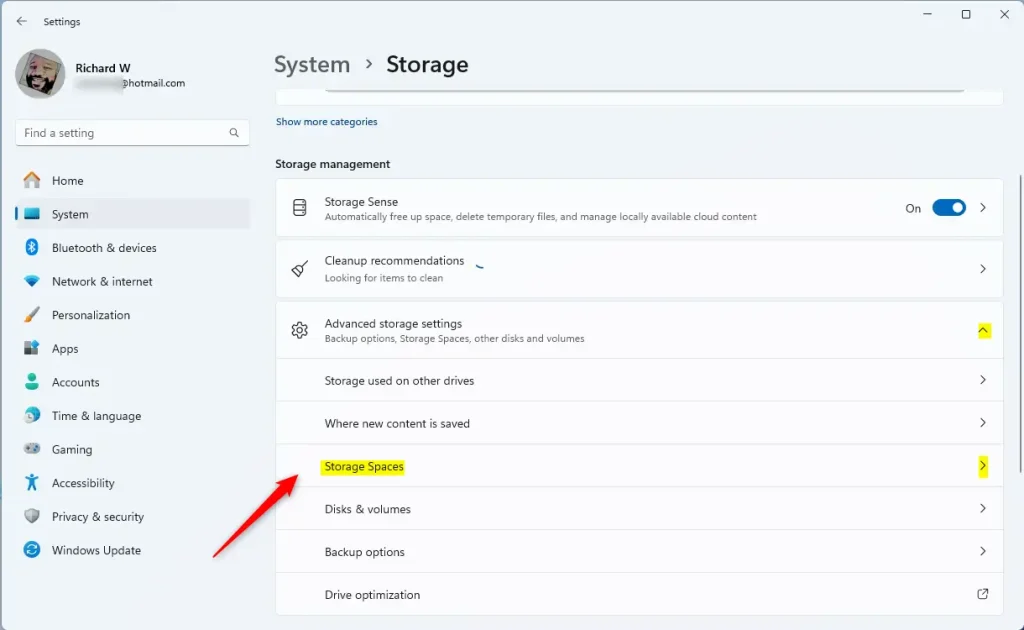
- Scroll down and click Advanced storage settings to expand it, then select Storage Spaces.
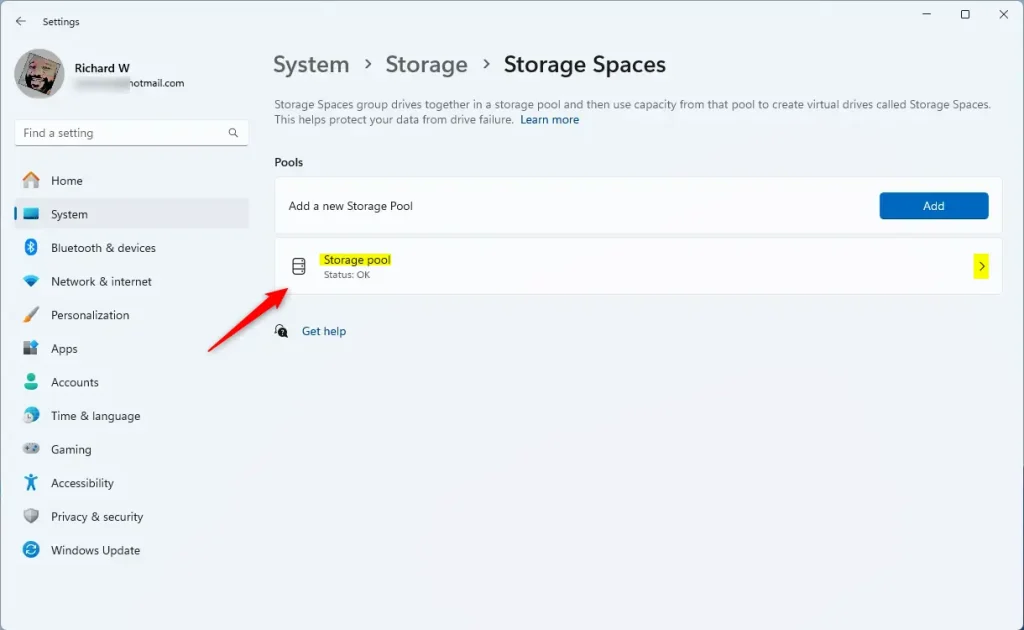
- Choose the Storage Pool you want to manage and click to open it.
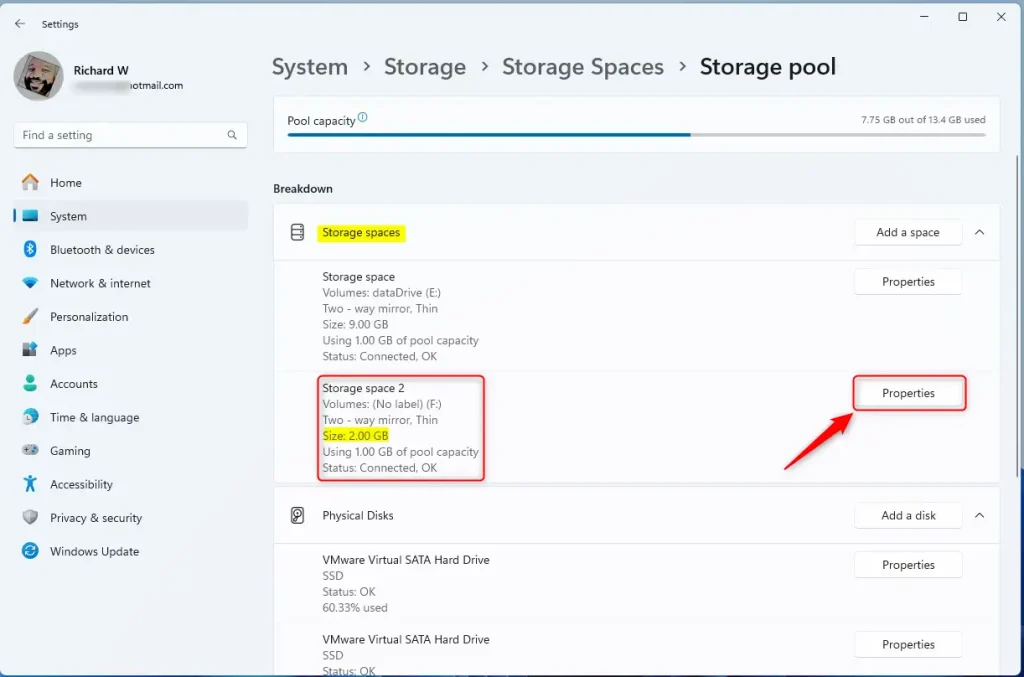
- Find the Storage Space you want to make bigger and click the Properties button.
- Click the Extend button under the Size section.
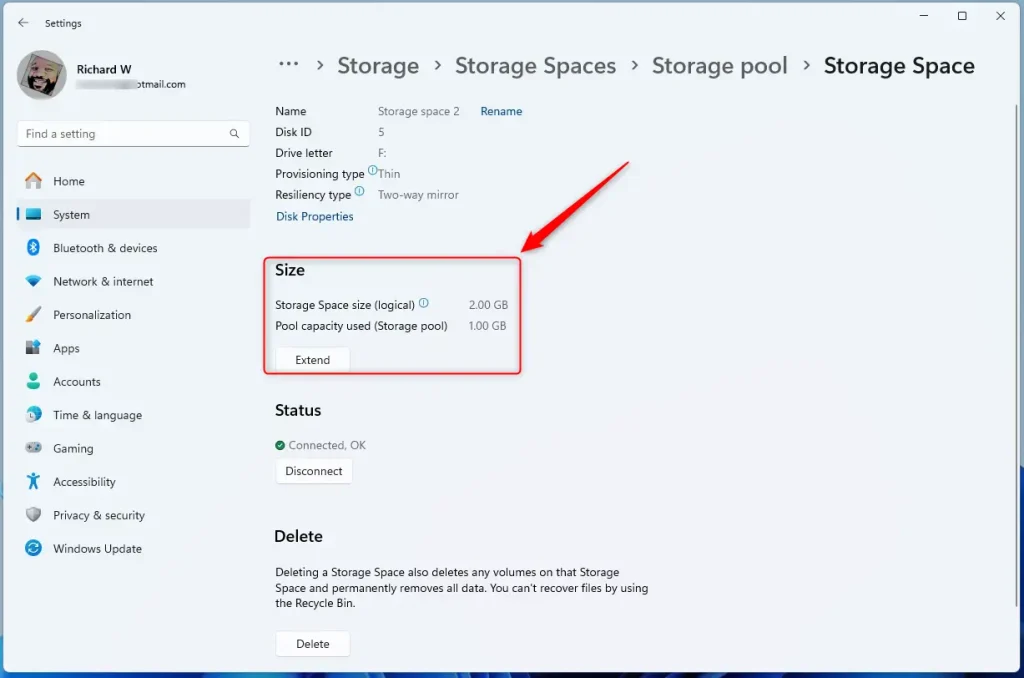
- Type in the new size you want for your Storage Space (it must be bigger than the current size) and press OK.
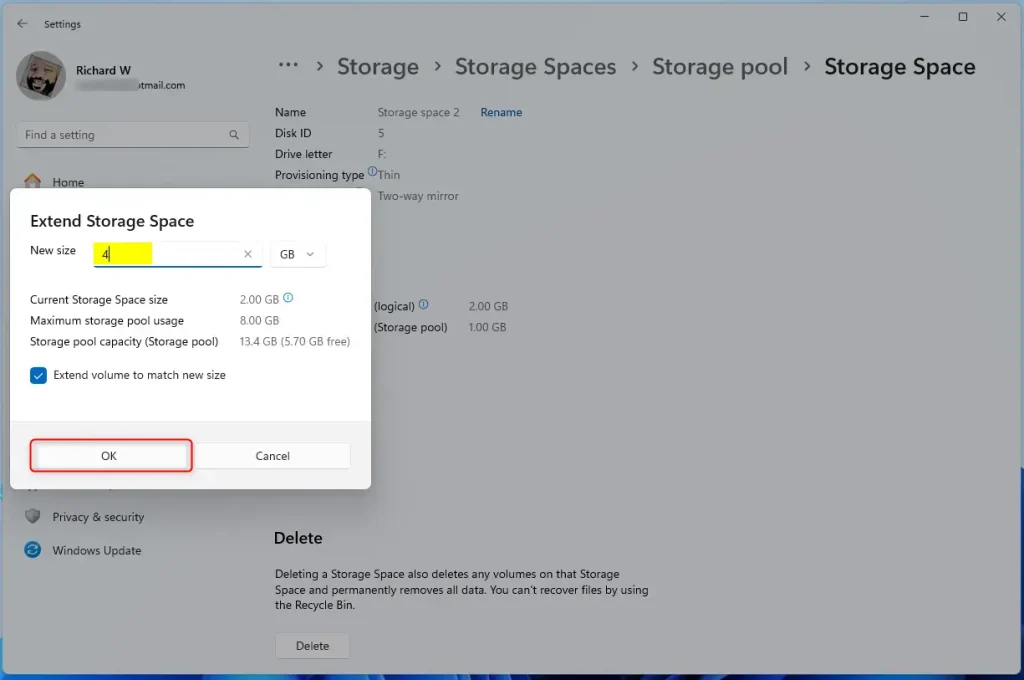
If you don’t have enough physical space right now, you can always add more hard drives to your Storage Pool later to increase capacity. Learn how to add drives to your Storage Pool here.
Summary
- Extending your Storage Space is an easy way to get more room for your files and apps in Windows 11.
- This method helps you avoid deleting or moving files just to free up space.
- If you have any questions or tips, feel free to share them in the comments!

Leave a Reply