Install VMware Workstation Pro on Windows 11: A Step-by-Step Guide

You install VMware Workstation Pro on Windows 11 to create and run virtual machines (VMs) on your PC.
VMware Workstation Pro is a desktop virtualization application that allows you to run multiple operating systems, such as Linux or older Windows versions, as independent “guest” computers directly on your Windows 11 host.
This capability is invaluable for testing software, developing applications, or experimenting with different OS environments without needing additional physical hardware.
For example, you can easily set up a Linux VM alongside your Windows 11 to explore new distributions, all managed within VMware Workstation Pro. This software supports demanding configurations, including up to 16 virtual CPUs and 8TB of virtual disk space per VM.
Download the installer from VMware’s website and run it. Follow the wizard prompts, accepting the license agreement and choosing installation options. Click “Install” to begin, then “Finish” when the setup is complete.
How to Install and enable VMware Workstation in 🪟 Windows 11
VMware Workstation requires your host machine to have Hardware Visualization enabled. Most modern computers have this feature, but it might be turned off in the BIOS (Basic Input/Output System), the firmware that starts your computer. You might need to restart your computer and enter the system BIOS settings to enable Virtualization Technology (VTx).
Once you enable hardware virtualization, log back into Windows and head to the link below to download the latest VMware Workstation Pro for Windows.
https://www.vmware.com/go/getworkstation-win
After downloading the installer, run it. You’ll see an installation wizard’s welcome screen. Click Next to start the installation.
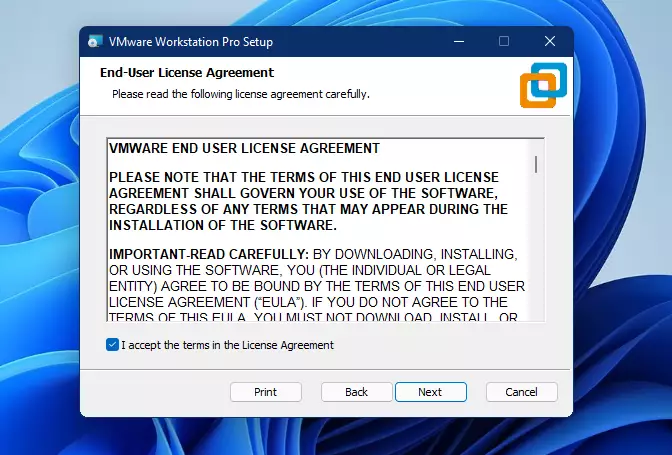
You’ll be prompted with the End-User License Agreement on the next screen. You must accept the terms in the License Agreement before continuing with the installation.
Once accepted, click Next to go to the next screen.
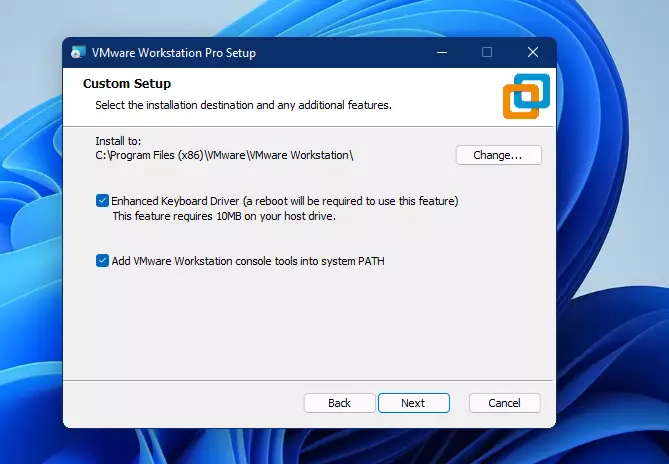
On the next screen, you can accept the default installation path, typically in `📁C:\Program Files (x86)\VMware`, or choose a custom location.
Make sure to check the box for Enhanced Keyboard Driver to ensure proper keyboard integration. Also, select the option to install additional console tools into the system PATH.
Click Next to continue.
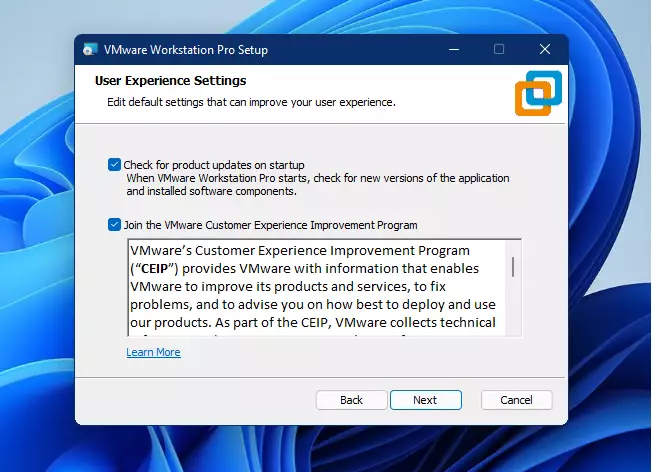
On the next screen, check both boxes to enable product updates on startup and the customer experience improvement program.
When you’re done, click Next.
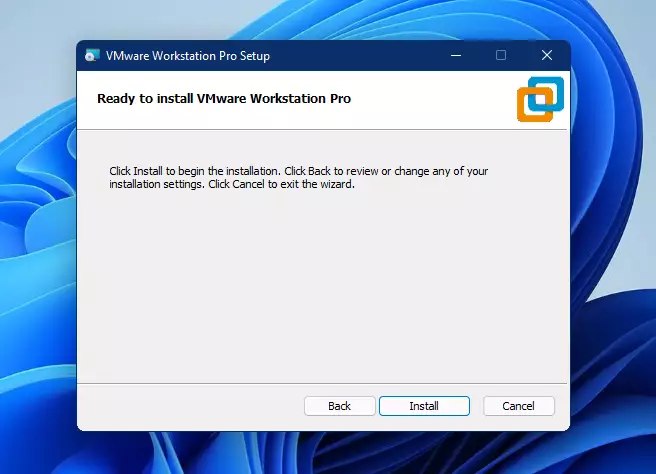
On the screen, click the Install button to begin the installation.
After a brief moment, the VMware Workstation Pro setup wizard should complete. Click on the Finish button to finalize the setup.
If you have a license for your copy of VMware Workstation Pro, click the License button to add your license key.
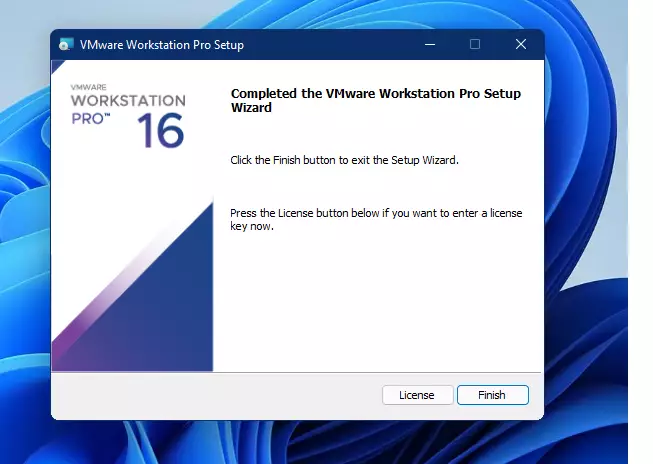
After that, you might be prompted to reboot your machine. Go ahead and reboot, then log back in.
Once you log back in, open the VMware Workstation Pro icon on your desktop. The software is now ready to create new virtual machines.
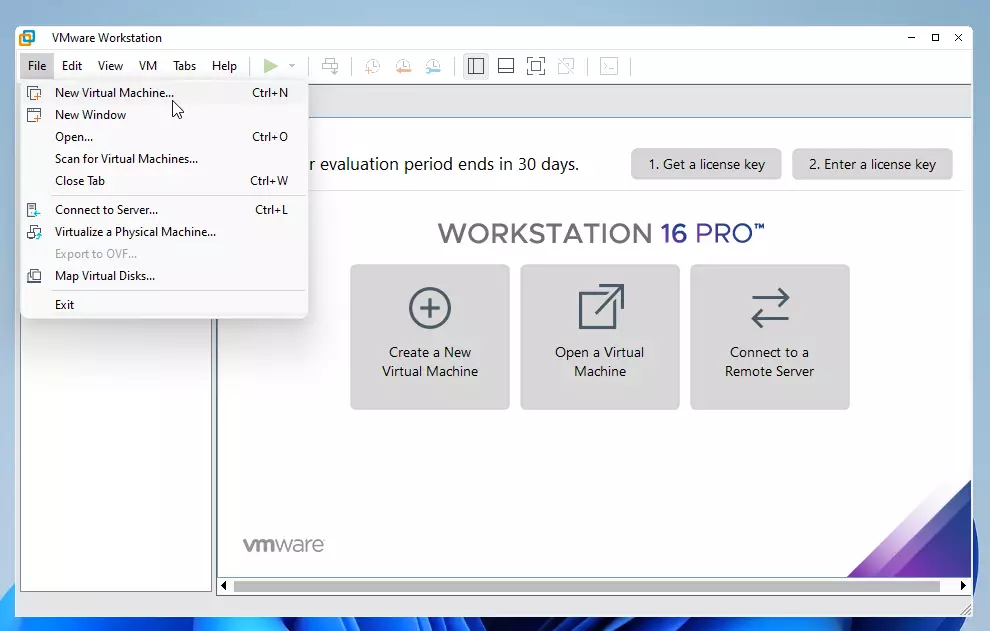
And that’s it!
Conclusion:
- VMware Workstation Pro is a powerful tool for running multiple operating systems on a single machine.
- It is user-friendly and suitable for both home and business environments.
- Installation is straightforward, requiring hardware virtualization to be enabled.
- Users can easily manage and create virtual machines for various operating systems.
- Ensuring proper installation and configuration will enhance the virtual computing experience.
- With VMware Workstation Pro, you can maximize your system’s capabilities and improve productivity by seamlessly running different OS environments.
Was this guide helpful?

About the Author
Richard
Tech Writer, IT Professional
Richard, a writer for Geek Rewind, is a tech enthusiast who loves breaking down complex IT topics into simple, easy-to-understand ideas. With years of hands-on experience in system administration and enterprise IT operations, he’s developed a knack for offering practical tips and solutions. Richard aims to make technology more accessible and actionable. He's deeply committed to the Geek Rewind community, always ready to answer questions and engage in discussions.



cannot install vmplayer workstation. install hangs up while Installing Virtual Network drivers. Is there any work around to fix this?
[…] previously discussed using VMware Workstation Pro and VirtualBox virtualization software to run multiple operating systems from a single computer and […]