Easy Printer Setup in Ubuntu Linux: A Step-by-Step Guide

You can easily set up printers in Ubuntu Linux, whether they connect via USB or Wi-Fi.
Setting up a printer means configuring your Ubuntu system to communicate with your printing device so you can send documents to it.
Most recent Ubuntu versions, like Ubuntu 22.04 LTS, automatically detect and configure many printer models without you needing to do anything.
The built-in printer setup wizard simplifies adding both local and network printers. You access it by searching for “Printers” in the Activities overview.
Connect your printer via USB or Wi-Fi, and Ubuntu often detects it automatically. If not, open Settings, click Printers, then Add a Printer to begin the guided setup.
How to install local or network printer in Ubuntu Linux
As we’ve seen, setting up a printer in Ubuntu Linux is often as simple as plugging it in via USB or connecting it to your Wi-Fi.
Here’s how you can connect a printer to Ubuntu.
First, make sure your printer is turned on when you connect the USB cable to your Ubuntu desktop.
Once the printer is connected, Ubuntu will automatically try to install it using the best available drivers. You might be prompted to authenticate when a suitable driver is found by typing your password to complete the installation.
A message will pop up when the system finishes installing the printer. Choose Print Test Page to print a test page, or select Options to make other adjustments in the printer setup.
If the above steps don’t work, follow the instructions below to install the printer manually.
Ubuntu Linux keeps most of its settings in one central place. You can manage system configurations, create new users, and update your system all from the System Settings panel.
Alternatively, click the System menu in the top-right corner of your desktop’s top bar.
On the System menu, select Settings, as shown below.

Click on the Printers tile within the Settings app to open that panel.
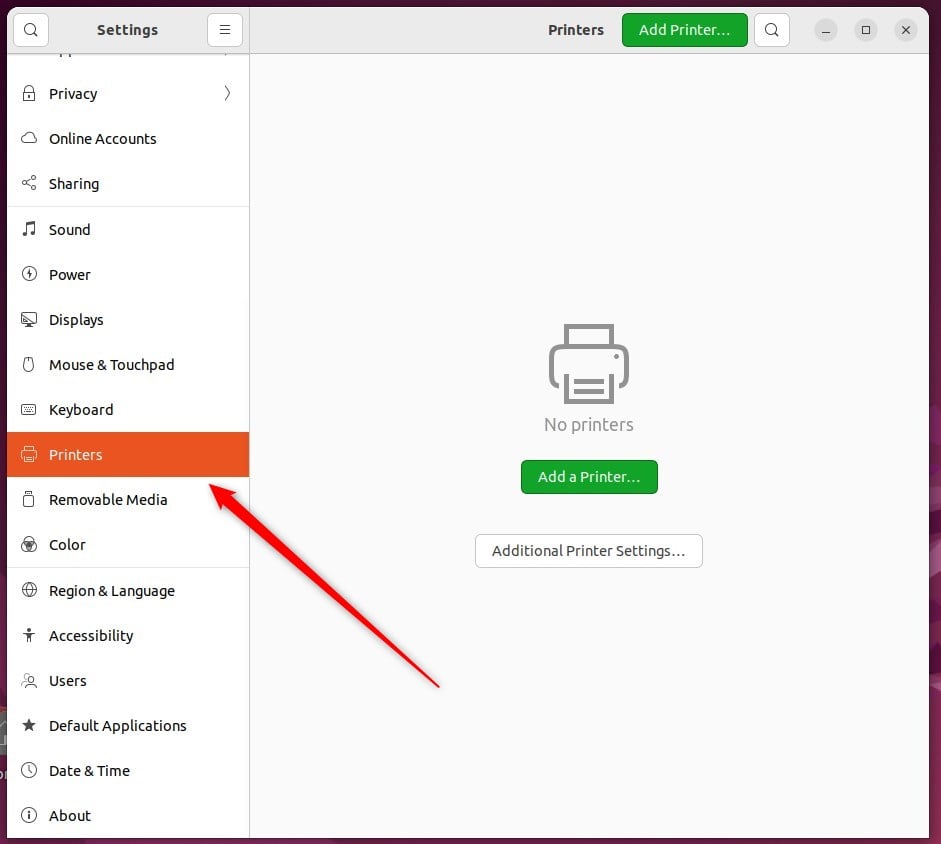
In the System -> Printer settings pane, click the Add a Printer button to start adding printers to Ubuntu Linux.
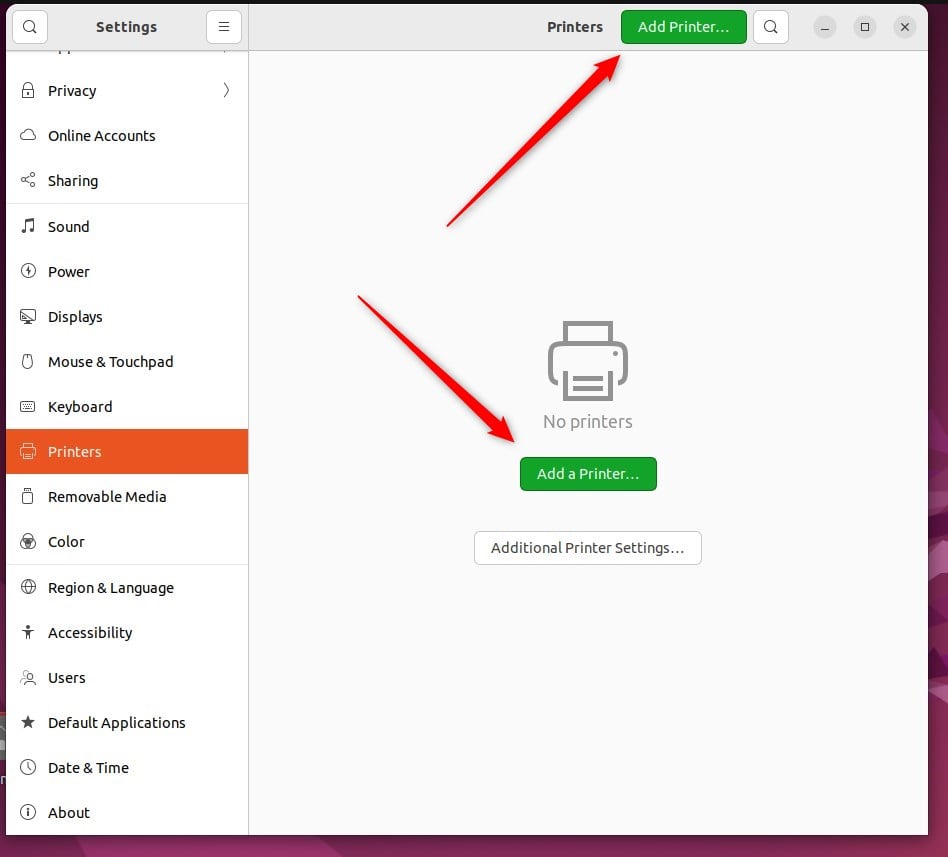
If your printer was connected to Ubuntu Linux via USB, it should be detected when the printer scan begins.
In the pop-up window, select your new printer and click Add.
If you’re having trouble installing your printer, you might need to install printer drivers directly from the manufacturer’s website or update your Ubuntu Linux system.
Read the post below to learn how to install additional printer drivers in Ubuntu Linux.
How to install additional printer drivers in Ubuntu Linux
Conclusion:
- Setting up a printer in Ubuntu Linux is now effortless, whether it’s a local or network printer.
- Ubuntu’s improved recognition of printer brands with pre-installed drivers simplifies the installation process.
- The centralized System Settings panel and the “Add a Printer” button streamline the manual installation of printers.
- Troubleshooting options, such as installing additional printer drivers from the manufacturer’s website, are available if needed.
Was this guide helpful?

About the Author
Richard
Tech Writer, IT Professional
Richard, a writer for Geek Rewind, is a tech enthusiast who loves breaking down complex IT topics into simple, easy-to-understand ideas. With years of hands-on experience in system administration and enterprise IT operations, he’s developed a knack for offering practical tips and solutions. Richard aims to make technology more accessible and actionable. He's deeply committed to the Geek Rewind community, always ready to answer questions and engage in discussions.


[…] How to add printers to Ubuntu Linux […]