

This guide shows you how to install and run openSUSE Linux on Windows Subsystem for Linux 2 (WSL2). It’s easier than you think.
Why Would You Want This?
In 2017, Microsoft created Windows Subsystem for Linux. This tool lets you run a Linux environment right inside Windows. You can use Linux command-line tools, utilities, and applications without setting up a virtual machine or dual-boot system.
WSL2 is the newer, faster version. It has better performance and works with more Linux programs.
Installing openSUSE with WSL2 on Windows 11 gives you a powerful Linux environment inside Windows. You can run Linux tools like bash, ssh, and git without leaving Windows. This is helpful for developers who need Linux tools for their work.
What You Need
Before you start, make sure you have:
- Windows 10 (May 2020 version 2004 or later) or Windows 11
- A computer that supports Hyper-V Virtualization
Step 1: Enable WSL in Windows
⚠️ Admin privileges required
First, open PowerShell as an administrator. Click on Start and type PowerShell. Right-click on Windows PowerShell and select “Run as administrator.”
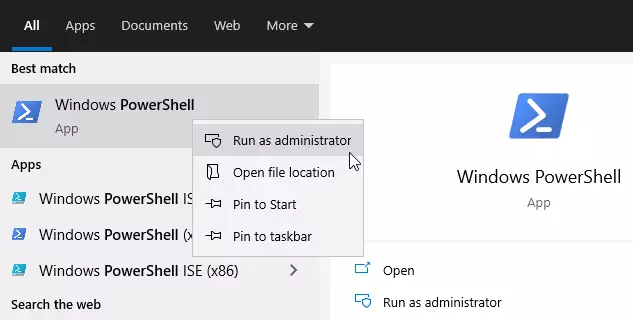
When the console opens, copy and paste this command:
dism.exe /online /enable-feature /featurename:Microsoft-Windows-Subsystem-Linux /all /norestart
You should see a success message like this:
Deployment Image Servicing and Management tool
Version: 10.0.19041.844
Image Version: 10.0.19042.844
Enabling feature(s)
[==========================100.0%==========================]
The operation completed successfully.
Step 2: Enable Virtual Machine Platform
⚠️ Admin privileges required
WSL2 needs the Virtual Machine Platform to work. In the same PowerShell window, run this command:
dism.exe /online /enable-feature /featurename:VirtualMachinePlatform /all /norestart
If you have an older version of Windows 10 (before 2004), use this command instead:
Enable-WindowsOptionalFeature -Online -FeatureName VirtualMachinePlatform -NoRestart
After running the command, restart your computer. This lets all the changes take effect.
Step 3: Set WSL2 as Default
⚠️ Admin privileges required
After restarting, open PowerShell as administrator again. Run this command:
wsl --set-default-version 2
If you get an error about missing Linux kernel, download it from this link and install it first: https://wslstorestorage.blob.core.windows.net/wslblob/wsl_update_x64.msi
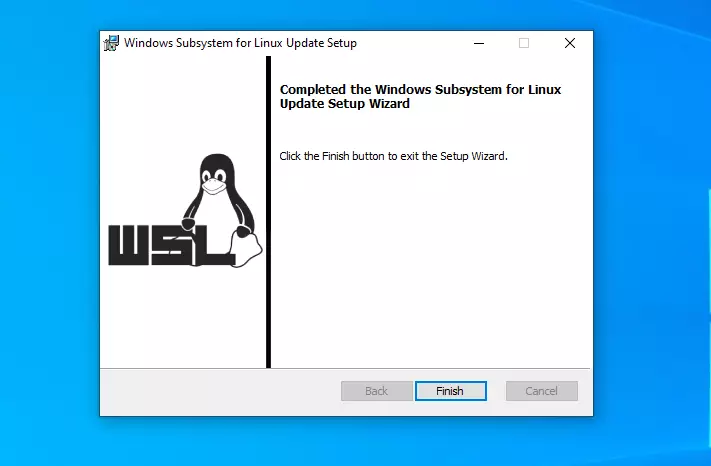
Step 4: Install openSUSE from the Microsoft Store
Now WSL2 is ready. Open the Microsoft Store and search for openSUSE, or visit this link: Get openSUSE Leap 15.3 – Microsoft Store
openSUSE on Windows lets you use openSUSE Terminal and run Linux command-line tools like bash, ssh, and git.
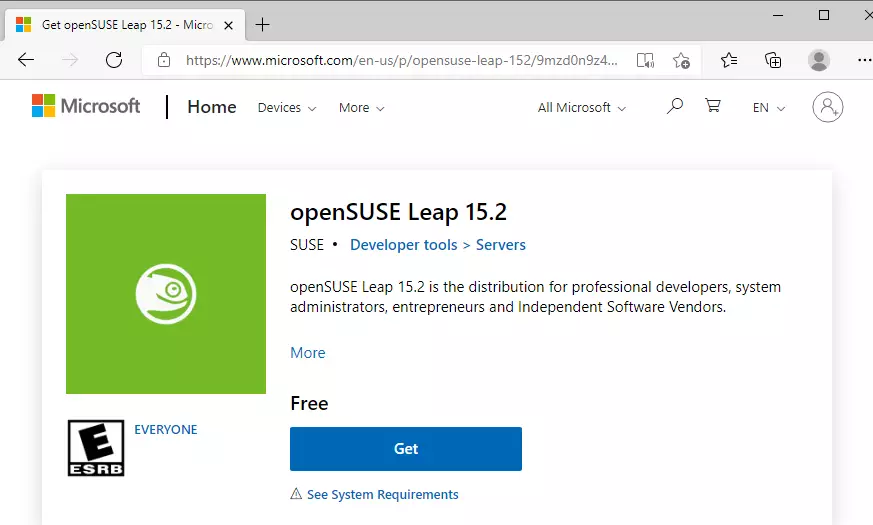
Click the Get button to download and install openSUSE.
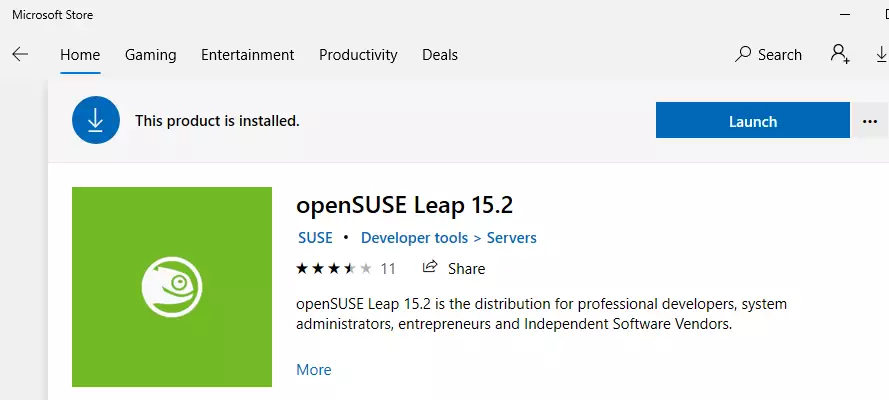
Step 5: Launch and Set Up openSUSE
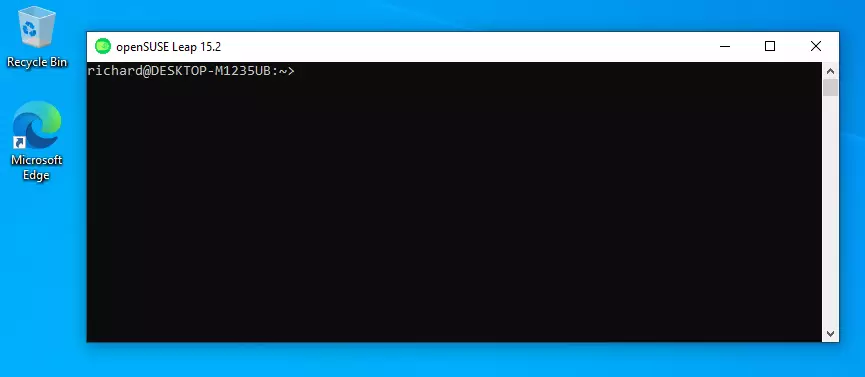
After installing, click the Launch button. openSUSE will start a setup wizard.
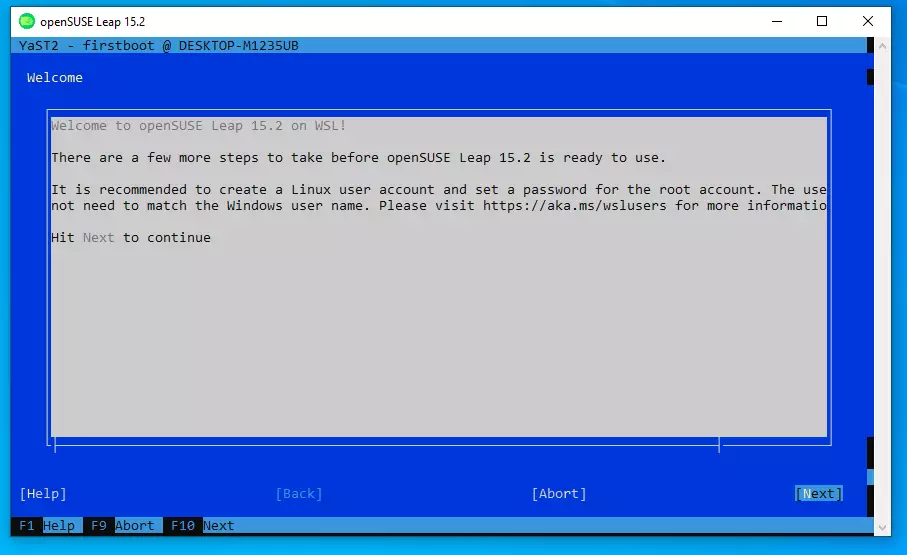
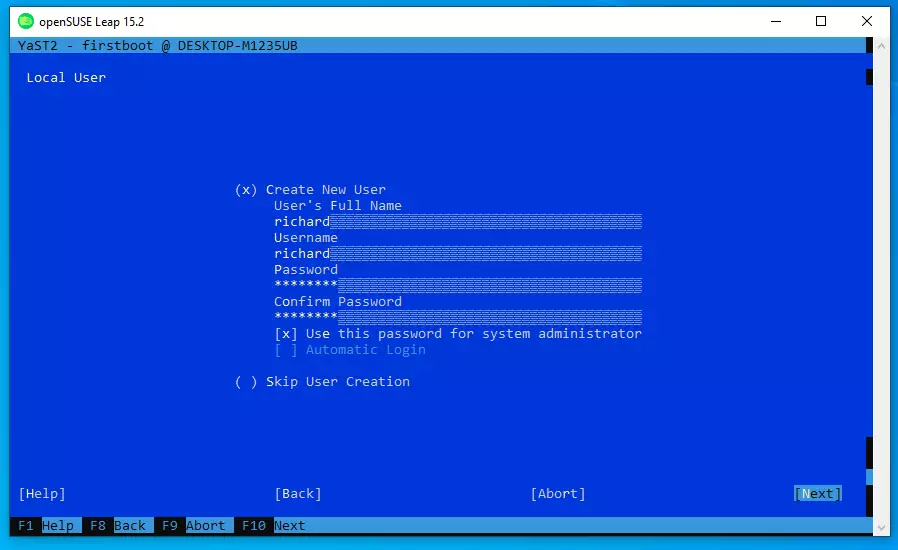
The wizard will ask you to create an account. Follow the on-screen steps.
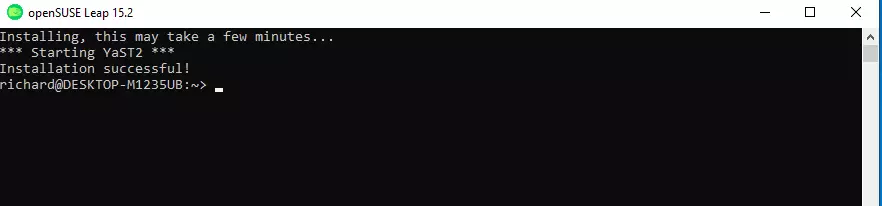
When setup is complete, you’re done.
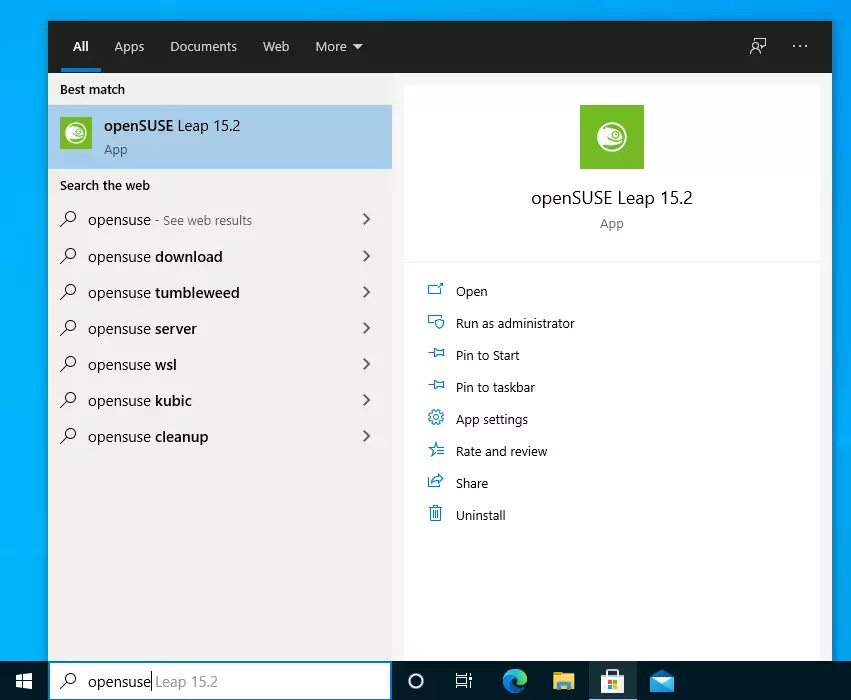
How to Launch openSUSE
Simply search for openSUSE in Windows. You can also pin it to your taskbar for quick access.
Troubleshooting
If you run into problems, try these commands in PowerShell (as administrator):
wsl --set-default-version 1
bcdedit /set hypervisorlaunchtype auto start
Summary
You now know how to install WSL2 on Windows and set up openSUSE. The process requires enabling two Windows features and installing openSUSE from the Microsoft Store. Once installed, you can launch openSUSE anytime and use Linux tools without leaving Windows. This gives developers and power users a powerful Linux environment right inside Windows.


Leave a Reply